

 100% Security Verified | No Subscription Required | No Malware


 ChatGPT
 Perplexity
 Gemini
 Claude
 Grok
Grok
These Filmora filters are designed to mimic the most popular iPhone 14 vlog LUTs so videographers and creators can turn quick mobile clips into polished, cinematic stories with just a few clicks.
Whether you shoot city walks, daily lifestyle vlogs, or handheld travel reels, you can stack these filters on your iPhone footage to get filmic contrast, modern color grades, and consistent looks across your entire channel.
In this article
Golden Hour City Walks
Sunset Soft Glow
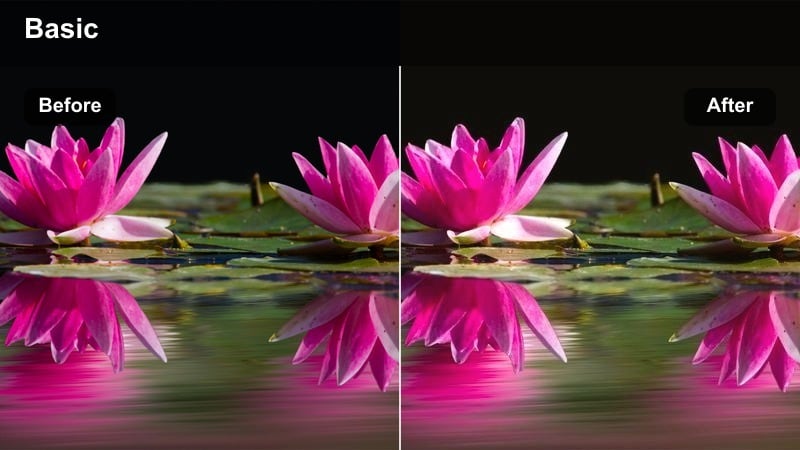
- Effect look: Warm, low-contrast glow that mimics a soft golden hour LUT for iPhone 14 vlog footage.
- Best for: Slow walking shots through city streets, handheld lifestyle intros, and talking head clips against sunset windows.
- Editing tip: Lower the intensity to around 40-60 percent for skin-friendly tones and combine with slight vignette to keep focus on the subject.
Sunset Soft Glow is ideal when your iPhone 14 footage already has some natural backlight and warm tones, but you want that cinematic, vlog-style polish without complicated color grading. The filter gently lowers contrast in the shadows while adding a warm, diffused glow to highlights, which softens harsh edges and flatters skin tones even when you are shooting quickly on the street.
In Filmora, apply Sunset Soft Glow to your golden hour clips, then fine-tune intensity on the Effects panel so details like hair, buildings, and clouds remain defined. Combine it with a subtle vignette and light stabilization for handheld walks, and use keyframes on filter strength if your scene moves from sunlit streets into shaded alleys to keep the look natural.
Use AI Tools to Match iPhone 14 LUT Styles
Filmora AI Color Palette can scan a single hero frame from your iPhone 14 vlog and automatically adjust the rest of your timeline to match that mood. This is perfect when you want every shot, from B-roll to talking heads, to share the same warm, cinematic character as your favorite LUT-inspired filter.
Once the AI has matched overall color and contrast, you can layer Sunset Soft Glow or any other filter at a lower intensity to refine the grade and add a signature finish without spending time building looks from scratch.
 secure download

Preview Filters on Real iPhone Vlog Footage
Before committing to a single look, import a few different iPhone 14 clips into Filmora and quickly audition filters on each one. This lets you see how the LUT-inspired effects behave on different skin tones, lighting conditions, and motion, so you can build a consistent visual identity for your channel.
Use the side-by-side or split-screen preview to compare multiple filters on the same shot, then save your favorites as custom presets for future vlogs.
secure download1000 plus Video Filters and 3D LUTs
Filmora includes a large library of creative filters and 3D LUTs that pair perfectly with your iPhone 14 vlog footage. You can mix cinematic LUTs with these LUT-inspired filters to craft unique color combinations, from soft lifestyle grades to bold, stylized travel looks.
Layer filters on separate tracks, reduce their opacity, and combine them with built-in color tools to fine-tune every scene so your vlog feels cinematic while still staying true to your brand.
secure downloadUrban Copper Hues
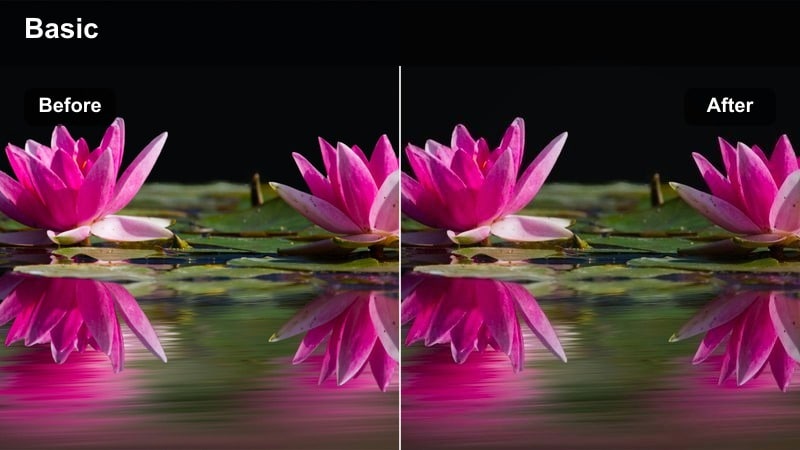
- Effect look: Rich copper highlights with gentle teal shadows that recreate a trendy iPhone 14 city LUT style.
- Best for: Urban B-roll, rooftop views, and walking POV shots through streets with glass and metal surfaces.
- Editing tip: Add a light sharpen and reduce saturation of reds to stop brick walls and traffic lights from looking too intense.
Urban Copper Hues brings a modern teal-and-copper palette to your city vlogs, emphasizing warm reflections on buildings while cooling down deep shadows. This combination gives iPhone 14 skyline, alley, and rooftop clips a cinematic punch similar to popular blockbuster color grades, helping your B-roll stand out in intros and transitions.
In Filmora, drop Urban Copper Hues onto your most detailed city shots and then refine reds and oranges in the color controls so faces and traffic lights stay balanced. Slight sharpening and a touch of motion blur on fast POV moves will keep edges crisp without making handheld jitter feel distracting, delivering a polished but energetic look.
Soft Street Pastel
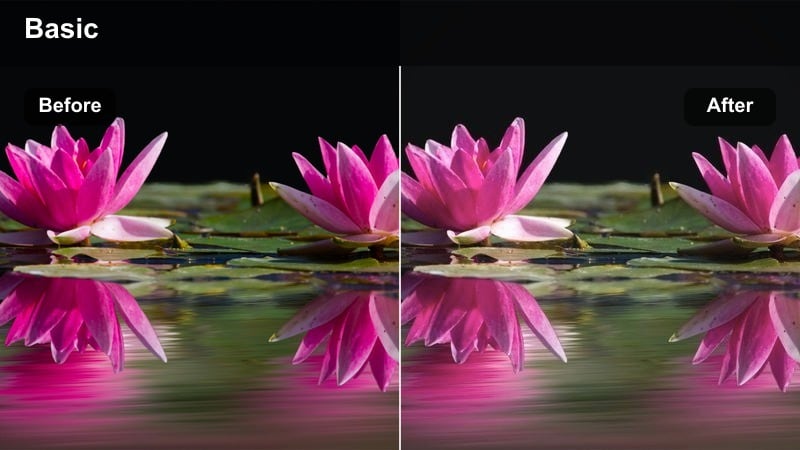
- Effect look: Low-contrast pastel grade that gently fades shadows for an airy mobile vlog aesthetic.
- Best for: Day-in-the-life vlogs, coffee runs, and soft street B-roll with minimal harsh contrast.
- Editing tip: Pair with a slight exposure boost on darker clips so the faded blacks look intentional, not underexposed.
Soft Street Pastel works best on evenly lit iPhone 14 clips where you want a light, dreamy mood instead of hard-edged contrast. By lifting blacks and softening midtones, it creates pastel, lifestyle-friendly visuals that fit morning routines, coffee shop cutaways, and casual walk-and-talk segments.
Apply this filter in Filmora to your overcast or softly lit street scenes, then add a small exposure increase and saturation tweak so colors stay clean rather than muddy. Combine it with gentle speed ramps and minimal transitions for smooth, aesthetic vlog sequences that feel cohesive across multiple clips.
Indoor Lifestyle Vlogs
Cozy Room Tone
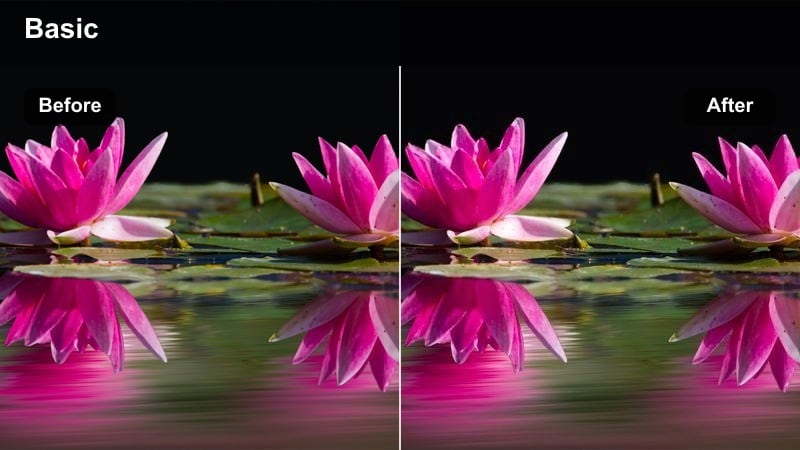
- Effect look: Warm, gentle contrast that mimics popular iPhone 14 indoor vlog LUTs used in productivity and desk setups.
- Best for: Desk tours, home office setups, bedroom routines, and any warm LED-lit interiors.
- Editing tip: Lower highlights slightly to avoid blown-out lamps while keeping midtones bright for a clean, cozy feel.
Cozy Room Tone adds a subtle, amber warmth and soft contrast to your interior iPhone 14 clips, making bedrooms and offices feel more inviting on camera. It smooths harsh overhead light and brings attention to midtones, which is ideal when you are vlogging at a desk or filming long talking-head segments.
In Filmora, combine Cozy Room Tone with a small highlight reduction and white balance correction so light sources stay controlled while skin remains natural. Add gentle background blur using Filmora effects where appropriate, and use the same filter across multiple camera angles to keep your indoor vlog sequences visually unified.
Minimal Clean White
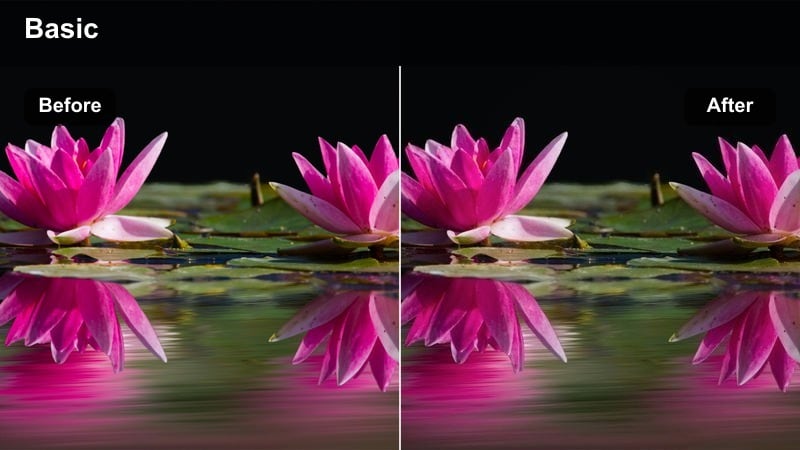
- Effect look: Bright, neutral tones with slightly cool whites for a minimal aesthetic seen in many tech and study vlogs.
- Best for: Productivity vlogs, tech reviews, and top-down desk shots filmed on iPhone 14.
- Editing tip: Increase contrast a bit while keeping saturation low to avoid colorful distractions in minimalist spaces.
Minimal Clean White is designed for creators who love bright, clutter-free visuals with crisp whites and neutral colors. It cools down warm casts and slightly desaturates your iPhone 14 footage, making your workspace, books, and gear look organized and professional without harsh color shifts.
In Filmora, add this filter to all your A-roll and B-roll inside the same room so background walls and surfaces match perfectly between shots. Adjust contrast to taste and keep saturation low; then, use subtle on-screen text or overlays to highlight key information while maintaining a clean, studio-like aesthetic.
Evening Warm Lamp
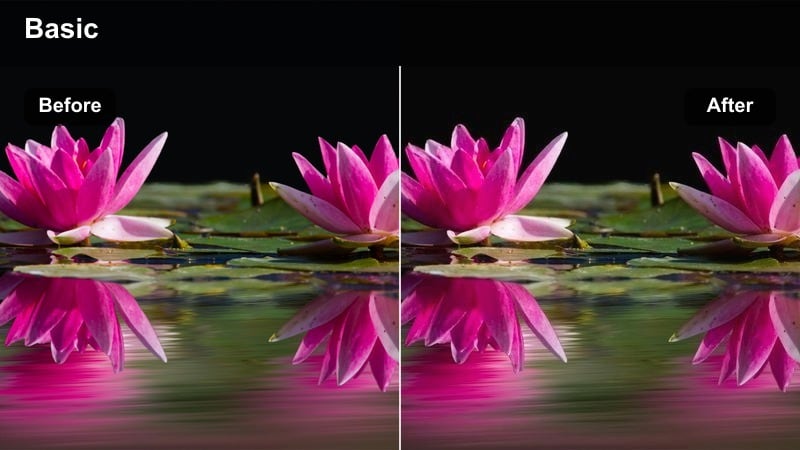
- Effect look: Warm, cinematic indoor filter emphasizing lamp light and soft falloff around the subject.
- Best for: Nighttime journaling vlogs, couch chats, and cozy living room B-roll filmed under lamps.
- Editing tip: Drop saturation in yellows so lamp light stays warm but not overpoweringly yellow on skin.
Evening Warm Lamp takes your low-light indoor clips and leans into the ambient glow from table and floor lamps, creating a cinematic night-in atmosphere. It emphasizes warm midtones while keeping shadows soft, which is perfect for relaxed journaling sessions, reflections, or intimate talk-to-camera shots filmed on your iPhone 14.
Inside Filmora, apply the filter and then use the HSL or color tuning tools to tame overly yellow tones, especially on faces and walls. Pair it with a touch of noise reduction and optional film grain so your nighttime vlog footage feels intentional and cozy rather than noisy or washed out.
Travel and Street Adventures
City Travel Chrome
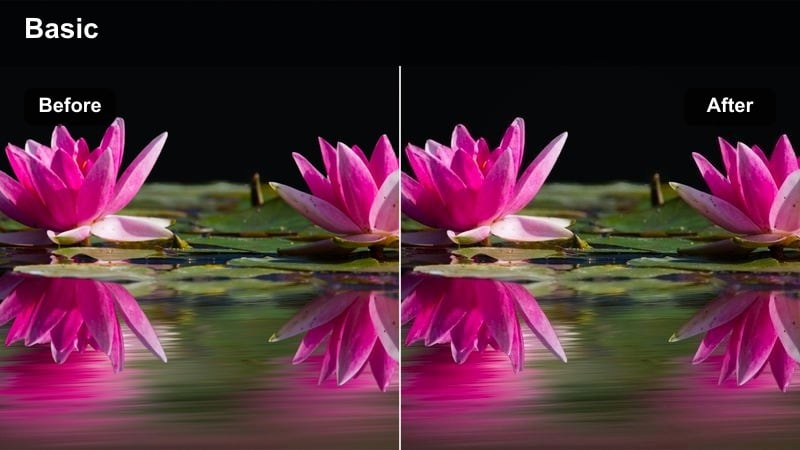
- Effect look: Punchy contrast with cool highlights and slightly desaturated colors for a documentary street look.
- Best for: Street B-roll, metro rides, station shots, and handheld city exploration recorded on the go.
- Editing tip: Pull back saturation in blues and greens a bit so street signs and reflections do not distract from your subject.
City Travel Chrome gives your on-the-go street footage a gritty, documentary edge, cooling highlights and trimming saturation for a more realistic but stylized mood. It works especially well on high-contrast iPhone 14 clips from busy crosswalks, stations, and traffic scenes where you want to emphasize structure and motion.
In Filmora, combine this filter with slight highlight reduction and moderate sharpening to preserve detail in bright skies, buildings, and reflective surfaces. Use it consistently across all your travel B-roll segments to create a cohesive Chrome-style visual thread from city to city within the same vlog series.
Wanderer Neutral Log
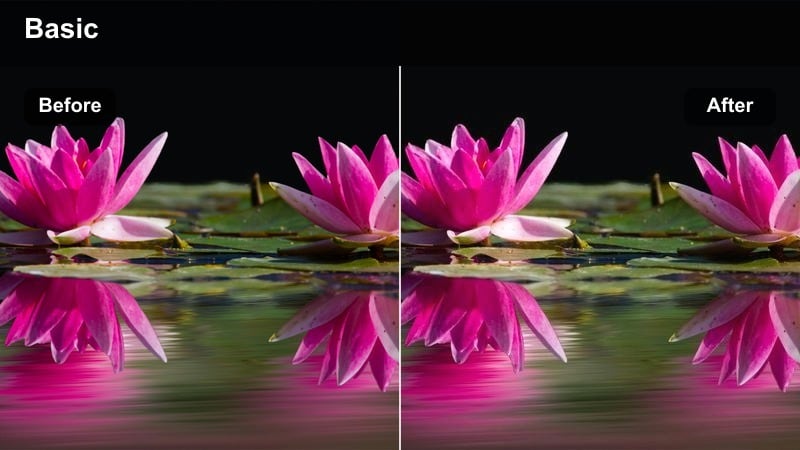
- Effect look: Neutral, log-style soft contrast that simulates a flat iPhone 14 LUT ready for secondary grading.
- Best for: Creators who want flexibility, using Filmora for a base grade before adding additional color tweaks.
- Editing tip: Apply this filter first, then add subtle color wheels adjustments for skies, streets, and skin separately.
Wanderer Neutral Log is your go-to base filter when you want maximum control over the final look of your travel vlogs. It softens contrast and keeps colors neutral, imitating a log-style capture so highlights, shadows, and midtones all retain detail from your iPhone 14 footage.
Use this filter in Filmora on mixed lighting clips from different days or locations to normalize their contrast first. After that, you can layer your preferred LUT, adjust color wheels by range, and then add other Filmora effects on top, ensuring all shots share a balanced, flexible starting point.
Sunlit Sidewalk Pop
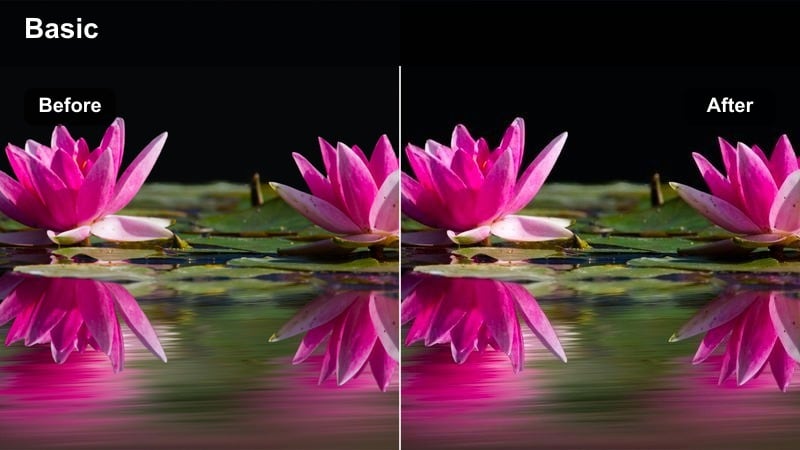
- Effect look: Bright, poppy colors with added micro-contrast for outdoor sidewalk and plaza scenes.
- Best for: Travel montages, street performers, and bright tourist spots captured on iPhone 14 wide lens.
- Editing tip: Keep saturation under control on reds and oranges so clothing and storefronts do not overwhelm the frame.
Sunlit Sidewalk Pop is designed to make vibrant streets, plazas, and tourist hotspots feel energetic and lively. It boosts micro-contrast and saturation in a controlled way, so your iPhone 14 clips of crowds, performers, and market stalls feel crisp and colorful without blowing out skin tones.
In Filmora, apply this filter to your brightest daytime travel footage, then tame individual hues like red and orange to keep the scene from becoming overly intense. Add dynamic transitions and beat-synced cuts, and use this look for montage sections that introduce a new city or highlight the most exciting parts of your trip.
Night Street and Neon Scenes
Neon City Mood
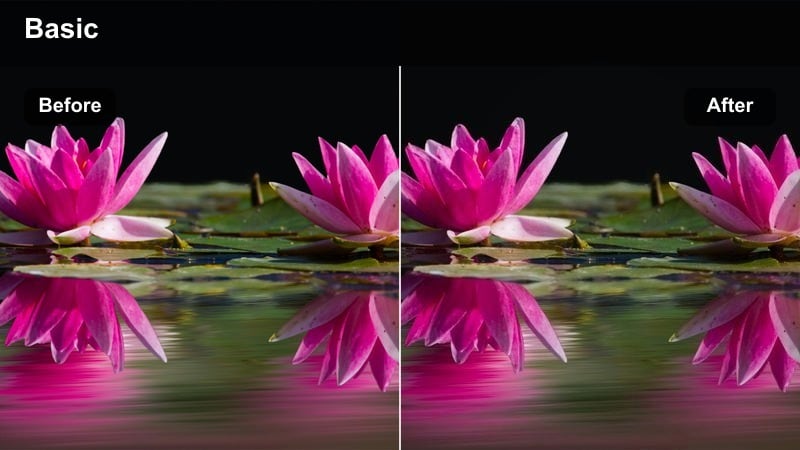
- Effect look: Deep contrast with vivid neon highlights and cooler shadows for dramatic nightlife vlogs.
- Best for: Neon signs, nightlife walks, bar exteriors, and rainy street reflections filmed at night.
- Editing tip: Reduce luminance noise first, then gently sharpen so neon edges stay crisp without emphasizing grain.
Neon City Mood enhances nightlife scenes by deepening blacks and pushing neon colors to stand out against cool-toned shadows. It is especially effective on iPhone 14 clips of wet streets, glowing signs, and club exteriors where you want that cyberpunk-inspired vibe without losing important detail.
Within Filmora, start with a noise reduction pass on your night shots, then apply Neon City Mood and lightly sharpen to keep edges defined. Use it on all your night walk segments and pair it with slow motion, lens flare overlays, or music-driven cuts for a stylized neon city sequence that feels cinematic and immersive.
Cinematic Night Soft
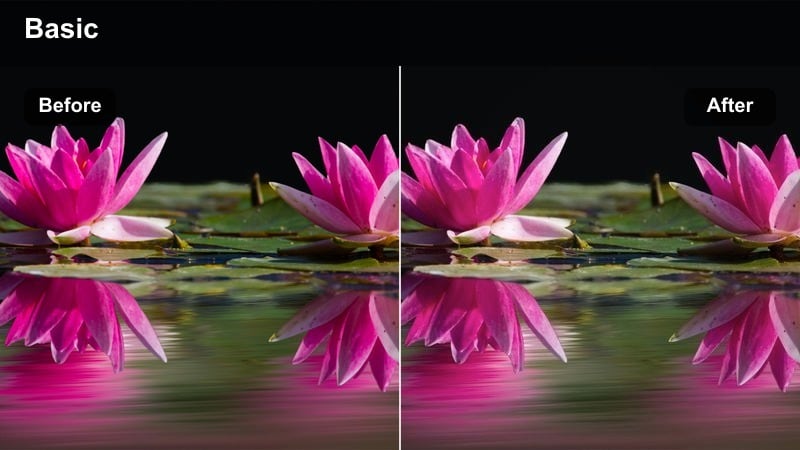
- Effect look: Soft, low-contrast night grade that gently lifts shadows while keeping highlights under control.
- Best for: Nighttime story segments, quiet streets, and handheld monologues under street lamps.
- Editing tip: Add a touch of film grain to mask digital noise from the iPhone 14 sensor while keeping faces flattering.
Cinematic Night Soft is ideal for slower, more reflective night scenes where you want mood without harsh blacks. It gently raises shadows and slightly smooths highlights, giving your iPhone 14 footage from quiet streets and lamp-lit corners a calm, cinematic character.
After applying this filter in Filmora, consider adding a subtle film grain overlay and mild vignette to keep attention on your subject while masking noise in darker areas. Use it across spoken segments, cutaways, and establishing shots from the same night to maintain a unified, story-driven atmosphere.
Metro Tunnel Grit
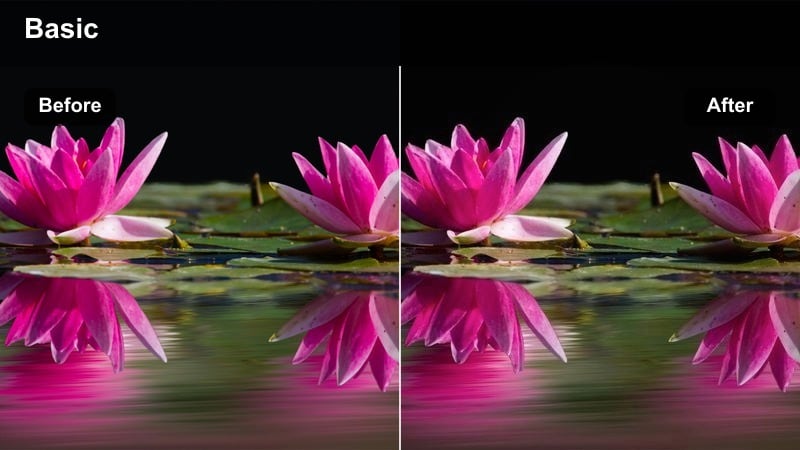
- Effect look: Grungy, high-contrast filter with cooler shadows and slightly greenish midtones for underground scenes.
- Best for: Subway rides, underground passages, parking garages, and gritty back alley B-roll.
- Editing tip: Keep midtone detail intact by avoiding extra contrast on top of the filter and instead fine-tuning blacks only.
Metro Tunnel Grit brings a raw, documentary feel to underground and low-light urban spaces, cooling shadows and adding a subtle greenish tint that fits tunnels and parking garages. On iPhone 14 footage, it accentuates textures in concrete, tiles, and metal surfaces, making your B-roll feel more atmospheric and story-focused.
In Filmora, apply Metro Tunnel Grit to subway, stairwell, or alley clips and adjust only the blacks slider if you need more depth, leaving midtones untouched. Combine it with light handheld stabilization and simple cuts, avoiding flashy transitions so the gritty aesthetic and natural camera movement become part of your storytelling style.
Tips for Using Iphone 14 Vlog Luts Filters in Filmora
- Lock exposure on your iPhone 14 before recording vlogs so Filmora filters and LUT-inspired looks stay consistent from shot to shot.
- Shoot with slightly reduced in-camera contrast, then rely on Filmora filters to add final punch and preserve more highlight and shadow detail.
- Test a few filters on the same clip, then save the combinations you like as custom presets to speed up grading for future vlog episodes.
- Apply a base filter like Wanderer Neutral Log to all clips first, then stack more stylized filters on selected shots for emphasis.
- Always correct white balance and skin tones before pushing saturation or contrast, ensuring faces look natural across all scenes.
- Use Filmora AI Color Palette to match the color mood of your favorite hero shot and keep the entire vlog visually cohesive.
- Export a short test sequence with multiple filter options and ask your audience which style they prefer before standardizing your channel look.
With these 12 Filmora filters inspired by popular iPhone 14 vlog LUTs, you can transform everyday mobile clips into cinematic stories that feel intentional and on-brand.
Experiment with different looks for city walks, indoor routines, travel adventures, and night streets until you find a combination that matches your creative voice and keeps your viewers watching longer.
secure download