

 100% Security Verified | No Subscription Required | No Malware


 ChatGPT
 Perplexity
 Gemini
 Claude
 Grok
Grok
These Filmora filters are crafted to echo the look and feel of popular iPhone 15 Pro cinematic LUTs, giving videographers and creators a fast way to dial in polished color grades without leaving the timeline.
From golden-hour city walks to moody night streets, you can mix these filters with your iPhone 15 Pro footage to quickly shape contrast, color, and depth into a cinematic, story-driven look.
In this article
Daylight Urban Stories
Neo Street Soft
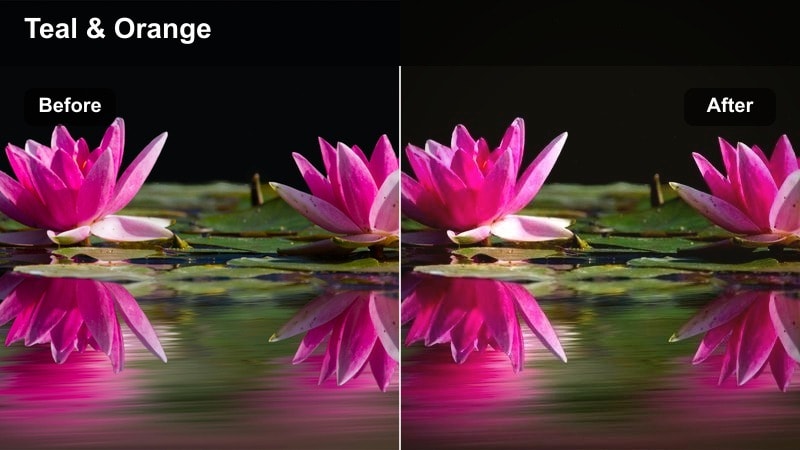
- Effect look: Soft contrast daylight grade with gentle teal in the shadows and warm skin tones.
- Best for: Handheld iPhone street b-roll, city walks, and lifestyle talking-heads shot in open shade.
- Editing tip: Lower overall intensity to 60-70% and gently boost midtone contrast to keep faces natural.
Neo Street Soft gives your iPhone 15 Pro daylight footage a subtle cinematic base, cooling down shadows while keeping skin tones warm and inviting. It is ideal when you want a filmic look that still feels natural, especially for city walk-and-talks, creator vlogs, or documentary-style street coverage.
In Filmora, apply Neo Street Soft on your clip, then fine-tune intensity so building edges stay crisp but skies and faces do not look over-processed. Use the scopes to keep highlights in check, and add a light vignette if you want viewers to focus more on your subject in busy urban environments.
Speed up color work with AI-driven palettes
Instead of manually tuning every color wheel, you can start your iPhone 15 Pro clips with Filmora s AI-powered color presets and palettes that echo cinematic LUTs. They provide a fast baseline grade that already pushes your footage toward a polished, filmic mood.
Once the AI palette is in place, adjust exposure, contrast, and saturation with a few sliders, then layer these cinematic filters to refine skin tones, skies, and city colors without complex node trees.
 secure download

Preview cinematic filters in real time
Filmora lets you hover-scrub over filters so you can see how each cinematic style will affect your iPhone 15 Pro footage before applying it. This makes it easy to compare multiple moods on the same shot, from clean documentary looks to stylized city-night grades.
Drop a clip on the timeline, preview several filters, then lock in one that matches your story tone. After that, refine intensity and basic color sliders to keep your overall grade cohesive.
secure download1000+ Video Filters and 3D LUTs
Beyond these iPhone 15 Pro cinematic styles, Filmora includes a large library of filters and 3D LUTs for travel, vlog, wedding, and cinematic work. You can combine them with HSL and curves controls to dial in precise color separation and filmic contrast.
Start with a creative LUT for overall mood, then adjust individual color ranges and shadows so scenes from different locations match seamlessly across your project.
secure downloadUrban Crisp Neutral
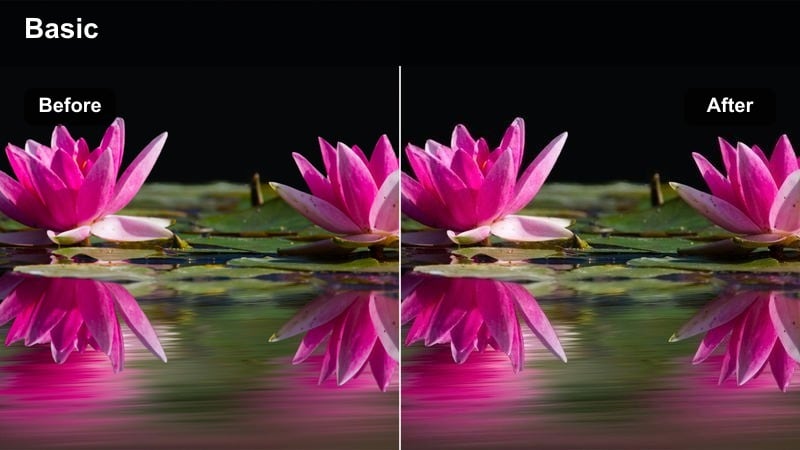
- Effect look: Clean neutral colors with a gentle boost in micro-contrast for sharp, documentary-style city footage.
- Best for: Architecture b-roll, city timelapses, and street details captured on iPhone 15 Pro in bright conditions.
- Editing tip: Pair with a slight vignette and a subtle sharpen to emphasize urban textures without making edges harsh.
Urban Crisp Neutral keeps your iPhone 15 Pro footage true-to-life while adding just enough punch for modern city visuals. It is perfect when you want buildings, streets, and textures to stand out without a heavy color cast, making it easy to intercut with camera footage from other sources.
In Filmora, use this filter as your baseline grade for mixed-device edits, then tweak overall exposure and white balance so every shot shares the same neutral foundation. Add a modest sharpening effect and a soft vignette to highlight architectural lines and draw attention toward the center of the frame.
City Gold Hour Glow
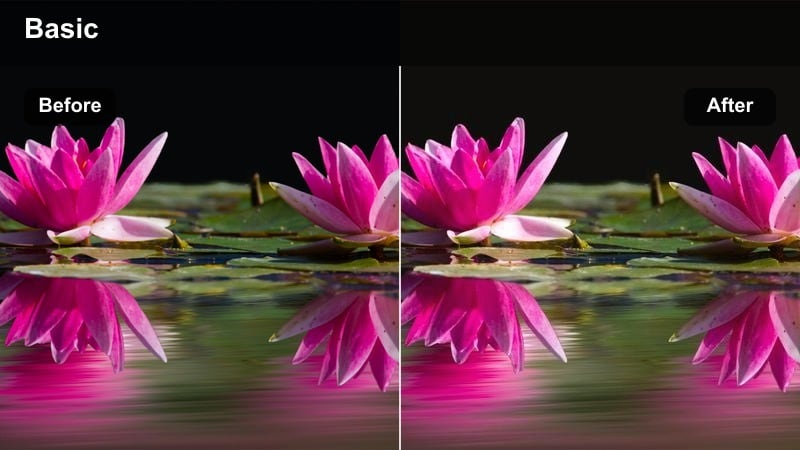
- Effect look: Warm cinematic gold tint, softened highlights, and slightly lifted shadows for glowing late-afternoon scenes.
- Best for: Golden hour city walking vlogs, rooftop shots, and lifestyle b-roll captured just before sunset.
- Editing tip: Lower highlights and add a subtle blur or glow effect to enhance the dreamy cinematic feel without losing detail.
City Gold Hour Glow enhances the natural warmth of late-afternoon light, giving your skyline and street footage a romantic, filmic glow. It softens contrast, smooths highlights, and wraps your subject in warm tones that feel tailor-made for sunset walks and rooftop monologues.
Apply this filter in Filmora on clips shot close to sunrise or sunset, then gently adjust highlight and shadow sliders to keep detail in the sky. Add a soft glow or light blur effect plus a modest vignette to guide the eye toward your subject while preserving the dreamy, cinematic mood.
Moody City Evenings
Noir Street Fade
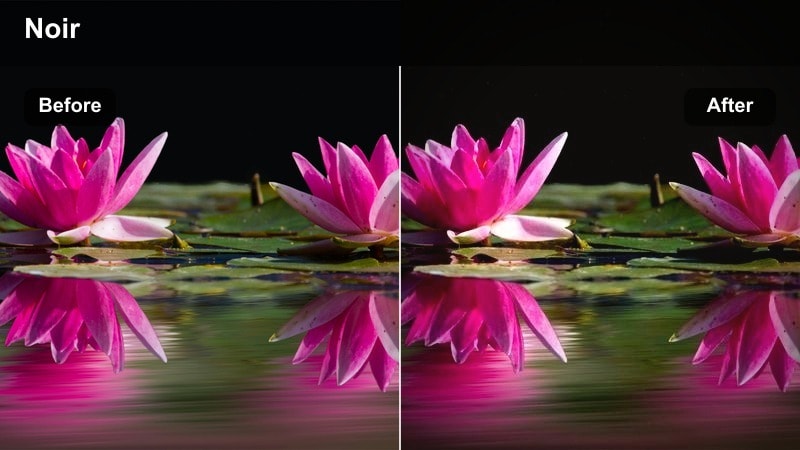
- Effect look: Low-contrast fade with deep cool shadows and soft highlights for a modern noir aesthetic.
- Best for: Evening alleys, city rain sequences, and narrative scenes with a dramatic tone.
- Editing tip: Lift blacks slightly, then add a gentle film grain overlay to sell the moody cinematic look.
Noir Street Fade transforms ordinary streets into atmospheric, story-rich backdrops by cooling shadows and lifting blacks for a stylized, modern noir finish. It works especially well with rain, reflections, and dim alleys where you want emotional weight more than clean realism.
In Filmora, apply this filter to your iPhone 15 Pro night clips, then fine-tune black levels to strike the right balance between mood and detail. Add a light film grain overlay and some subtle sound design like rain or city hum to emphasize the cinematic, slightly vintage tone of your sequence.
Neon City Punch
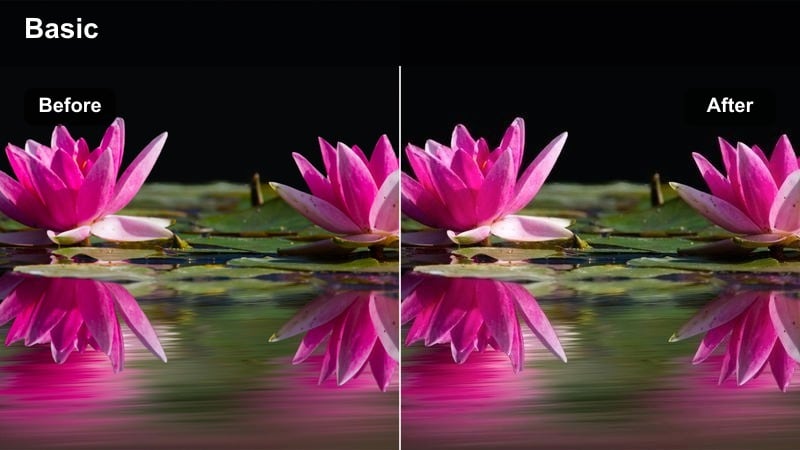
- Effect look: High-contrast night grade that boosts neon saturation while keeping skin tones controlled.
- Best for: Downtown nightlife, neon signs, and cyberpunk-inspired street visuals shot on iPhone 15 Pro.
- Editing tip: Reduce luminance for bright neon colors slightly to avoid clipping while keeping their vibrancy.
Neon City Punch makes colorful signs and billboards explode off the screen while still protecting faces from oversaturation. It is ideal for nightlife b-roll, club exteriors, and cyberpunk-style walks where the environment is lit mostly by neon and LED sources.
Use this filter in Filmora after slightly underexposing in-camera, then refine highlight and color sliders so neon elements remain intense without losing detail. Combine it with gentle stabilization and a touch of motion blur to emphasize reflections, light trails, and handheld movement through busy night streets.
Midnight Chrome
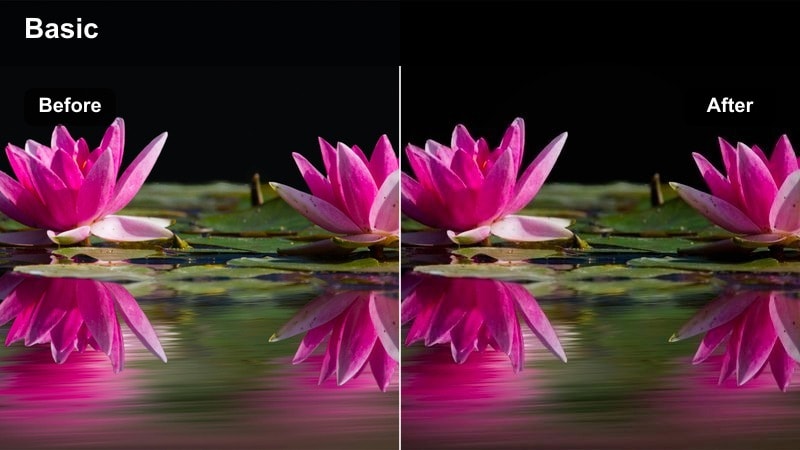
- Effect look: Cool metallic tones with crisp contrast and subtle cyan highlights on reflective city surfaces.
- Best for: Night drives, car-mounted shots, and sequences with reflections on wet roads or glass.
- Editing tip: Add slight motion blur to passing light streaks to complement the slick, polished grade.
Midnight Chrome gives your iPhone 15 Pro night drives and car shots a premium, almost automotive-commercial finish. It pushes tones toward cool metallic blues and cyans, making reflections on metal, glass, and wet roads feel sleek and expensive.
In Filmora, stack this filter on top of your driving b-roll, then use keyframed motion blur or speed ramps to enhance passing light streaks. Keep contrast crisp but avoid crushing blacks too far, so you retain depth in the midtones and reflections along the road or vehicle surfaces.
Warm Lifestyle Moments
Cinema Soft Portrait
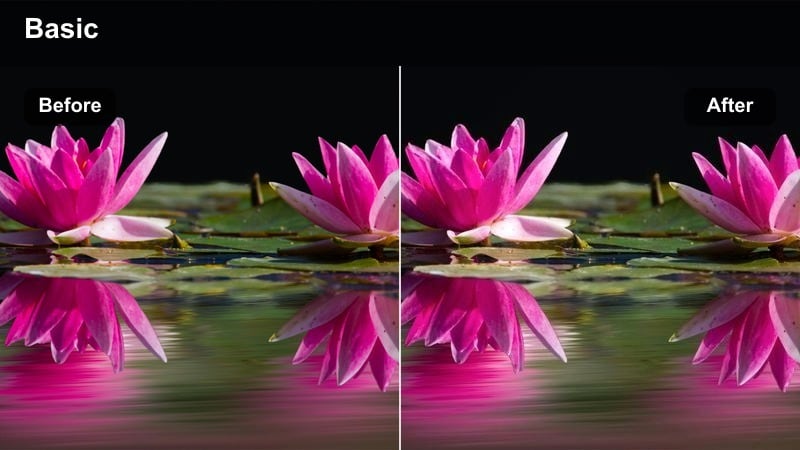
- Effect look: Gentle filmic contrast with warm midtones and a slight softness on highlights ideal for faces.
- Best for: iPhone 15 Pro cinematic mode talking-heads, sit-down interviews, and lifestyle portraits.
- Editing tip: Reduce clarity slightly on close-ups to keep skin flattering, but protect eyes by adding a subtle sharpen mask.
Cinema Soft Portrait is tuned to flatter skin and faces, adding a delicate warmth and smoothing highlights without losing important detail. It works especially well with iPhone 15 Pro cinematic mode, enhancing separation between subject and background for YouTube intros, interviews, and creator updates.
In Filmora, apply this filter to your portrait clips, then slightly reduce clarity or texture while masking in a bit of sharpening on the eyes. Adjust white balance to keep skin from drifting too orange, and use a soft vignette to keep viewers locked onto the subject during talking-head segments.
Coffeehouse Cinema
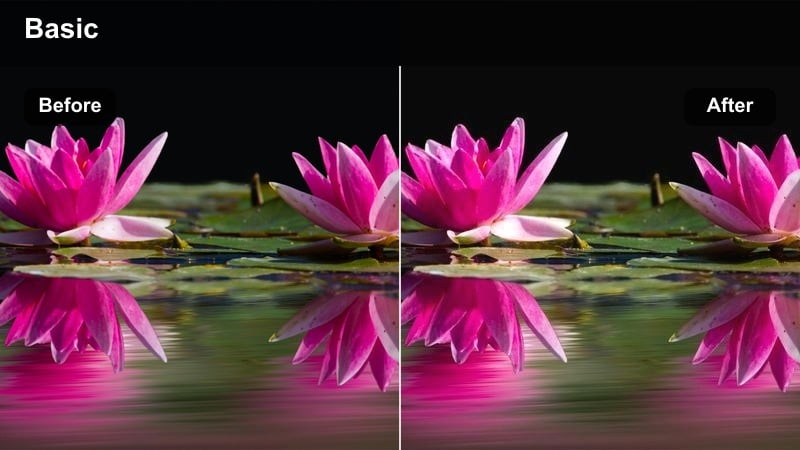
- Effect look: Cozy amber warmth with slightly muted saturation and gentle highlight roll-off for intimate interiors.
- Best for: Indoor lifestyle b-roll, desk setups, and casual conversation scenes in cafes or studios.
- Editing tip: Drop saturation of strong reds and oranges a touch to keep the cozy grade from feeling overly stylized.
Coffeehouse Cinema wraps your indoor scenes in soft amber warmth, perfect for cafes, workspaces, and cozy studio corners. Saturation is slightly muted so colors remain rich but not cartoonish, giving your lifestyle clips a grounded, cinematic vibe.
In Filmora, apply this filter to your interior b-roll, then gently tame bright reds and oranges using the color tools if they dominate the frame. Add a touch of blur to the background and layer in soft ambient audio like room tone or café noise to complete the intimate, story-friendly look.
Sunlit City Journal
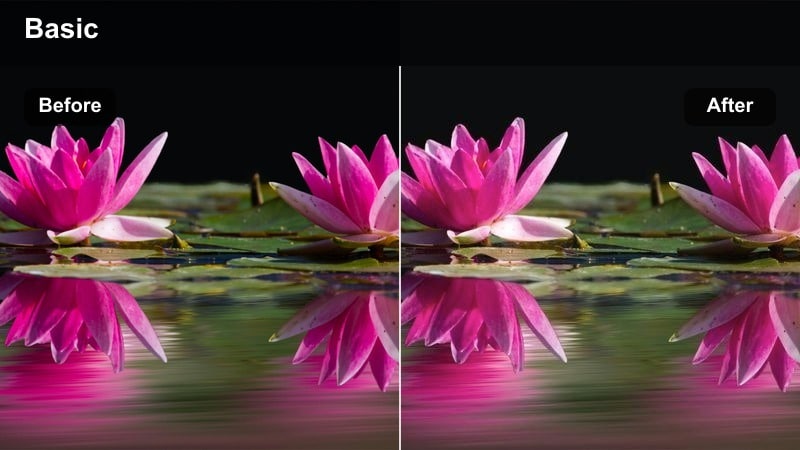
- Effect look: Bright, slightly desaturated highlights with gentle contrast for airy, documentary-style lifestyle shots.
- Best for: Day-in-the-life vlogs, travel diaries, and overhead lifestyle clips shot around the city.
- Editing tip: Lift shadows just enough so details in backlit scenes remain visible while keeping highlights soft.
Sunlit City Journal delivers a clean, airy look with softened contrast and slightly subdued colors, ideal for upbeat vlogs and day-in-the-life edits. It tames harsh midday light from the iPhone 15 Pro while preserving a bright, optimistic feel across your timeline.
Use this filter in Filmora on wide shots, POV walks, and overhead lifestyle clips, then lift shadows enough to reveal detail in backlit areas. Keep the contrast curve gentle so the look stays light and breathable, and pair it with subtle music to support the open, documentary mood.
Travel and B-Roll Cinematics
Travel Fade Film
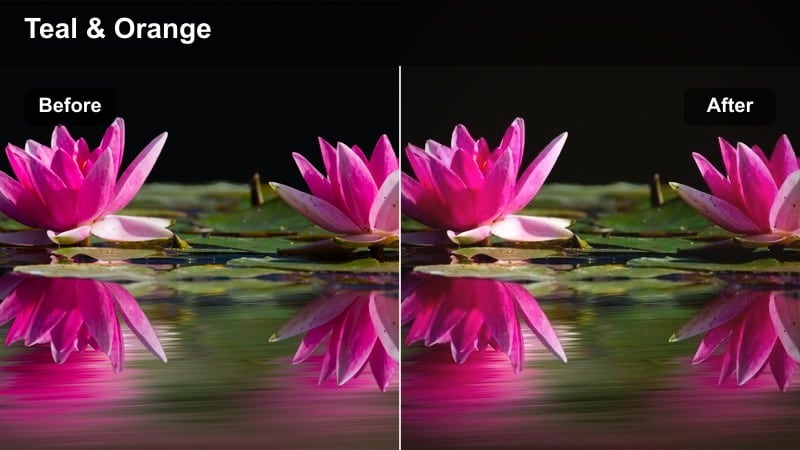
- Effect look: Subtle film-style fade with slightly lifted blacks and gentle color shifts toward teal in shadows.
- Best for: Handheld city travel montages, stairway shots, and establishing shots captured on the move.
- Editing tip: Combine with speed ramps and smooth transitions to give your travel b-roll a cohesive cinematic rhythm.
Travel Fade Film introduces a light vintage softness to your city journeys, lifting blacks and adding a tasteful teal shift to shadows. It works especially well for montages and establishing shots, helping clips from different locations feel like part of one coherent travel story.
In Filmora, apply this filter as a global grade across your travel sequence, then add speed ramps, whip-pan transitions, or match cuts to keep energy high. Adjust intensity on hero shots where you want more contrast, and keep grain subtle so the filmic feel supports the story without distracting from it.
Metro Motion Cool
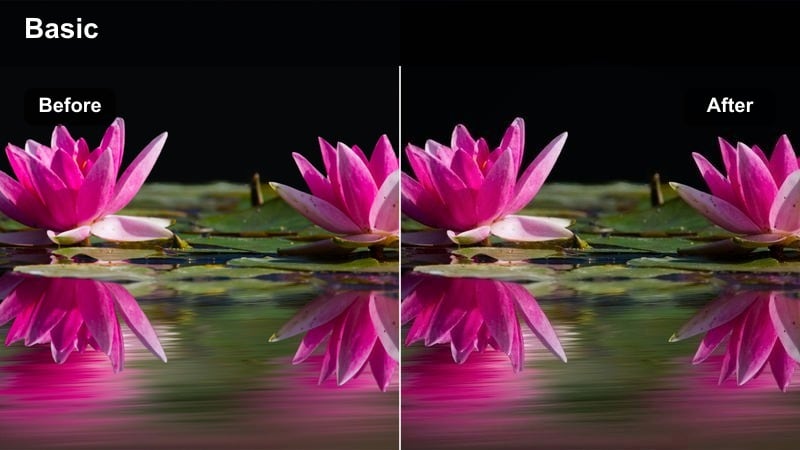
- Effect look: Cool-toned contrasty grade optimized for fast-moving subway, train, and transit scenes.
- Best for: Subway rides, escalators, and handheld transit shots where light sources change quickly.
- Editing tip: Stabilize your footage slightly, then add directional blur to emphasize the sense of movement.
Metro Motion Cool leans into the industrial, fast-paced feel of transit environments, emphasizing cooler tones and stronger contrast. It handles flickering artificial light gracefully, letting your subway and train clips feel energetic without looking chaotic.
Drop this filter onto your metro b-roll in Filmora, then apply mild stabilization followed by directional blur to reinforce motion down the tracks or escalators. Slightly lower highlights to control flicker and use the color tools to keep skin reasonably neutral amid the cool, stylized surroundings.
Rooftop Epic Warm
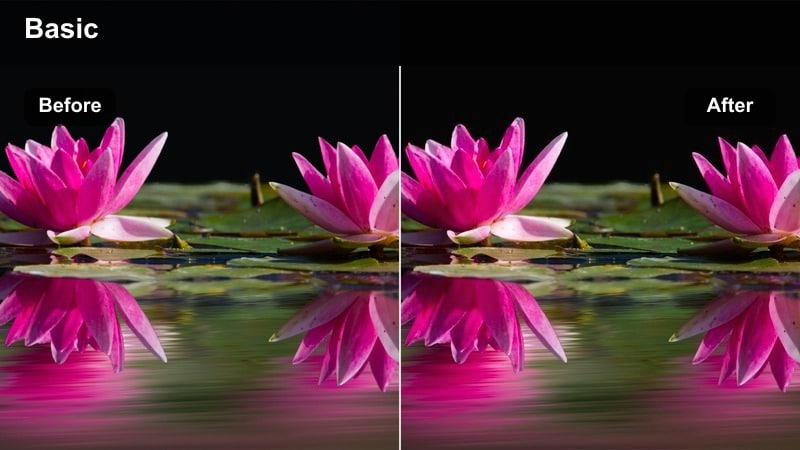
- Effect look: High-contrast warm grade with deep shadows and a subtle cinematic tint for epic skyline views.
- Best for: Drone-style iPhone shots, rooftop reveals, and wide establishing shots at sunrise or sunset.
- Editing tip: Apply a gentle camera shake or parallax effect in post to enhance scale and drama in static wide shots.
Rooftop Epic Warm is made for sweeping skyline reveals and city vistas, adding bold warmth and deep contrast to heighten drama. It turns simple handheld pans from your iPhone 15 Pro into opener-worthy shots that feel much larger in scale.
In Filmora, use this filter on your opening or closing city views, then layer in a subtle camera-shake or parallax effect to add motion to still frames. Combine the warm grade with impactful sound design, like low rumbles or rising music, to anchor your project with a strong cinematic first impression.
Tips for Using Iphone 15 Pro Cinematic Luts Filters in Filmora
- Shoot in the highest quality and in a log or flat profile available on your iPhone 15 Pro so these cinematic filters have more dynamic range to work with.
- Keep exposure slightly darker when filming at night so city lights, neon signs, and billboards stay detailed instead of blowing out before grading.
- Batch-apply a chosen filter across your sequence as a starting look, then refine color and contrast on key hero shots or close-ups for a polished finish.
- Use keyframes on filter intensity in Filmora to fade styles in or out across transitions, helping cuts feel smoother and more professional.
- When mixing multiple filters, keep one primary look for most clips and reserve stronger grades for select sequences or story beats.
- Always double-check skin tones on a calibrated display when using bold stylized grades so your cinematic look remains believable.
With these cinematic filters inspired by iPhone 15 Pro cinematic LUTs, you can turn quick mobile captures into cohesive, story-driven edits without deep color expertise.
Experiment with different scene-based looks, then refine intensity and contrast so every shot in your timeline feels like it belongs in the same film.
secure downloadNext: iPhone 14 Vlog LUTS
