

 100% Security Verified | No Subscription Required | No Malware


 ChatGPT
 Perplexity
 Gemini
 Claude
 Grok
Grok
Aesthetic outdoor video filters can instantly turn casual travel clips into dreamy, cinematic stories. With the right tones, softness, and light, your nature shots feel intentional, cohesive, and ready to share.
This guide walks content creators and travelers through 12 aesthetic outdoor video filters in Filmora, including the Aesthetic Outdoor Filter. Dream Valley preset, to help you craft pastel outdoor looks, soft nature vibes, and gentle, polished edits for social media or vlogs.
In this article
Soft Pastel Outdoor Aesthetic Filters
Aesthetic Outdoor Filter. Dream Valley
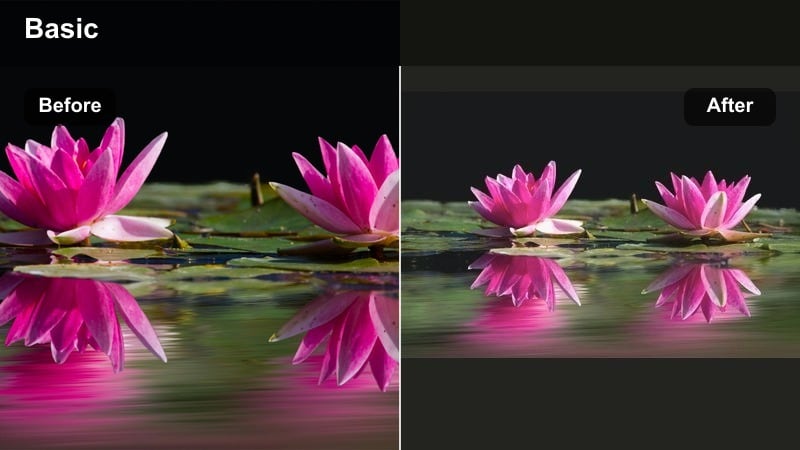
- Effect look: Soft pastel wash with gentle contrast and a light, dreamy glow on skies and greenery.
- Best for: Travel reels, cottagecore walks, aesthetic outdoor edits with slow movements.
- Editing tip: Lower the filter intensity to 60-75 percent and slightly increase midtone contrast to keep faces natural.
Aesthetic Outdoor Filter. Dream Valley is a signature Filmora preset that wraps your outdoor scenes in a dreamy pastel aura while still preserving fine detail in landscapes, outfits, and skin. It smooths contrast, adds a gentle glow to skies and grass, and subtly lifts color for that soft, storybook travel look that feels cohesive across different locations.
In Filmora, you can drag Dream Valley onto your clip, then fine tune its intensity in the effects panel to match different lighting situations. Use it on slow walking shots, scenic pans, and cottagecore style B roll, and adjust exposure and white balance so the pastel tones sit naturally. Once you dial in a version that fits your channel style, save it as a custom preset and reuse it for every outdoor vlog.
Pro Tip: Make Dream Valley Your Base Grade
Use Aesthetic Outdoor Filter. Dream Valley as your base grade, then fine tune exposure and white balance per clip. Save your final adjustments as a custom preset so all your outdoor content maintains the same dreamy, cohesive style.
Let Filmora’s AI Help You Find Your Outdoor Aesthetic
Filmora’s AI tools analyze your footage and suggest color adjustments that pair perfectly with aesthetic outdoor video filters. You can quickly balance exposure and tone before layering your favorite look.
Combine AI driven color correction with presets like Aesthetic Outdoor Filter. Dream Valley to keep skies, foliage, and skin tones flattering while maintaining a consistent visual style across your entire project.
 secure download

Preview Aesthetic Outdoor Filters in Real Time
In Filmora’s Effects panel, you can hover over filters to preview how each aesthetic outdoor style transforms your footage. This makes it easy to compare pastel, soft nature, and gentle cinematic looks before committing.
Use split screen previews to see the original clip next to options like Forest Soft Bloom or Gentle Coastal Air so you can quickly decide what matches your story and mood.
secure downloadBlend Filters and LUTs for a Signature Outdoor Look
Filmora lets you stack filters with LUTs, giving you fine control over color and mood. Start with a clean LUT for exposure and tone, then apply an aesthetic outdoor filter to define the final style.
By saving your favorite filter and LUT combinations as presets, you can quickly apply the same outdoor aesthetic to every new trip or project you film.
secure downloadPastel Meadow Glow
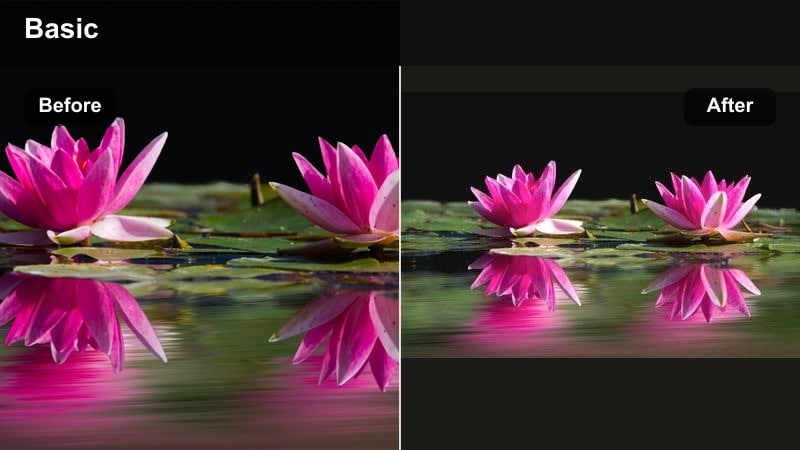
- Effect look: Warm pastel tones, slightly lifted blacks, and softened greens for a sun kissed meadow vibe.
- Best for: Golden hour field shots, picnic scenes, soft nature B roll.
- Editing tip: Nudge temperature slightly warmer and reduce saturation of greens to avoid an overly neon look.
Pastel Meadow Glow creates a gentle pastel wash that flatters wide open landscapes and low contrast fields. It softens harsh shadows, warms highlights, and tames strong greens so grass and trees feel dreamy instead of electric.
In Filmora, apply this filter to your golden hour strolls, picnic clips, or countryside shots, then use the color controls to fine tune warmth and green saturation. Keep intensity moderate so skin stays natural while the environment takes on that soft, cinematic glow.
Pro Tip: Balance Skin and Grass
If skin tones look too yellow, pull back on the yellow saturation before adjusting overall warmth. Use selective color controls for greens so the grass stays soft without affecting faces and outfits too much.
Cloudy Dream Softener
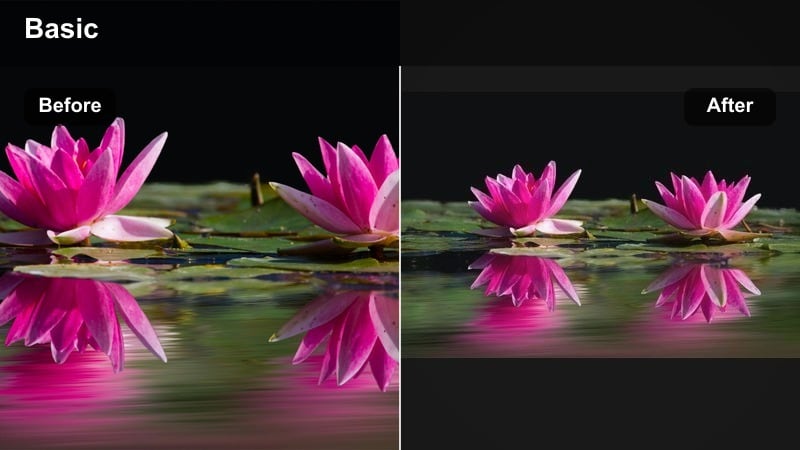
- Effect look: Soft, muted tones with subtle haze that turns overcast skies into a dreamy canvas.
- Best for: Cloudy hikes, city park walks, rainy day travel diaries.
- Editing tip: Increase clarity slightly on subjects while keeping the overall softness for depth and separation.
Cloudy Dream Softener is designed to rescue flat, gray outdoor footage by adding a romantic, hazy mood. It mutes strong colors, smooths contrast, and gives the sky a soft, filmic feel instead of a dull overcast plate.
Use it in Filmora on rainy city walks, misty hikes, or travel days where the weather did not cooperate. After applying, boost clarity or sharpening on your subject so they pop gently against the softened background without breaking the dreamy atmosphere.
Pro Tip: Use With Slow Motion
Combine this filter with 50-60 percent slow motion to emphasize the dreamy, floating feeling in your edits. Layer gentle music and subtle sound design like rain, wind, or footsteps to complete the moody atmosphere.
Soft Nature and Gentle Focus Filters
Forest Soft Bloom
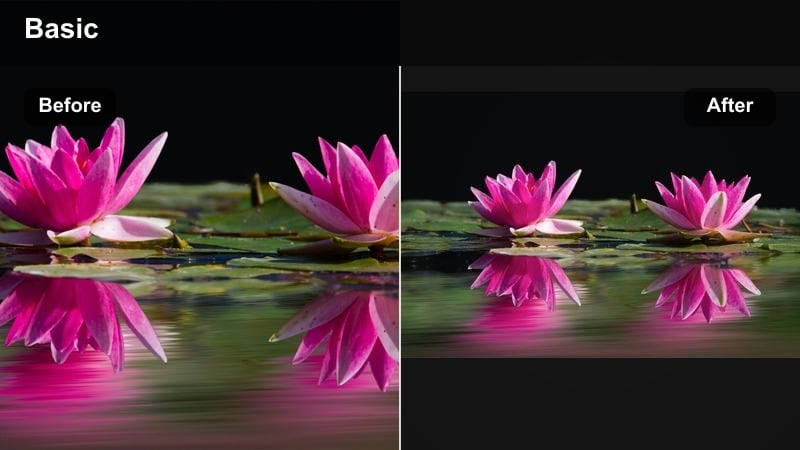
- Effect look: Soft bloom on highlights, slightly deeper greens, and calm contrast for forest trails.
- Best for: Woodland walks, waterfall close ups, tranquil nature sequences.
- Editing tip: Reduce highlight bloom for wide shots and increase it for close ups to avoid over glow in the background.
Forest Soft Bloom adds a gentle glow to sunbeams and bright leaves while deepening greens for a grounded, cinematic forest mood. It smooths contrast and makes dappled light look intentional instead of messy.
In Filmora, drop this filter onto your woodland hikes, waterfall shots, or campsite footage, then adjust the effect strength separately for wide and close shots. Dial back bloom for sweeping vistas and push it higher on close ups where you want highlights to feel magical.
Pro Tip: Emphasize Light Beams
Shoot slightly against the sun so the filter can enhance natural light beams through leaves. Add a gentle vignette to draw attention toward the center and deepen the forest mood.
Gentle Lake Mist
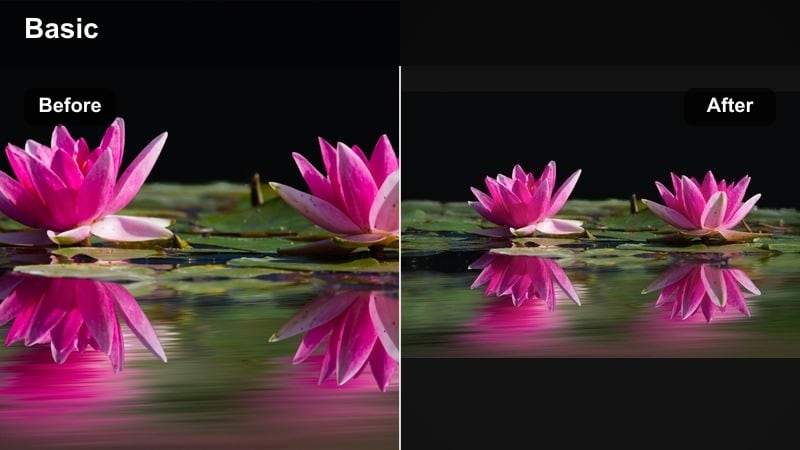
- Effect look: Cool, misty tones with muted blues and low contrast for peaceful water scenes.
- Best for: Lakeside reflections, rivers, foggy mornings, calm seascapes.
- Editing tip: Slightly reduce saturation in the blues and cyans to keep the look subtle and cinematic.
Gentle Lake Mist is tailored for water and fog, cooling down tones while lowering contrast to create a serene, reflective atmosphere. It smooths sharp reflections and nudges blues toward a soft, cinematic palette.
Apply it in Filmora to docks, lakes, rivers, or quiet beach mornings, then trim blue and cyan saturation until the water feels elegant rather than oversaturated. It works especially well on clips you want to hold longer as breathing spaces in your travel edit.
Pro Tip: Pair With Minimal Music
Use sparse piano or ambient music to match the calm mood this filter creates. Hold shots a little longer than usual so viewers can soak in the stillness of the scene.
Garden Petal Soft
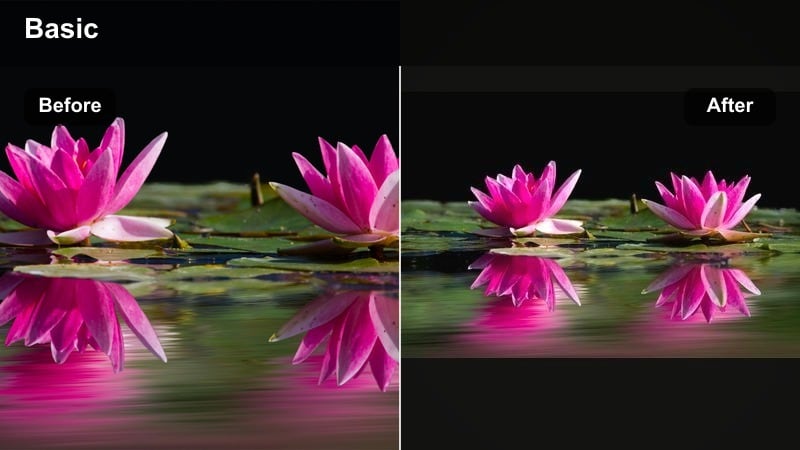
- Effect look: Soft focus edges, gentle color lift on florals, and slightly warm highlights.
- Best for: Flower gardens, macro nature shots, romantic outdoor portraits.
- Editing tip: Use a shallow depth of field when filming so the filter enhances bokeh instead of creating fake blur.
Garden Petal Soft wraps gardens and florals in a storybook glow, softening edges and lifting colors just enough to feel dreamy. Warm highlights flatter skin and petals, making it ideal for couples shoots or aesthetic garden walks.
In Filmora, use this filter on macro shots, close ups of petals, or portraits framed by flowers. Combine it with footage that already has real bokeh so the filter enhances the existing softness rather than trying to imitate it.
Pro Tip: Mix With Subtle Camera Movement
Add slow push ins or sideways slides to highlight the filter’s gentle focus and depth. Stabilize handheld shots in Filmora so the softness feels intentional, not shaky or blurry.
Cinematic Travel Outdoor Filters
Sunset Travel Aesthetic
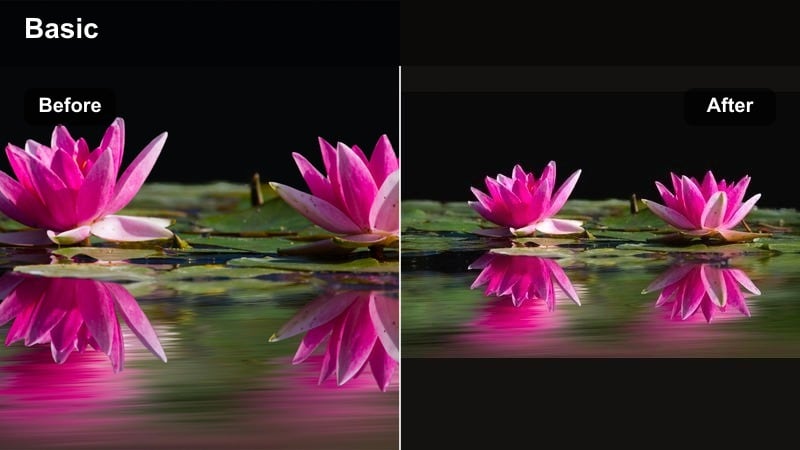
- Effect look: Rich warm highlights, soft magenta skies, and lifted shadows for cinematic sunsets.
- Best for: Beach sunsets, city skyline evenings, mountain silhouettes.
- Editing tip: Expose slightly darker in camera so the filter can bring out color in the sky without clipping.
Sunset Travel Aesthetic is built to intensify evening skies while keeping silhouettes and foregrounds soft and cinematic. It pushes warm tones and magentas in the clouds and gently lifts shadows so details remain visible without losing the sunset drama.
Apply it in Filmora to beach sunsets, rooftop views, or mountain horizons, then fine tune exposure and saturation so skies stay rich but not radioactive. When matched across several locations, this filter can give your entire sunset reel a unified, premium look.
Pro Tip: Match Shots Across Locations
Apply this filter to all your sunset clips from different locations to keep color consistent in a single reel. Fine tune shadows per clip so darker scenes still keep detail in buildings and landscapes.
Roadtrip Film Soft
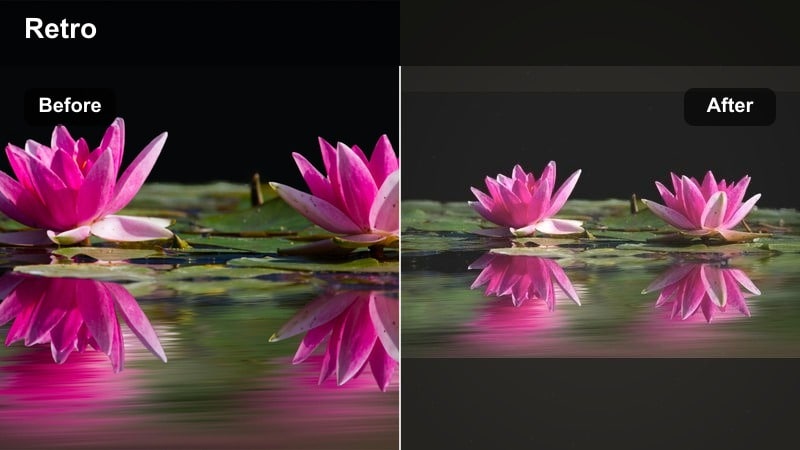
- Effect look: Film inspired soft contrast, slightly faded blacks, and gentle grain for road adventures.
- Best for: Highway drives, van life content, quick B roll transitions between locations.
- Editing tip: Use shorter clips with whip pans or quick cuts so the film look feels dynamic, not dusty.
Roadtrip Film Soft brings a nostalgic, analog twist to outdoor travel montages. With lowered contrast, faded blacks, and a hint of texture, it turns ordinary driving shots into cohesive, film inspired sequences.
In Filmora, use this preset across POV road shots, dashboard angles, and quick roadside stops. Cut clips a bit faster and mix in whip pans or transitions so the vintage softness feels energetic instead of old or flat.
Pro Tip: Combine With Sound Design
Layer road sounds, car doors, and wind to reinforce the analog roadtrip vibe. Add subtle film noise or a light vignette on top for an extra nostalgic touch.
City Overlook Gentle
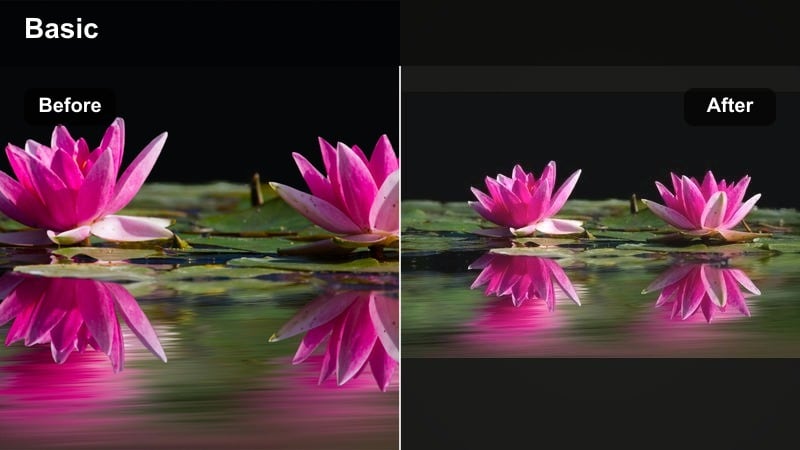
- Effect look: Softened highlights, cool neutral tones, and subtle fade suited for rooftop and overlook views.
- Best for: Rooftop cafes, hilltop viewpoints, drone shots over cities or small towns.
- Editing tip: Lower saturation slightly and add a touch of sharpening for distant details like buildings.
City Overlook Gentle gives urban vistas a calm, cinematic polish without going too stylized. It cools down harsh warmth, softens bright highlights, and adds a mild fade for that refined travel film feel.
Use it in Filmora on rooftop coffees, drone flyovers, and scenic overlooks, then lightly sharpen buildings and skyline details so they stay crisp within the softer overall tone. This filter shines when paired with slow zooms and steady, composed framing.
Pro Tip: Use With Slow Zooms
Combine the filter with smooth digital zoom ins to emphasize scale and depth of the city below. Align zooms to beats in the music for a more intentional, rhythmic feel in your travel edits.
Minimal and Clean Outdoor Aesthetic Filters
Minimal Morning Clean
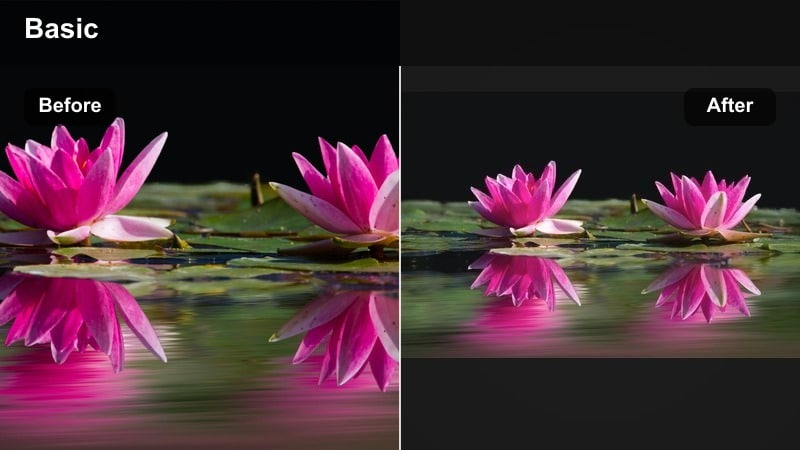
- Effect look: Bright, neutral tones with gentle contrast and very soft shadows for fresh mornings.
- Best for: Coffee walks, balcony views, calm city mornings, aesthetic outdoor edits with white outfits.
- Editing tip: Keep exposure slightly under and lift shadows with the filter to avoid blown out whites.
Minimal Morning Clean creates a fresh, airy aesthetic that works perfectly for minimalist lifestyle and travel content. It brightens scenes while holding onto highlight detail, keeps colors neutral, and softens shadows for a clean, editorial vibe.
Apply it in Filmora to quiet street walks, balcony views, or brunch terraces. Underexpose slightly in camera, then let the filter lift shadows and midtones so whites stay smooth and your overall feed looks light and modern.
Pro Tip: Lean Into Negative Space
Frame shots with lots of sky, walls, or open ground so the minimal look feels intentional. Use slower cuts and gentle camera movements to maintain a relaxed, minimal aesthetic throughout the sequence.
Neutral Trail Balance
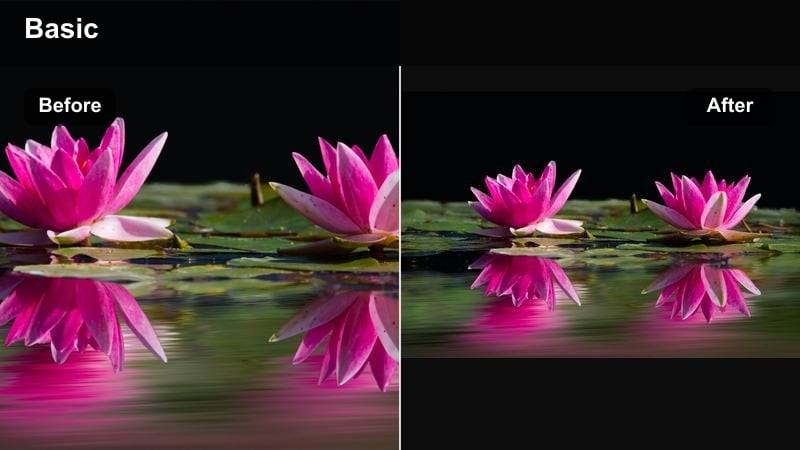
- Effect look: Balanced, natural colors with controlled contrast that keep outdoor trails looking true to life.
- Best for: Hiking paths, mixed light conditions, documentary style travel logs.
- Editing tip: Use this filter when clips from different cameras or phones need to match in one sequence.
Neutral Trail Balance is a versatile, natural looking filter that keeps colors true while smoothing out contrast. It is ideal when you want a clean, polished outdoor look without obvious stylization.
In Filmora, use it as your primary grade for hikes, nature documentaries, or multi camera travel logs. Apply it across all outdoor clips first, then fine tune white balance per shot to fix color casts from shade, clouds, or sunset.
Pro Tip: Use as a Universal Match Grade
Apply this filter first across all outdoor clips, then add more stylized filters on top if needed. Fine tune temperature per clip to correct for strong color casts from clouds, shade, or sunset light.
Gentle Coastal Air
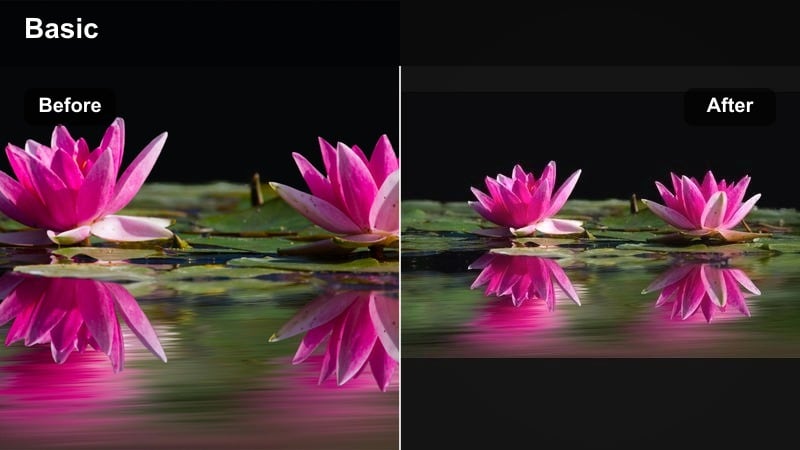
- Effect look: Soft cool whites, slightly desaturated blues, and airy contrast for breezy coastlines.
- Best for: Beaches, cliffs, harbor walks, pastel outdoor waterfront edits.
- Editing tip: Pull back the blue saturation if the water looks too intense, then add a small contrast boost.
Gentle Coastal Air gives seascapes and waterfronts a fresh, editorial finish. It cools whites, softens contrast, and pulls back blues so skies and oceans feel refined and pastel instead of harsh.
Use it in Filmora on midday beach scenes, cliff views, or marina walks. Slightly underexpose your footage, then let the filter brighten and soften it while you fine tune blue saturation and contrast to keep the mood light and relaxed.
Pro Tip: Shoot Slightly Underexposed
Underexpose by about half a stop while filming so the filter can recover highlights in clouds and waves. Add a subtle fade to the blacks to keep the coastal look light and relaxed instead of punchy.
Tips for Using Outdoor Aesthetic Filters in Filmora
- Shoot during golden hour or blue hour so aesthetic outdoor filters enhance natural light instead of fixing harsh midday sun.
- Lower filter intensity and adjust exposure first to keep faces and key details looking natural and not overly processed.
- Group similar clips on the timeline and apply one filter to the group to maintain a consistent outdoor aesthetic.
- Use gentle camera movements and slower cuts so soft, pastel filters have time to be noticed by viewers.
- Always check how your outdoor filters look on both mobile and desktop screens before publishing.
- Mix one hero filter with small color tweaks instead of switching filters every few seconds in the same video.
Aesthetic outdoor video filters are one of the fastest ways to give your travel and nature footage a dreamy, cinematic mood. With Filmora presets like Aesthetic Outdoor Filter. Dream Valley and other soft nature options, you can build a consistent style that feels intentional and memorable.
Experiment with a few of these filters, then save your favorite combinations as custom presets so every outdoor edit from weekend hikes to long trips shares the same gentle, polished look that your audience will recognize instantly.
secure downloadNext: Explore Outdoor Cinematic Filters for Deeper, Moodier Looks
