

 100% Security Verified | No Subscription Required | No Malware


 ChatGPT
 Perplexity
 Gemini
 Claude
 Grok
Grok
Portrait video filters for Reels can be the difference between a quick scroll past and a replayed clip. With the right look, you can flatter faces, control mood, and keep focus locked on expressions in every short-form vertical video.
Below are 12 curated portrait filters designed for Reels creators and social video editors working on short-form portrait edits and reaction clips. Use them as starting points in Filmora to build a consistent, on-brand portrait style that looks polished without heavy manual corrections.
In this article
Soft Glow and Natural Skin Portrait Filters
Soft Cream Glow
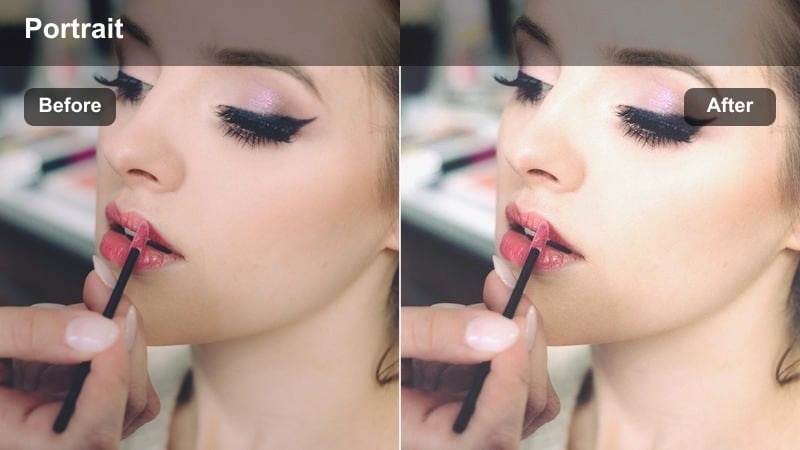
- Effect look: Subtle brightening with warm highlights and gentle skin smoothing that keeps pores visible for a realistic finish.
- Best for: Get-ready Reels, GRWM routines, daily vlogs, and talking-head advice clips where you want a soft, friendly vibe.
- Editing tip: Lower intensity around 20-35% for male portraits or textured skin to avoid over-smoothing and preserve natural detail.
A warm, low-contrast filter like Soft Cream Glow adds flattering shine and a touch of polish to portrait Reels without making skin look plastic. In Filmora, it is ideal as a base look for everyday vertical content where the goal is to feel approachable, clean, and natural on camera.
Drop the filter onto an adjustment layer above your clips, then fine-tune its opacity until faces keep real-looking pores and texture. This style works especially well with soft indoor lighting or ring lights, letting your expressions and on-screen text stand out while the glow unifies separate shots into one cohesive Reel.
Let Filmora Suggest Portrait Looks with AI
Filmora s AI-driven tools can analyze your portrait footage and suggest filters that flatter skin and balance tricky backgrounds. This saves time for Reels creators who shoot in different rooms or on multiple phones and want a consistent look across clips.
Use AI presets as a launchpad, then refine intensity, contrast, and color temperature to match your personal style. Once you lock in a favorite portrait recipe, save it as a custom preset so you can apply it to new short-form edits in a few clicks.
 secure download

Preview Portrait Filters Directly on Your Reels
Inside Filmora, you can preview portrait filters live on a vertical canvas, so you see exactly how Soft Cream Glow and other looks behave on your expressions. Toggle between presets and scrub through your timeline to check for issues like eye clarity, teeth brightness, or flickering shifts between cuts.
This live testing makes it easier to choose a filter that keeps your face separated from the background without creating odd color casts. Once you find a favorite, keep it on an adjustment layer so you can quickly swap or refine it later without re-editing every clip.
secure downloadCombine Portrait Filters with LUTs for a Signature Style
If you already use LUTs to shape your overall channel color, you can stack Filmora s portrait filters above or below them for dialed-in skin tones. LUTs set the global mood, while portrait filters like Soft Cream Glow refine micro-contrast, glow, and clarity around the face.
This combo helps you build a recognizable, scroll-stopping portrait look that still feels natural. Save your preferred LUT plus filter combination as a custom preset so every new Reel starts on-brand and needs minimal tweaking.
secure downloadPeachy Soft Focus
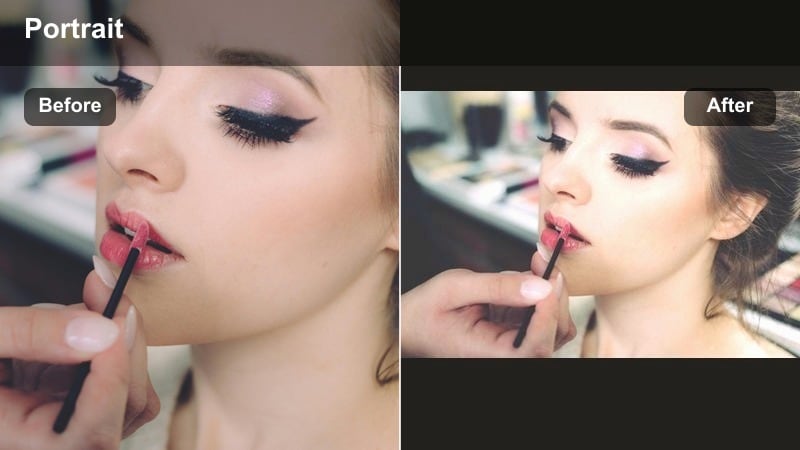
- Effect look: Light peach tint with gentle bloom in highlights and a soft-focus halo around the face for romantic portraits.
- Best for: Storytime Reels, relationship advice, cozy bedroom content, and aesthetic lip-syncs.
- Editing tip: Use film grain or a subtle texture overlay to keep the soft-focus from feeling too plastic or overly airbrushed.
Peachy Soft Focus wraps your portrait in a warm, dreamy haze that flatters skin and softens edges. It is perfect when you want your Reel to feel intimate and romantic, especially for face-centered storytelling or late-night confessionals.
In Filmora, place this filter on an adjustment layer and combine it with a light grain or texture effect so the blur still feels cinematic, not artificial. Keep eyes and mouth in sharp focus by dialing intensity down around 40-60 percent and pairing it with crisp subtitles for maximum engagement on small screens.
Clean True-Tone Portrait
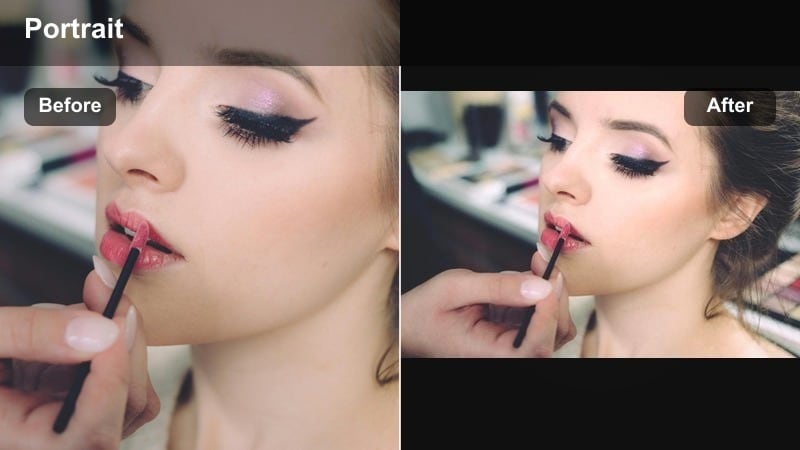
- Effect look: Balanced contrast, neutral white balance, and mild clarity boost for a clean, camera-native portrait look.
- Best for: Educational Reels, reaction clips, and product demos where you want skin and colors to stay accurate.
- Editing tip: Fine-tune temperature per clip so your background does not shift; consistency across a carousel of Reels builds brand trust.
Clean True-Tone Portrait delivers a polished but realistic finish that suits tutorials, reviews, and expert commentary. Skin tones stay believable while the clarity boost helps eyes, hair, and product details remain sharp when viewers watch on their phones.
Use this filter as your default profile look inside Filmora by saving it as a preset and applying it to every talking-head clip. Then, tweak only exposure and temperature between different locations so your feed feels consistent, even when lighting and wall colors change.
High-Contrast, Scroll-Stopping Portrait Filters
Bold Contrast Pop
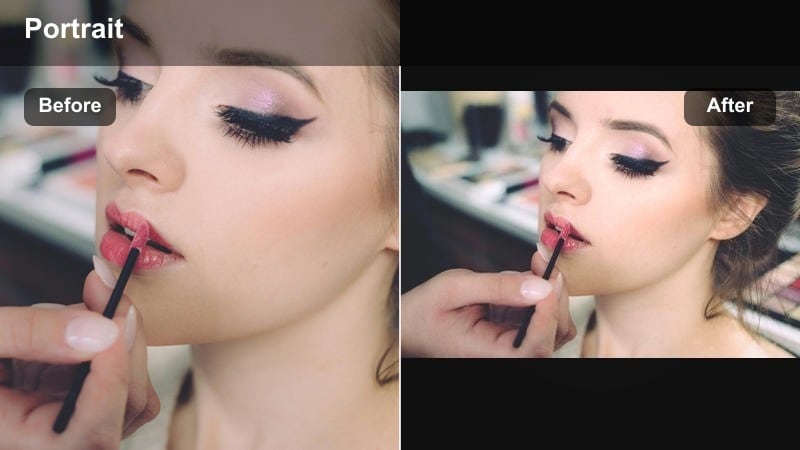
- Effect look: Punchy contrast, deeper shadows, and vivid midtones that pull attention straight to the face.
- Best for: Hot takes, reaction clips, and high-energy Reels where you need immediate impact in the first second.
- Editing tip: Pair with tight framing and on-screen text near the eyes to maximize engagement in the opening 3 seconds.
Bold Contrast Pop amps up drama by deepening shadows and pushing midtones so your expressions grab attention instantly. It is ideal for spicy opinions, meme reactions, or any Reel where you want viewers to stop scrolling the moment your face appears.
In Filmora, apply this filter and then slightly raise shadow detail if your eyes start to disappear into the darker areas. Combine it with punchy animated text placed near your eyes and quick cuts synced to the beat to build a fast, energetic hook in the first few seconds.
Cool Commentary Crunch
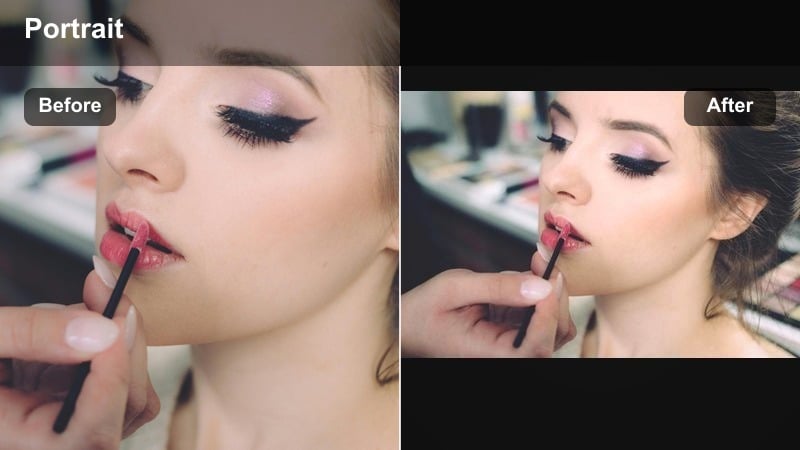
- Effect look: Cool-toned contrast with crisp edges and slight desaturation for a commentary or tech-review vibe.
- Best for: Tech Reels, gaming commentary, opinion pieces, and news-style reaction edits.
- Editing tip: Keep saturation modest so overlays, subtitles, or b-roll graphics stand out without clashing with your face.
Cool Commentary Crunch leans into a modern, analytical feel with cooler tones and sharp contrast. It gives your portrait a more serious, techy edge that fits gadget breakdowns, gaming hot takes, or news-style explainers.
Use this filter in Filmora when you want your face to feel neutral and professional while your overlays and b-roll deliver the color punch. Keep saturation slightly reduced so charts, gameplay windows, or UI graphics layered above your portrait remain the primary visual accents.
Spotlight Reaction Edge
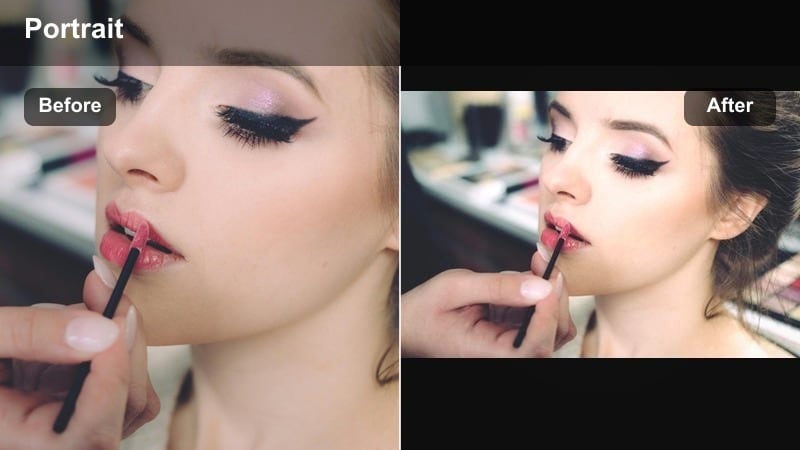
- Effect look: High local contrast on facial features with gentle vignette around the frame to spotlight reactions.
- Best for: Reaction Reels, duet-style commentary, meme responses, and punchline close-ups.
- Editing tip: Adjust vignette feathering so it is invisible on first watch but still subtly darkens distractions at the frame edges.
Spotlight Reaction Edge brightens your facial features while softly dimming the frame edges, mimicking a subtle spotlight effect. This is especially effective for reaction Reels and duet layouts, where you want your expressions to stand out against busy content on the other side.
Inside Filmora, fine-tune the vignette strength so it hides clutter without making the effect obvious or heavy-handed. For split-screen or duet formats, position the brightest part of the vignette over your face and keep the other content clearly visible but slightly secondary in brightness.
Cinematic Portrait Filters for Reels
Teal & Orange Portrait Cinema
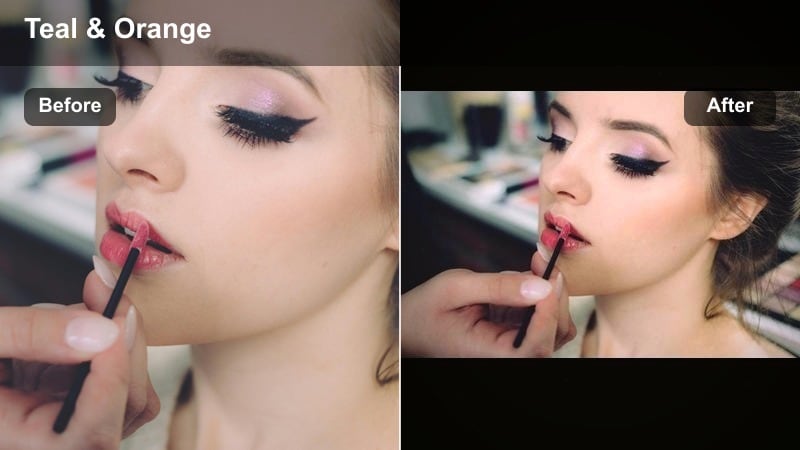
- Effect look: Classic teal shadows with warm, rich skin tones and slightly lowered highlights for a movie-like finish.
- Best for: Dramatic monologues, narrative Reels, cinematic transitions, and moody travel portraits.
- Editing tip: Keep the teal subtle in the midtones so your face does not pick up a green cast, especially under mixed indoor lighting.
Teal & Orange Portrait Cinema gives your vertical clips a movie-inspired grade by pushing backgrounds cooler and keeping skin warm and rich. It is a strong choice for scripted monologues, cinematic transitions, or travel portraits that you want to feel more like scenes than simple clips.
In Filmora, apply this filter and then check whites, grays, and skin tones on a few different shots to avoid unwanted green or orange casts. Use it alongside slow push-in crops, cinematic fonts, and light sound design to create Reels that feel like mini-movie moments in the feed.
Matte Film Portrait
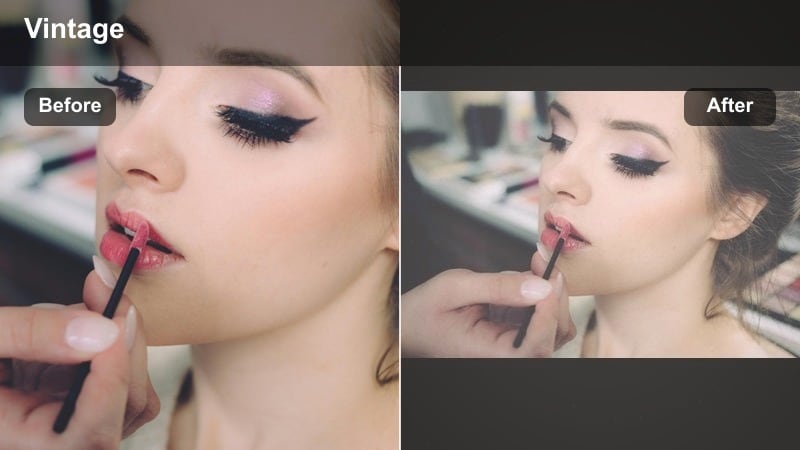
- Effect look: Lifted blacks, soft contrast, and gentle color fade inspired by film scans and vintage photo prints.
- Best for: Storytelling Reels, nostalgic edits, before-and-after transformations, and lifestyle portraits.
- Editing tip: Use a slightly slower cut pace with this filter so viewers have time to appreciate the soft, filmic texture.
Matte Film Portrait softens contrast and gently fades colors to emulate vintage film scans, giving your Reels nostalgic charm. It suits personal stories, glow-ups, and lifestyle portraits where you want emotion and mood to feel timeless rather than hyper-digital.
When grading in Filmora, combine this filter with slower pacing, gentle zooms, and maybe subtle film grain or dust overlays. If faces start to look too flat, use local contrast or clarity just on the eyes and mouth to bring back micro-detail without losing the matte, dreamy finish.
Warm Gold Story Glow
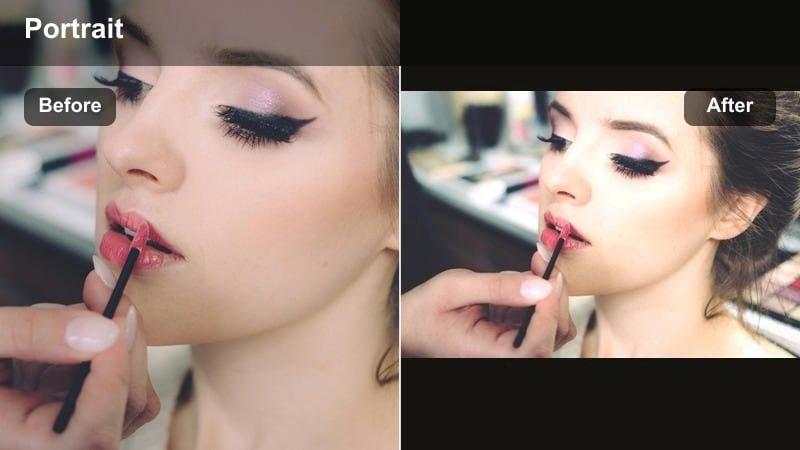
- Effect look: Golden highlights with softly blooming lights and a warm, storytelling atmosphere around the subject.
- Best for: POV Reels, voiceover portraits, emotional confessions, and golden-hour inspired edits.
- Editing tip: Lower saturation in reds and oranges slightly so skin stays flattering and does not turn too orange on mobile screens.
Warm Gold Story Glow wraps your portrait in rich golden tones and soft blooming highlights, mimicking golden hour even indoors. It instantly adds emotional warmth, making it a strong fit for POV storytelling, heartfelt messages, and reflective voiceovers.
In Filmora, pair this filter with a warm key light or window light on one side of your face and lower red/orange saturation slightly to prevent oversaturated skin. Add a gentle vignette or background blur to keep attention on your lit cheek and eyes while the rest of the frame falls into cozy shadow.
Playful and Stylized Face Filters for Short Videos
Pastel Pop Creator
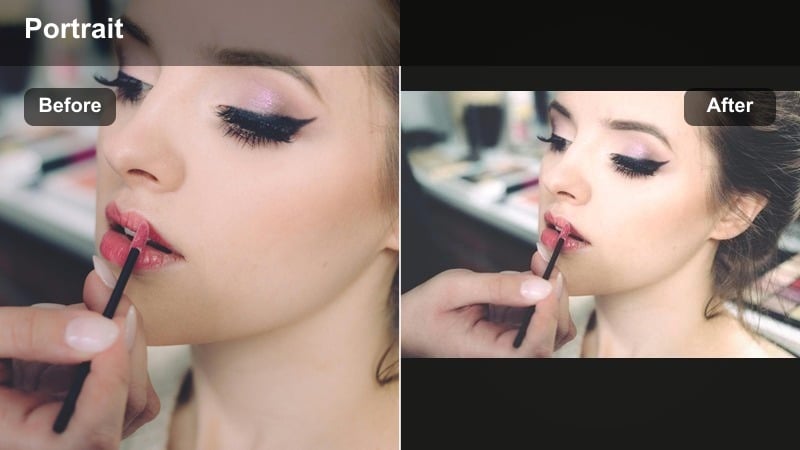
- Effect look: Soft pastel palette with bright whites, boosted saturation, and gentle skin smoothing for a playful creator style.
- Best for: Transitions, dance Reels, lip-syncs, and fun short-form portrait edits targeting younger audiences.
- Editing tip: Keep background clutter simple; this filter s bright colors work best against clean walls or solid backdrops.
Pastel Pop Creator turns your portrait into a bright, candy-colored frame with smooth skin and punchy highlights. It is built for fun, high-energy Reels like dances, transitions, and lip-syncs where color and attitude are part of the hook.
When editing in Filmora, use solid-color backdrops or clean walls so the pastel palette can really shine without visual noise. Combine this filter with quick cuts, on-beat transitions, and bold captions to make every frame feel thumbnail-ready and easily shareable.
Mono Minimal Face
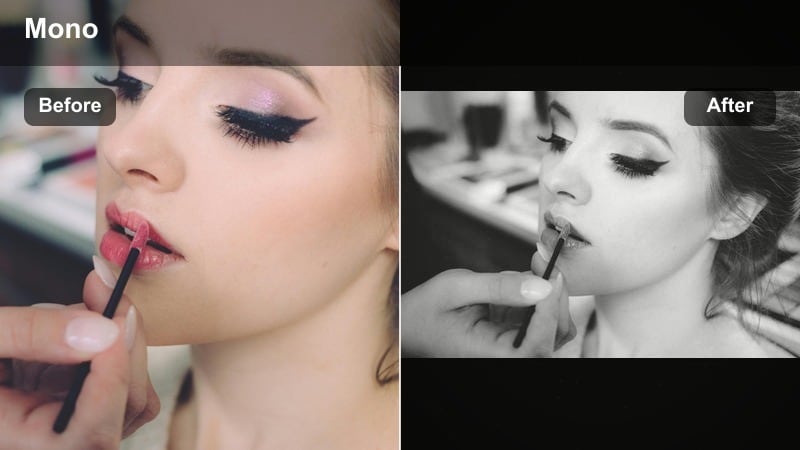
- Effect look: High-key black-and-white look with clean midtones and slightly raised shadows for minimalistic portraits.
- Best for: Poetry Reels, dramatic line deliveries, motivational speeches, and aesthetic close-ups.
- Editing tip: Use strong side lighting to carve out facial structure; monochrome filters rely heavily on light direction for depth.
Mono Minimal Face strips away color so viewers focus entirely on your expressions, light, and framing. The raised shadows keep the look soft and modern, making it ideal for emotional spoken word, quotes, or cinematic close-ups.
In Filmora, convert your portrait clips with this filter and adjust contrast to get clear separation between your face and background. Combine it with deliberate pauses, clean typography, and simple soundscapes so the black-and-white aesthetic feels intentional and sophisticated.
Neon Edge Reaction
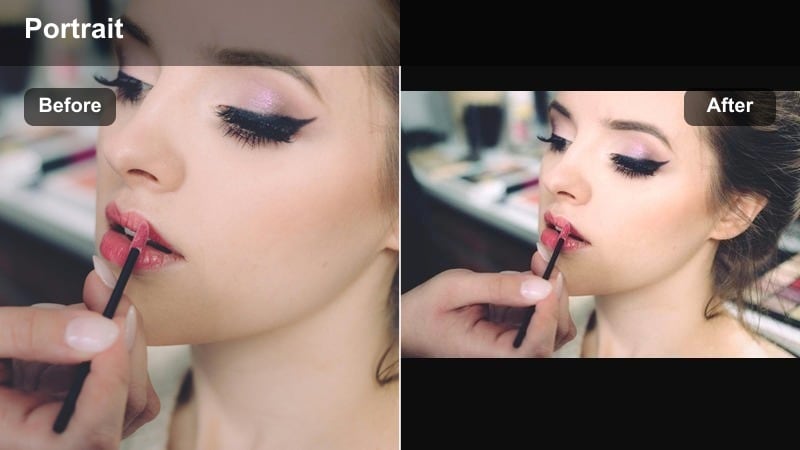
- Effect look: Punchy saturation, neon-leaning colors, and crisp facial edges that stand out against dark or colorful backgrounds.
- Best for: Gaming Reels, meme reactions, nightlife content, and music-synced face cam edits.
- Editing tip: Limit the filter to your camera track and keep the reacted-to content closer to neutral color for visual hierarchy.
Neon Edge Reaction boosts saturation and contrast so your facecam punches through dark or chaotic backgrounds. It is a natural fit for gaming overlays, meme responses, and party or nightlife Reels where neon signs and LEDs are part of the vibe.
Inside Filmora, place this filter only on your portrait track while leaving the reacted-to content or gameplay more neutral. If skin tones start to clip, lower global saturation slightly and then re-boost only accent colors like blues, pinks, or purples using additional color tools for a balanced but intense neon look.
Tips for Using Portrait Reels Engaging Filters in Filmora
- Shoot with stable, soft lighting so portrait filters can enhance your footage instead of fighting harsh shadows or mixed color temperatures.
- Create a few go-to presets inside Filmora for different series, like reactions, tutorials, and storytime Reels, and reuse them for consistency.
- Always check how your portrait Reel looks on a phone screen, not just a desktop preview, before posting.
- Adjust filter intensity per clip; even the best portrait video filters for Reels can look overdone at 100 percent.
- Use subtle vignette or background blur to keep focus on your face when overlays and captions compete for attention.
- Combine portrait filters with LUTs to maintain a consistent channel mood while still optimizing skin tones for vertical formats.
- Place filters on adjustment layers in Filmora so you can tweak or swap looks across the whole Reel without redoing individual clips.
- Test your chosen filter on different skin tones and lighting setups if you collaborate with others, ensuring everyone looks flattering and consistent.
Strong portrait video filters for Reels do more than beautify your footage; they guide attention, clarify emotion, and make your short videos instantly recognizable in the feed.
Experiment with a few of these styles in Filmora, then save your favorites as custom presets so every new portrait Reel or reaction clip starts from an engaging, scroll-stopping base look.
secure download