

 100% Security Verified | No Subscription Required | No Malware


 ChatGPT
 Perplexity
 Gemini
 Claude
 Grok
Grok
If you are a YouTube or vlog creator filming talking head videos or beauty tutorials, the right portrait video filters can instantly upgrade your look. Instead of spending hours tweaking color and exposure, you can apply a preset that smooths skin, brightens eyes, and balances tones in just a few clicks.
Below are 12 portrait video filters for YouTube in Filmora designed for vloggers who want a clean, polished creator style. Use them to keep your face flattering under different lighting, match your channel aesthetic, and stay consistent from video to video.
In this article
Natural Clean Portrait Filters for YouTube
Soft Daylight Glow
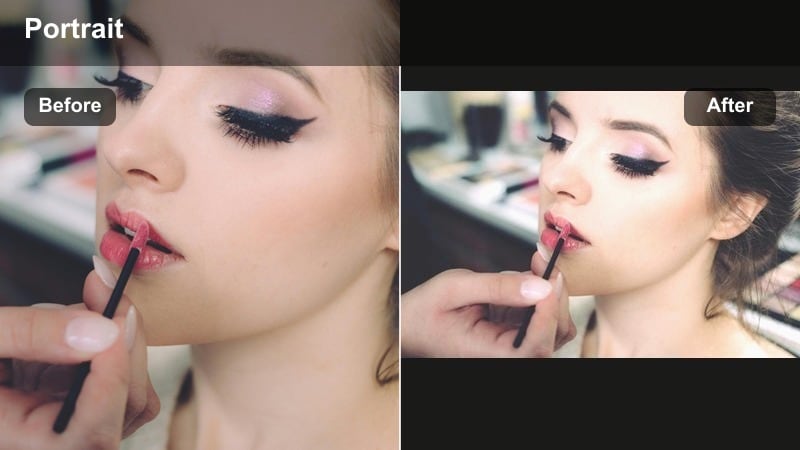
- Effect look: Soft, bright, and natural daylight finish that gently lifts shadows on the face
- Best for: Talking head videos shot near windows or with softbox lighting where you want a clean creator look without heavy editing
- Editing tip: Lower the filter intensity to around 60–70 percent if your white walls or background start to look too bright or washed out.
Soft Daylight Glow is ideal when you film in front of a window or under diffused lights and want a crisp, airy look without complex grading. It lifts shadows around the eyes and jawline, giving your talking head shots a bright, welcoming style that feels perfect for tutorials, hauls, and sit-down chats.
In Filmora, apply this filter on an adjustment layer above your A-roll clips so the whole sequence shares the same clean finish. If your background is already bright, pull the intensity slider down slightly and nudge exposure down a touch so your skin stays glowing but your walls and props do not blow out on YouTube.
Use Filmora’s AI tools to fine-tune portrait color
After you apply a portrait video filter like Soft Daylight Glow, Filmora’s AI-powered color tools help you quickly refine white balance and skin tones. This is especially useful when your window light shifts during a shoot and some clips start to look cooler or warmer than others.
You can start with your favorite portrait filter, then let AI analyze your footage and suggest corrections or auto-match new clips to a well-lit reference shot. That way, your creator look stays consistent across multiple filming days and locations.
 secure download

Preview portrait filters on your footage in seconds
Filmora lets you hover over portrait filters and instantly preview how they look on your selected clip. This makes it fast to compare a clean natural look, a glam beauty style, or a cinematic grade on the exact same talking head shot.
By stacking different portrait filters on adjustment layers, you can toggle them on and off to see which one best fits your channel branding and thumbnail style before you commit.
secure downloadSave portrait looks as reusable presets and LUTs
Once you dial in the perfect portrait combination in Filmora, you can save it as a preset or LUT-style look. This gives you a reusable creator video effect that keeps your face consistent across intros, outros, beauty close-ups, and B-roll.
Over time, this becomes your signature YouTube portrait filter, so every upload starts from a polished base instead of regrading your footage from scratch.
secure downloadCreator Clean Matte
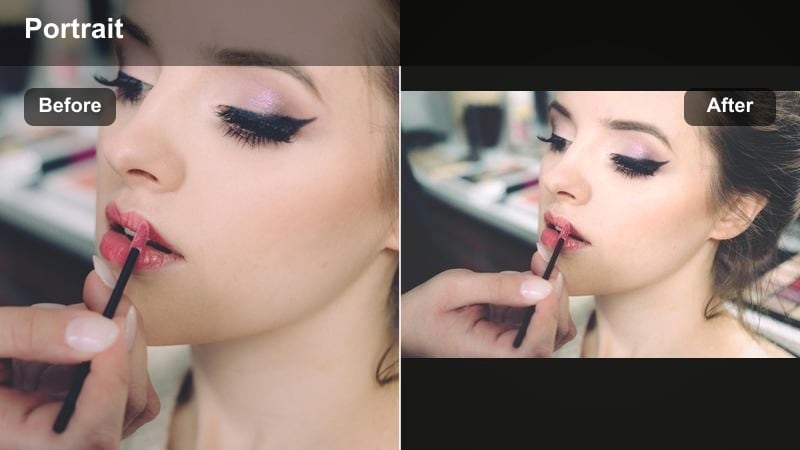
- Effect look: Matte, low-contrast finish that smooths harsh shadows and evens out skin tone
- Best for: YouTube sit-down vlogs and commentary videos filmed under mixed room lighting or LED panels
- Editing tip: Combine this filter with Filmora’s skin smoothing slider on low strength to keep a natural texture while reducing minor blemishes.
Creator Clean Matte is perfect when overhead LEDs or mixed bulbs give you sharp shadows or shiny hotspots on the forehead and nose. The matte finish reduces contrast just enough to calm those distractions and create a soft, editorial look that feels professional on long commentary uploads.
In Filmora, add a subtle skin smoothing effect on top of this filter and then use sharpening around the eyes to keep details crisp in 1080p and 4K. This combination gives you a calm, polished aesthetic while still looking real and clear when viewers pause on your face.
Neutral Room Light Fix
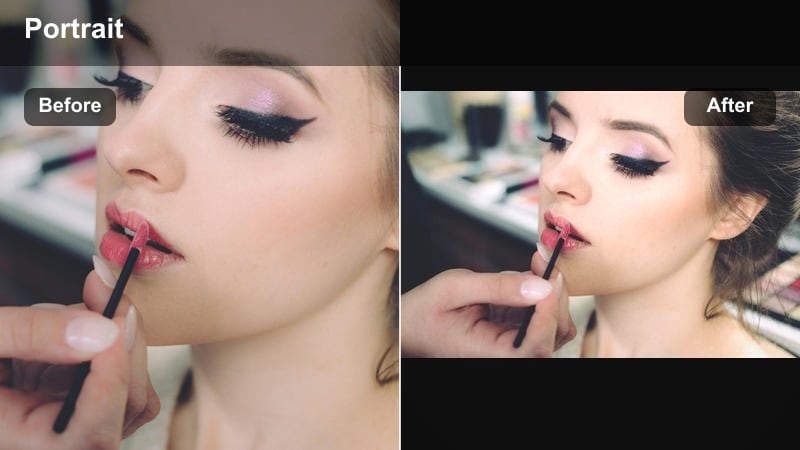
- Effect look: Balanced neutral color that removes yellow or green casts from indoor bulbs
- Best for: Talking head videos filmed in bedrooms, offices, or studios with warm ceiling lights or lamps
- Editing tip: Use the white balance slider after applying the filter to fine tune your skin tone, nudging slightly cooler if you still look too warm.
Neutral Room Light Fix quickly cleans up the strong orange or green tint you get from cheap LEDs, tungsten lamps, or mixed room lighting. It restores your skin to a more natural tone so your face does not look overly yellow on YouTube, even if you filmed at night.
Apply this filter across your full sequence in Filmora, then use the white balance and temperature sliders to do minor touch-ups per clip. If you film in multiple rooms, save your settings as a preset and copy them across projects so your portrait color matches from video to video.
Beauty and Skin-Softening Portrait Filters
Beauty Soft Focus
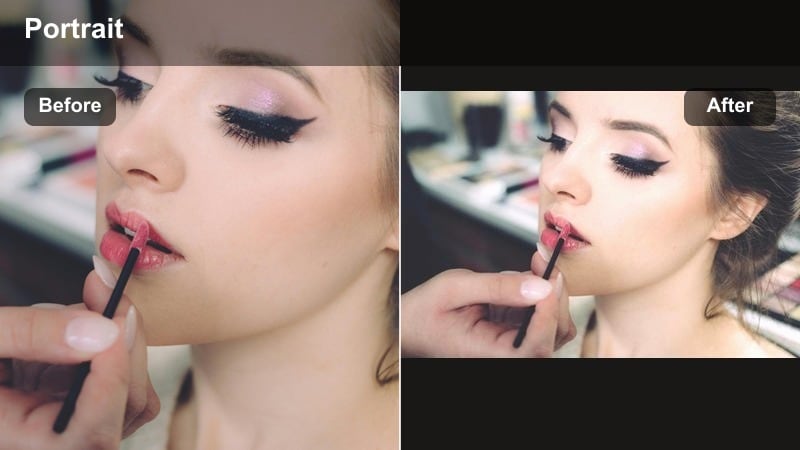
- Effect look: Gentle soft-focus glow that minimizes texture while keeping features recognizable
- Best for: Beauty tutorials, GRWM videos, and close-up makeup shots where skin should look smooth but not plastic
- Editing tip: Use keyframes to reduce the filter intensity slightly on wide shots and increase it on close-ups for a consistent look.
Beauty Soft Focus adds a subtle glow and blur that flattens small texture and fine lines while keeping eyes, brows, and lips clearly defined. It is ideal for GRWM and foundation reviews where you want flattering footage but still need viewers to see how products sit on real skin.
Inside Filmora, place this filter on an adjustment layer and keyframe its intensity as you move between wide, medium, and macro shots. Dial it back for product swatches or ultra-close details so your audience can judge coverage and finish accurately, then bring it up slightly on full-face reveals.
Studio Beauty Glam
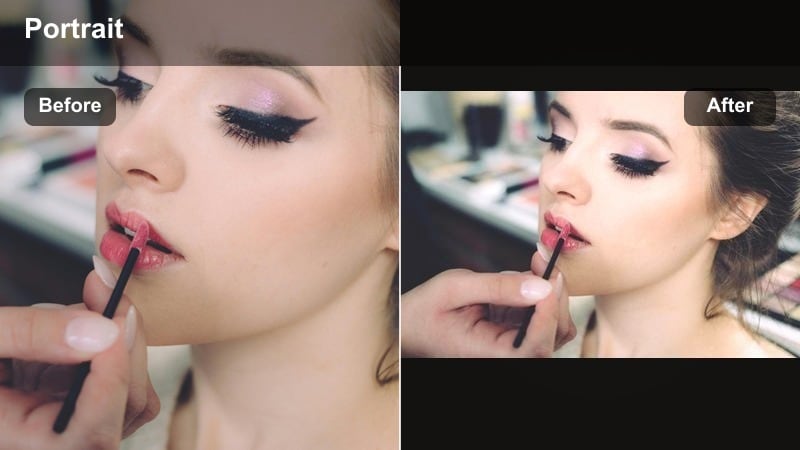
- Effect look: High-key studio glow with lifted highlights and subtle skin smoothing
- Best for: Full-on glam looks, hair styling tutorials, and sponsored beauty content filmed with ring lights
- Editing tip: Reduce contrast just a little if your highlighter or shimmer products start to reflect too strongly on camera.
Studio Beauty Glam is tailored for ring-light setups, boosting highlights and adding a polished glow that screams beauty channel. It brightens under-eye areas, enhances shine in a flattering way, and keeps your overall image looking like a studio shoot, ideal for brand deals and glam routines.
Use Filmora’s masking tools to focus this filter on your face and upper body so your background stays more natural and does not look overly glossy. If your highlighter or shimmer starts to blow out, slightly reduce contrast and highlights while watching your scopes to keep details visible.
Blemish Friendly Portrait
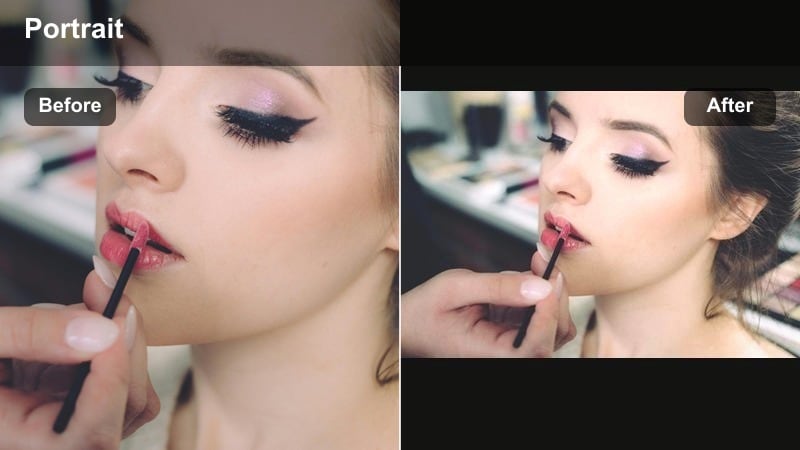
- Effect look: Softens blemishes and redness while leaving pores and natural texture visible
- Best for: Everyday vlogs, honest skin updates, or chatty GRWM videos where you want flattering but real skin
- Editing tip: Combine this filter with a small saturation boost to keep lips and eyes from looking washed out after smoothing.
Blemish Friendly Portrait is designed for creators who talk about real skin journeys and want to stay authentic on camera. It gently softens breakouts and redness without erasing pores, freckles, or moles, so your audience still sees a realistic version of your face.
In Filmora, keep the filter strength below 50 percent for review-style videos and add a light saturation or vibrance boost so your eyes and lips do not lose color. Mention in your video description that you applied minimal smoothing to keep trust high with viewers judging coverage and texture.
Cinematic Portrait Filters for Vlog Creators
Cinematic Soft Teal
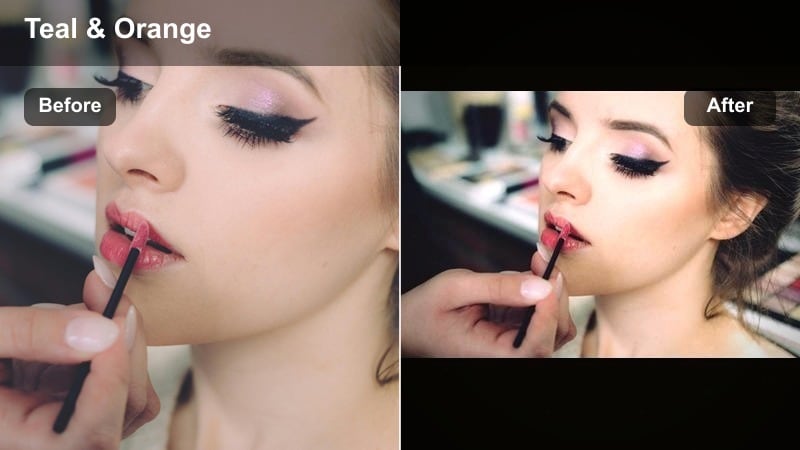
- Effect look: Subtle teal-and-orange shift with softened contrast and warm skin tones
- Best for: Travel vlogs, outdoor talking head segments, and cinematic B-roll intros for YouTube videos
- Editing tip: Use Filmora’s color wheels to slightly pull midtones warmer if your skin starts leaning too cool or green.
Cinematic Soft Teal gives you that popular filmic teal-and-orange vibe while prioritizing warm, flattering skin. Blues and shadows move slightly toward teal, which helps your face pop against skies, water, and cityscapes in travel or lifestyle vlogs.
Apply this filter to both A-roll and B-roll in Filmora to keep your vlog visually cohesive from intro to outro. If your skin starts looking too cool, open the color wheels and nudge midtones warmer, or selectively reduce saturation in blues to keep skies under control without affecting your face.
Warm Documentary Tone
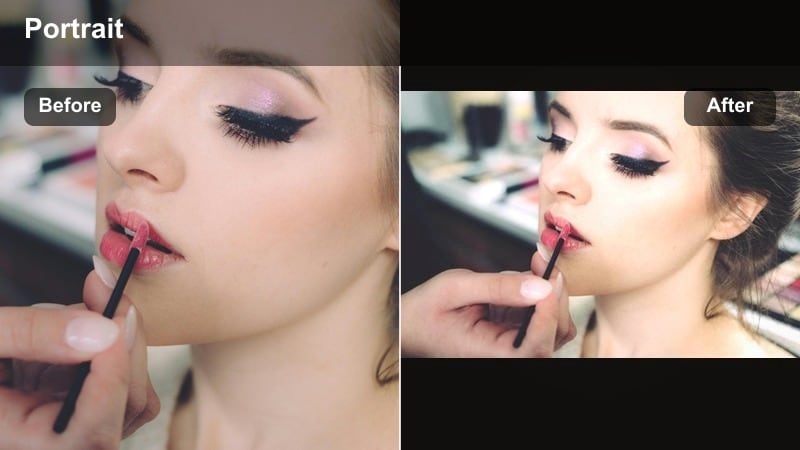
- Effect look: Warm, storytelling grade with slightly lifted shadows and gentle contrast
- Best for: Lifestyle vlogs, storytime videos, and long-form commentary where you want a cozy, cinematic feel
- Editing tip: Dial down warmth if your background already includes tungsten lights so your overall scene does not become too orange.
Warm Documentary Tone adds a soft, cinematic warmth that feels like a movie-style storytime session. Shadows are lifted just enough to keep your facial expressions clear, while the gentle contrast keeps your frame easy on the eyes during long watch sessions.
In Filmora, use this filter on your entire commentary timeline so jump cuts and angle changes share the same mood. If your set already has orange string lights or warm lamps, lower the temperature a bit and monitor your skin tone so it stays natural rather than overly orange.
Moody Side Light Portrait
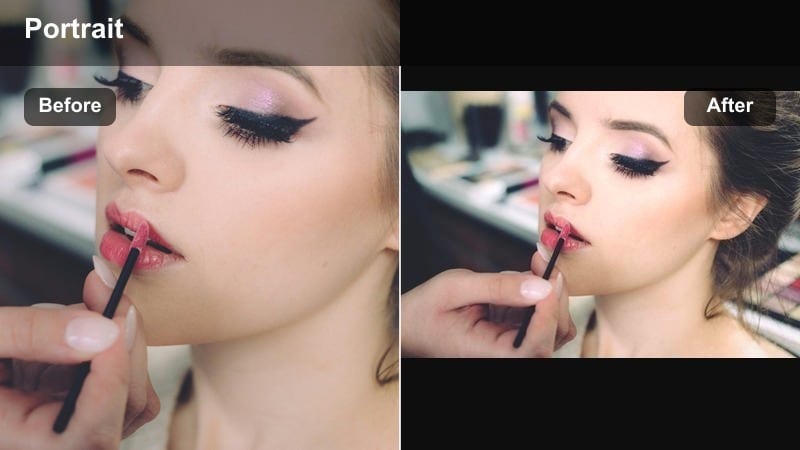
- Effect look: Moody cinematic grade that emphasizes side lighting and subtle contrast
- Best for: Reaction videos, tech talk, and storytelling where you want a slightly dramatic studio vibe
- Editing tip: Use a small vignette to darken the opposite side of your face while keeping eye exposure bright enough to see your expression.
Moody Side Light Portrait is great for desk setups with a single key light, highlighting one side of your face and letting the other fall into stylish shadow. It adds contrast and depth without crushing details, giving your tech or reaction videos a more cinematic, studio-produced look.
Inside Filmora, pair this filter with a subtle vignette and a small lift in midtones so your eyes remain readable. Check your scopes to make sure your dark side is not clipped to pure black; if it is, gently raise shadows while keeping overall contrast punchy for that dramatic YouTube aesthetic.
Fast-Fix Portrait Filters for Busy YouTube Creators
One-Click Face Fix
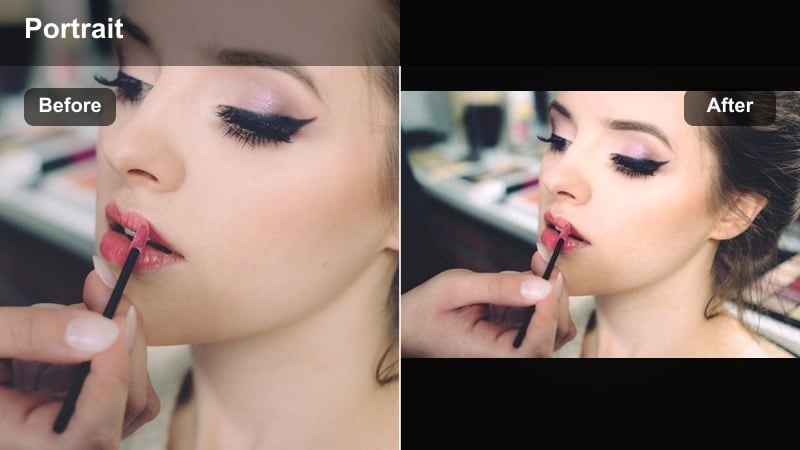
- Effect look: All-in-one adjustment that balances exposure, contrast, and skin tone for quick exports
- Best for: Daily vlogs, quick updates, and low-effort uploads when you do not have time for detailed color grading
- Editing tip: Pair this filter with minor exposure tweaks only, and avoid stacking too many other effects to keep your face natural.
One-Click Face Fix is built for speed, taking care of common portrait issues like dull color, flat contrast, and slightly off skin tones in a single pass. It is perfect on days when you just need to publish a vlog update or casual chat without deep editing.
In Filmora, drop this filter onto an adjustment layer at the top of your timeline so every clip gets the same quick polish. From there, tweak exposure or white balance only where necessary, and avoid piling on extra looks so your skin retains a believable, natural appearance.
Low Light Portrait Rescue
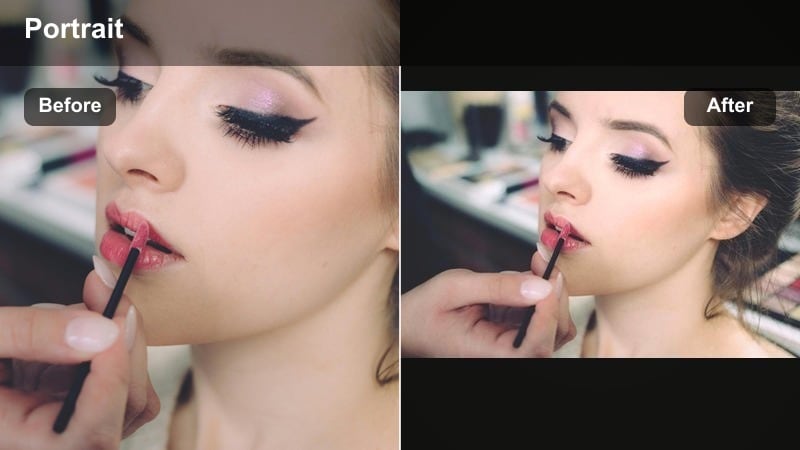
- Effect look: Brightens dark clips and reduces noisy shadows while protecting skin color
- Best for: Late-night vlogs, bedroom updates, or handheld clips where light is limited and grainy
- Editing tip: After brightening, add a touch of noise reduction in Filmora but do not overdo it or your face will start to look waxy.
Low Light Portrait Rescue is designed for those late-night handheld clips or dim bedroom vlogs where your face disappears into the shadows. It lifts exposure and gently softens noise so your skin does not look muddy or gray once uploaded to YouTube.
Apply the filter, then use Filmora’s noise reduction with a light touch to smooth grain without destroying detail. If your footage is also shaky, run stabilization before heavy brightening so the grain does not become more distracting when the frame moves.
Webcam Cleanup Portrait
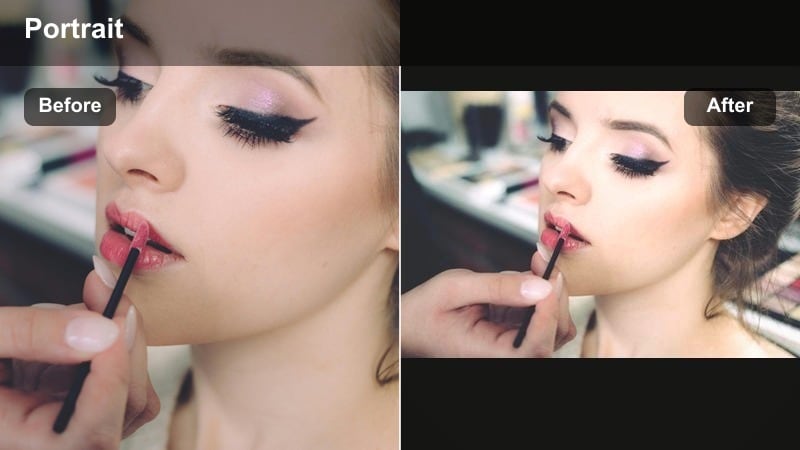
- Effect look: Cleans up flat webcam color, adds gentle contrast, and improves skin tone
- Best for: Streaming highlights, Zoom recordings, and budget webcam talking head videos repurposed for YouTube
- Editing tip: Crop in slightly and add a small background blur effect so the viewer focuses more on your face than on the messy room behind you.
Webcam Cleanup Portrait quickly corrects the washed-out colors and low contrast that are common in built-in or budget webcams. It gives your skin a healthier tone and adds just enough depth to your frame so meetings, streams, or class recordings feel more like intentional YouTube content.
In Filmora, combine this filter with a slight crop and a background blur or bokeh effect to emulate a more professional camera look. Save your favorite settings as a preset so every time you turn a stream highlight into a YouTube video, your portrait look is instantly upgraded.
Tips for Using Portrait Youtube Creator Filters in Filmora
- Shoot with the flattest, cleanest lighting you can manage, then let portrait filters handle subtle polishing instead of trying to fix harsh shadows later.
- Watch teeth and eye whites when using warm or cinematic filters so they do not turn too yellow, and use targeted color controls if they shift.
- For beauty tutorials and reviews, reduce filter strength on tight product close-ups so viewers clearly see texture, finish, and coverage.
- Apply portrait filters to adjustment layers above your clips in Filmora so you can change the look for an entire talking head sequence at once.
- Test your graded portrait clips on both mobile and desktop to ensure skin looks natural and not over-smoothed on different screen sizes.
- If you change your background color or lighting setup, lightly tweak your saved portrait preset instead of rebuilding your grade from zero.
- Combine gentle skin smoothing with a bit of eye sharpening so your face stays flattering while your gaze remains crisp and engaging.
- Create separate presets for daytime and nighttime setups so your portrait look stays consistent no matter when you hit record.
Portrait video filters for YouTube give creators an easy way to keep their face flattering, consistent, and on-brand across talking head videos and beauty tutorials without deep color grading skills.
Pick one or two filters from this list that fit your style, save them as presets in Filmora, and use them as your go-to vlog face filters so every upload looks polished and professional with minimal extra work.
secure download