

 100% Security Verified | No Subscription Required | No Malware


 ChatGPT
 Perplexity
 Gemini
 Claude
 Grok
Grok
These smartphone video LUTs cinematic-style filters are designed to give your phone footage a polished, filmic look without complex color grading. Apply them in Filmora and transform casual clips into scenes that feel like a movie.
Whether you shoot travel vlogs, short films, or social content, the presets below are tuned for smartphone sensors, contrast, and dynamic range so your videos stay sharp, clean, and cinematic on any screen.
In this article
Golden Hour Streets and Urban Sunsets
Sunset Amber Glow
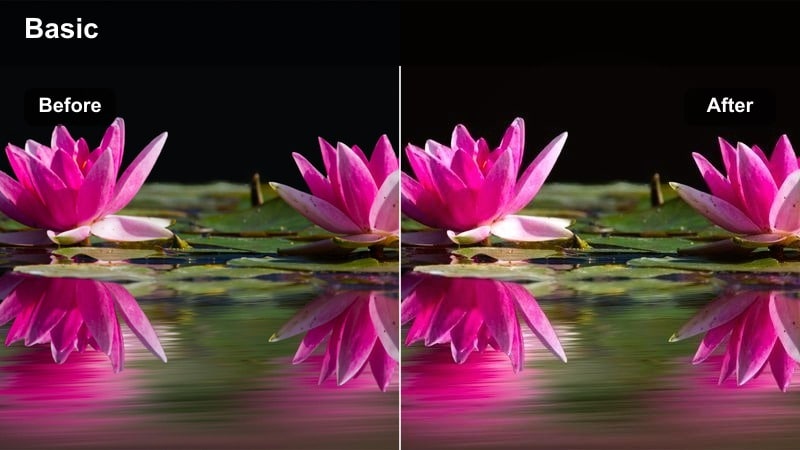
- Effect look: Warm, amber-tinted contrast that mimics late-afternoon sunlight on city streets.
- Best for: Smartphone clips of golden hour city walks, rooftop shots, and backlit street portraits.
- Editing tip: Slightly lower highlights to avoid blown-out skies and keep skin tones soft and cinematic.
Sunset Amber Glow wraps your smartphone footage in a warm, late-day atmosphere that instantly feels cinematic. It adds depth to city streets, emphasizes long shadows, and keeps details in buildings and sidewalks while giving the scene a film-like amber wash.
In Filmora, apply this filter to your golden hour city B-roll, then fine-tune the highlights and white balance so skin tones stay natural while the sky stays rich. Add a light vignette and subtle stabilization to turn casual rooftop or street clips into polished, story-ready sequences.
Match Smartphone Clips with AI Color Harmony
Use Filmora's AI color tools to quickly balance exposure and white balance before applying these smartphone video LUTs cinematic-style filters. This gives you a neutral starting point so the warm or cool tones in each preset do not fight with your original capture.
Once your base footage is normalized, the cinematic filters stay consistent across different phone cameras and shooting conditions, helping entire edits feel cohesive instead of clip-by-clip mismatched.
 secure download

Preview Filters on Real Smartphone Footage
Import a short test clip and cycle through the presets above to see how each cinematic filter reacts to your smartphone sensor and lighting. Some looks favor warm street light, while others are designed for cooler interiors or hazy daylight.
Compare shots side by side on the timeline so you can pick one main look for your entire sequence instead of switching styles in every cut. This keeps your video feeling like a single cinematic story from start to finish.
secure downloadBuild a Mobile Cinematic Filter Library
Save your favorite combinations of filters, exposure tweaks, and grain as custom presets so every smartphone shoot can reuse a consistent look. This helps you develop a recognizable style without rebuilding the grade from scratch each time.
Over time you can build a compact library of go-to cinematic styles tailored to your brand and shooting habits, ready to apply in a single click across entire projects.
secure downloadUrban Soft Matte
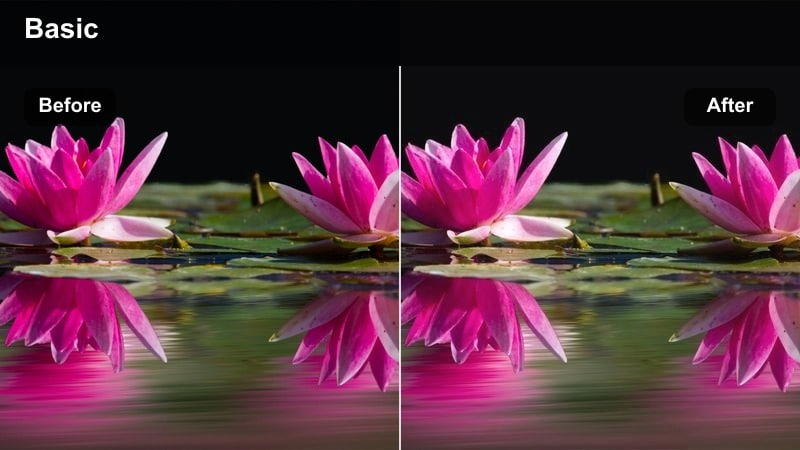
- Effect look: Low-contrast matte finish with gentle warm mids and lifted shadows.
- Best for: Evening street clips, handheld walking shots, and casual smartphone vlogs in the city.
- Editing tip: Add a small clarity boost to keep details crisp while preserving the soft matte finish.
Urban Soft Matte dials back harsh contrast from smartphone sensors and replaces it with a relaxed, filmic softness. Lifted blacks and warm midtones flatter skin and building textures, making walking shots and street vlogs feel more cinematic and less raw.
Inside Filmora, combine this look with slight clarity and very light sharpening to maintain detail in clothes, hair, and street textures. Pair it with slow, steady camera moves or stabilized handheld clips so the soft matte tone feels deliberate and stylish rather than simply low contrast.
Neon Sunset Pop
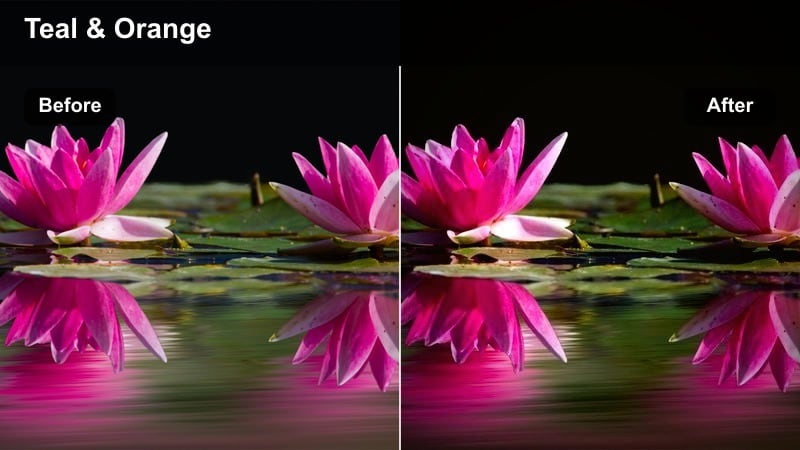
- Effect look: Vibrant, contrasty sunset tones with boosted oranges and teals for stylized urban color.
- Best for: Colorful billboards, neon city signs at dusk, and skyline shots from your smartphone.
- Editing tip: Increase saturation only slightly; let the filter's inherent teal-orange balance do the heavy lifting.
Neon Sunset Pop pushes smartphone dusk footage toward a bold teal-and-orange palette that emphasizes glowing signs and deep sky colors. It heightens the drama of billboards, window reflections, and skyline edges without losing the overall city atmosphere.
In Filmora, drop this filter on dusk or early-night clips and gently adjust exposure to preserve detail in bright signage. Keep additional saturation and contrast changes minimal so the built-in teal-orange curve stands out, then add subtle motion blur or slow motion for a stylized, music-video feel.
Moody Interiors and Lifestyle Moments
Café Film Soft
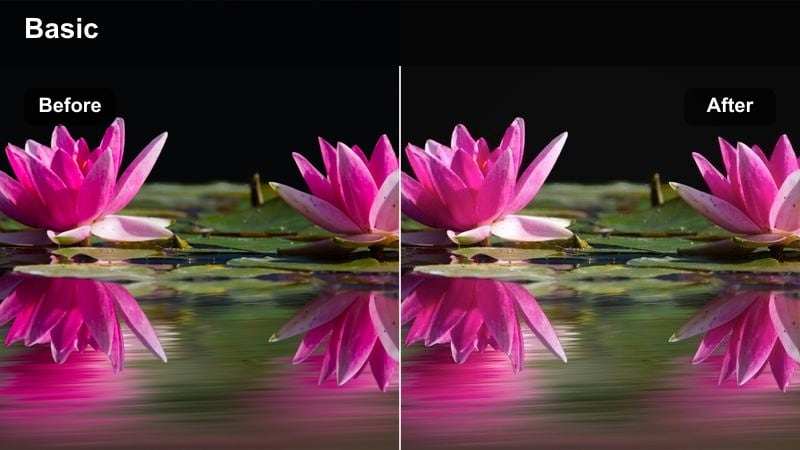
- Effect look: Soft, low-contrast grade with creamy highlights and warm browns for intimate spaces.
- Best for: Smartphone clips inside cafés, home studios, and cozy lifestyle setups.
- Editing tip: Lower sharpness slightly to avoid phone noise and embrace a smoother, film-like texture.
Cafe Film Soft turns ordinary indoor smartphone clips into inviting lifestyle visuals with warm browns and gentle highlight roll-off. It smooths out the harsh, digital look that phones often create in low light, making cups, wood tables, and soft fabrics appear more cinematic.
In Filmora, apply this filter to your cafe or home B-roll, then trim sharpness and add a hint of grain for a relaxed, film-inspired texture. Combine with mild stabilization and a subtle vignette to draw attention to key subjects such as coffee details, hands writing, or laptop setups.
Apartment Noir
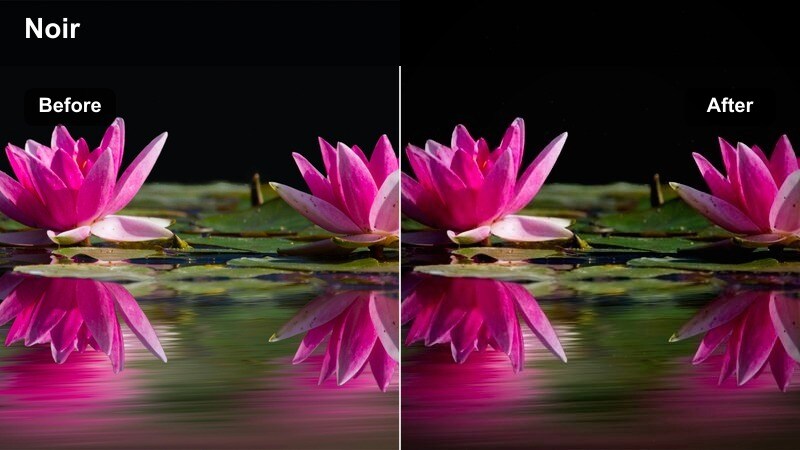
- Effect look: Deep shadows with cool highlights and subtle film grain for dramatic interior scenes.
- Best for: Smartphone short films, dialogue scenes, and night-time apartment shots.
- Editing tip: Expose slightly brighter when recording, then pull down shadows in Filmora to keep noise controlled.
Apartment Noir leans into contrasty, cool-toned interiors that feel like scenes from an indie thriller or moody drama. It deepens shadows, cools highlights, and introduces a cinematic edge that works well for story-driven smartphone projects.
When editing in Filmora, reduce shadows and subtly lift midtones until faces remain readable while the background falls into stylish darkness. Add a touch of grain and a fixed camera or slow push-in to make even simple apartment shots feel intentional and narrative-focused.
Studio Neutral Cine
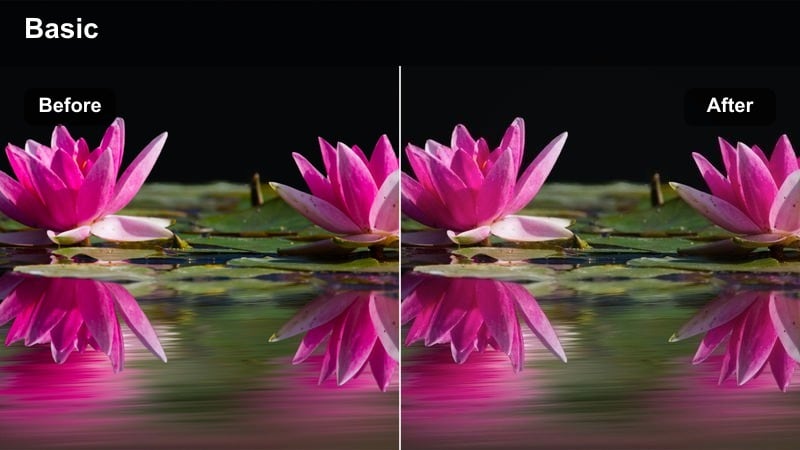
- Effect look: Balanced cinematic contrast with neutral skin tones and clean highlights.
- Best for: Talking-head smartphone videos, desk setups, and creator studio shots.
- Editing tip: Use a slight vignette and adjust white balance before applying this filter for the most natural results.
Studio Neutral Cine is a versatile base grade that brings a professional finish to creator-style talking heads and desk setups. It keeps skin tones accurate, balances shadows and highlights, and avoids pushing color too far, so it works across many lighting setups.
Inside Filmora, correct exposure and white balance first, then apply this filter as your main look for the entire video. Add a soft vignette, mild sharpening, and light noise reduction so smartphone footage feels closer to a dedicated camera while staying natural and consistent across cuts.
Night City Vibes and Cyber Street Scenes
Cyber Teal Night
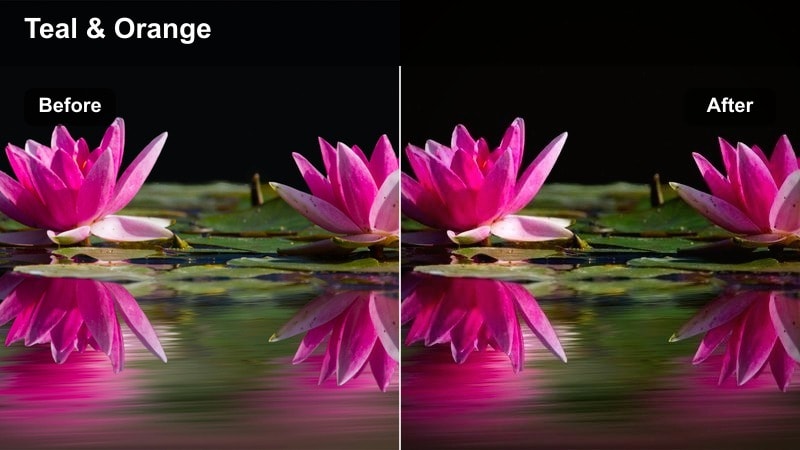
- Effect look: High-contrast night grade with bold teal shadows and magenta highlights for a cyberpunk mood.
- Best for: Smartphone footage of night streets, LED signs, and reflections on wet asphalt.
- Editing tip: Reduce noise in Filmora before applying sharpening so the colored shadows stay smooth.
Cyber Teal Night transforms ordinary night city clips into stylized cyberpunk scenes with teal-tinted shadows and magenta neon glows. It highlights reflections on wet streets and storefronts, emphasizing the futuristic character of urban environments shot on your phone.
In Filmora, run noise reduction first on high-ISO smartphone clips, then apply this filter and gently increase contrast to enhance depth. Keep camera moves slow and deliberate, and consider adding slight speed ramps or music sync cuts to underline the energetic, neon-heavy look.
Metro Film Chrome
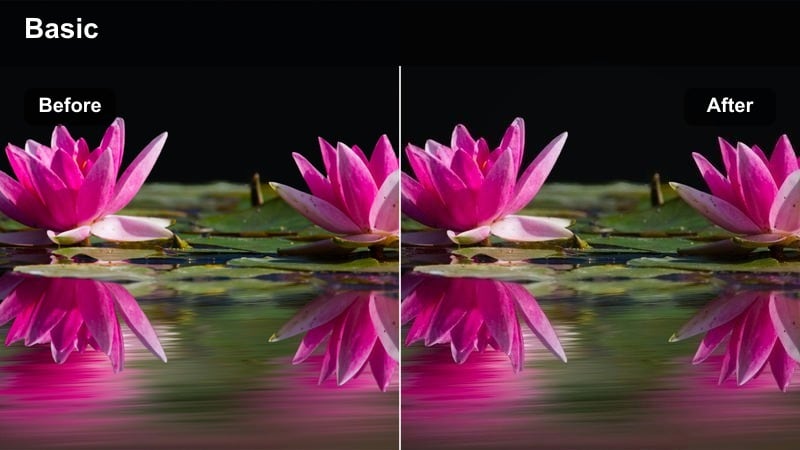
- Effect look: Cool, metallic tones with subtle green tint in midtones, inspired by urban metro films.
- Best for: Smartphone clips in subway stations, underpasses, and parking garages at night.
- Editing tip: Lower saturation a touch to keep the chromatic feel sophisticated rather than overly colorful.
Metro Film Chrome introduces a sleek, metallic palette that fits underground and industrial locations. The cool tones and faint green cast in the midtones make tunnels, trains, and fluorescent lighting feel cinematic and slightly gritty.
Apply this look in Filmora to metro, underpass, or garage footage, then pull saturation back a bit so the chromatic style remains refined. Add cinematic letterbox bars and gentle camera motion stabilization to sell the feeling of a crafted short film or music video, even when shot on a phone.
Street Neo Noir
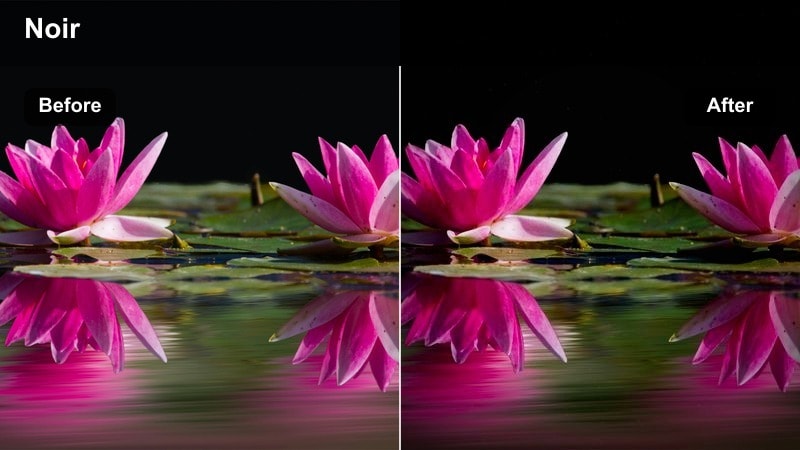
- Effect look: Dark, contrast-heavy grade with deep blacks and saturated streetlights.
- Best for: Rainy streets, taxi rides, and handheld smartphone shots of alleyways.
- Editing tip: Crush blacks slightly but keep a little detail in shadows to avoid banding from phone sensors.
Street Neo Noir is built for dramatic, shadow-filled city nights, focusing on deep blacks and strong highlight accents from lamps, cars, and signs. It turns noisy, handheld smartphone footage into something closer to a stylized crime or mystery sequence.
In Filmora, adjust black levels until silhouettes feel strong yet not pure black, preserving subtle texture in jackets, walls, and reflections. Add gentle stabilization and slow motion to smooth out jitters, then layer atmospheric sound to complete the neo-noir vibe.
Daylight Travel, Skylines, and City B-Roll
City Day Cinematic
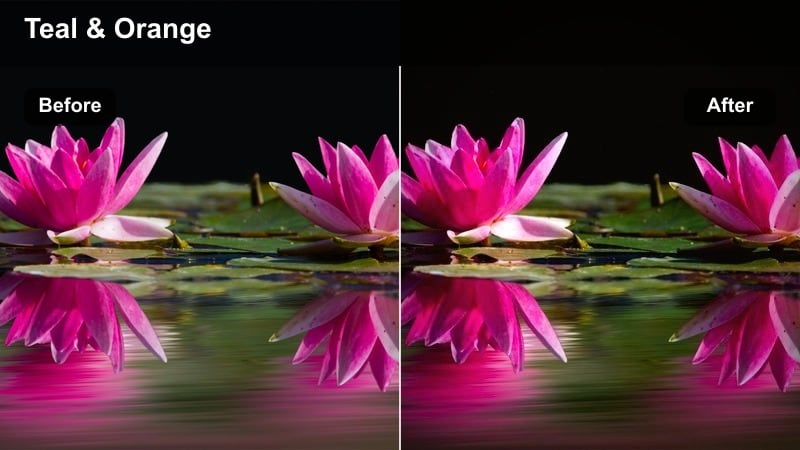
- Effect look: Clean daylight contrast with mild teal shadows and warm highlights for a travel-film feel.
- Best for: Smartphone cityscapes, landmarks, and walking tours under bright sun.
- Editing tip: Slightly reduce contrast if your phone over-sharpens edges to keep the image more filmic.
City Day Cinematic gives bright daytime clips a subtle teal-and-warm highlight treatment without over-stylizing. It smooths out harsh midday contrast from smartphone sensors and helps buildings, skies, and skin tones sit together in a polished travel-film style.
In Filmora, use this filter on skyline sweeps, architectural B-roll, and walking tours, then trim contrast and sharpening if your phone produces crunchy edges. Add gentle motion blur on transitions and a consistent soundtrack to tie the graded shots into a cohesive city travel sequence.
Travel Soft Pastel
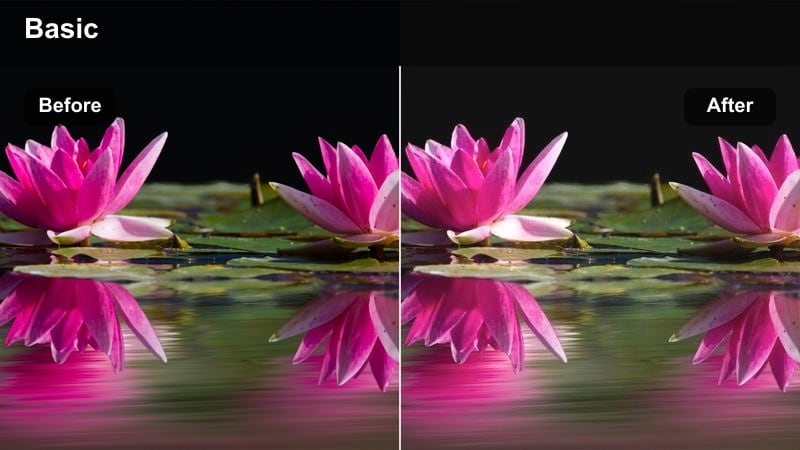
- Effect look: Pastel-like low saturation with gentle highlights and cool shadows for airy travel videos.
- Best for: Smartphone clips of plazas, promenades, and architecture during bright but hazy days.
- Editing tip: Reduce overall saturation and add a touch of fade to enhance the pastel aesthetic.
Travel Soft Pastel mutes strong colors and adds airy highlights, perfect for relaxed city walks and scenic views. It pushes bright tones into a softer, dreamier space, which works especially well on lightly overcast or hazy days.
Apply this look in Filmora to plazas, promenades, and waterfronts, then refine with a small fade in the blacks and slightly reduced saturation. Combine with slow pans, gentle zooms, and minimal on-screen text so the pastel mood and architecture remain the focus.
Urban Docu Neutral
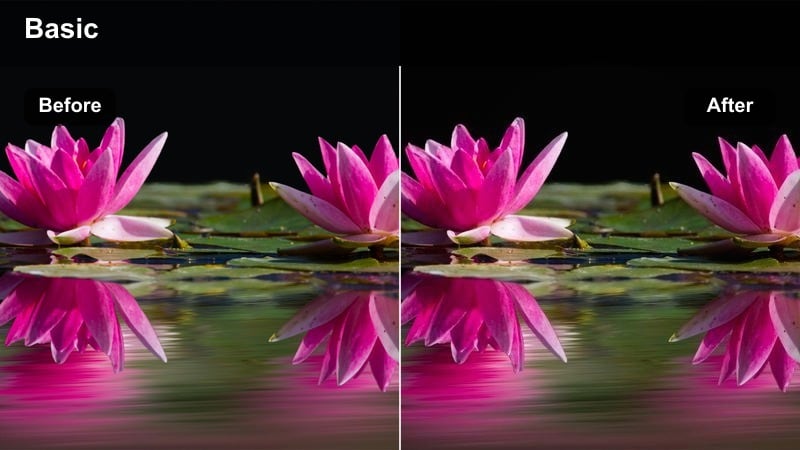
- Effect look: Neutral, documentary-style contrast with slightly desaturated colors and clean whites.
- Best for: Street interviews, city montages, and B-roll for creator documentaries shot on phones.
- Editing tip: Adjust white balance per clip before applying this look for consistent documentary color.
Urban Docu Neutral is built for grounded, realistic storytelling with a restrained cinematic touch. It slightly desaturates colors, keeps whites clean, and maintains natural skin tones, making it ideal for interviews, vox pops, and observational street B-roll.
In Filmora, correct each clip's white balance and exposure, then apply this filter across the project to unify visuals from multiple locations or phones. Add clean lower thirds, J and L audio cuts, and subtle background music so the neutral grade supports the story without drawing attention to itself.
Tips for Using Smartphone Video Luts Cinematic Filters in Filmora
- Lock focus and exposure on your smartphone before recording so the cinematic filters stay stable across the clip.
- Shoot at the highest resolution and bitrate your phone allows to give the filters more detail and dynamic range to work with.
- Avoid extreme digital zoom on your phone; move physically closer so the graded footage stays sharp and clean.
- Keep color temperature consistent by avoiding mixed lighting, such as warm lamps next to cool daylight windows.
- Add a subtle amount of blur or grain in Filmora if your phone footage looks too clinical after applying a cinematic filter.
- Use grid lines on your phone to frame straight horizons and strong leading lines that complement cinematic looks.
- Film a short color reference shot in your main location so you can quickly test which filter fits the mood best.
- For social content, stick to one or two signature cinematic looks across videos so your smartphone feed feels cohesive.
Smartphone video LUTs cinematic-style filters in Filmora let videographers and creators turn everyday phone clips into cohesive, film-like stories with minimal effort. You can focus on framing and performance while Filmora handles the heavy lifting of color and tone.
Experiment with a few presets, save your favorites as custom looks, and then explore the free cinematic LUTs pack download to expand your mobile grading toolkit even further.
secure download