

 100% Security Verified | No Subscription Required | No Malware


 ChatGPT
 Perplexity
 Gemini
 Claude
 Grok
Grok
The Sony A1 delivers incredible dynamic range and detail, but to get a polished, cinematic look you need reliable LUT-style filters that keep your photo and video work consistent.
Below are 12 curated Sony A1 LUT-style filters designed for professional hybrid shooters, helping you move from capture to delivery faster while keeping a cohesive visual identity across formats.
In this article
Warm Portrait Filters for Golden Hour Sessions
Sunlit Portrait Glow
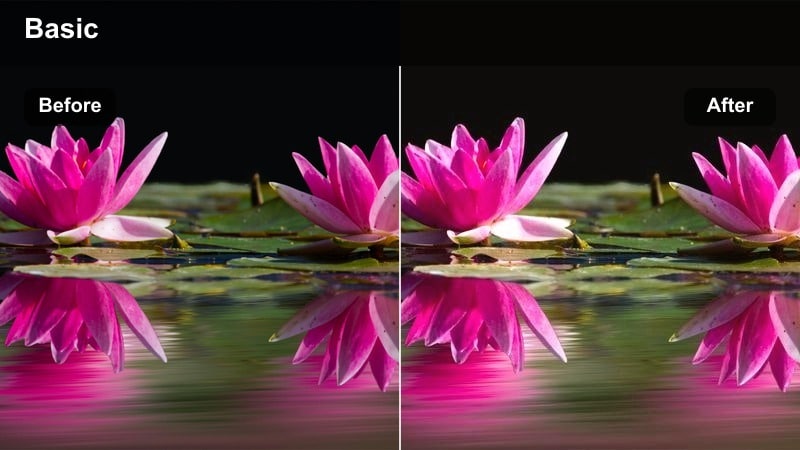
- Effect look: Soft golden warmth with lifted skin tones and gentle roll-off in the highlights for flattering close-ups.
- Best for: Outdoor golden hour portraits and natural-light interviews shot on the Sony A1.
- Editing tip: Slightly reduce contrast for strong backlight scenes and keep white balance a touch neutral to avoid overly orange skin.
Sunlit Portrait Glow adds a controlled golden-hour warmth that works beautifully with the Sony A1s dynamic range, giving skin a soft, luminous finish without losing detail in bright skies or backlit hair. In Filmora, this style is ideal when you want portraits and talking-head clips to feel romantic and premium, but still natural enough for brand work or lifestyle content.
Apply this filter on a separate adjustment layer above your portrait clips or stills, then fine-tune exposure with Filmoras basic color tools so faces sit comfortably in the midtones. Use masking to slightly lower the effect on extremely bright backgrounds, keeping attention on the subject while the warm highlights and gentle contrast produce a polished, cinematic look.
AI-Assisted Sony A1 Color Matching
Filmoras AI-driven color tools can automatically balance exposure and white balance across your Sony A1 clips before you apply Sunlit Portrait Glow or any other LUT-style filter. That means your golden hour sequences, interviews, and B-roll all start from a consistent baseline.
Whether you shoot S-Log3 video and RAW stills, AI color matching quickly aligns the look so your portrait filters land correctly and require only minimal tweaking.
 secure download

See Filters in Action on Sony A1 Footage
To quickly compare portrait looks, drop your Sony A1 clips into the Filmora timeline and toggle between Sunlit Portrait Glow and other filters in real time. Split-screen preview makes it easy to evaluate before-and-after changes on skin tones and backgrounds.
Build a short sequence with a mix of close-ups and medium shots, then audition several filters so you can lock in a cohesive style before grading the full project.
secure download1000+ Video Filters and 3D LUTs
Filmora includes a large library of built-in filters and 3D LUTs, so you can mix Sony A1-specific looks with classic film emulations, stylized grades, and creative effects. This helps hybrid shooters keep a consistent style while still tailoring the mood to each project.
Combine these presets with your own saved Sony A1 LUT-style recipes to build a flexible, reusable toolkit for portraits, events, and commercial work.
secure downloadAmber Street Portrait
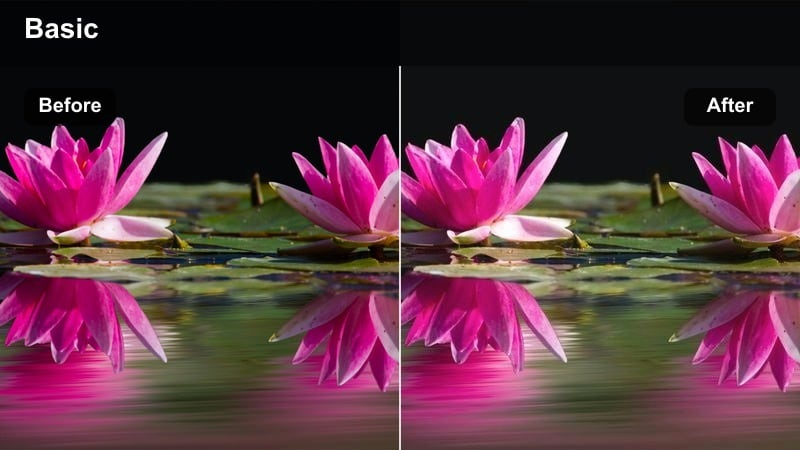
- Effect look: Urban amber tone with gentle contrast and softened shadows for street portraits.
- Best for: Candid Sony A1 portraits in city streets during late afternoon or just after sunset.
- Editing tip: Lower saturation in the orange channel slightly if skin starts to look too intense against neon or street signage.
Amber Street Portrait introduces a warm, urban cast that is perfect for late-day street sessions, giving your Sony A1 images a cinematic, city-inspired mood. In Filmora, the softened shadows help tame harsh contrast from mixed light sources while keeping facial features crisp for both still exports and vertical reels.
Apply this filter to an entire sequence of street portraits and B-roll, then use Filmoras color wheels to subtly pull back orange saturation when strong signage or brick walls compete with your subject. For hybrid shooters, this ensures that portraits, cutaways, and motion transitions all share the same cozy amber signature.
Hazy Backlight Portrait
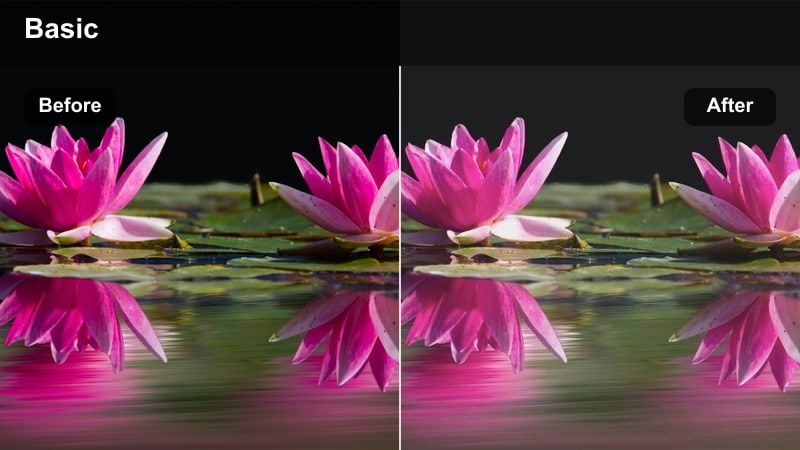
- Effect look: Dreamy halation-style glow around highlights with reduced clarity in the background.
- Best for: Sony A1 backlit portraits, bridal preparations, and lifestyle clips with strong rim light.
- Editing tip: Use a subtle vignette after applying the filter to keep focus on the subject when flares are strong.
Hazy Backlight Portrait mimics lens halation by blooming bright edges and highlights, creating a dreamy, romantic feel that works beautifully for lifestyle and bridal shots. The Sony A1s clean files handle this glow well, and Filmora lets you fine-tune the softness so the mood stays intentional rather than messy.
After adding the filter on an adjustment layer, use Filmoras vignette and blur tools to guide attention back to your subject when backlight is extreme. This approach preserves the cinematic glow in hair and edges while keeping skin tones legible and eyes sharp for both stills and motion pieces.
Cinematic Filters for Urban Night and Neon Scenes
Neon Chrome City
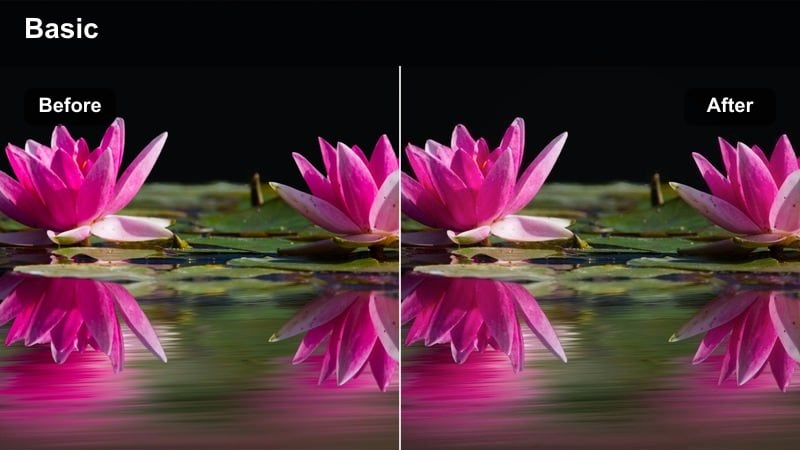
- Effect look: Cool teal shadows with saturated neon highlights and crisp micro-contrast.
- Best for: Sony A1 handheld night city footage, neon-lit streets, and cyberpunk-style portraits.
- Editing tip: Reduce luminance in the blue channel slightly if skies or signs start clipping, and keep ISO moderate to avoid noisy shadows.
Neon Chrome City leans into a teal-and-magenta palette that turns night streets into a stylized cyberpunk set, enhancing reflections and signage from your Sony A1 files. The boosted micro-contrast adds definition to wet pavement and building textures, making them pop when viewed on phones or large displays.
In Filmora, apply this filter to both wide establishing shots and close-up portraits, then use color controls to pull back saturation if skin tones drift too blue. Adjust the blue and cyan luminance sliders to preserve detail in high-intensity signs while keeping shadows rich and cinematic for both horizontal and vertical exports.
Midnight Cinema
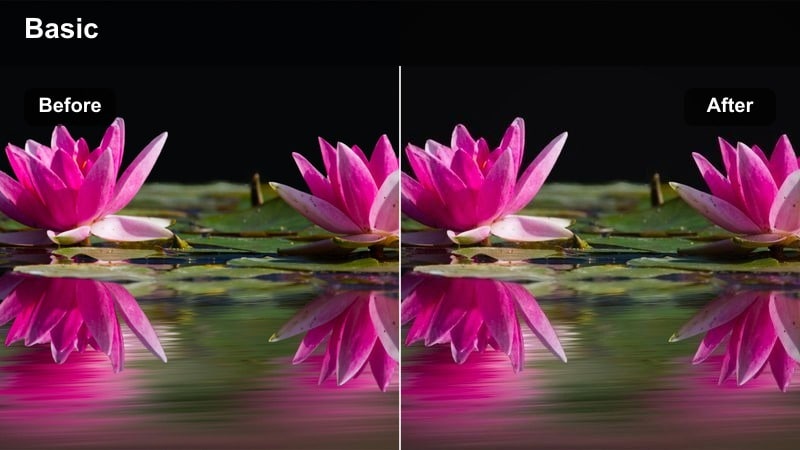
- Effect look: Soft filmic contrast, slightly lifted blacks, and muted primary colors for a cinematic night tone.
- Best for: Sony A1 narrative sequences, quiet alleyways, and night-time B-roll with practical lights.
- Editing tip: Add a gentle film grain overlay after this filter to enhance the cinematic mood without losing Sony A1 sharpness.
Midnight Cinema softens contrast and gently lifts blacks, giving Sony A1 night scenes a subtle film-inspired look that is ideal for narrative and docu-style storytelling. Colors are slightly muted so practical lights, signs, and windows feel natural rather than overwhelming.
Use this filter in Filmora across entire narrative sequences to maintain a cohesive mood, then layer in a light film grain effect to add texture without sacrificing the A1s crisp detail. For hybrid delivery, keep the same filter on still frames used as thumbnails so the visual identity of your project is consistent from poster to final video.
Rain Reflection Glow
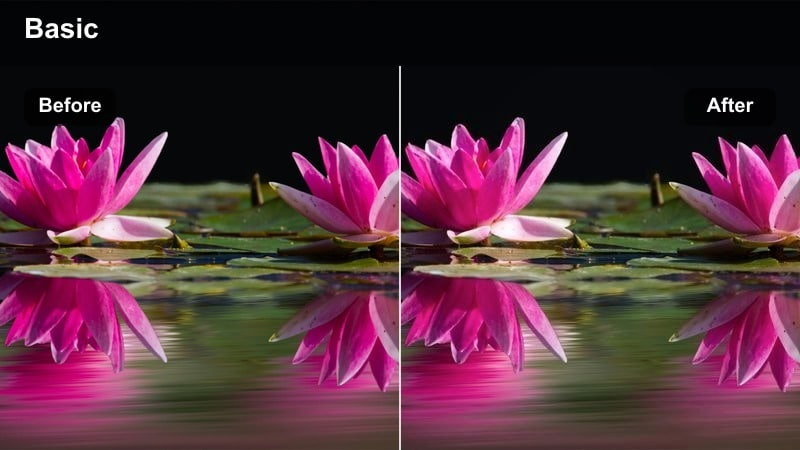
- Effect look: High saturation in reflected lights with pushed contrast and cool overall balance.
- Best for: Sony A1 night city scenes after rain, car parks, and reflective pavements with bokeh.
- Editing tip: Use a local adjustment to slightly darken the sky while keeping reflections bright for more depth.
Rain Reflection Glow emphasizes colorful reflections in puddles and wet pavement, pushing contrast and saturation to create a dramatic, cool-toned city atmosphere. Sony A1 night files hold up well under this more aggressive grade, preserving detail in both specular highlights and shadowy corners.
In Filmora, apply this filter to all your rainy-night B-roll, then use masks to selectively darken skies or building faces so attention stays on the luminous ground reflections. This approach makes your sequences feel cohesive and gives hybrid edits a distinct, high-energy night identity without heavy manual color work.
Neutral Filters for Daytime Documentary and Corporate Work
Clean Neutral Pro
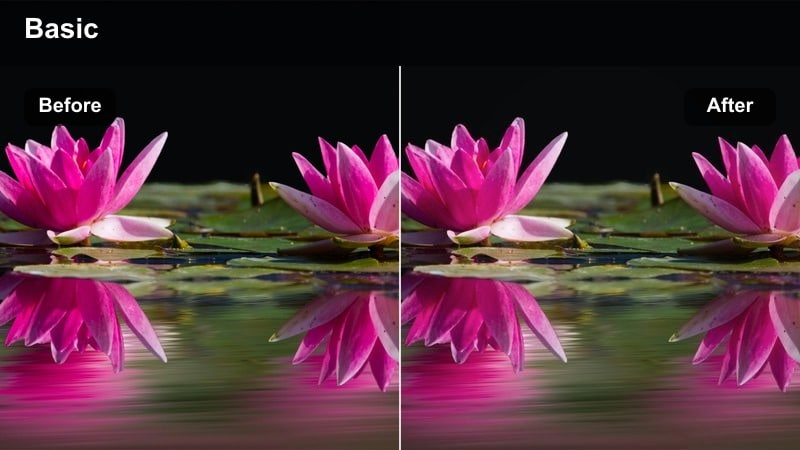
- Effect look: Balanced contrast, neutral color cast, and preserved highlight detail for a broadcast-safe image.
- Best for: Sony A1 corporate interviews, educational content, and brand documentaries shot in daylight.
- Editing tip: Keep saturation at default and fine-tune only the skin tone range to match brand guidelines.
Clean Neutral Pro delivers a safe, broadcast-ready image with accurate color and controlled highlights, making it ideal for clients who prioritize professionalism over stylization. On Sony A1 footage, it preserves sharpness and detail while avoiding clipped windows or blown white shirts in bright office environments.
Apply this filter early in your Filmora workflow and treat it as a base grade for entire corporate projects, then gently refine skin tones using HSL or color wheels to match brand palettes. Because the look is intentionally restrained, it also translates well across still exports, training modules, and social snippets without requiring separate grades.
Soft Office Warmth
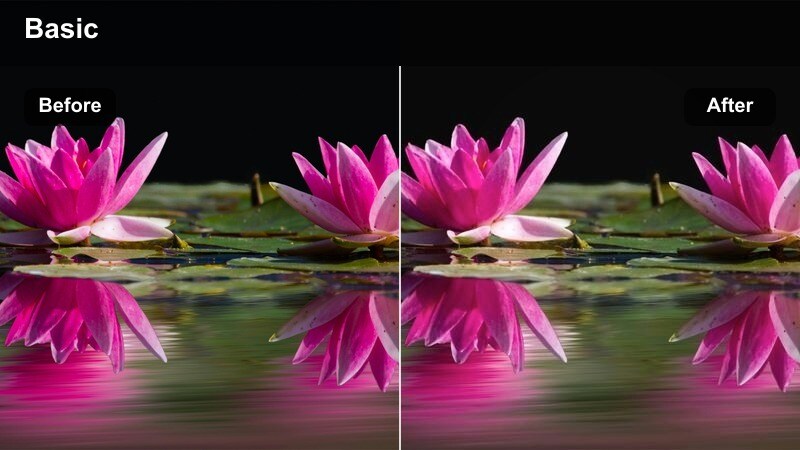
- Effect look: Slightly warm midtones, softened contrast, and subtle highlight roll-off for flattering office scenes.
- Best for: Sony A1 footage in window-lit offices, coworking spaces, and conference rooms.
- Editing tip: Dial back warmth in mixed lighting situations and keep exposure slightly under to avoid clipping window highlights.
Soft Office Warmth adds a gentle, inviting tone to corporate and documentary work by warming midtones and softening contrast, especially useful in otherwise sterile office environments. On the Sony A1, it smooths transitions between window light and interior fixtures so skin tones stay flattering in mixed setups.
In Filmora, apply this filter to interviews, B-roll of teams collaborating, and establishing shots, then make minor exposure tweaks to protect window highlights. If you encounter strong color casts from LEDs, use targeted adjustments to neutralize them while leaving the overall warm atmosphere intact.
Street Doc Neutral
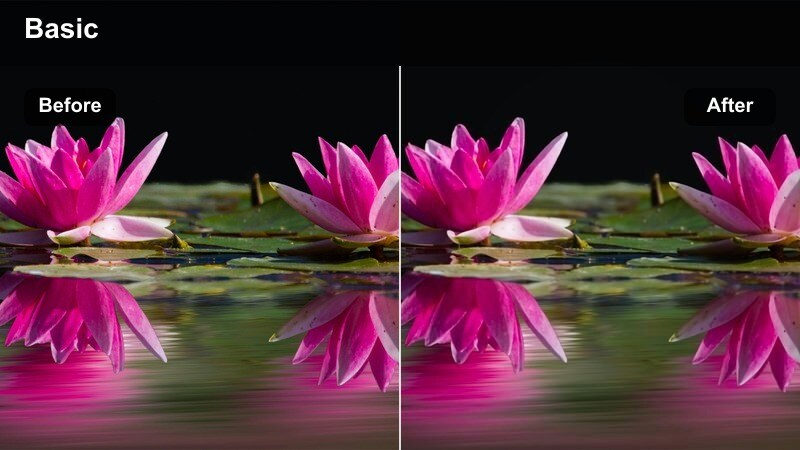
- Effect look: Slightly muted saturation with moderate contrast for authentic street and run-and-gun coverage.
- Best for: Sony A1 handheld documentary, city walk-throughs, and event coverage in daylight.
- Editing tip: Add local contrast on the subject only to keep backgrounds understated and maintain a documentary feel.
Street Doc Neutral pulls overall saturation down slightly and keeps contrast moderate, giving Sony A1 daytime footage a grounded, realistic look that is ideal for documentary storytelling. This keeps attention on content rather than color, making it easier to mix clips from different locations and times of day.
In Filmora, apply the filter broadly across your documentary timeline, then use masks or keyframing to add subtle contrast to primary subjects when needed. This workflow lets you maintain a cohesive, natural aesthetic while still guiding the viewers eye through busy street environments.
Cinematic Filters for Weddings, Events, and Hybrid Coverage
Classic Wedding Soft
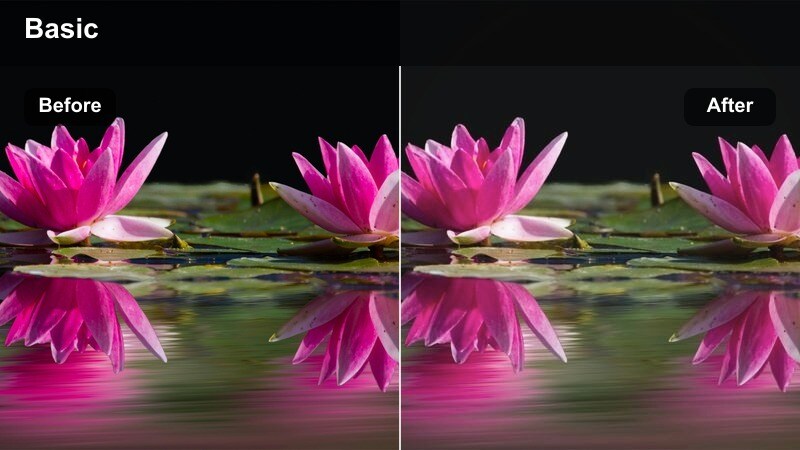
- Effect look: Soft contrast, lifted shadows, and gentle pastel highlights for romantic scenes.
- Best for: Sony A1 wedding ceremonies, bridal portraits, and emotional close-ups at events.
- Editing tip: Avoid overexposing white dresses; keep histogram centered and let the filter add softness afterward.
Classic Wedding Soft creates a delicate, pastel rendering of Sony A1 wedding footage, lifting shadows and softening contrast to flatter skin and white fabrics. The look is timeless enough for albums and long-form films, while still holding detail in veils, lace, and floral highlights.
Within Filmora, apply this filter across all key wedding segments from prep to reception, then fine-tune exposure on the dress and faces so the softness enhances rather than hides detail. Saving it as a preset ensures your photo slideshows, teaser films, and social clips all share the same romantic tone.
Cinematic Reception Amber
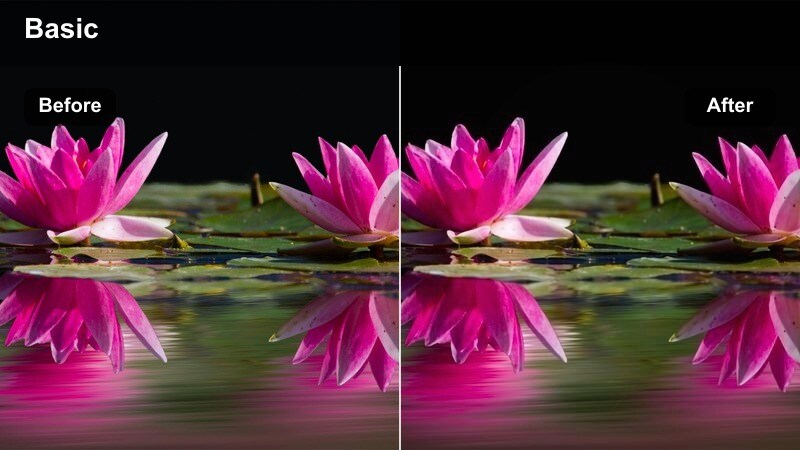
- Effect look: Rich amber highlights, deeper shadows, and focused warmth around practical lights.
- Best for: Sony A1 reception speeches, first dances, and indoor event coverage with warm string lights.
- Editing tip: Use a radial mask around the couple or speaker to boost exposure slightly while keeping the room dark and cinematic.
Cinematic Reception Amber leans into the natural warmth of string lights and candles, deepening shadows and enriching amber tones to create a moody evening atmosphere. Sony A1s low-light performance pairs well with this grade, preserving detail in faces while the room falls gently into darkness.
In Filmora, apply the filter to all reception coverage, then use radial masks to subtly brighten the couple or speaker so they stand out within the warm glow. This keeps your highlight films looking intentional and cinematic without needing complex lighting setups on the day.
Event Highlight Punch
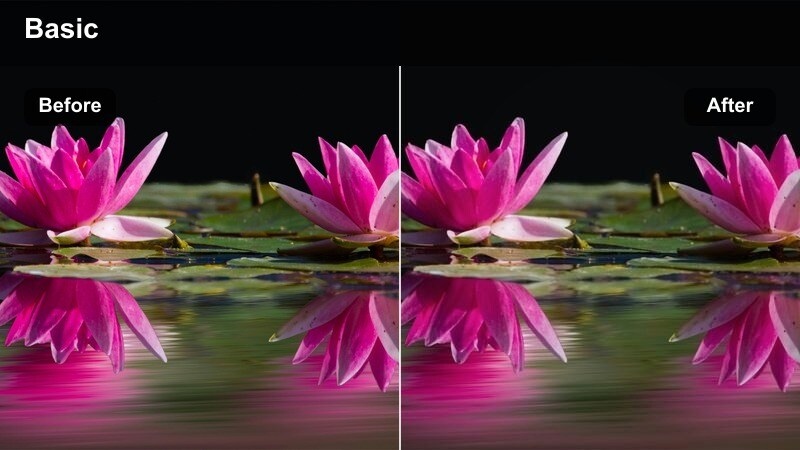
- Effect look: High-energy contrast with vivid but controlled colors and crisp detail.
- Best for: Sony A1 highlight reels, social cuts of conferences, concerts, and sports events.
- Editing tip: Apply light sharpening after this filter for 4K delivery but avoid overdoing it when cropping aggressively.
Event Highlight Punch is designed to make fast-paced Sony A1 footage stand out, boosting contrast and color for maximum impact on social platforms and big screens. It keeps colors vibrant but controlled so brand elements, stage lighting, and crowd shots all look punchy without appearing oversaturated.
Use this filter in Filmora on your best moments from conferences, concerts, or sports, then add subtle sharpening for 4K exports so details remain crisp in quick cuts. Batch apply it across similar lighting setups to accelerate turnaround, and save it as a LUT-style preset for consistent branding across multiple events.
Tips for Using Sony A1 Filters in Filmora
- Shoot in S-Log3 or another flat profile on your Sony A1 to retain maximum dynamic range before applying stronger filters or LUT-style looks in Filmora.
- Maintain a consistent white balance setting across each scene so your chosen Sony A1 LUT-style filter behaves predictably from shot to shot.
- Create separate versions of favorite filters for daylight and tungsten conditions, then save them as presets to speed up hybrid workflows.
- Check skin tones first when applying stylized Sony photography LUTs and filters, then fine-tune the background colors to maintain a natural feel.
- Use adjustment layers in Filmora so you can swap filters or LUTs quickly without baking grades into individual Sony A1 clips.
- Test each filter on both stills and video from the same shoot to confirm it translates well across your hybrid pipeline and export formats.
With the right Sony A1 LUT-style filters, you can move from flat log footage and neutral RAW stills to polished, cinematic stories in just a few clicks.
Build a small library of go-to looks for portraits, city nights, daytime docs, and events, then adapt them per project so your hybrid Sony A1 work stays fast, flexible, and consistent.
secure downloadNext: Best Canon R3 LUTs
