

 100% Security Verified | No Subscription Required | No Malware


 ChatGPT
 Perplexity
 Gemini
 Claude
 Grok
Grok
This Sony FX3 cinematic LUT pack inspired filter collection is designed for videographers and creators who want rich, filmic color with minimal effort in Filmora.
Use these scene-based presets to quickly match the cinematic look you imagine, then fine-tune exposure, contrast, and grain to perfectly fit your Sony FX3 footage.
In this article
Dusk City Stories: Urban Neon and Street Cinematics
Neon Noir FX3
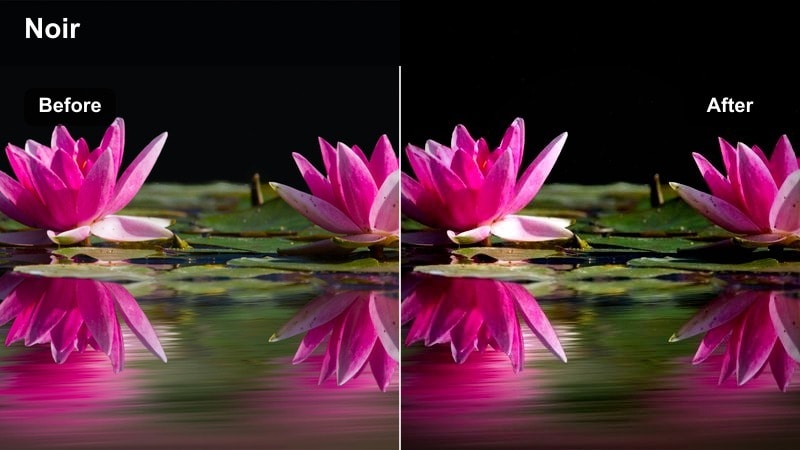
- Effect look: High-contrast urban night look with deep shadows, rich blacks, and saturated neon colors for a moody cinematic frame.
- Best for: City streets at night, neon signs, rainy sidewalks, and handheld Sony FX3 sequences with strong ambient light.
- Editing tip: Lower the blacks slightly and add a subtle vignette to keep faces readable while preserving the intense glow of neon lights.
Neon Noir FX3 is built for the classic night-in-the-city look: dense shadows, bright signs, and strong color separation between deep blues, magentas, and cyans. On Sony FX3 footage, it transforms flat S-Log or neutral clips into punchy frames that feel like a night thriller, while still protecting important midtone details around faces and clothing.
In Filmora, apply this filter once exposure and white balance are roughly balanced, then fine-tune curves to control how quickly shadows roll to black. Use masks to isolate faces if they get too dark, and combine the look with a subtle vignette and a little film grain so the high-contrast neon environment feels intentional and cinematic instead of digitally harsh.
Match Sony FX3 Colors with AI-Powered Adjustments
Before you commit to a strong stylistic filter like Neon Noir FX3, use Filmora AI color tools to normalize your Sony FX3 clips. Automatic analysis helps even out white balance and exposure so city lights, skin tones, and ambient colors sit in a neutral starting point.
Once you have that balanced base, layer your preferred FX3 cinematic filter on top to lock in the final mood while preserving as much highlight and shadow detail as possible across different shots and locations.
Try using AI color correction first, then layer your favorite FX3 cinematic filter for the final polish.
 secure download

Preview FX3 Cinematic Filters on Real Footage
With your Sony FX3 test clips on the Filmora timeline, open the Effects panel and quickly audition each cinematic filter family. Switching between neon city looks, soft golden hour treatments, vlog-ready neutrals, and moody studio tones lets you see which direction best supports your story.
Create a simple comparison sequence by duplicating your clip on multiple tracks or in separate cuts, then apply a different style filter to each so you can judge contrast, color, and skin tones side by side before committing.
Create a quick side-by-side comparison sequence to lock in a main filter for your entire edit.
secure downloadBuild a Cohesive FX3 LUT and Filter Library
Use this Sony FX3 cinematic LUT inspired pack as the backbone of a personal grading library in Filmora. Combine these scene-focused filters with your own imported LUTs and custom presets so you can move from travel vlogs to studio shoots without rebuilding looks from scratch.
Organize your favorite variations by environment, such as city night, golden hour, casual vlog, and controlled studio, and save your tuned settings as presets. That way, any new FX3 project can start from a familiar, cinematic base in just a few clicks.
Save your most-used tweaks as custom presets so your FX3 footage always starts from a familiar cinematic base.
secure downloadStreet Cyan X
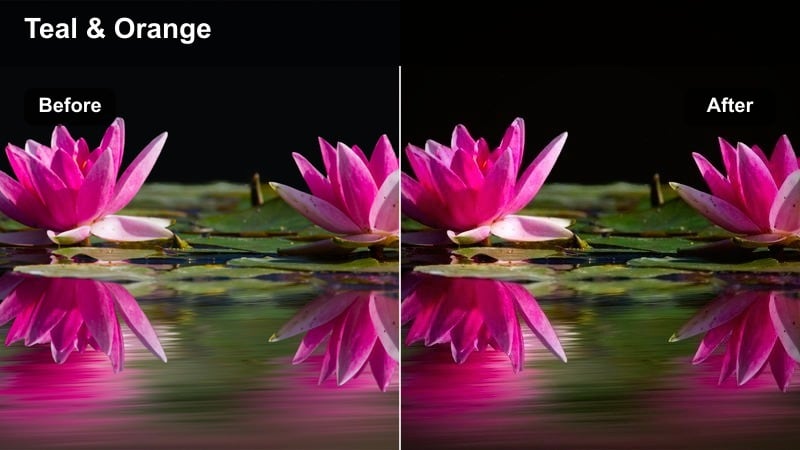
- Effect look: Cool cyan and teal emphasis on shadows with a subtle orange lift in mids for modern city teal-and-orange contrast.
- Best for: Urban B-roll, car passes, city bridges, subway entrances, and FX3 gimbal shots at blue hour.
- Editing tip: Adjust temperature slightly warmer if skin tones feel too cold, then reduce vibrance to avoid oversaturated teal in the shadows.
Street Cyan X brings a stylized teal-and-orange grade to your FX3 night or dusk exteriors, reinforcing cool city architecture while keeping skin and practical lights warm. This look is ideal for commercial style content, urban travel pieces, or social edits where you want strong color identity straight out of Filmora.
Apply the filter, then use Filmoras HSL controls to pull back teal saturation on concrete, roads, and sky if they feel too intense. Warm up the global white balance to rescue skin tones, and keep overall contrast moderate so you maintain structure in buildings and faces while still enjoying that polished blockbuster-style separation.
Metro Amber Glow
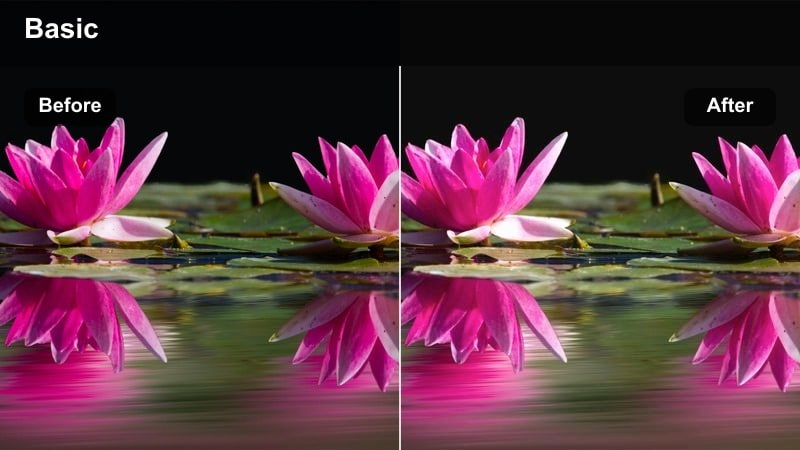
- Effect look: Warm amber highlights and softened contrast that wrap city lights gently around subjects for a romantic night feel.
- Best for: Night streets, outdoor cafes, walking-and-talking scenes, and FX3 shallow depth-of-field portraits under streetlights.
- Editing tip: Add a touch of softening or glow in Filmora to enhance light halos around street lamps while slightly reducing clarity on backgrounds.
Metro Amber Glow shifts your FX3 night footage toward a softer, more romantic palette, where streetlights and shop windows wrap around your subjects in golden hues. Blacks are slightly lifted and contrast is smoothed, flattering faces and bokeh for narrative scenes and lifestyle sequences shot in busy city environments.
In Filmora, combine this filter with a mild glow or diffusion effect to emphasize light halos and smooth edges in the background. If the overall warmth starts to push too far into orange, cool the temperature slightly and use selective color to subtly desaturate oranges in skin while keeping the pleasant amber tone in practical lights and reflections.
Golden Hour Portraits: Soft, Dreamy FX3 Skin Tones
Sunset Soft Film
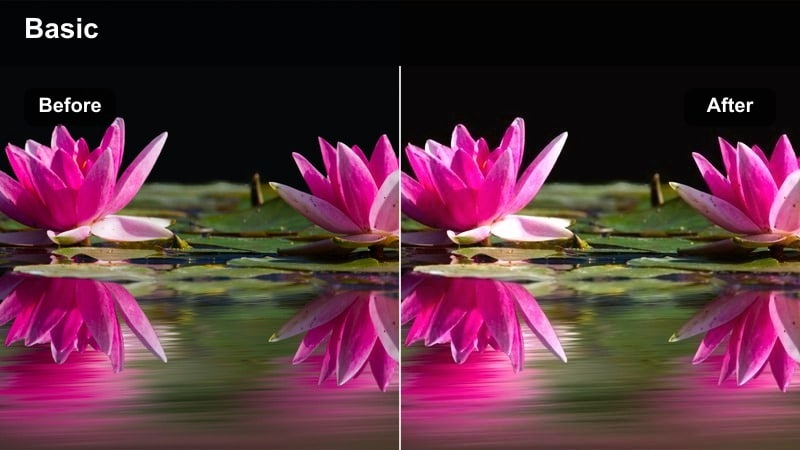
- Effect look: Low-contrast, slightly lifted blacks with gentle warm highlights that mimic soft film stock at sunset.
- Best for: Golden hour portraits, backlit couples, outdoor lifestyle b-roll, and FX3 slow-motion walking shots.
- Editing tip: Slightly underexpose in-camera, then raise shadows and blacks in Filmora after applying the filter to keep detail in bright skies.
Sunset Soft Film is tuned to preserve the delicate roll-off of golden hour light on FX3 footage, emphasizing creamy highlights and gentle contrast. It slightly lifts blacks to avoid harsh edges, giving your portraits and lifestyle shots a film-inspired softness without losing clarity around eyes and facial features.
When grading in Filmora, apply the filter after basic exposure correction, then use the curves and highlight controls to protect bright skies and hair light. Raising midtones and shadows just enough will keep faces open and inviting, while a touch of film grain and a subtle vignette can reinforce that nostalgic, cinematic mood.
Cream Skin Portrait
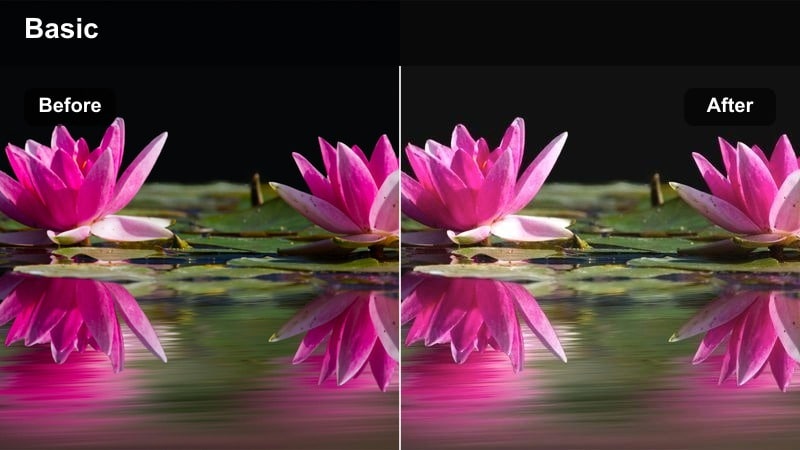
- Effect look: Neutral-warm color with softened contrast and a subtle pastel shift that smooths and brightens skin tones.
- Best for: Beauty content, wedding highlights, talking-head clips, and FX3 portraits shot in soft window or sunset light.
- Editing tip: Dial back overall saturation but add a bit of vibrance after the filter to maintain pleasing color in background details.
Cream Skin Portrait focuses on flattering complexions, giving Sony FX3 footage a polished, editorial feel that works especially well for beauty, weddings, and lifestyle content. It slightly reduces contrast and shifts colors toward a pastel, creamy palette, making skin appear smoother and more luminous without heavy retouching.
In Filmora, apply this filter and then fine-tune saturation and vibrance so backgrounds stay interesting but never overpower the subject. If needed, use face refinement tools lightly for small enhancements, and adjust clarity or sharpness subtly so pores and texture remain natural while the overall image feels soft and cinematic.
Backlight Flare Cinema
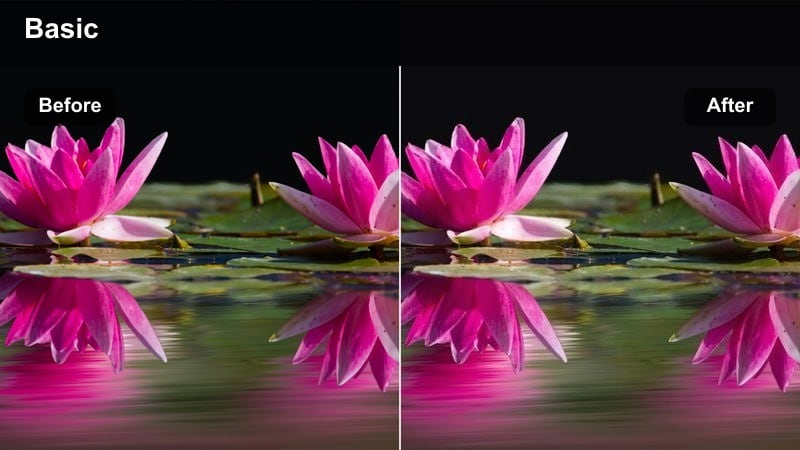
- Effect look: Hazy, lifted highlights with a golden tint and slightly lowered contrast that emphasizes lens flares and rim light.
- Best for: Backlit walk-and-talks, music videos, and FX3 handheld shots with sun peeking through trees or buildings.
- Editing tip: Use a mild diffusion or glow effect in Filmora and reduce sharpness slightly to reinforce the dreamy flare aesthetic.
Backlight Flare Cinema is tuned for scenarios where the sun or a bright source sits just out of frame, creating natural flares and halos in your FX3 footage. The filter lifts highlights and warms the image to accentuate that glow, while slightly reducing contrast to keep the scene dreamy and romantic rather than harsh.
When grading in Filmora, apply this filter and then adjust the black point to avoid the image feeling too washed out. Add a gentle glow or diffusion effect plus a touch of film grain so the lifted areas feel intentional and textured, making backlit music videos, lifestyle b-roll, or narrative moments look polished and cinematic straight from the timeline.
Run-and-Gun Vlog: Clean Everyday Cinematic Looks
FX3 Daily Neutral
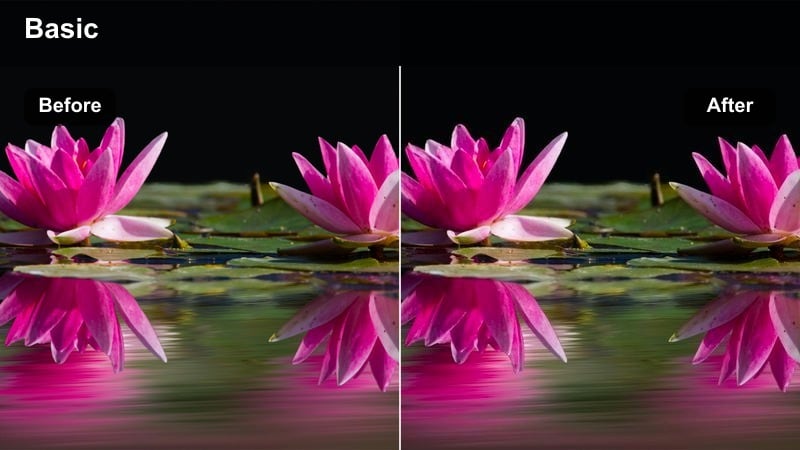
- Effect look: Balanced contrast and true-to-life color with a small cinematic curve for versatile everyday footage.
- Best for: Travel vlogs, day-in-the-life clips, handheld walk-throughs, and FX3 creator content in mixed lighting.
- Editing tip: Expose your FX3 footage slightly to the right in-camera, then pull back highlights in Filmora once this filter is applied.
FX3 Daily Neutral is a practical, all-purpose look designed to make your everyday vlog content feel subtly cinematic while keeping colors honest and recognizable. It shapes contrast with a gentle curve, making Sony FX3 clips look more polished than straight out of camera without pushing into a heavy stylization.
Use this filter in Filmora as your base grade: apply it to all clips, adjust exposure and white balance per shot, then save the result as a custom preset. With this consistent starting point, you can add creative variations like vignettes, localized contrast boosts, or secondary filters on specific scenes without losing overall cohesion across your vlog episodes.
CafeDay Soft Vlog
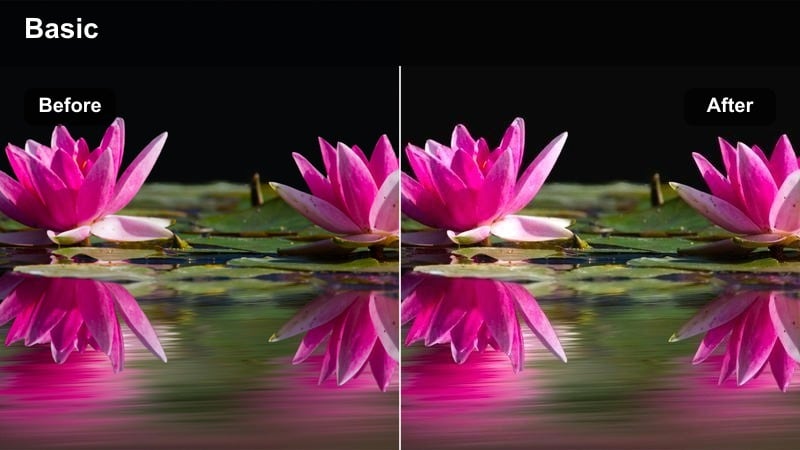
- Effect look: Gently lowered contrast with warm mids and slightly desaturated primaries for a relaxed lifestyle feel.
- Best for: Cafe chats, co-working scenes, b-roll of laptops, and FX3 handheld interiors with mixed daylight and warm lamps.
- Editing tip: Use selective color to tame any strong green or magenta cast from interior lighting after the filter is applied.
CafeDay Soft Vlog is tailored to cozy interior scenes where you want a calm, lifestyle aesthetic rather than punchy saturation. It warms midtones, lowers contrast, and slightly mutes primary colors, giving Sony FX3 recordings in cafes, coworking spaces, and home offices a relaxed, film-inspired mood.
After applying this filter in Filmora, evaluate your footage for mixed lighting issues such as greenish fluorescents or magenta LEDs. Correct these with white balance and HSL adjustments, then consider adding a gentle vignette or subtle blur on the background so the viewer naturally focuses on you or your subject while still feeling the ambiance of the space.
Travel Clarity Boost
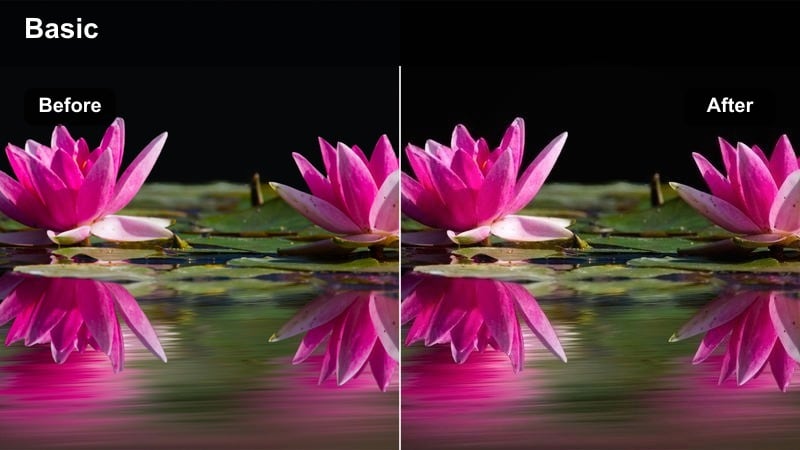
- Effect look: Crisp, slightly higher contrast with boosted micro-contrast and vivid but controlled colors.
- Best for: Travel montages, city walk-throughs, landmarks, markets, and FX3 gimbal shots in bright daylight.
- Editing tip: If the footage starts to look too sharp, lower clarity and add a small amount of film grain for texture over pure sharpness.
Travel Clarity Boost enhances detail and punch in your FX3 travel footage, making buildings, landscapes, and street textures feel crisp and immersive. Colors are vivid yet controlled, helping landmarks and markets stand out on social platforms while still retaining a cinematic sensibility instead of a purely HDR look.
Once you apply this filter in Filmora, watch for oversharpening or crunchy edges, especially on fine patterns like rooftops, foliage, or distant crowds. Reduce clarity slightly if needed and layer in a touch of film grain to add organic texture, ensuring your high-contrast travel sequences feel rich and three-dimensional without becoming visually fatiguing.
Moody Studio Scenes: Controlled Light and Dramatic Frames
Low-Key Cine Contrast
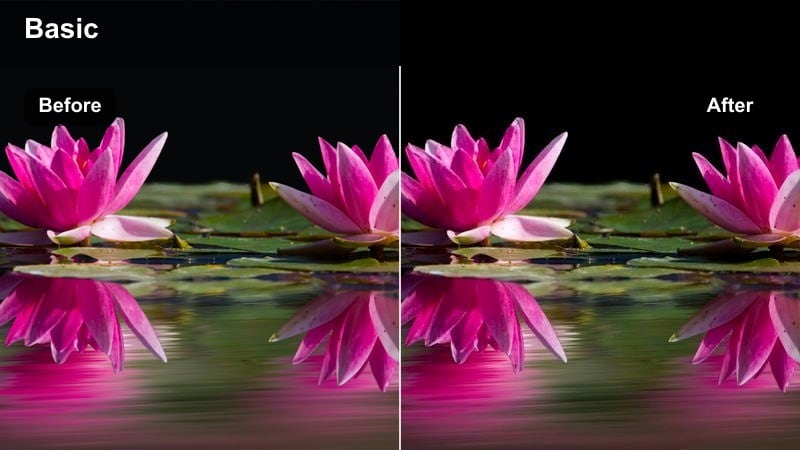
- Effect look: Deep blacks, strong contrast, and subtle cool shadows that emphasize shape and controlled lighting.
- Best for: Studio interviews, dramatic music videos, and FX3 tripod setups with a single key light and dark backgrounds.
- Editing tip: Expose slightly brighter than you want, then bring the blacks down in Filmora after applying this filter to keep noise under control.
Low-Key Cine Contrast is designed to make the most of controlled studio lighting, pushing FX3 footage toward deep, cinematic blacks and sculpted shadows. Cool undertones in the darker areas emphasize structure in faces and clothing, delivering a dramatic, high-end aesthetic suited to interviews, performance pieces, and stylized promos.
In Filmora, apply this filter to well-exposed clips and then fine-tune the curves so shadows roll cleanly into black without crushing important detail in hair or wardrobe. Keep an eye on noise in underexposed regions, and if necessary, slightly lift the deepest shadows or add a touch of film grain so any texture feels intentional rather than digital.
Studio Chrono Green
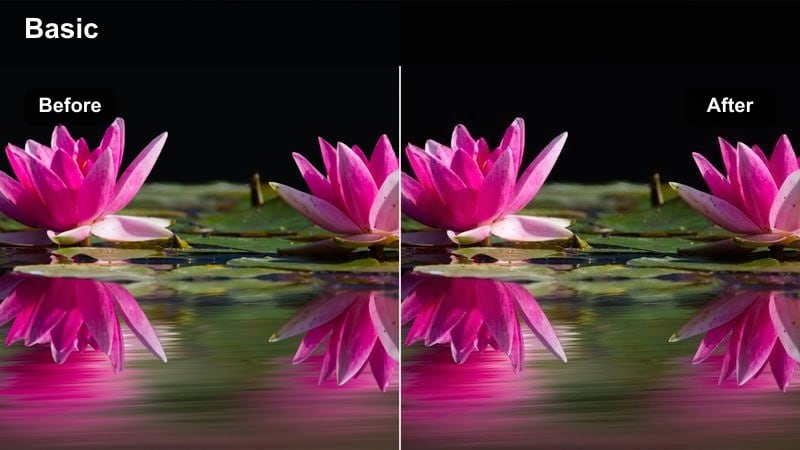
- Effect look: Slightly desaturated palette with cooler greenish shadows and neutral mids for a stylized, modern studio aesthetic.
- Best for: Product shots, tech reviews, moody desk setups, and FX3 overheads with LED accent lights.
- Editing tip: Add colored accent lights in-camera, then adjust specific hue channels in Filmora to fine-tune the final tone of each light.
Studio Chrono Green gives your FX3 studio scenes a subtle sci-fi or tech-forward feel by cooling and slightly desaturating the shadows while leaving midtones and highlights fairly neutral. It pairs especially well with RGB accent lights, glowing screens, and product close-ups where you want the environment to feel modern and cohesive.
After applying this filter in Filmora, use HSL controls or color wheels to refine the exact shade of your accent lights so they stand out without contaminating skin tones. Keep global saturation modest, but allow one or two brand or set colors to remain more pronounced, guiding the viewers eye toward key props, screens, or logo elements in the frame.
Cinema Mono Tint
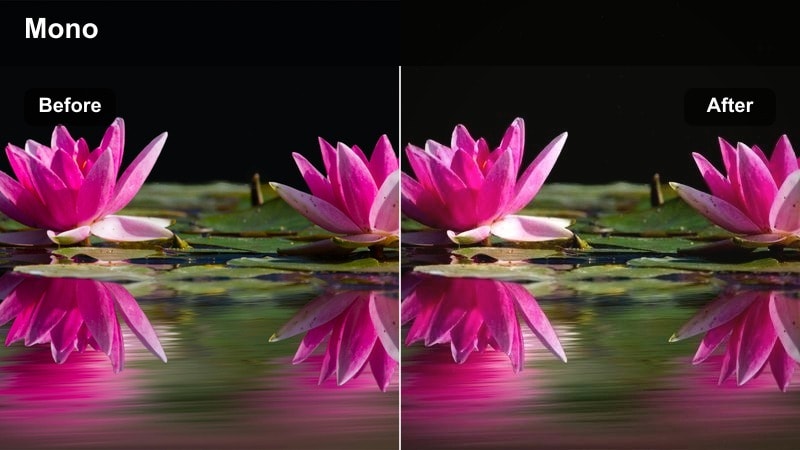
- Effect look: Almost monochrome with a subtle warm or cool tint and high micro-contrast for highly dramatic storytelling.
- Best for: Narrative shorts, dramatic monologues, fashion studio shots, and FX3 scenes where color is less important than emotion.
- Editing tip: Use local exposure adjustments and vignettes to draw attention to faces and key props within the almost monochrome scene.
Cinema Mono Tint strips most color from your FX3 footage, leaving a carefully controlled warm or cool cast that enhances mood rather than distracting with full-spectrum hues. Increased micro-contrast emphasizes textures in skin, fabric, and set design, making it a powerful option for dramatic monologues, fashion imagery, or narrative shorts focused on expression.
In Filmora, apply this look and then use local adjustments, masks, and vignettes to guide attention toward faces, hands, or important props. Keep any remaining color extremely subtle so the emotional content and composition drive the scene; a small shift toward either warm or cool tones can redefine the story without reintroducing a fully colored palette.
Tips for Using Sony Fx3 Cinematic Lut Pack Filters in Filmora
- Shoot in a flat or log profile on your Sony FX3, then normalize exposure before applying cinematic filters for cleaner results.
- Keep shutter angle consistent for natural motion blur, especially when pairing these filters with FX3 slow-motion clips.
- Use scopes in Filmora to avoid crushing shadows or blowing highlights when adding contrast-heavy filters.
- Create a base look for an entire project, then only make small variations shot by shot to maintain consistent color.
- Add grain and subtle vignette at the end of your grading stack to tie together footage from different locations.
- Test each filter on both close-ups and wide shots from your FX3 to ensure it works well across framing changes.
This Sony FX3 cinematic LUT pack inspired filter collection gives videographers and creators fast, reliable ways to turn everyday footage into polished, film-style visuals inside Filmora.
Start with the scene family that matches your project, tweak exposure and color gently, and save your favorite combinations as presets so every new FX3 edit feels cinematic from the first drag-and-drop.
secure downloadNext: Sony FX30 Vlog LUTS
