

 100% Security Verified | No Subscription Required | No Malware


 ChatGPT
 Perplexity
 Gemini
 Claude
 Grok
Grok
Travel creators need fast, cinematic looks that make short-form content pop on TikTok, Reels, and YouTube Shorts, and CapCut filters inspired by LUT styles are one of the quickest ways to transform your vacation clips.
This guide breaks down 12 filter presets that mimic popular travel LUTs so you can match destinations, moods, and lighting conditions while keeping your CapCut travel shorts consistent and binge-worthy.
In this article
Golden Hour City Rooftops and Sunset Skylines
Sunset Glow Warm Pop
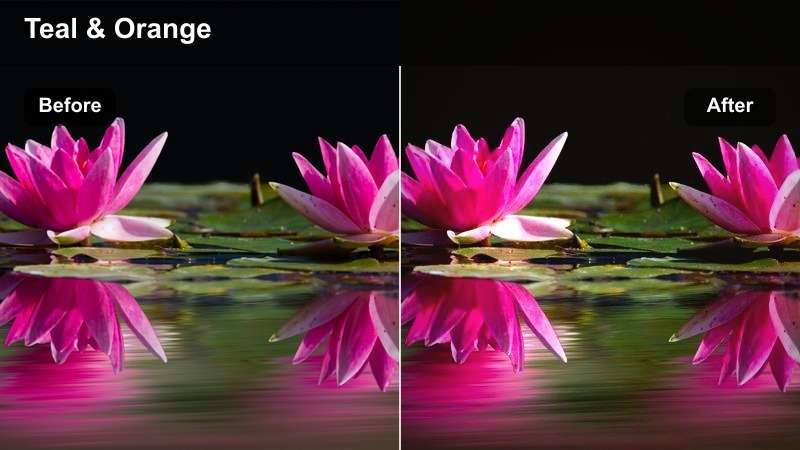
- Effect look: Warm, saturated oranges and subtle teal shadows for glowing city sunsets.
- Best for: Rooftop sunsets, skyline time-lapses, golden hour walk-throughs in big cities.
- Editing tip: Lower contrast slightly if skin tones start to look too orange and boost highlight roll-off for smoother skies.
Use Sunset Glow Warm Pop when your CapCut travel shorts need that classic orange-and-teal blockbuster feel on city skylines. After you export or re-edit your CapCut clips in Filmora, combine this look with gentle highlight compression and a soft curve so the sky fades smoothly instead of clipping, especially around the sun.
For shorts that mix faces and skylines, keyframe slight exposure changes in Filmora to keep your subject correctly lit as the sun drops. Then fine-tune orange and teal with HSL controls so buildings stay rich, skin tones remain believable, and the overall grade looks consistent across your entire rooftop sequence.
Instant Travel Moods With AI Color Matching
Filmora's AI-powered color tools can quickly match the mood of your favorite travel photos, so your CapCut-style sunset grades look consistent across multiple city clips. Drop in a reference rooftop still you love, then let AI suggest a color direction that you can refine for TikTok or Reels.
Once AI Color Palette has set a base, tweak saturation, midtone warmth, and highlight roll-off so every golden hour skyline in your series feels like it belongs to the same cinematic world.
 secure download

Preview Filters Before You Commit
When you are not sure which CapCut-style travel LUT suits a skyline or rooftop sequence, use Filmora's side-by-side preview to stack different looks on the same clip. You can compare warm sunset grades against cooler city tones and pick the one that fits your story best.
This is especially useful for fast-paced vertical edits, where a bold grade can either elevate the scroll-stopping moment or distract from it. Test multiple looks before you finalize your short.
secure download1000+ Video Filters and 3D LUTs
Filmora includes a large collection of built in filters and 3D LUTs that can mirror or enhance your favorite CapCut travel looks. Combine cinematic LUTs with subtle film-style overlays to push your vacation shorts closer to a polished, series-level aesthetic.
When you need precise color control beyond a single filter, open Filmora's advanced color panel and use HSL, curves, and color wheels to dial in skies, buildings, and skin separately without breaking your overall LUT-style grade.
secure downloadUrban Gold Soft Haze
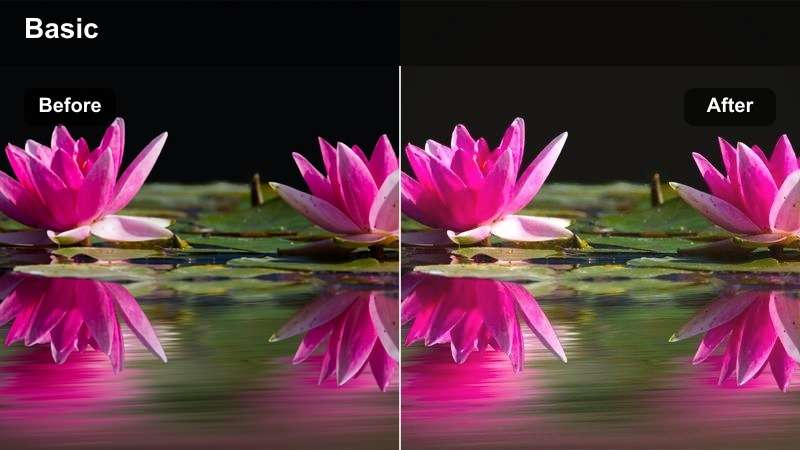
- Effect look: Soft, dreamy glow with lifted blacks and a golden tint for hazy evenings.
- Best for: Handheld street clips at sunset, rooftop cafes, and slow-motion city b-roll.
- Editing tip: Add a slight vignette to draw focus to your subject and reduce clarity to enhance the dreamy feel.
Urban Gold Soft Haze is ideal when you want your travel shorts to feel romantic and relaxed instead of sharp and punchy. In Filmora, start with a gentle reduction in clarity and slightly lift the black point, then blend this filter into your CapCut-styled shots to create a unified, glowing look over an entire evening sequence.
For handheld cafe or street moments, stabilize footage first, then add a subtle vignette in Filmora to keep attention on your subject against busy city backgrounds. Pair the hazy glow with slower cuts and soft background music so the grade and pacing work together to sell that dreamy city mood.
Teal Amber Skyline Punch
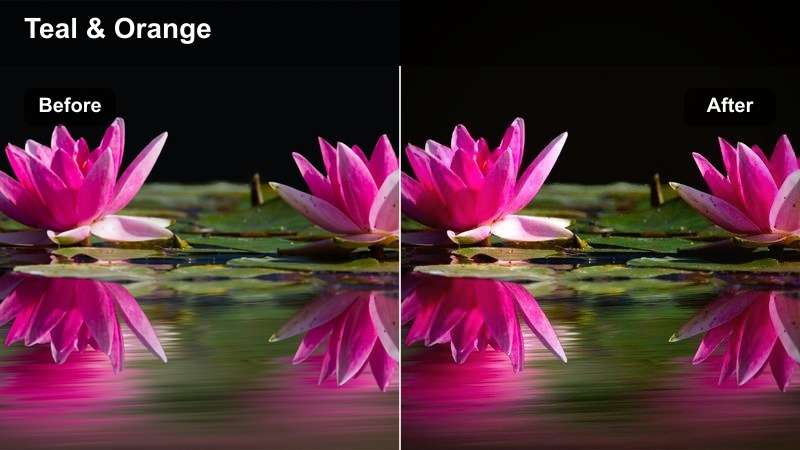
- Effect look: Bold teal and amber split-tone inspired by blockbuster travel LUTs.
- Best for: Drone passes over city centers, high-rise balconies, and hyperlapse skyline reveals.
- Editing tip: Boost local contrast for buildings but protect skin tones with a light saturation cut in the orange range.
Teal Amber Skyline Punch is designed for dramatic reveals and drone movements, giving your CapCut travel shorts a high-end trailer look. Bring your aerial or timelapse clips into Filmora and add this LUT-style grade, then increase local contrast and structure so skyscraper edges pop without turning skies into noisy gradients.
When people appear in frame, jump into Filmora's HSL panel to carefully reduce saturation in the orange range while leaving blues and cyans strong. This keeps skin from looking overly stylized while still delivering that rich teal-and-amber contrast that makes city b-roll stand out in fast-scrolling feeds.
Beach Days and Coastline Adventures
Aqua Crisp Shores
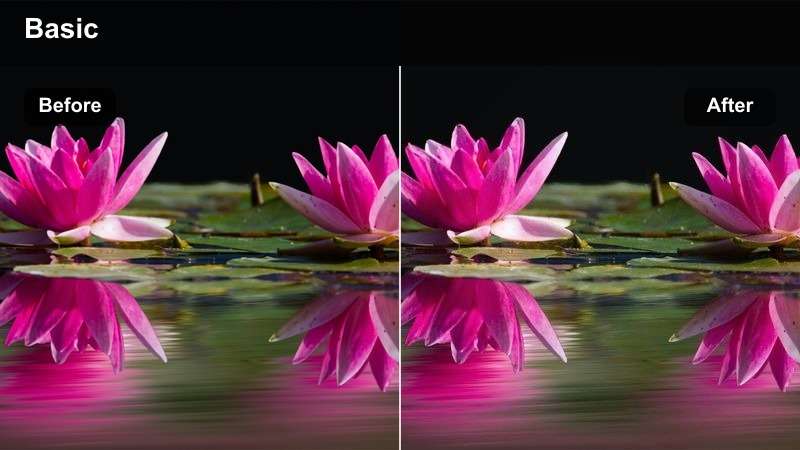
- Effect look: Clean, bright aqua blues with crisp whites and gentle skin tone protection.
- Best for: Beach walks, overwater bungalows, cliffside ocean views, and boat rides.
- Editing tip: Increase exposure slightly after applying to keep whites fresh, then add a tiny bit of sharpening for sand and waves.
Aqua Crisp Shores is your go to look when you want the ocean to sell the destination in a single frame. After editing your clips in CapCut, bring them into Filmora and apply this filter to intensify turquoise tones, then nudge overall exposure up so white sand and foam stay bright without losing detail.
For Instagram Reels or TikTok, add a small boost of sharpening and texture in Filmora so water ripples and sand patterns remain clear even after platform compression. Use HSL controls to keep aquas vivid while preserving natural skin tones, especially in clips with swimmers or close beach portraits.
Tropical Film Soft Matte
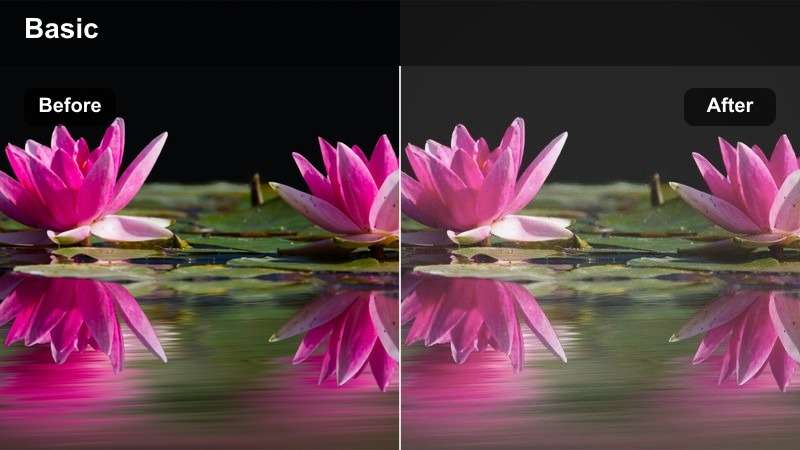
- Effect look: Faded, filmic contrast with gentle greens and pastel blues for relaxed beach vibes.
- Best for: Poolside lounging, hammock shots, and slow-motion tropical b-roll.
- Editing tip: Lower saturation in greens if foliage looks too intense and slightly lift shadows for a cozy matte finish.
Tropical Film Soft Matte turns your sun soaked resort clips into something that feels like a vintage travel diary. In Filmora, lower contrast and gently lift blacks to complete the matte vibe, then fine-tune saturation so foliage and pool water stay soft rather than neon.
For sequences that mix CapCut edits with Filmora finishing, keep transitions slow and use a subtle film grain overlay at a low strength. This will help all your tropical shots share one cohesive, relaxed mood, ideal for storytelling reels about downtime, slow mornings, and poolside escapes.
Sun-Bleached Escape
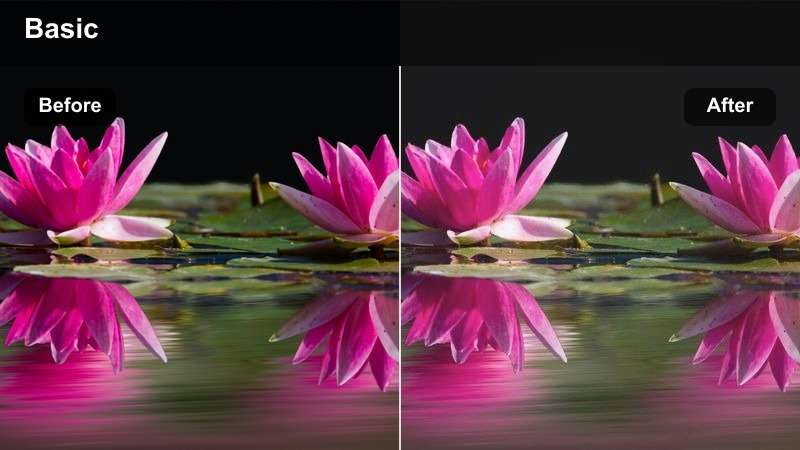
- Effect look: High-key, sun-bleached highlights with reduced saturation and airy blues.
- Best for: Midday beach shots, white sand islands, and bright harbor towns.
- Editing tip: Reduce highlights a bit after applying so skies keep texture, then push warmth to keep skin from looking pale.
Sun-Bleached Escape is perfect when you are shooting under harsh midday sun and want to lean into the editorial, washed-out aesthetic. Once your CapCut travel shorts are cut, grade them in Filmora with this look to lift exposure, soften contrast, and subtly lower saturation so colors feel airy instead of oversaturated.
Use Filmora's highlight controls to keep just enough detail in bright skies while letting sand and buildings glow. Then add a touch of warmth in the mids to protect skin tones, giving your short a stylish magazine feel that still looks flattering on people in bikinis, linen outfits, or light summer clothing.
Old Town Streets and Night Markets
Amber Lantern Streets
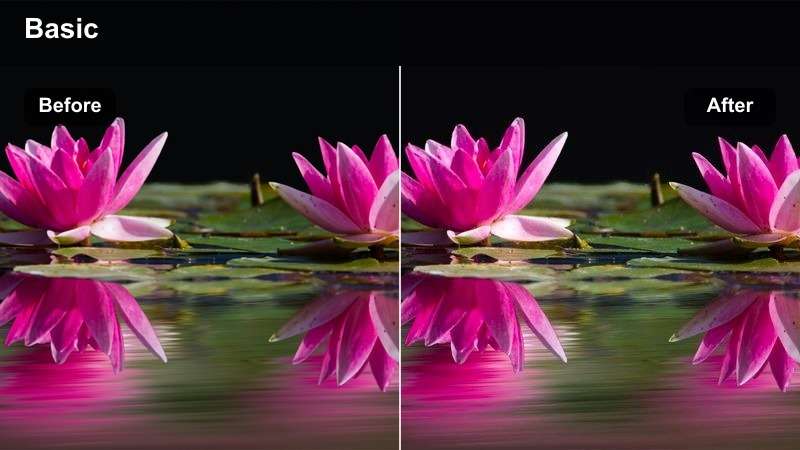
- Effect look: Rich amber lights, soft contrast, and gentle noise reduction for low-light alleys.
- Best for: Old town lanes, lantern-lit streets, and handheld night walks.
- Editing tip: Reduce clarity to hide low-light noise and add a subtle vignette to keep attention on faces and lights.
Amber Lantern Streets wraps your night alley shots in deep, cinematic warmth that feels intimate and atmospheric. After trimming your vertical clips in CapCut, polish them in Filmora by applying this filter, slightly lowering clarity, and letting the amber tones dominate while shadows stay soft.
Because low-light clips can be noisy, use Filmora's noise reduction carefully, targeting shadows so lantern glows remain smooth. Add a refined vignette around the frame and keep cuts slower, allowing the viewer time to absorb textures in stone walls, hanging lights, and reflections on wet streets.
Market Neon Mix
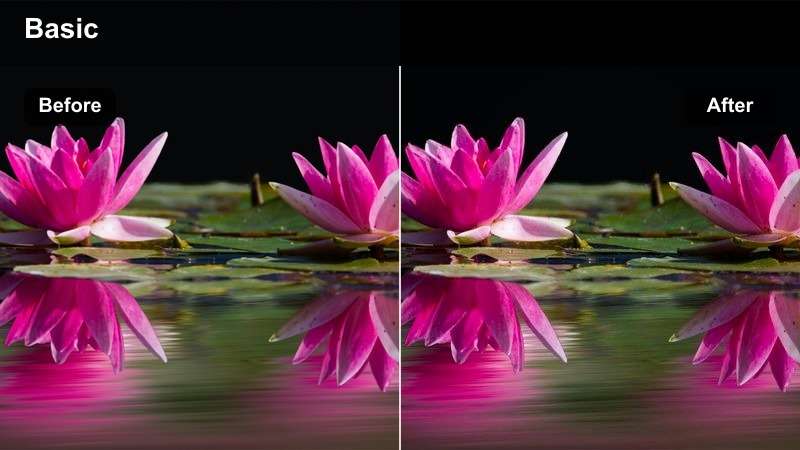
- Effect look: Punchy shadows with emphasized reds and cyans for busy urban markets.
- Best for: Night markets, crowded food streets, and busy transit hubs after dark.
- Editing tip: Pull down blacks slightly and increase saturation carefully so signs glow without clipping colors.
Market Neon Mix gives your food street and bazaar clips that energetic, color heavy punch social platforms love. In Filmora, deepen blacks slightly for contrast, then carefully boost saturation so neon signs, vendor stalls, and traffic lights explode with color without crushing details.
Cut your CapCut-edited sequences on the beat, and in Filmora add speed ramps or quick zooms to sync with transitions where the brightest signs flash. Use HSL to selectively enhance reds and cyans, keeping skin tones natural while the environment around your subject becomes a vivid, animated backdrop.
Vintage Cobblestone Fade
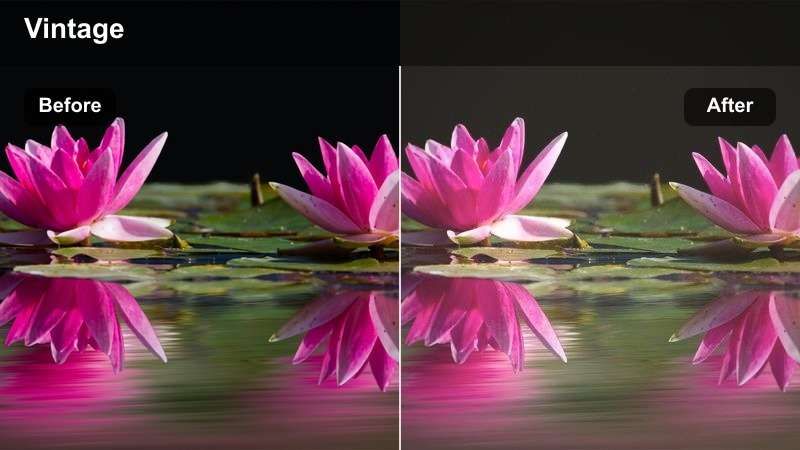
- Effect look: Low saturation, warm mids, and soft grain for a nostalgic old town feel.
- Best for: Historic city centers, cobblestone streets, and architectural walk-throughs.
- Editing tip: Pull saturation in blues and greens down so buildings and streetlights become the focus.
Vintage Cobblestone Fade is tailored for story-driven shorts that linger on architecture, doors, and narrow alleys. In Filmora, combine this LUT-style look with reduced saturation and slightly warm midtones so historic facades feel timeless and your entire sequence takes on a cohesive, nostalgic palette.
As you refine CapCut cuts in Filmora, avoid heavy motion and let shots breathe. Add minimal, neutral-colored text overlays and a very light grain effect so the grade, typography, and pacing all support a quiet, reflective mood that suits old towns and heritage streets.
Mountain Trails and Transit B-Roll
Alpine Clear Trails
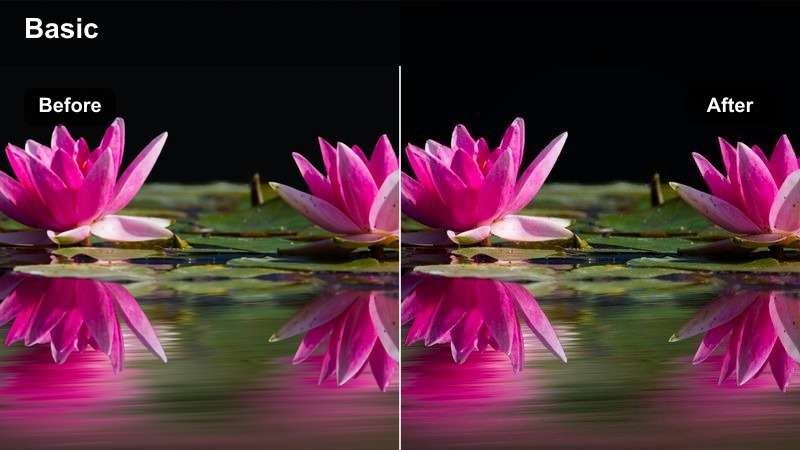
- Effect look: Cool, crisp contrast with clean greens and deep blue skies for high-altitude scenes.
- Best for: Mountain hikes, cliff viewpoints, and drone shots over ridgelines.
- Editing tip: Increase sharpness slightly on wider shots and reduce saturation if distant mountains look too blue.
Alpine Clear Trails makes ridgelines, forests, and high-altitude lakes feel sharp and invigorating. In Filmora, apply this filter to your CapCut-edited hiking clips, then add a touch of global sharpening so fine details in rocks, trees, and distant peaks survive vertical compression.
If skies or far mountains turn unnaturally blue, dial back blues and cyans in the HSL panel while keeping overall contrast high. For sequences that cut between drone and handheld footage, match contrast and color temperature in Filmora so everything feels like one seamless mountain adventure.
Train Window Cinematic
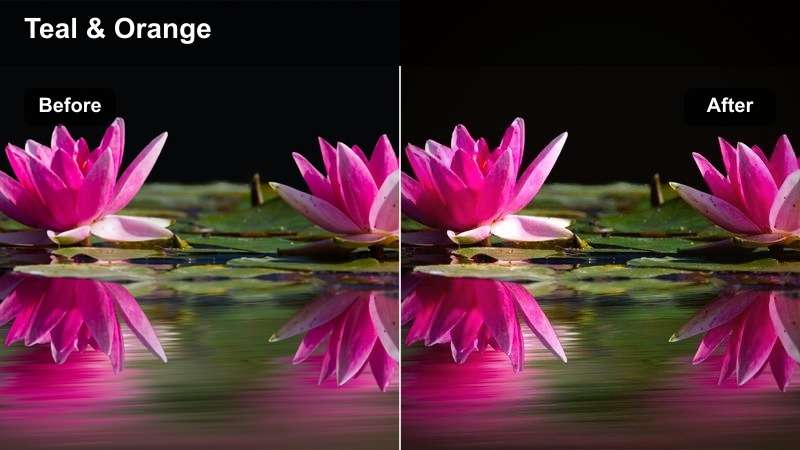
- Effect look: Soft contrast with subtle teal shadows and warm mids for moody transit shots.
- Best for: Train rides, bus windows, airport walkways, and metro b-roll.
- Editing tip: Use a shallow depth-of-field shot and slightly reduce clarity to separate your subject from the moving background.
Train Window Cinematic is all about introspective, on-the-move storytelling, perfect for transitions between destinations in your CapCut travel shorts. In Filmora, soften contrast, reduce clarity a touch, and let teal shadows and warm midtones balance interior and exterior light through the windows.
Frame edits so reflections play across your subject's face, then darken edges very slightly with a vignette so the eye goes to the traveler and the passing scenery. Paired with ambient or lo-fi music, this look turns simple transit b-roll into emotionally resonant narrative beats.
Foggy Pass Matte Mood
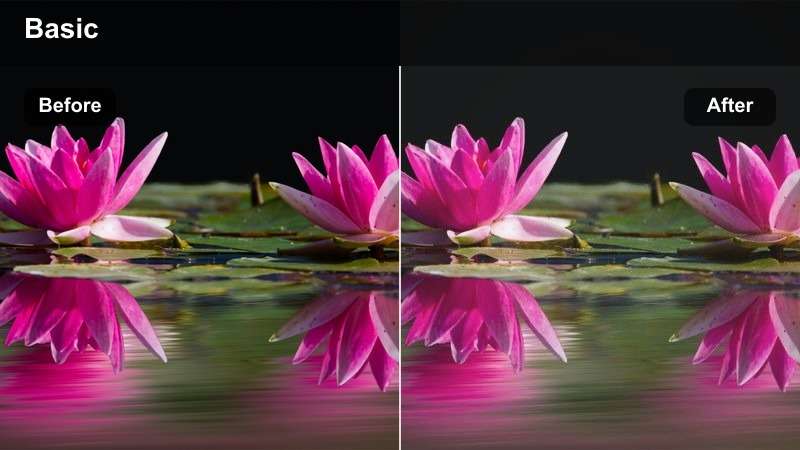
- Effect look: Low contrast, lifted blacks, and desaturated greens for misty, moody trails.
- Best for: Cloudy hikes, foggy viewpoints, and rainy city lookout points.
- Editing tip: Decrease saturation overall and slightly cool the temperature to make the mist feel thicker and more atmospheric.
Foggy Pass Matte Mood leans into clouds and rain, transforming what might seem like bad weather into cinematic atmosphere. Apply this filter in Filmora to your cloudy CapCut shots, lifting blacks and lowering contrast so fog, drizzle, and cloud layers feel soft and enveloping.
Cool the white balance a little and reduce overall saturation until greens and blues look subdued and quiet. Avoid over-sharpening; instead, keep edges gentle so compression artifacts stay hidden and the mood remains smooth, perfect for slow, reflective vertical edits.
Tips for Using Capcut Travel Shorts Filters in Filmora
- Shoot in the flattest picture profile your phone or camera allows so travel filters and LUT-style looks in Filmora have more dynamic range to work with.
- Lock white balance on location to avoid color shifts between shots when you apply the same CapCut travel shorts LUT-style filter across a sequence.
- Create separate versions of your filter stack in Filmora for daylight, golden hour, and night so your shorts look intentional in every lighting scenario.
- Always test your vertical exports on a phone screen and tweak contrast and brightness in Filmora so details stay visible on TikTok and Instagram.
- Use the same 2 to 3 filters across an entire trip playlist so your audience immediately recognizes your travel visual style.
- Keep skin tones natural by checking the orange and red channels in Filmora's HSL panel after adding any strong teal or amber cinematic look.
- Combine filters with sound design and transitions, not just color, to complete the cinematic feel of your travel shorts.
- Trim your clips tightly before grading so you are not wasting time color-tuning footage that will never make it into the final short.
CapCut travel shorts LUT-style filters make it easy to turn quick clips of cities, beaches, and mountain trails into cinematic, platform-ready videos, especially when you choose a look that fits each destination and time of day. By finishing your grades in Filmora, you gain more precise control over color, contrast, and consistency across an entire series.
Build a small library of travel short video LUTs and filters, then refine them in Filmora so your TikTok and Reels audience instantly recognizes your signature style from the very first frame. Over time, a consistent palette and pacing will turn casual viewers into returning followers who connect your color grade with your travel storytelling.
secure download