

 100% Security Verified | No Subscription Required | No Malware


 ChatGPT
 Perplexity
 Gemini
 Claude
 Grok
Grok
Unlock cinematic color in your aerial footage with free drone LUT-style filters you can use directly in Filmora. These presets are tuned for drone pilots who want rich skies, detailed landscapes, and pro-level grading without spending hours in the color tab.
Whether you fly over mountains, coastlines, or city skylines, you will find filters here designed specifically for drone footage LUTs, DJI LUTs free looks, and aerial cinematic LUTs that help you keep consistent color across your entire flight.
In this article
Golden Hour Landscapes and Scenic Vistas
Sunset Glow Vista
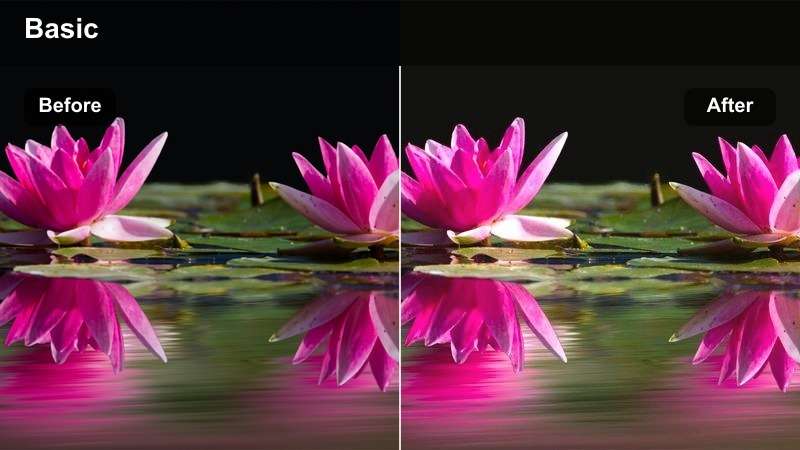
- Effect look: Warm, glowing highlights with soft contrast that make sunsets and late-afternoon flights look cinematic and dreamy.
- Best for: Aerial footage of mountain ranges, rolling hills, lakes, and drone passes during golden hour or early evening.
- Editing tip: Lower the filter intensity to around 60-70 percent and slightly reduce saturation to avoid oversaturated reds in intense sunsets.
Sunset Glow Vista is built to squeeze the most out of golden hour light, adding warmth and soft contrast that keeps skies glowing without crushing detail in the shadows. In Filmora, you can apply this filter with a single click, then fine-tune intensity in the Effects panel to match the strength of your sunset or late-afternoon scene.
For mixed shots that include both land and sky, pair this look with Filmora adjustment layers and masks to gently protect bright clouds and specular highlights on water. If your clip includes people or buildings in the frame, use the HSL controls after the filter to slightly tame oranges so skin tones and roofs stay natural while the landscape keeps that rich, cinematic glow.
Instant Drone Looks with AI Color Tools
Filmora AI color optimization analyzes your drone footage frame by frame to balance exposure, color temperature, and contrast before you add any free drone LUT-style filter. This gives you a clean, neutral base so the sunset, coastline, or city look you choose stays consistent from clip to clip.
Use AI color tools on drone shots that jump between sun and shadow, or when clouds keep moving across your scene. Once the AI pass is done, you can stack your favorite aerial cinematic filter on top and need far less manual correction.
 secure download

Preview Drone Filters in Real Time
With Filmora filters, you can hover over each preset to live-preview how it will transform your aerial footage before you commit. This makes it easy to compare warm golden looks, cool coastal vibes, and moody city grades on the exact same clip.
Use this real-time preview workflow to quickly shortlist a few favorite drone filters for each location, then fine-tune intensity, exposure, and white balance so the final cut feels unified from takeoff to landing.
secure download1000+ Video Filters and 3D LUTs
Beyond these free drone LUT-style looks, Filmora includes a large built-in library of filters, cinematic 3D LUTs, and creative color presets for every type of project. You can mix dedicated drone LUTs with stylized filters to craft a unique aerial color signature.
Start with a technical DJI LUT for accurate color, then add a subtle Filmora filter layer for mood and finishing. Use the HSL and curves controls to fine-tune skies, foliage, and water so every flight feels polished and professional.
secure downloadGolden Ridge Cinema
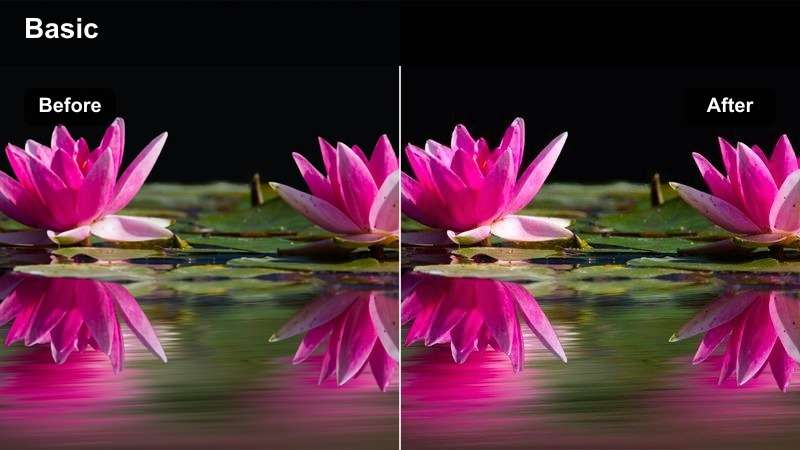
- Effect look: High-contrast warm grading with rich oranges in the highlights and deep, clean shadows for epic ridgeline flyovers.
- Best for: Long drone reveals of ridges, cliffs, and coastal bluffs during sunrise or sunset with strong directional light.
- Editing tip: Raise shadows slightly after applying to recover detail in dark valleys, then add a tiny bit of film grain for a cinematic finish.
Golden Ridge Cinema is designed for bold, dramatic landscape flights where the sun rakes across mountains or cliffs. In Filmora, it adds punchy contrast and rich color that makes ridgelines stand out cleanly against the sky, ideal for hero shots in travel edits and cinematic YouTube sequences.
Apply this filter to your main ridge passes, then use Filmora color tools to gently lift shadows in valleys so you do not lose important texture. For multi-day trips, keep Golden Ridge Cinema as your base and only adjust white balance and exposure per clip so every sunrise and sunset feels like part of the same cohesive story.
Hazy Sunrise Trails
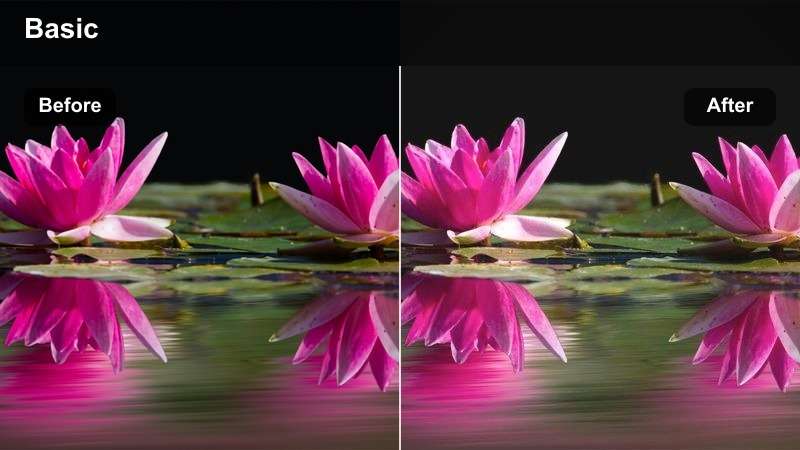
- Effect look: Soft, low-contrast pastel grading that smooths haze and adds a gentle warm tint to early morning flights.
- Best for: Drone footage over forests, valleys, and lakes with mist, fog, or light haze at sunrise.
- Editing tip: Increase midtone contrast slightly after applying to keep the image from looking washed out while preserving the dreamy atmosphere.
Hazy Sunrise Trails turns foggy morning flights into dreamy, cinematic sequences rather than dull, gray footage. In Filmora, it softens harsh edges, balances pastel tones, and adds a mild warmth that flatters misty forests, lakes, and valley shots captured just after dawn.
Use this filter on clips where haze is part of the story, then nudge midtone contrast and clarity to keep detail visible without destroying the softness. Combine with smooth speed ramps and gentle music in Filmora to emphasize the floating, weightless feeling that drone sunrise footage can deliver.
Coastal Shores and Open Water Flights
Aqua Coastline Clean
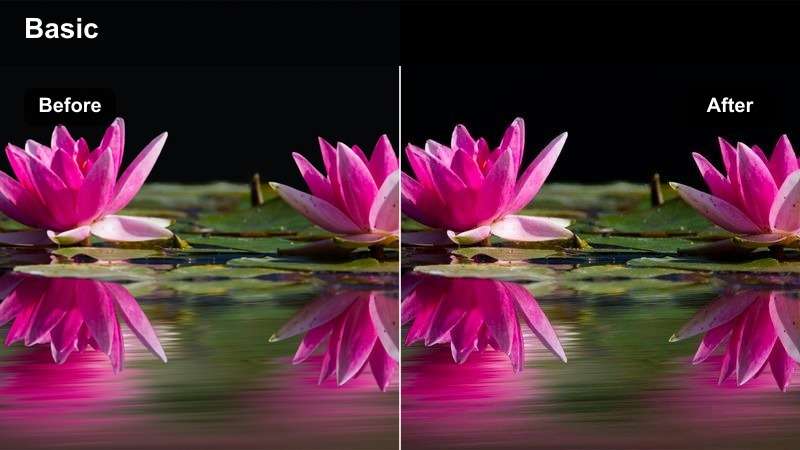
- Effect look: Cool, crisp grading that brightens blues and cyans while keeping sand and cliffs neutral for a clean travel look.
- Best for: Drone flyovers of beaches, bays, islands, and boats in bright daylight with clear water.
- Editing tip: After applying, reduce blue luminance slightly to keep oceans from looking blown out while preserving detail in waves.
Aqua Coastline Clean is tuned for bright, sunny days at the beach where you want clear water and clean sand without cartoonish color. In Filmora, it quickly lifts blues and cyans, giving your coastline shots a polished, travel-ready look that works perfectly for vlogs and resort promos.
Apply this filter to all your daytime coastal clips, then slightly pull back blue luminance and global saturation if the water starts to look too neon. For maximum impact, pair it with gentle sharpening and a bit of stabilization in Filmora so boats, waves, and shorelines stay crisp from a top-down or sweeping flight path.
Teal and Sand Travel
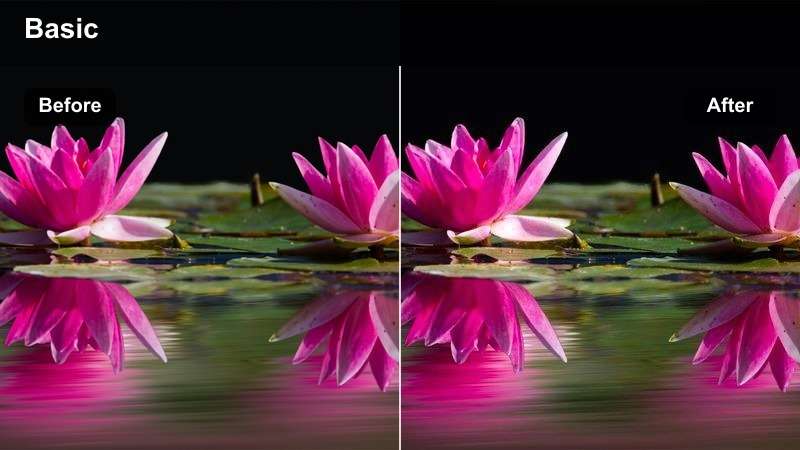
- Effect look: Modern teal-and-warm look that pushes oceans toward teal while gently warming sand and coastal buildings.
- Best for: Coastal resorts, island overviews, harbor flyovers, and tropical beach travel videos.
- Editing tip: Balance the look by slightly lowering orange saturation so skin tones on the beach do not become too intense.
Teal and Sand Travel gives your drone footage that modern social-media style where water leans teal and land stays softly warm. In Filmora, it is a fast way to turn raw island and resort flights into eye-catching edits that match popular travel aesthetics seen on TikTok and Instagram.
Use this filter across your entire beach sequence for a unified look, then adjust orange saturation and HSL skin tones so people on the sand still appear natural. Combine with Filmora titles, map animations, and beat-synced cuts to create a polished vacation recap without heavy manual color grading.
Stormy Sea Contrast
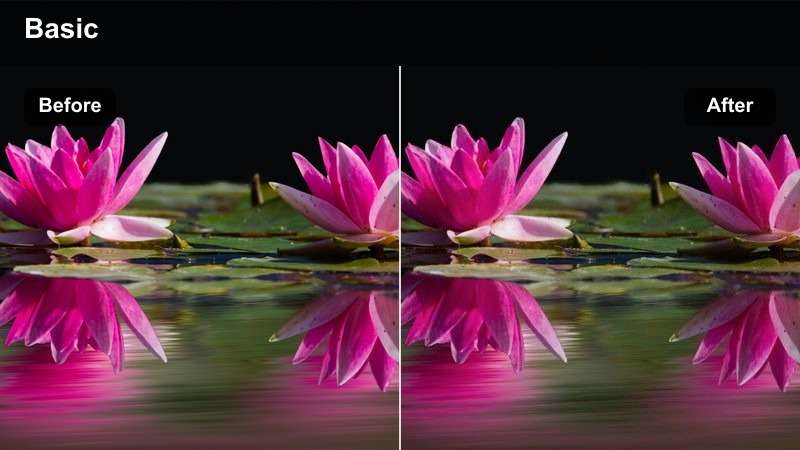
- Effect look: Moody, desaturated blues with strong contrast and slightly darkened skies for dramatic open-water flights.
- Best for: Drones over rocky coastlines, dark seas, stormy clouds, and dramatic ship or lighthouse shots.
- Editing tip: Pull back saturation globally, then selectively boost cyan saturation to keep the sea interesting without over-coloring the scene.
Stormy Sea Contrast is meant for days when the weather turns moody and the ocean looks powerful rather than postcard-perfect. In Filmora, it cuts color saturation, deepens shadows, and adds tension to your open-water aerials, helping you build cinematic sequences from overcast or windy conditions.
Apply this filter to your entire stormy segment, then fine-tune cyan saturation so the sea remains visually engaging while the rest of the palette stays muted. When you edit in Filmora, pair this look with slower playback, subtle sound design, and longer crossfades to fully sell the dramatic mood of rough seas and heavy clouds.
Urban Skylines and City Aerials
Neon City Flyover
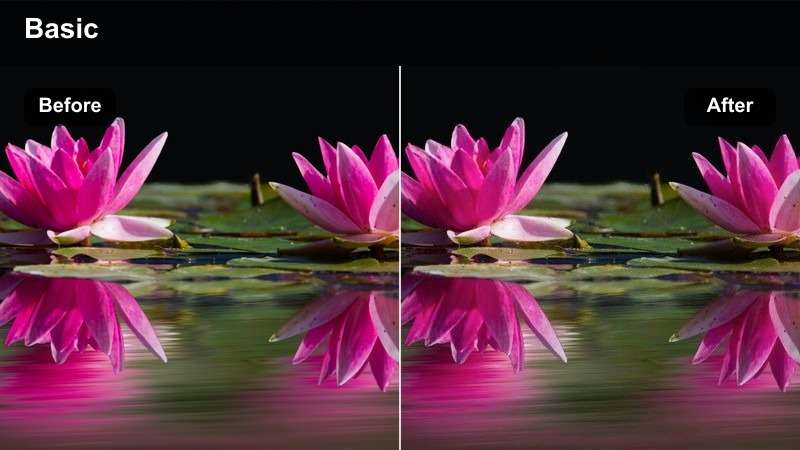
- Effect look: High-contrast, slightly cool grading with boosted neon signs and deep shadows for futuristic city flights.
- Best for: Night city flyovers, downtown skylines, rooftop passes, and busy streets with lots of signage.
- Editing tip: Reduce blacks slightly after applying to avoid crushed detail in dark alleys, then fine-tune magenta and blue saturation for neon balance.
Neon City Flyover brings out the glow of billboards, car lights, and skyscraper windows in your night drone shots. In Filmora, it increases contrast and cools the palette just enough to feel futuristic, making city time-lapses, skyline reveals, and street flyovers look instantly more cinematic.
Because night footage can be noisy, first run Filmora noise reduction, then apply this filter and gently lift blacks to keep detail in darker areas. Use color wheels and HSL to balance magentas and blues so neon signs pop without overpowering the rest of the frame, especially if you are editing vertical clips for social media.
Sunset Skyline Glow
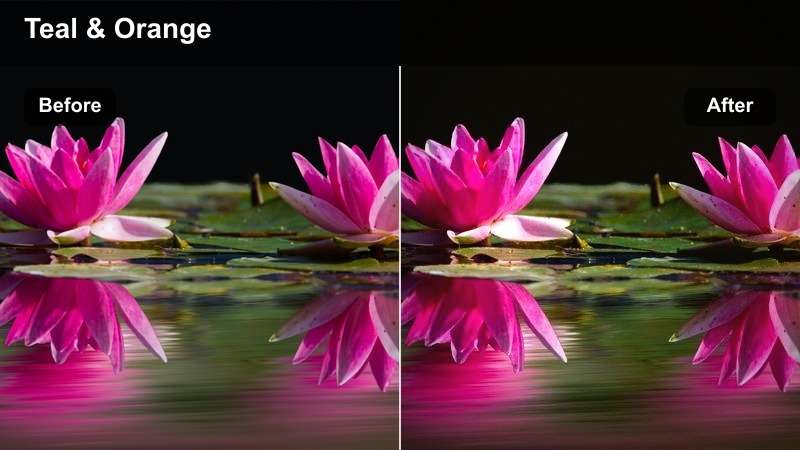
- Effect look: Warm highlights and subtle teal shadows that make office windows, roads, and rivers glow under a colorful sky.
- Best for: Drone orbits around skyscrapers, bridges, and rivers running through cities at sunset or blue hour.
- Editing tip: Use a gradient mask to keep the sky slightly cooler and the city warm, adding depth and separation between skyline and clouds.
Sunset Skyline Glow is optimized for urban golden hour and blue hour flights when both the sky and city lights share the frame. In Filmora, it adds warmth to building windows and streets while introducing gentle teal into the shadows, giving your skyline shots a polished, cinematic color contrast.
To get the most from this look, apply a gradient mask in Filmora so the upper part of the frame the sky stays a bit cooler than the warmer city below. This separation adds depth and helps viewers focus on the glowing buildings and rivers, especially in orbit shots and pull-away reveals around bridges and iconic landmarks.
Urban Documentary Flat
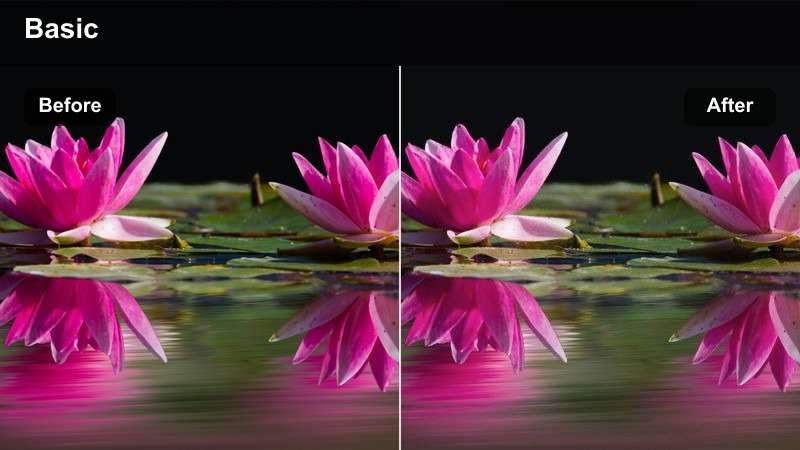
- Effect look: Soft, low-saturation grading with gentle contrast for realistic, documentary-style city overviews.
- Best for: Drone footage used in news, real estate, mapping, and city planning where natural color is important.
- Editing tip: Fine-tune white balance per clip after applying so building colors and roads remain credible and not stylized.
Urban Documentary Flat focuses on realism, keeping your aerial city footage clean and neutral for professional uses like news, real estate, and corporate videos. In Filmora, it dials back saturation and contrast just enough to avoid a heavy stylized look while still smoothing harsh digital edges.
After you apply this filter, adjust white balance on a clip-by-clip basis so buildings, roads, and parks match real-world colors. Skip strong vignettes or heavy tints, and instead combine the look with subtle sharpening and titles in Filmora to deliver footage that is ready for clients, broadcasters, or mapping overlays.
Forests, Trails, and Remote Nature Flights
Evergreen Trail Cinematic
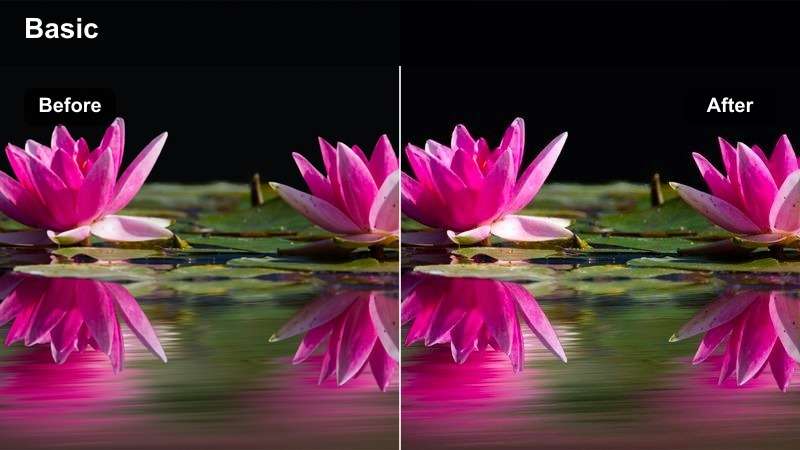
- Effect look: Rich greens with slightly lifted shadows and warm highlights for cinematic forest flyovers and reveals.
- Best for: Drone passes over dense forests, rivers cutting through trees, and hiking trails from above.
- Editing tip: Pull back green saturation a little and raise yellow luminance to keep foliage detailed but not overly intense.
Evergreen Trail Cinematic enhances the depth and richness of forest scenes without turning them unnaturally neon. In Filmora, it lifts shadows and warms highlights so sunbeams through trees, rivers, and trails feel three-dimensional and cinematic in both wide and medium drone shots.
Apply this look to your forest passes, then use HSL to reduce green saturation and slightly boost yellow luminance so foliage reads as lush but still realistic. For overhead shots, combine the filter with a gentle radial brightness in Filmora to draw the viewer eye toward a path, cabin, or clearing at the center of the frame.
Autumn Ridge Flight
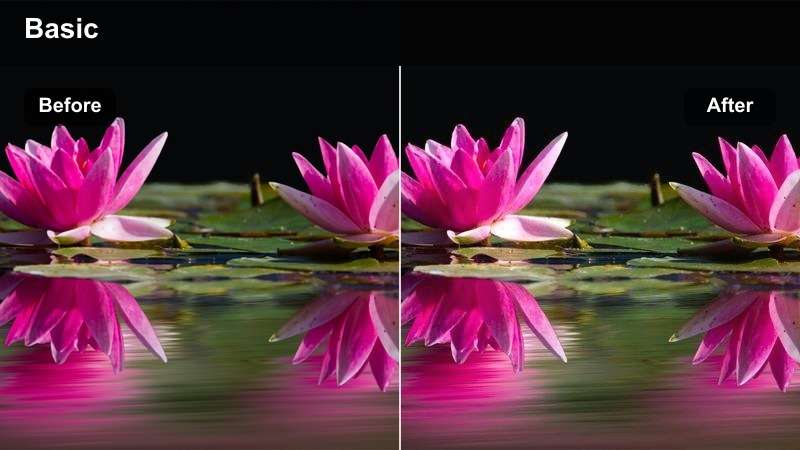
- Effect look: Warm, earthy tones with enhanced oranges and browns that make fall colors pop while skies stay neutral.
- Best for: Drone footage of autumn forests, ridges, valleys, and park trails showing colorful foliage.
- Editing tip: Boost overall vibrance gently instead of saturation to keep skies from looking unnaturally intense alongside the foliage.
Autumn Ridge Flight is tailored for fall, making oranges, yellows, and browns stand out while keeping skies from becoming overly dramatic. In Filmora, it adds warmth and richness to your seasonal drone flights, turning even simple ridge runs and park flyovers into cozy, cinematic visuals.
Apply this filter across your entire autumn project, then reach for Vibrance rather than Saturation when you need a bit more color pop. This keeps the focus on trees and trails while skies and buildings stay believable, whether you are cutting a highlight reel for social media or a longer travel film.
Desert Dune Sculpt
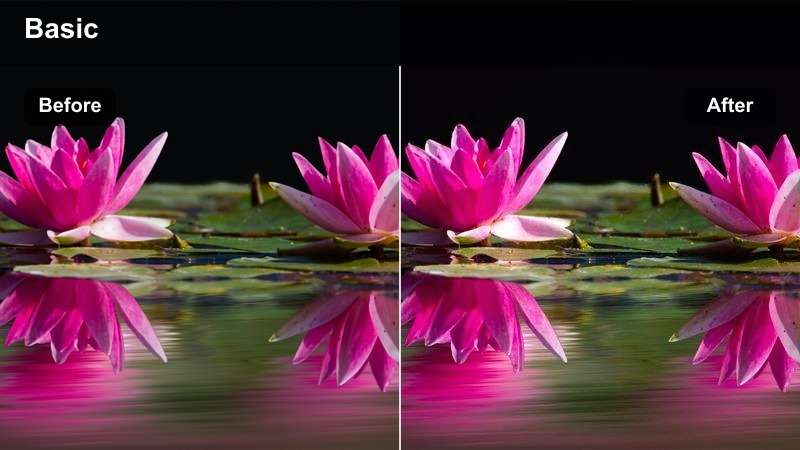
- Effect look: High-contrast, warm highlights that sculpt sand patterns and emphasize shadows for dramatic barren landscapes.
- Best for: Drone orbits and top-down flights over deserts, dunes, rocky valleys, and dry plains.
- Editing tip: After applying, carefully adjust highlights to prevent bright sand from clipping while preserving the strong sculpted look.
Desert Dune Sculpt is made to bring out the lines and textures in sand, rock, and barren landscapes. In Filmora, it pushes contrast and warmth to carve out patterns from above, making top-down flights and sweeping orbits over dunes look bold and graphic.
Because bright sand can easily clip, apply the filter first, then lower highlights until you retain detail in the brightest areas. Pair this look with slow, steady camera moves and minimal additional color tweaks in Filmora so viewers can fully appreciate the shapes and shadows your drone captures in the desert.
Tips for Using Free Drone Lut Download Filters in Filmora
- Expose slightly darker in-camera when filming from your drone so bright skies and clouds hold detail once filters are applied.
- Group clips by location and lighting, then apply one filter to the entire group to maintain consistent color across your edit.
- Always fine-tune white balance and exposure after adding a filter so your drone footage does not look overly processed.
- For landscape videos, combine gentle sharpening with subtle noise reduction before grading to keep distant details clean.
- Use Filmora adjustment layers to stack free drone LUT-style filters with your favorite DJI LUTs for precise final grading.
- Export a short test render with your chosen filter and watch it on a phone and a larger screen to confirm the look holds up everywhere.
By combining these free drone LUT-style filters with Filmora color tools, you can turn raw aerial footage into cinematic sequences that match your vision for landscapes, coasts, cities, and remote nature. Each look is designed to be quick to apply and easy to tweak, whether you are editing casual travel vlogs or polished client work.
Download the Free Drone Cinematic LUT Pack Download and start building a consistent aerial look you can apply across every new flight and project. With real-time previews, AI-powered color optimization, and flexible filter controls, Filmora makes it simple to transform your DJI or other drone footage into share-ready, cinematic videos.
secure download