

 100% Security Verified | No Subscription Required | No Malware


 ChatGPT
 Perplexity
 Gemini
 Claude
 Grok
Grok
Tech creators rely on clean, consistent visuals to make desk setup and productivity videos feel intentional, polished, and on-brand. Carefully chosen filters that emulate YouTube desk setup LUTs can instantly give your workspace shots a pro look without complicated color grading.
Below are 12 scene-based filter ideas designed for tech creators who film desk setups, workstations, and productivity content, so you can match the aesthetic of popular YouTube desk setup LUTs directly inside Filmora.
In this article
Minimal Daylight Desk Setups
Soft White Desk Glow
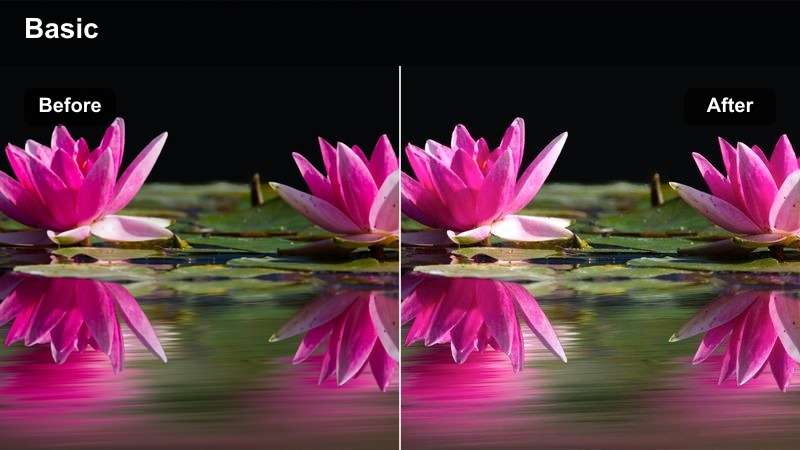
- Effect look: Soft, bright, neutral whites that make monitors and keycaps pop while keeping skin tones natural.
- Best for: Clean white or light wood desk setups shot near a window in daytime.
- Editing tip: Dial back highlights slightly so bright monitor screens do not clip while the desk surface stays airy.
Soft White Desk Glow is ideal when you want that classic YouTube productivity aesthetic: bright, clean, and distraction free. In Filmora, you can start by slightly boosting exposure and whites while keeping contrast moderate, so your desk surface feels light without losing definition in objects like keyboards, mice, and notebooks.
To finish the look, tweak Filmora s color controls to keep white balance neutral and protect skin tones. Use the highlights and white point sliders to pull back any clipping on monitors or glossy peripherals, then add a very subtle vignette if you want the viewer s eye to settle naturally toward the center of your workspace frame.
Match Your Desk Aesthetic with AI Color Tools
Filmora s AI-driven color tools help you quickly sync this soft, bright desk look across all your angles, even if lighting shifts slightly between shots. You can let the AI analyze a reference frame from your main desk shot, then apply matching temperature, tint, and saturation to the rest of your clips.
This is especially useful for multi-video desk setup series, where you want the same Soft White Desk Glow aesthetic to carry through thumbnails, A-roll, and B-roll without manual, clip-by-clip grading.
 secure download

See Desk Setup Filters in Action
Before you commit to a final look, drop a few desk clips into a short Filmora timeline and cycle through different filters. Preview how Soft White Desk Glow compares to more contrasty or colorful styles on shots like typing, mouse movements, or wide desk reveals.
Toggling filters on and off over the same clip makes it easy to judge which treatment best fits your channel s brand and how each one affects highlights on your monitor, keyboard backlighting, and wall color.
secure download1000+ Video Filters and 3D LUTs
Beyond simple exposure tweaks, Filmora includes a large library of filters and 3D LUTs you can stack to build your own signature desk setup look. Mix subtle color shifts with vignette, glow, and sharpening effects until you land on a style that feels both cinematic and practical for tech content.
Once you like the result, save the combination as a custom preset so you can reuse that same YouTube desk setup LUT style in future workspace tours, keyboard builds, and productivity videos with a single click.
secure downloadBright Creator Workstation
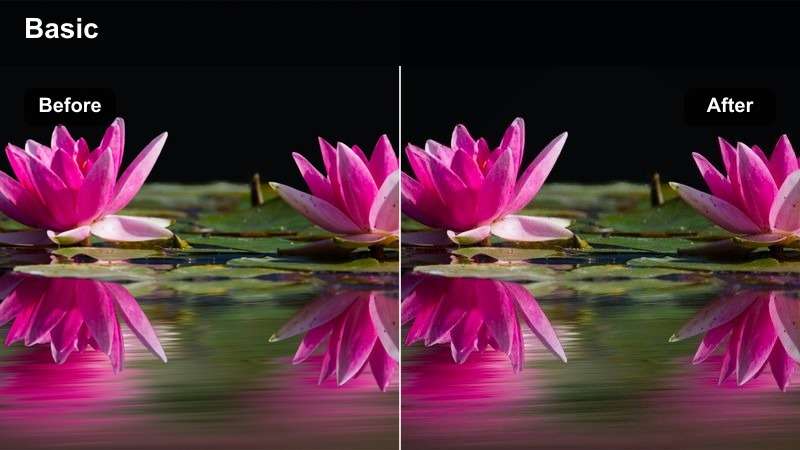
- Effect look: High-key contrast with crisp edges and slightly cool midtones for a productivity-focused vibe.
- Best for: Standing desk walkthroughs, office tours, and productivity B-roll filmed in natural light.
- Editing tip: Pair with a subtle vignette to guide attention toward the main monitor and input devices.
Bright Creator Workstation enhances the structure and clarity of your home office shots, making dual monitors, laptops, and vertical screens look sharp and defined. In Filmora, increase contrast and clarity moderately, then nudge midtones a touch cooler so whites and grays feel modern and tech-forward rather than warm and cozy.
You can complement this with a soft vignette or focus mask around your primary monitor and keyboard area. This directs attention to your actual workflow while still keeping the rest of the room well lit and inviting for office tour style videos and productivity vlogs.
Neutral Wood Setup
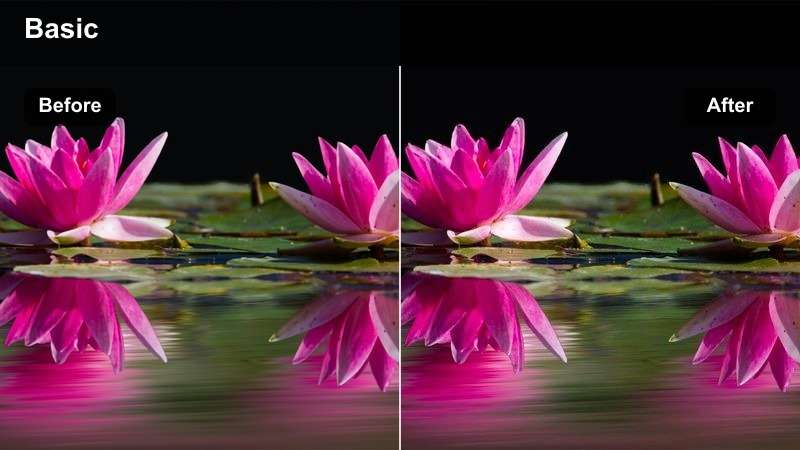
- Effect look: Balanced, slightly warm tones that keep wood desks and neutral peripherals looking natural and calm.
- Best for: Scandinavian-style desks, natural wood tops, and neutral keycaps or accessories.
- Editing tip: Boost saturation only in the orange and yellow ranges to enrich the desk surface without oversaturating the entire frame.
Neutral Wood Setup is perfect if your channel leans into earthy, Scandinavian-inspired vibes with oak or walnut desk surfaces. Inside Filmora, gently warm the image and use HSL to target oranges and yellows so the grain in the wood becomes richer without turning your entire scene overly warm.
This selective approach keeps your monitor bezels, white peripherals, and wall colors looking clean and neutral. It also helps maintain accurate skin tones while still giving your wooden desktop the spotlight in top-down shots, accessory close-ups, and minimal desk reveal sequences.
Moody RGB and Gaming Desk Scenes
RGB Neon Focus
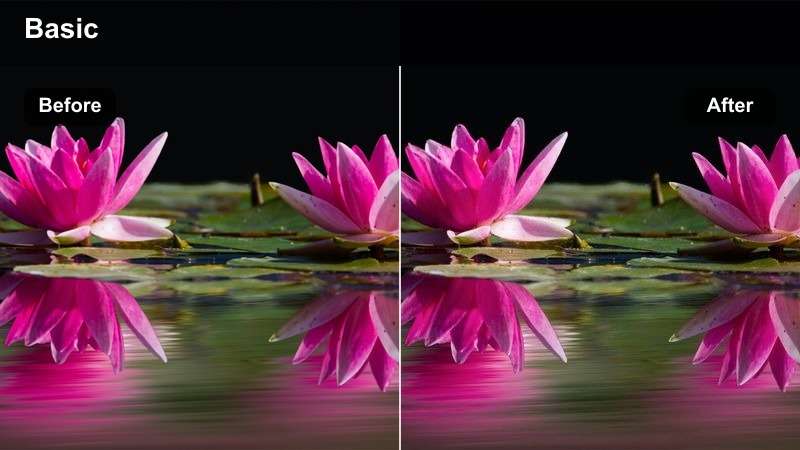
- Effect look: Punchy, saturated RGB lights with deeper shadows for a cinematic gamer-setup feel.
- Best for: RGB strip lighting behind monitors, gaming keyboards, and PC case close-ups.
- Editing tip: Lower exposure slightly and add more saturation to blues and magentas to emphasize RGB accents without crushing detail.
RGB Neon Focus is designed to make your gaming battlestation feel dramatic and cinematic without turning into an overexposed neon mess. In Filmora, slightly pull down overall exposure and deepen the shadows to accentuate LED strips, keyboard backlighting, and PC case internals.
Then, use color controls to push saturation primarily in blues, cyans, and magentas so your RGB elements glow while the rest of the scene remains controlled. Balancing curves in the midtones ensures each color channel stays distinct, letting individual LEDs and gradients show clearly in both wide shots and macro B-roll.
Blue Hour Battlestation
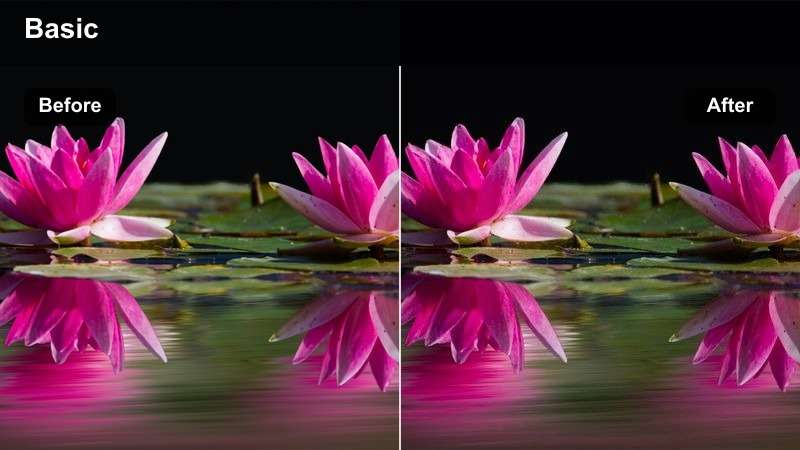
- Effect look: Cool, bluish cast with soft highlights that mimic evening ambient light around a gaming setup.
- Best for: Desk tours filmed at dusk with LED backlighting or nano light panels.
- Editing tip: Shift shadows slightly toward teal to add depth, then keep midtones neutral so your skin still looks natural on camera.
Blue Hour Battlestation recreates that in-between mood when the sun is down but the room is not completely dark, emphasizing ambient blue from windows and LEDs. In Filmora, cool down white balance and gently introduce blue into highlights, while steering shadows toward teal for depth and atmosphere.
If you appear on camera in these shots, keep midtones fairly neutral so your skin tone does not look sickly or overly cold. Apply the same filter across all your dusk clips and lock white balance to prevent color shifts as ambient light fades and LED panels take over your scene.
Purple Studio Ambience
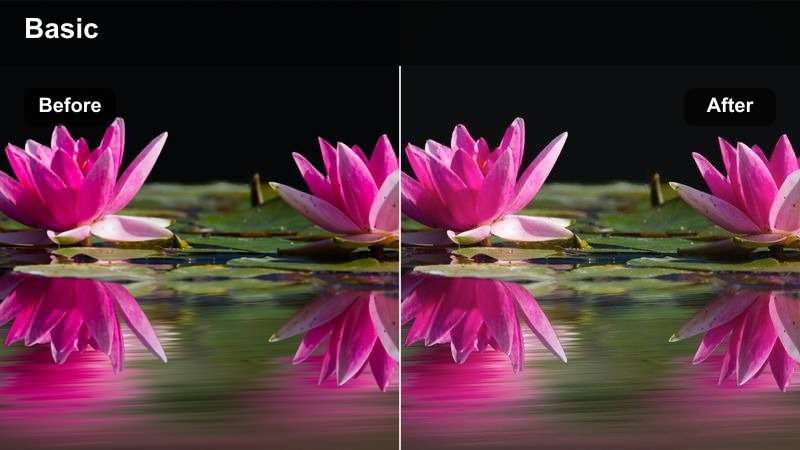
- Effect look: Soft, magenta-tinted highlights with preserved detail in darker areas for stylish studio desk vibes.
- Best for: Tech product shots, keyboard close-ups, and B-roll in purple or magenta LED environments.
- Editing tip: Dim overall saturation slightly, then re-add color to purples only so the environment feels rich but not cartoonish.
Purple Studio Ambience adds a polished studio mood that works well for talking-head intros, keyboard showcases, and desk-level B-roll. Inside Filmora, lightly push magenta into highlights and midtones while lifting shadows so you keep detail on darker walls, stands, and background shelves.
To avoid an overly synthetic look, reduce global saturation a touch and then selectively bump up purple and magenta in HSL. This keeps your scene grounded while still allowing your accent wall lights, LED strips, and RGB peripherals to deliver a strong brand-specific color signature.
Cozy Productive Workspaces
Warm Productive Morning
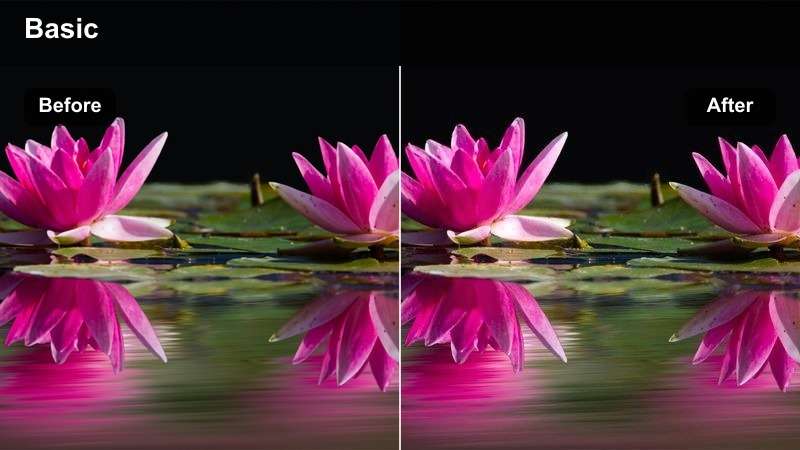
- Effect look: Gentle warm cast with soft contrast that feels like early-morning sunlight on a tidy workspace.
- Best for: Productivity planning shots, journaling at your desk, and top-down workflow B-roll.
- Editing tip: Add a small amount of film grain to make timelapses of typing or note-taking feel more tactile and grounded.
Warm Productive Morning gives your workspace a calm, inviting tone that fits planning sessions, weekly reset videos, and study-with-me content. In Filmora, add a slight warmth in temperature, lower contrast a bit, and soften highlights to emulate gentle window light spilling across your desk.
Layering in subtle film grain and maybe a faint vignette reinforces the cozy, analog feel, especially on top-down notebook shots or pen-on-paper B-roll. The result keeps your tech looking modern while making the overall scene feel personal and comfortable for long-form productivity uploads.
Focus Mode Neutral
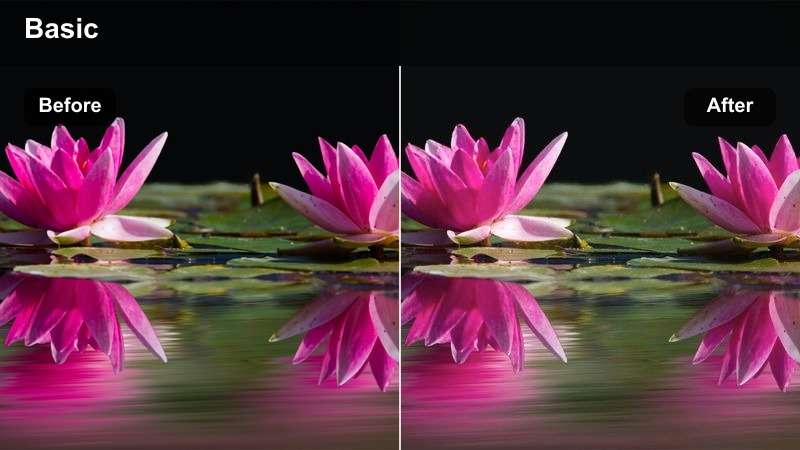
- Effect look: Flat, low-contrast neutral tones that reduce visual noise and distractions around your workspace.
- Best for: Focus sessions, pomodoro videos, and deep work timelapses at a simple desk.
- Editing tip: Lower saturation slightly and add subtle blur to the background to keep attention on hands, keyboard, or notebook.
Focus Mode Neutral intentionally pulls back contrast and saturation so your desk scenes feel calm and distraction free, perfect for study or deep-work themed videos. In Filmora, flatten the curve slightly, reduce saturation just a notch, and avoid strong color casts so your visuals never overpower your audio or timer overlays.
You can enhance this minimalism by using Gaussian blur or depth-of-field style effects on the background while keeping your hands, keyboard, or notebook in crisp focus. This guides viewer attention to the task at hand and visually reinforces the concentration theme of your content.
Late Night Edit Session
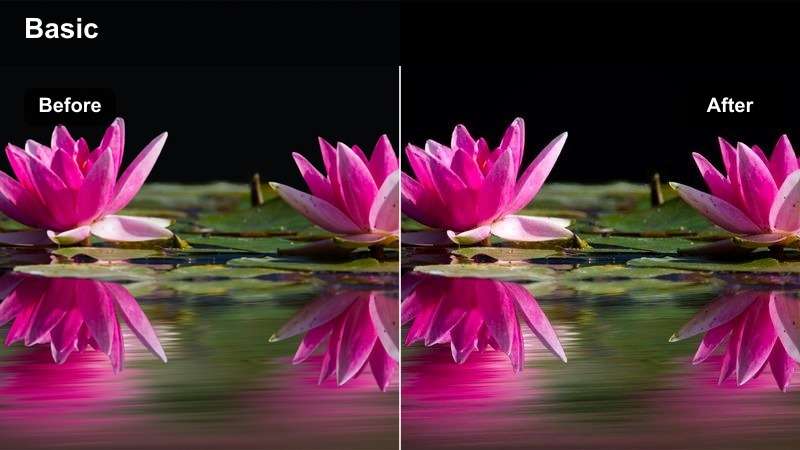
- Effect look: Moody warm highlights from desk lamps with lifted shadows so details are still visible at night.
- Best for: Screen-record plus desk cam editing sessions and night productivity montages.
- Editing tip: Increase noise reduction slightly to clean up high-ISO night footage while preserving the cozy glow.
Late Night Edit Session captures the cozy but focused feeling of working at your desk after dark, with a warm desk lamp and glowing monitor as the main light sources. In Filmora, shift highlights toward warm tones, gently lift shadows to avoid crushed blacks, and keep overall contrast moderate so you can still see detail in shelves, walls, and peripheral gear.
Night shots often suffer from noise, so follow up with Filmora s noise reduction and careful sharpening to regain clarity without creating unnatural textures. This filter works well for desk-cam overlays paired with screen recordings of your timeline, giving your audience a behind-the-scenes view of your editing process.
Tech Review and Desk B-Roll Shots
Clean Product Highlight
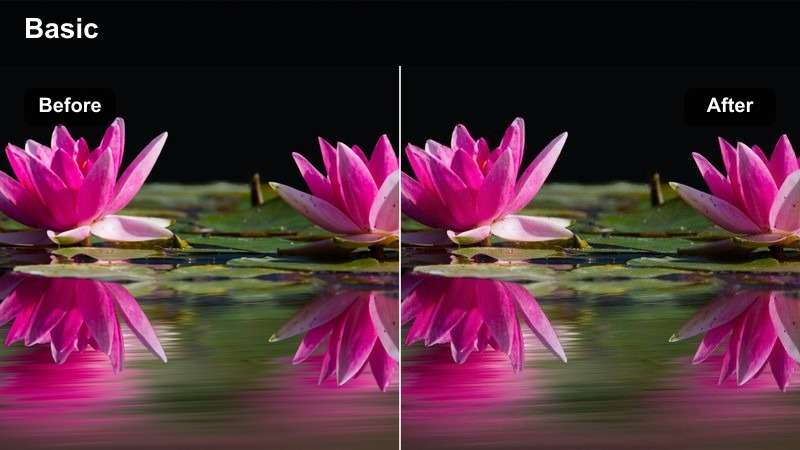
- Effect look: Bright, clinical clarity that makes gadgets, displays, and edges look sharp and professional.
- Best for: Overhead unboxings, mouse and keyboard close-ups, and static review shots on the desk.
- Editing tip: Use a touch of clarity and sharpening while watching for halos around edges; pull back if logos start to glow unnaturally.
Clean Product Highlight is built for review-focused shots where viewers need to see every port, texture, and keycap clearly. In Filmora, bump exposure slightly, increase clarity, and add a bit of sharpening to make fine edges and logos stand out against a simple desk background.
Be conservative with these adjustments; watch for haloing or ringing around high-contrast edges and dial back if branding or text starts to look artificial. Pairing this filter with stable tripod framing and slow, deliberate movements will help your gear look as premium as possible in both static shots and gentle pans.
Cinematic Desk B-Roll
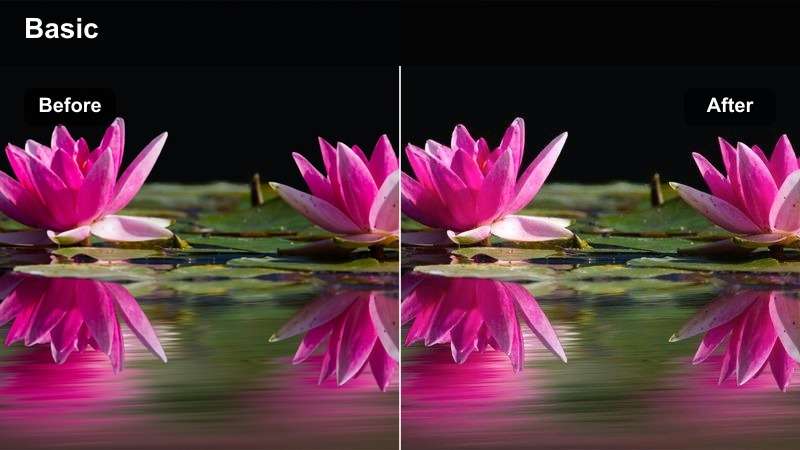
- Effect look: Soft contrast with slightly desaturated colors and gentle bloom for cinematic panning shots.
- Best for: Slow slider moves across the desk, mouse glides, and keyboard typing sequences in tech videos.
- Editing tip: Lower contrast just a bit more and add a touch of motion blur to make pans feel smoother and more premium.
Cinematic Desk B-Roll gives your side pans and slider moves a filmic softness that complements detailed voiceovers. In Filmora, lightly reduce contrast, pull back saturation a notch, and introduce a hint of highlight bloom or glow so light sources and reflections feel smooth and pleasing.
This look works especially well over slow-motion shots of mouse glides, macro keyboard angles, or sweeping desk reveals. Adding optical-style motion blur or frame blending to your camera moves will further enhance the cinematic feel, turning simple B-roll into a stylish visual break from talking-head segments.
UI Showcase Crisp
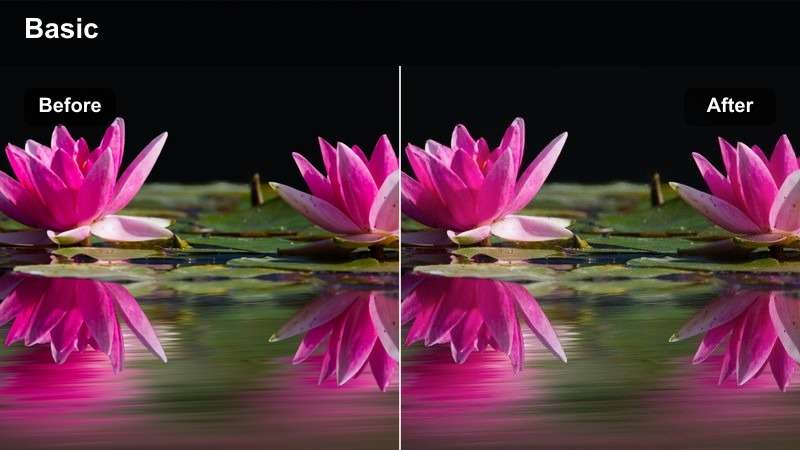
- Effect look: Neutral color with boosted micro-contrast tailored to make on-screen UI and app windows clear.
- Best for: Desk shots where you demonstrate software, timelines, or productivity apps on your monitor.
- Editing tip: Expose for the monitor first, then apply this filter so the UI looks perfectly readable with minimal adjustments.
UI Showcase Crisp is optimized for shots where your monitor content is the star, such as editing breakdowns, productivity workflows, or app tutorials filmed from the desk. In Filmora, keep color grading neutral and focus on micro-contrast and slight sharpening to make text and icons stand out cleanly.
Expose your footage for the screen before applying the filter so whites do not blow out and dark UI elements remain legible. If needed, use masks to apply a bit more clarity and brightness just to the monitor area, leaving your desk and peripherals slightly softer for a natural depth separation.
Tips for Using Youtube Desk Setup Videos Filters in Filmora
- Shoot a clean reference shot of your entire desk and grade that clip first, then copy the look to all other angles.
- Lock white balance in-camera when filming desk setups so your filters behave consistently across the whole video.
- Create separate versions of your desk filter for daytime and nighttime to avoid overexposed windows or muddy shadows.
- Use masks to reduce the strength of filters on your monitor so text and UI stay crisp and readable.
- Batch-apply your chosen desk filter preset to all A-roll and B-roll, then fine-tune individual clips only when necessary.
- Combine desk filters with subtle vignettes or blur effects in Filmora to guide viewer focus toward your main tools.
- Test your graded desk footage on both a phone and a larger monitor to ensure brightness and contrast feel balanced everywhere.
Consistent desk setup filters that emulate YouTube LUTs help your tech channel feel polished, recognizable, and on-brand without complex color workflows. Building a repeatable look makes it easier for viewers to associate your visuals with your personality and content style.
Experiment with a few of these workspace-focused looks in Filmora, save your favorites as presets, and build a visual style that carries through every tech review and productivity upload you share. Over time, your desk setup aesthetic will become a core part of your channel identity across thumbnails, intros, and long-form videos.
secure download