

 100% Security Verified | No Subscription Required | No Malware

Underwater footage often turns flat, green, or hazy once you bring it back to the surface, but the right Filmora filters and LUT-style presets can restore natural blues, reveal skin tones, and bring coral details back to life in seconds.
This collection of free underwater color grading LUT-style filters is built for divers, travel filmmakers, and ocean lovers capturing diving, snorkeling, and other underwater footage, so you can quickly match different dive conditions and keep your underwater story looking consistent from clip to clip.
In this article
Tropical Reef Daylight Adventures
Reef Crystal Clear
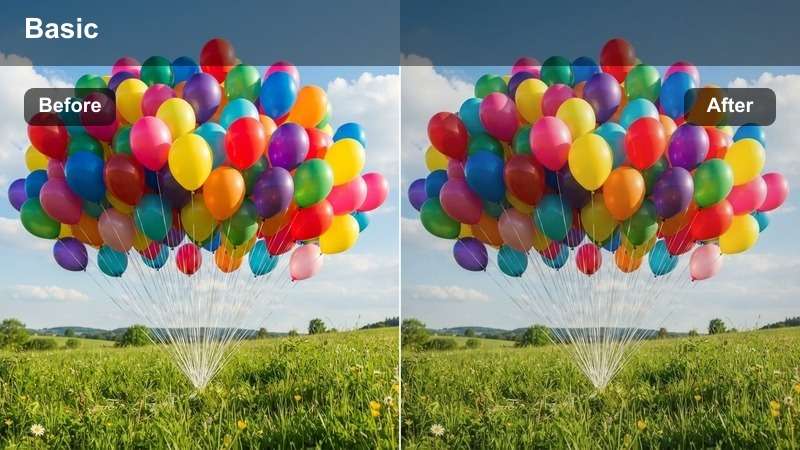
- Effect look: Bright, clean, and vibrant reef colors with balanced blues and restored contrast.
- Best for: Shallow tropical reef dives in clear sunlight with colorful coral and fish.
- Editing tip: Lower the filter intensity to around 60-70% if your footage was shot with a strong red filter to avoid oversaturated reds.
Reef Crystal Clear is designed as an all-around underwater correction look that brings back the crisp turquoise water and lively coral tones you remember from the dive. In Filmora, it quickly counteracts the washed-out cyan cast you get at depth, rebuilding contrast so reefs feel three-dimensional again while keeping the water column smooth and natural.
Apply this filter to your main reef sequences, then fine-tune intensity to match how much in-camera filtration you used. It pairs well with Filmora white balance and curves, letting you nudge warmth for better skin tones or gently tame highlights on sand and coral so your tropical scenes stay vivid but still believable.
Speed up underwater correction with Filmora's AI color tools
Filmora's AI-powered color tools can automatically scan your underwater clips and neutralize heavy green or cyan shifts, giving you a balanced starting point before you add any creative filters. This first pass saves time on manual correction so you can focus on storytelling instead of fighting color problems.
Once AI has evened out exposure and white balance, layer on these underwater LUT-style looks to tailor the grade to specific conditions like shallow reefs, open blue water, or darker wreck interiors. You get consistent, cinematic results while keeping editing steps simple and repeatable for every dive trip.
 secure download

Preview underwater filters in real time
In Filmora, you can hover over each underwater preset to see an instant live preview in the Viewer, making it easy to compare different looks on the same clip. This real-time feedback is especially useful when you are trying to match shots from different depths, cameras, or dive days.
After choosing a base filter, adjust its strength and tweak exposure, contrast, and color temperature until the water hue and subject tones match your overall dive story. Saving these tweaks as custom presets lets you reuse the same underwater style across multiple edits with just a few clicks.
secure download1000+ video filters and 3D LUTs in Filmora
Beyond dedicated underwater looks, Filmora includes a large library of cinematic filters, creative 3D LUTs, and color tools you can stack to build a unique ocean style. You can mix underwater presets with film-inspired LUTs, light leaks, and vignettes to give your dive videos a polished, story-driven finish.
When you land on a combination that fits your channel or series, save it as a custom preset so you can apply the same signature grade to every new trip. This workflow keeps your underwater branding consistent and reduces color work on future edits to just a few final tweaks.
secure downloadSunlit Sandbanks
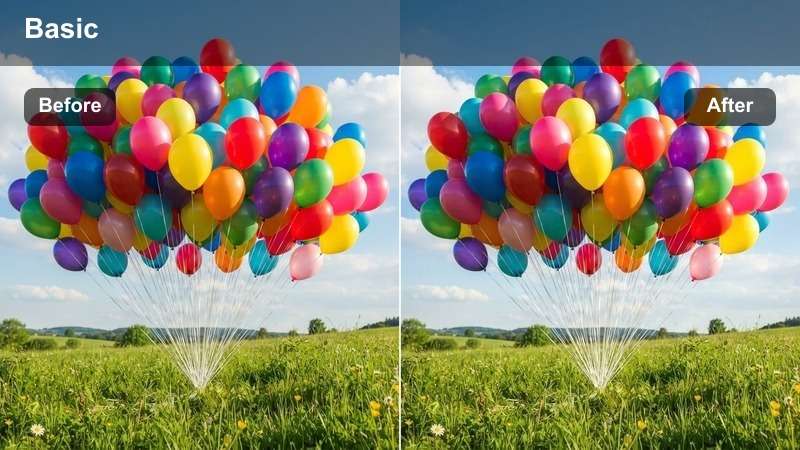
- Effect look: Soft cinematic blues with warm highlights where sunbeams hit the sand.
- Best for: Shallow sand patches, snorkel shots near the surface, and wide-angle swim-throughs.
- Editing tip: Add a subtle vignette after this filter to guide the eye toward your subject crossing the sunlit sand.
Sunlit Sandbanks is tuned to protect highlight detail on bright sand while giving the surrounding water a smooth, cinematic blue. In Filmora, it tones down harsh midday glare and replaces it with a gentle, dreamy atmosphere that works beautifully for surface snorkeling and shallow swim-throughs.
Use this look for B-roll of divers or snorkelers gliding across rippled sand, then refine exposure so sun rays stay visible without clipping. Combine it with a light vignette and slow-motion playback to create postcard-style transitions between more intense reef or wreck scenes in your dive edits.
Coral Pop Vivid
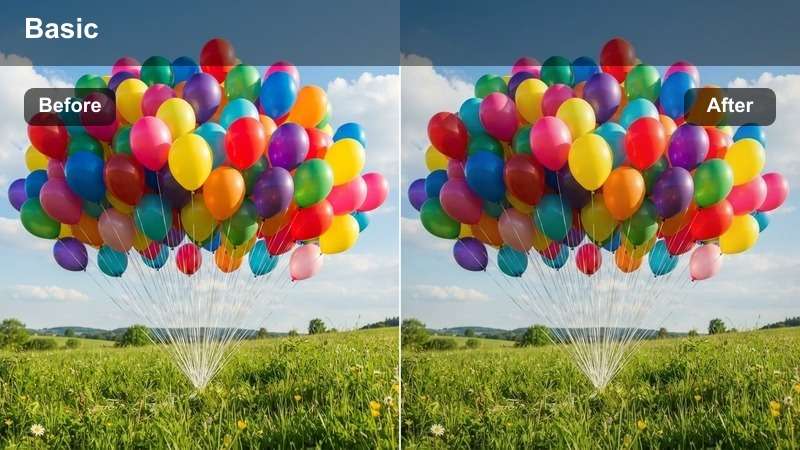
- Effect look: Punchy saturation and crisp contrast that emphasize coral patterns and details.
- Best for: Colorful reef walls, macro coral close-ups, and travel vlog underwater cutaways.
- Editing tip: If skin tones become too intense, reduce saturation in the red and orange channels using Filmora's HSL tool.
Coral Pop Vivid is built for those moments when you want the reef itself to be the star of the shot. It increases saturation and micro-contrast to carve out coral textures, making polyps, ridges, and patterns stand out even in footage that looked dull straight out of the camera.
Apply it to feature shots of reef walls, macro coral details, or hero moments in travel vlogs, then fine-tune reds and oranges with HSL so divers and fish still look natural. For best results in Filmora, add soft sharpening only to the reef area and keep backscatter-heavy water smoother to avoid a noisy, over-processed look.
Blue Open-Water Drift Dives
Pelagic Royal Blue
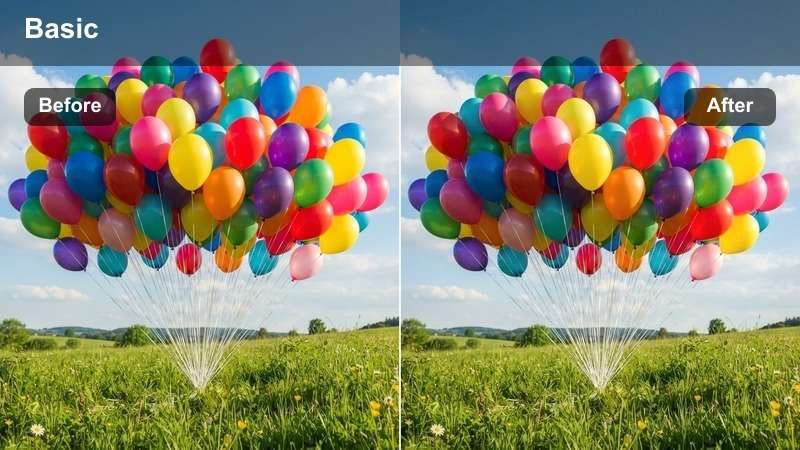
- Effect look: Deep, rich blue water with gentle contrast that separates divers and big marine life from the background.
- Best for: Open-ocean drift dives with sharks, mantas, or schooling fish in mid-water.
- Editing tip: Boost midtone contrast a little to make silhouettes of animals stand out while keeping shadows soft.
Pelagic Royal Blue is tuned for the open ocean, where you have very little foreground detail and your subjects float in an endless blue. In Filmora, it deepens the water color without crushing the midtones, helping sharks, mantas, and divers separate cleanly from the background.
Use this preset on blue-water safaris, mid-water schools, or safety stop shots and then refine midtone contrast so silhouettes gain presence while bubbles and particulate stay under control. It works especially well in sequences where you want a premium, cinematic feel to the big blue environment across multiple clips.
Drift Soft Teal
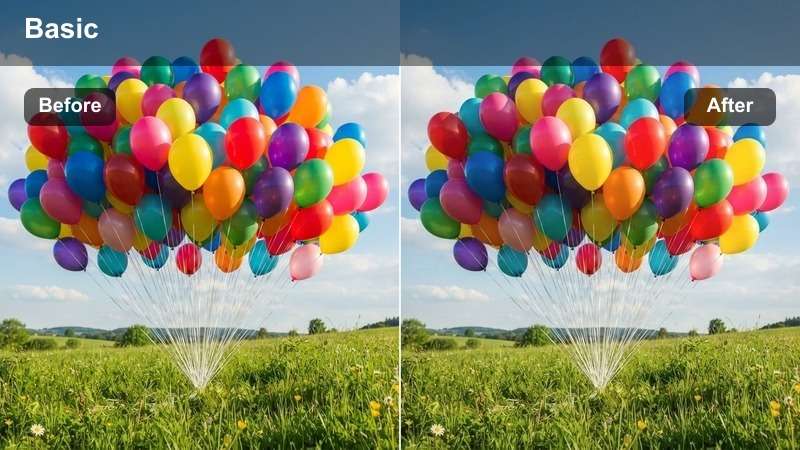
- Effect look: Balanced teal-blue cast that softens harsh contrast and makes drifting scenes feel smoother.
- Best for: Laid-back drift dives, buddy team shots, and mid-water cruising scenes.
- Editing tip: Pair with Filmora's stabilization on shaky action-cam clips to sell a calm floating mood.
Drift Soft Teal wraps your open-water footage in a gentle teal tone, reducing harsh contrast so drifting sequences feel calm and fluid. This is ideal for buddy shots or relaxed cruising footage where you want the viewer to feel like they are floating along with the divers.
Apply it in Filmora to GoPro or action-cam clips, then add stabilization and slightly slower playback speed to reinforce that effortless mid-water glide. It is a great base grade for narrative or vlog segments that show divers moving between more dramatic scenes like reef walls or wrecks.
Schooling Silhouette
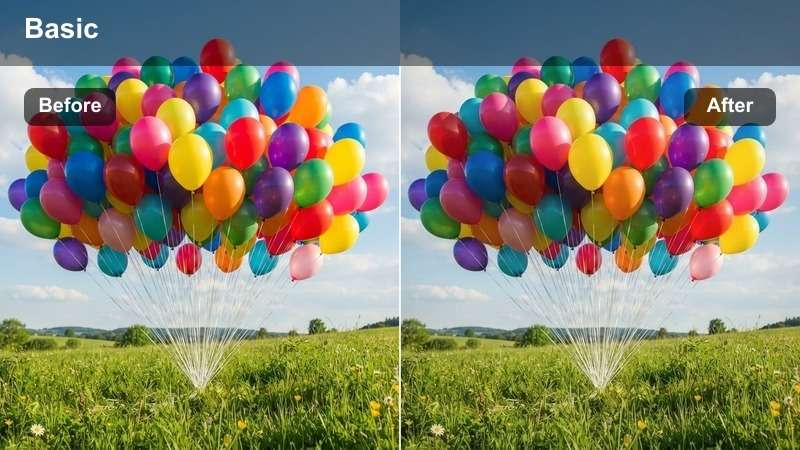
- Effect look: High contrast with lifted blacks that highlight silhouettes of fish schools and divers against bright blue water.
- Best for: Shots where your subjects are darker than the background, like schooling fish or diver outlines near the surface.
- Editing tip: Reduce clarity slightly if your footage has lots of backscatter to keep the silhouettes smooth.
Schooling Silhouette is optimized for upward-looking shots where your subject is naturally darker than the bright surface or open water behind it. It increases contrast around edges while lifting blacks just enough to keep silhouettes rich but not completely crushed.
Use it on fish schools, safety-stop scenes, or divers framed against the surface, then fine-tune clarity and noise so particles do not distract from the clean outlines. In Filmora, combine this look with beat-synced cuts and occasional speed ramps to highlight dramatic changes in school movement or diver position.
Wrecks, Caves, and Low-Light Scenes
Wreck Mystic Green
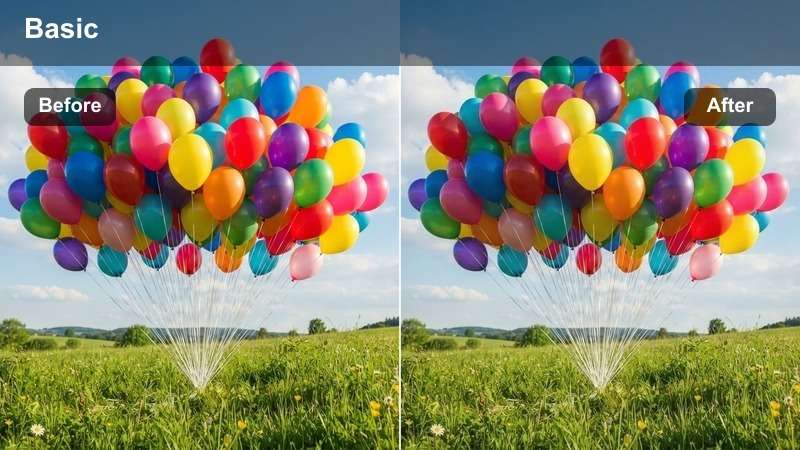
- Effect look: Moody green-blue mix with soft contrast that enhances the age and texture of underwater wrecks.
- Best for: Shipwreck penetrations, darker metal structures, and historical documentary-style dives.
- Editing tip: Lower saturation slightly for a more documentary feel, or raise it for adventurous travel vlogs.
Wreck Mystic Green leans into the natural green-blue cast often found around deeper or older wrecks, using gentle contrast to bring out structural detail without making the scene look overly harsh. It gives shipwrecks a cinematic, story-rich mood that works well for both narrative and documentary-style edits.
Apply it to your exterior passes along decks and hulls, then adjust saturation depending on whether you want a realistic, archival look or a more adventurous, travel-focused aesthetic. In Filmora, add subtle vignettes and targeted exposure adjustments around your diver's torch to keep viewer attention on key parts of the wreck.
Cave Blue Ambient
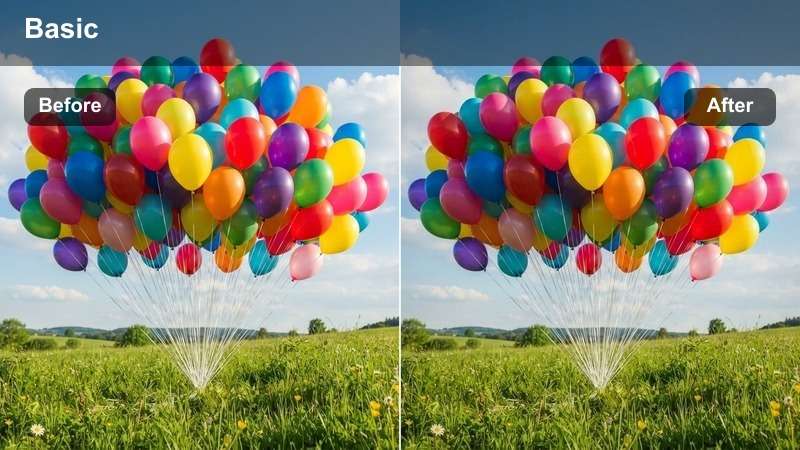
- Effect look: Cool ambient blue shadows with protected highlights for cave and cavern scenes lit from the entrance.
- Best for: Swim-throughs, caverns, and overhead environments with bright entrance light.
- Editing tip: Expose slightly for the highlights in-camera, then use this filter to gently lift details in the darker walls.
Cave Blue Ambient is tailored for overhead environments where a bright entrance or exit frames darker interior rock. It protects highlight detail in the opening while adding a cool blue tint to the shadows, preserving a sense of depth and mystery inside the cave.
In Filmora, use this filter consistently across all your cave angles so the sequence feels cohesive as you cut between wide shots and close-ups. Then make small exposure and shadow tweaks per clip to reveal just enough wall and ceiling detail without losing the dramatic silhouette effect around the entrance.
Torch Focused Detail
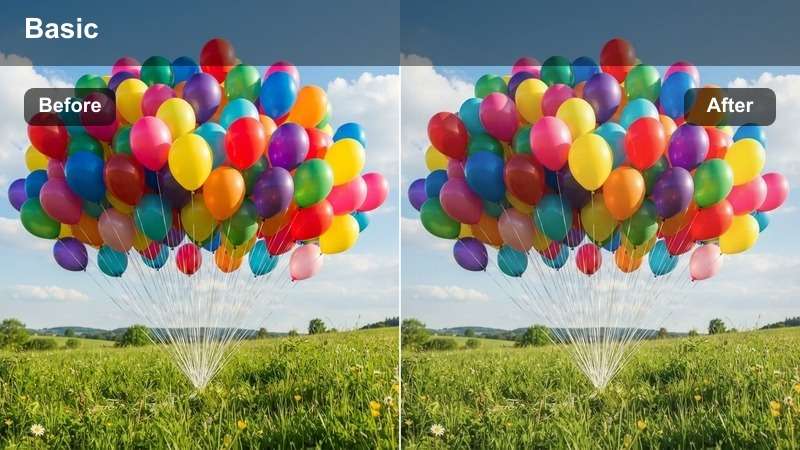
- Effect look: Boosted local contrast and clarity around lit areas while keeping unlit water gentle and dark.
- Best for: Torch-lit shots of wreck details, cave walls, or nighttime inspection clips.
- Editing tip: Mask the filter so it mainly affects the lit portion of the frame, reducing noise build-up in darker corners.
Torch Focused Detail emphasizes the areas illuminated by your dive light, increasing local contrast and clarity so metal textures, coral growth, or cave formations become more readable. It keeps unlit water and shadows softer and darker, enhancing the sense of exploration in low-light environments.
Use it on night dives, wreck penetrations, or close-up inspection shots, then leverage Filmora's masking tools to confine the strongest part of the effect to the beam of light. Follow with a touch of noise reduction in the darkest regions to maintain a clean, cinematic look while still preserving the gritty detail you want around your torchlit subject.
Snorkeling and Travel Vlog Stories
Surface Glow Vlog
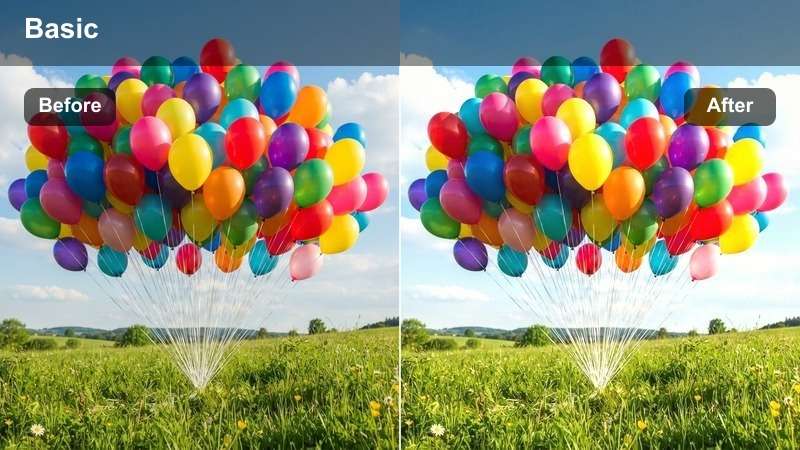
- Effect look: Warm, inviting tones with soft contrast for snorkel intros, talking shots, and surface clips.
- Best for: Snorkeling with friends, vlog-style monologues at the surface, and boat-entry sequences.
- Editing tip: Use a slightly faster shutter speed in-camera to avoid flicker on the surface, then smooth it out with this gentle filter.
Surface Glow Vlog is built to make faces and skin tones look flattering at the waterline, where reflections and mixed lighting can easily become harsh. It warms up colors slightly and reduces contrast, giving your vlog intros and surface chats a friendly, approachable feel.
Apply this look to any shots of you or your friends talking to camera on the surface, then tweak exposure and temperature in Filmora so your skin remains natural while the surrounding water stays rich and inviting. It also works well on quick topside B-roll of boats or gear that you want to visually tie into your underwater sequences.
Lagoon Soft Pastel
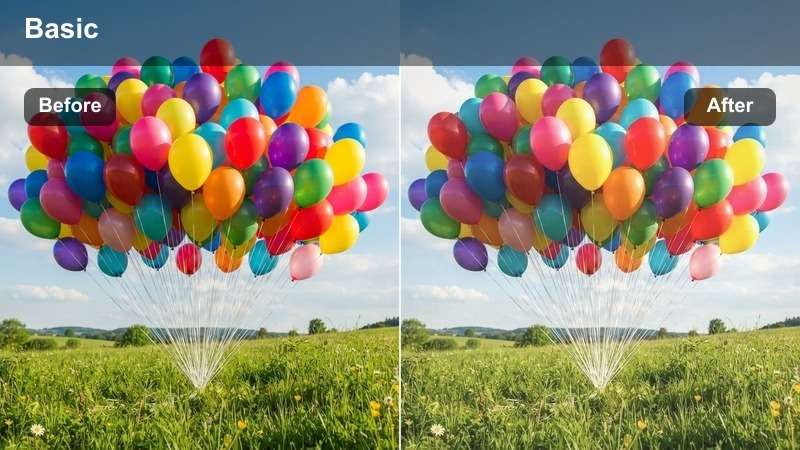
- Effect look: Soft pastel blues and gentle highlights that make lagoons and shallow reefs look airy and playful.
- Best for: Family snorkeling, shallow lagoon scenes, and playful vacation montage clips.
- Editing tip: Speed up clips slightly and cut to the music rhythm to enhance the fun, carefree lagoon feeling.
Lagoon Soft Pastel gives shallow turquoise water a light, airy quality that suits family trips, casual snorkels, and vacation montages. It slightly rolls off highlights and pastelizes blues, so scenes feel bright and joyful without overwhelming the viewer with heavy saturation.
Use it across your shallow lagoon sequences and montage shots, then fine-tune brightness and saturation in Filmora to keep skin tones gentle and flattering. Pair it with upbeat music, faster cuts, and occasional text labels to create social-ready edits that capture the carefree side of your ocean adventures.
Transition Dive Entry
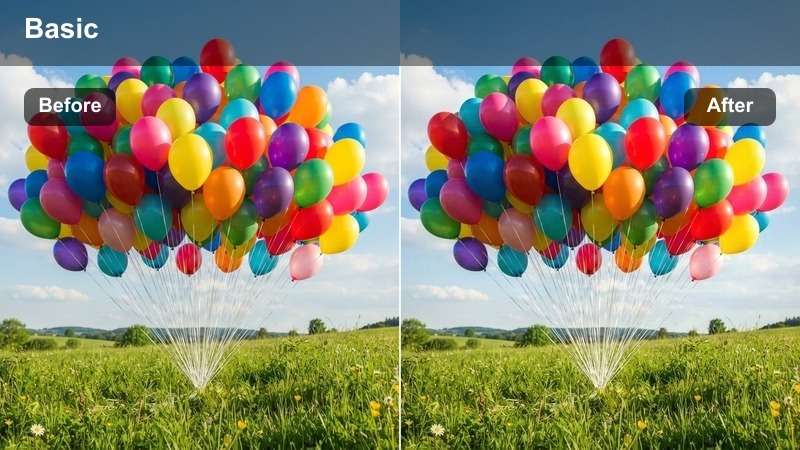
- Effect look: Gradual shift from warm surface tones to cooler underwater blues within a single shot.
- Best for: Roll-back entries, giant strides, and duck dives that move from air to water in one continuous clip.
- Editing tip: Keyframe the filter intensity so it increases as the camera goes below the surface for a natural color change.
Transition Dive Entry is purpose-built for splash-in and duck-dive shots that travel from topside to underwater in one move. It lets you animate a smooth change from warm, sunlit surface tones to cooler underwater blues so the viewer feels the transition instead of being jolted by a sudden color jump.
In Filmora, place keyframes on the filter intensity so it starts low just before entry and reaches full strength once the bubbles clear and the underwater scene stabilizes. Combine this with a subtle audio shift from boat or surface sounds to underwater ambience to create an immersive gateway into your main dive footage.
Tips for Using Underwater Color Grading Luts Filters in Filmora
- Shoot with manual white balance when possible and use these underwater filters mainly to refine color rather than fix severely mis-exposed clips.
- Organize your timeline by scene type, such as reef, open water, wreck, and snorkeling, so you can batch-apply the matching filters to groups of shots.
- Dial back filter intensity on any clip where a red or magenta dive filter was used in-camera to prevent overly strong reds and unnatural skin tones.
- Use Filmora's HSL controls after applying a filter to gently boost blues and cyans while keeping neutral elements like tanks, gear, and skin realistic.
- Stabilize shaky action-cam footage before grading so your underwater filters enhance the sense of movement instead of drawing attention to jitters.
- If backscatter is strong, slightly lower clarity and contrast after applying your chosen look so particles do not pop too much against the water.
- Save separate presets for shallow, mid-depth, and deep dives so you can quickly adapt your grade as light and color change with depth.
- Always review your final underwater grade on both a bright screen and a dimmer screen to ensure blues and greens do not appear muddy or overly dark.
With these free underwater color grading LUT-style filters in Filmora, you can quickly rescue flat, greenish dive clips and turn them into cohesive, cinematic stories that match the feeling of being underwater.
Experiment with a few presets for each dive scenario, then save your favorite combinations as custom looks so every new trip, from shallow snorkeling to deep wrecks, slots into a consistent visual style with minimal work.
secure downloadNext: Free Mountain Hiking LUTs for Outdoor Adventure Videos
