

 100% Security Verified | No Subscription Required | No Malware


 ChatGPT
 Perplexity
 Gemini
 Claude
 Grok
Grok
These Instagram sunset LUTs inspired golden hour glow filters in Filmora are designed to make every sky burn warmer, every skin tone softer, and every highlight sparkle without looking fake.
Whether you shoot city rooftops, beach sunsets, or cozy balcony reels, use these curated filters to create a consistent, cinematic golden hour aesthetic across your Instagram grid and stories.
In this article
Soft Golden Hour Over the City
Hazy Rooftop Warmth
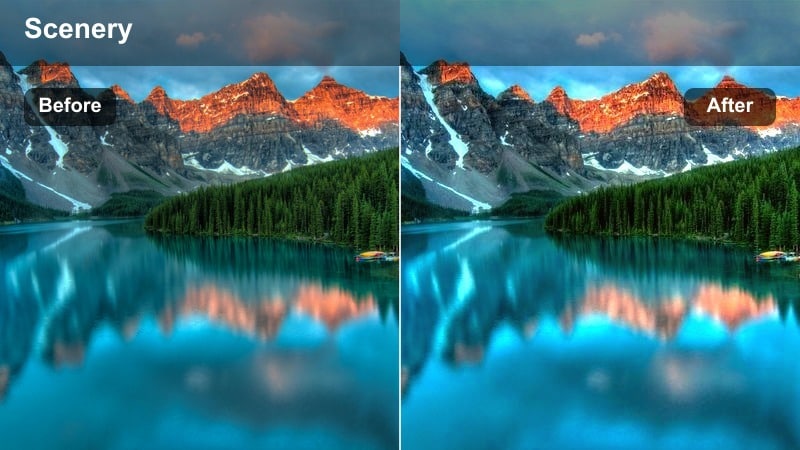
- Effect look: Soft, low-contrast glow with warm orange highlights and gentle haze over the skyline.
- Best for: Instagram Reels and stories of rooftops, skyline silhouettes, and city balcony selfies shot at sunset.
- Editing tip: Lower the filter intensity to around 60 percent and slightly raise shadows to preserve detail in darker buildings.
Hazy Rooftop Warmth wraps your city skyline in a soft, cinematic glow that instantly reads as golden hour on Instagram. The lowered contrast and subtle haze smooth out harsh edges on high-rise buildings while keeping windows and clouds bathed in warm orange light.
In Filmora, apply this filter to rooftop B-roll and balcony chats, then fine-tune shadow levels so you do not lose detail in silhouettes or architectural lines. Keep intensity around the mid-range for a natural, filmic look that still leaves room for text overlays, transitions, and subtle motion graphics without feeling overprocessed.
Lock In a Consistent Golden Hour Palette with Filmora
Filmora s AI-driven color tools help you keep your golden hour glow consistent across clips, even when your original lighting shifts between shots. Use AI Color Match and AI Color Palette to quickly sync warm tones across different cameras, angles, and shooting days.
Once you find a sunset look you love, save it as a custom preset so you can instantly reuse the same golden hour mood on future Instagram Reels, Stories, and carousel videos.
 secure download

Preview Sunset Filters in Real Time
Use Filmora s real-time preview to quickly test multiple golden hour filters on the same clip without committing to a single look. You can scrub through your footage as the sun dips and instantly see how each effect reacts to lens flare, silhouettes, and city lights.
This makes it easy to compare soft, pastel glows with stronger, contrasty sunset looks and pick the exact style that matches your Instagram brand before exporting.
secure download1000 plus Video Filters and 3D LUTs
Filmora includes a huge library of creative filters and 3D LUT-style looks you can stack with these Instagram sunset styles. From subtle film fades to bold cinematic color grades, it is easy to build a unique golden hour signature that still feels on-brand.
Start with a warm glow filter, then experiment with additional looks, HSL tweaks, and curves to fine-tune skin tones, skyline color, and street lights without losing quality.
secure downloadCopper Skyline Glow
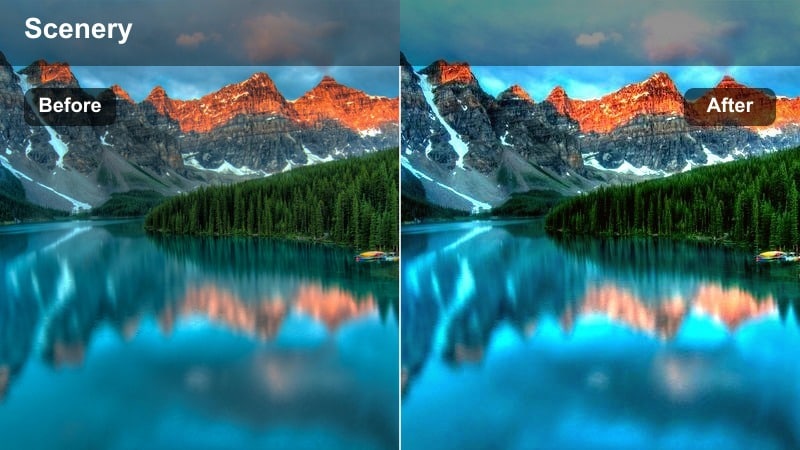
- Effect look: Rich copper tones in highlights with deeper shadows for a cinematic, contrasty city sunset.
- Best for: Urban outfit posts, city walking vlogs, and skyline time-lapses posted to Instagram feed.
- Editing tip: Reduce saturation slightly if skin tones look too orange, and add a touch of vignette to draw eyes toward the subject.
Copper Skyline Glow amps up the drama with bold copper highlights that make glass buildings, metal railings, and reflective streets look cinematic. The deeper shadows add structure to your skyline so silhouettes pop strongly against the warm sky.
In Filmora, drop this filter on your walking vlogs and outfit reels to create a high-impact look that stands out in the grid. If you are in the frame, slightly ease off global saturation and use a gentle vignette so your subject remains the focus while the city around you glows with copper intensity.
Pastel City Fade
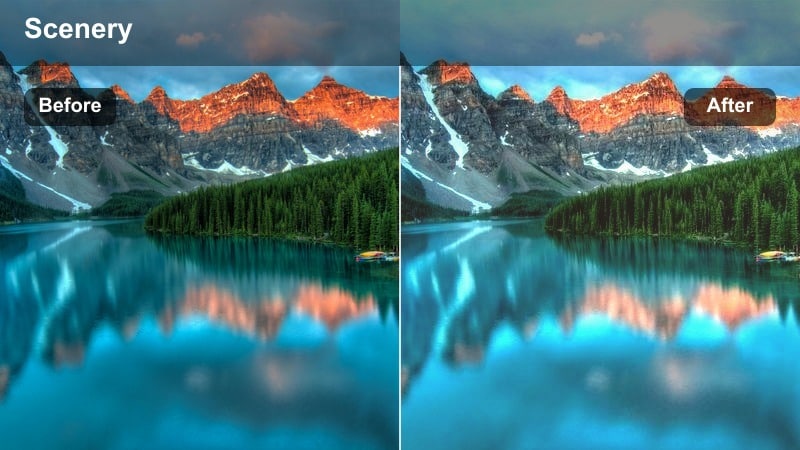
- Effect look: Low saturation pastel oranges and pinks with lifted blacks for a film-like faded sunset.
- Best for: Soft lifestyle reels, apartment window views, and aesthetic B-roll of streets and traffic at golden hour.
- Editing tip: Drop clarity a touch to keep edges soft and dreamy while slightly boosting sharpness on faces only.
Pastel City Fade mutes strong colors into delicate oranges and pinks, giving your urban footage a nostalgic, film-inspired finish. Lifted blacks reduce harsh contrast so shadows feel airy rather than heavy, perfect for aesthetic reels and low-key daily vlogs.
Inside Filmora, combine this filter with gentle clarity reduction to keep the entire frame soft, then add targeted sharpening to faces so people still look crisp. Use it across window shots, coffee runs, and street B-roll to establish a cohesive pastel mood that feels calm and curated on Instagram.
Romantic Golden Hour Portraits
Skin Soft Sunset
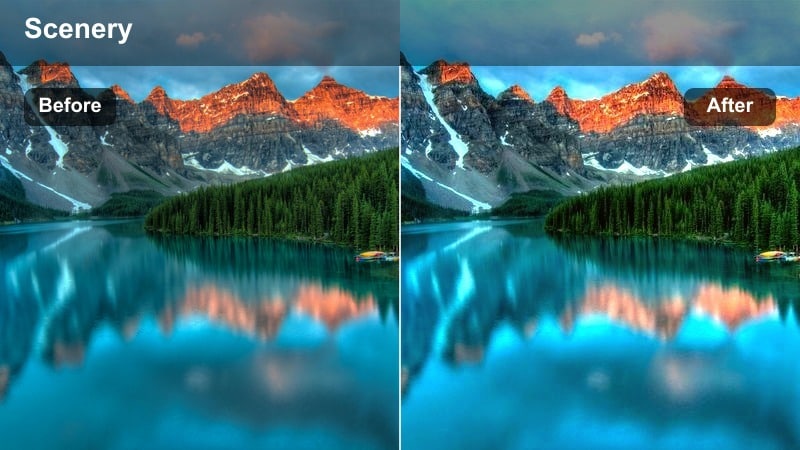
- Effect look: Warm golden glow that smooths skin, lowers contrast, and adds a light halo around highlights.
- Best for: Close-up Instagram portraits, couple photos, and creator selfies shot directly into the sunset.
- Editing tip: Use the filter at full strength, then reduce highlights to keep skin from blowing out against bright skies.
Skin Soft Sunset is tuned to flatter faces, softening pores and minor texture while wrapping your subject in a flattering golden halo. The reduced contrast helps cheeks and foreheads blend more smoothly into the background glow, giving your portraits a dreamy, romantic feel.
In Filmora, apply this filter at full intensity to your selfie-style videos and close-up reels, then gently pull down highlights to prevent blown-out patches on the skin. For extra polish, add a subtle texture or sharpen adjustment on the eyes only so they stay crisp and expressive against the softened glow.
Peach Kiss Highlights
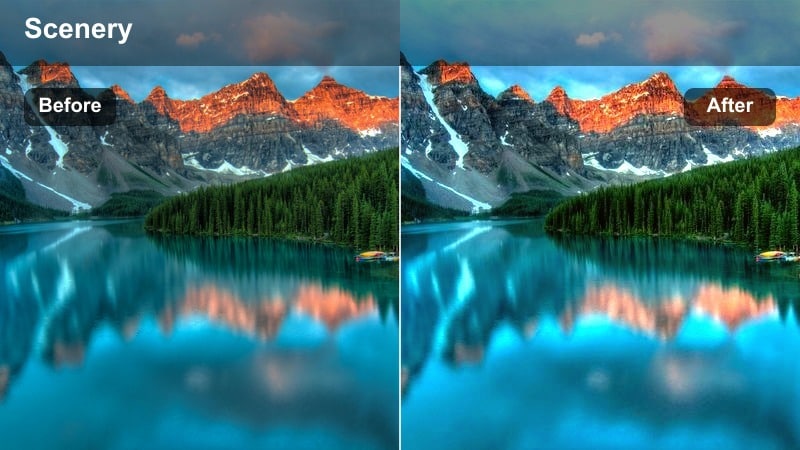
- Effect look: Soft peach tint in highlights and warm midtones that flatter almost every skin tone.
- Best for: Couple shoots, friendship photos, and creator intros filmed during late golden hour.
- Editing tip: Lower vibrance instead of overall saturation to keep skies rich while preventing oversaturated faces.
Peach Kiss Highlights infuses your highlights with a gentle peach tone that works beautifully across a wide range of skin tones. It keeps skies and hair warm without pushing too far into orange, making it ideal for romantic couple reels and soft friendship portraits.
When you grade in Filmora, apply this filter to your entire sequence, then dial down vibrance slightly if faces start to look too intense. This way, your background sunsets stay punchy while skin remains believable, giving you a cohesive, romantic Instagram carousel or Reel from the first frame to the last.
Backlit Halo Dream
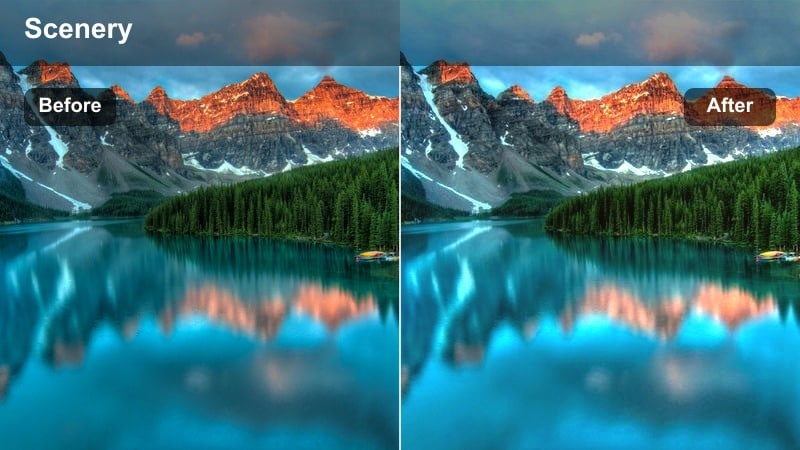
- Effect look: Bright backlit glow with slightly desaturated colors and lifted blacks for a dreamy halo effect.
- Best for: Backlit hair flip shots, turning poses, and cinematic intros filmed with the sun behind the subject.
- Editing tip: Increase exposure gently after applying the filter if your subject appears too silhouetted against the glowing sky.
Backlit Halo Dream is built to emphasize rim light and hair glow when the sun is behind your subject. Colors are slightly desaturated and blacks are raised, which keeps the overall mood soft and airy while the bright halo around shoulders and hair remains the star.
In Filmora, pair this filter with slow-motion hair flips, spins, and walk-away shots to maximize the sense of movement in the light. If your subject turns into a silhouette, nudge the exposure slider up a bit until their features reappear while maintaining the dreamy, washed-in-sunlight atmosphere.
Street Vibes After Sunset
Amber Street Fade
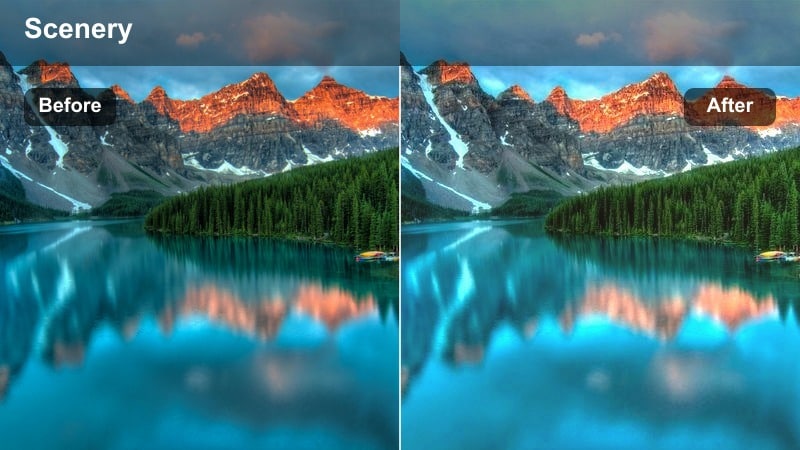
- Effect look: Muted amber tones with a gentle matte finish that keeps street scenes moody but warm.
- Best for: Street style videos, walking POVs, and cafe exteriors filmed right after the sun dips.
- Editing tip: Drop blacks slightly if your shot feels too flat, and keep contrast moderate to preserve the moody atmosphere.
Amber Street Fade turns your early blue-hour streets into cozy, cinematic frames by bathing everything in soft amber. The matte finish flattens the deepest blacks just enough to give your footage a film-like, slightly vintage feel while still preserving important detail.
In Filmora, use this filter for walking POVs, outfit checks, and lifestyle shots as streetlights and shop windows start to glow. If the image feels too washed out, gently lower blacks and add a touch of contrast until you strike a balance between mood and clarity that fits your Instagram aesthetic.
Neon Gold Mix
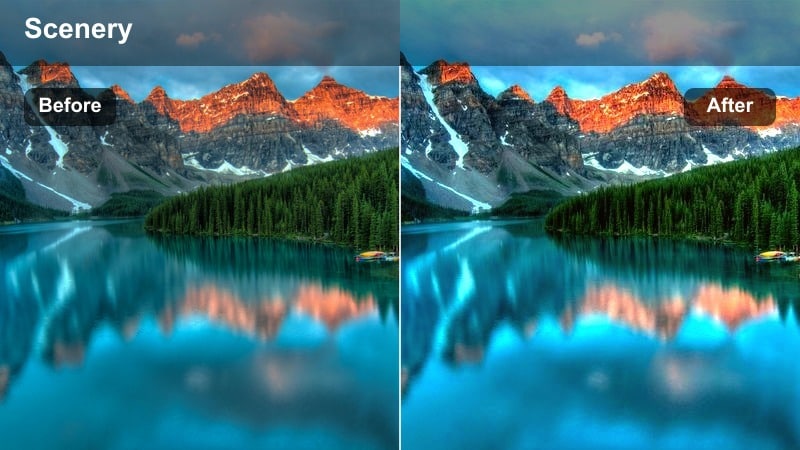
- Effect look: Golden highlights balanced with preserved neon colors for a night-in-the-city sunset crossover.
- Best for: City nightlife vlogs, sunset-to-night transitions, and creative reels featuring signs and billboards.
- Editing tip: Boost saturation in blues slightly so neon signs pop against the golden undertone without losing detail.
Neon Gold Mix bridges the gap between late golden hour and early night by keeping your highlights warm while allowing neon colors to stay vibrant. Golden reflections on wet streets and building facades combine with punchy blues, reds, and magentas from signs for a dynamic, urban look.
Apply this filter in Filmora to transition sequences that move from glowing skies to nightlife scenes. Slightly increase blue saturation so neon signs stand out, then use consistent cuts or whip transitions between sunset and night clips for a smooth, stylized Instagram Reel that feels like one continuous story.
Golden Lamp Trail
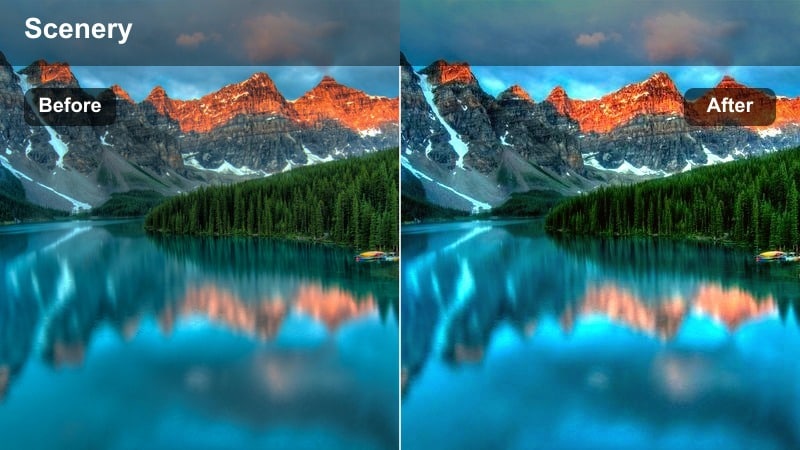
- Effect look: Emphasized golden yellows in street lamps and windows with subtle bloom around bright points.
- Best for: Handheld walking shots, car window views, and B-roll of glowing windows after golden hour.
- Editing tip: Lower highlights if lamp blooms are too strong and add a slight motion blur effect for dreamy light trails.
Golden Lamp Trail enhances every street lamp, window, and car light with rich golden tones and a soft bloom glow. The surrounding shadows stay relatively gentle so the light sources themselves become inviting focal points, perfect for cozy city-night storytelling.
Inside Filmora, pair this filter with slow handheld moves, car window passes, or gentle pans to let the blooms drag slightly across the frame. If lamps start to clip or look too harsh, bring down highlights and consider adding a touch of motion blur or speed ramping to create smooth, dreamy light trails for your Instagram audience.
Travel Vistas and Sky Glow
Golden Ridge Horizon
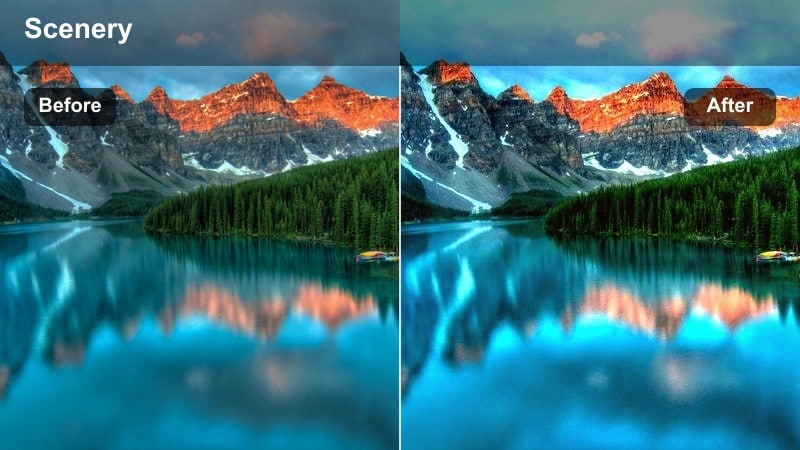
- Effect look: Strong golden tint along the horizon with slightly cooler shadows for depth in travel vistas.
- Best for: Scenic overlook shots, city viewpoints, and travel reels showcasing wide sunset landscapes.
- Editing tip: Increase sharpness moderately so distant buildings or ridges stay crisp against the glowing sky.
Golden Ridge Horizon concentrates its warmth where the sun meets the skyline, creating a striking golden band while leaving shadows a touch cooler. This contrast adds depth to wide vistas, making mountains, city blocks, and coastlines feel more three-dimensional on screen.
In Filmora, apply this look to drone sweeps, overlook clips, and slow pans across a city or landscape. Add moderate sharpening so small details at the horizon stay defined, and stabilize your footage to let the glowing gradient stand out cleanly when viewed on Instagram s smaller screens.
Soft Aerial Amber
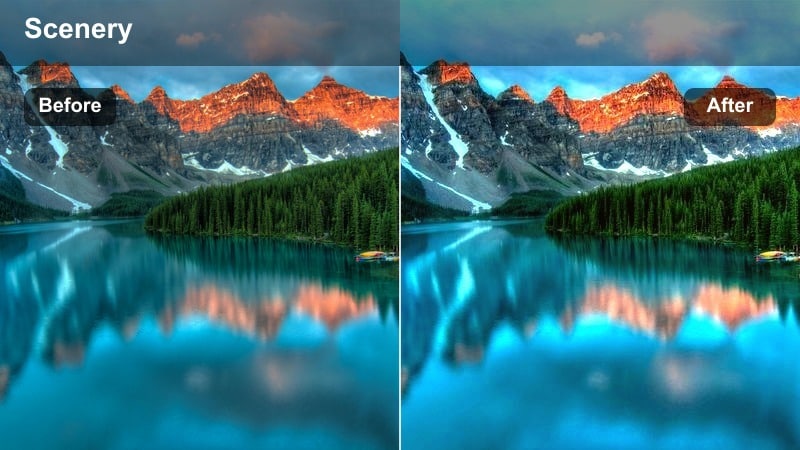
- Effect look: Gentle amber wash with lowered contrast ideal for drone or elevated sunset shots.
- Best for: Drone clips over cities, bridges, and coastlines shot during golden hour for Instagram reels and shorts.
- Editing tip: Add a slight contrast curve after the filter if your drone footage feels too flat, focusing on midtones only.
Soft Aerial Amber is tailored for high, sweeping views, bathing entire cityscapes or coastlines in a uniform amber glow. The reduced contrast helps smooth exposure variations across large areas, which is especially useful for drone clips where the sun, water, and buildings share the same frame.
In Filmora, apply this filter to your aerial sequences, then use a gentle S-curve in the midtones if the image feels overly flat. Slight speed adjustments and smooth transitions between aerial shots will help your amber-tinted travel reels feel polished and cinematic when posted to Instagram.
Skyline Ember Pop
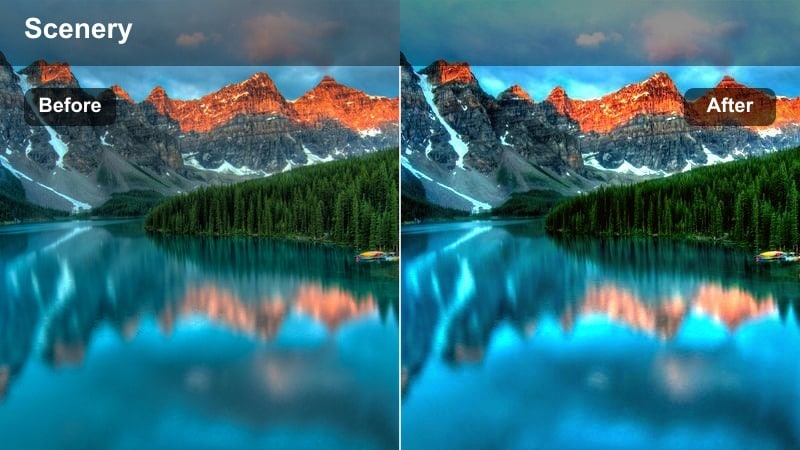
- Effect look: Deep fiery oranges near the sun with boosted saturation and contrast for dramatic skies.
- Best for: Hero sunset posts, dramatic travel reveals, and skyline shots where the sky is the main subject.
- Editing tip: Use this sparingly on skin; if people are in frame, mask the filter heavier on the sky and lighter on faces.
Skyline Ember Pop is all about making the sky the hero, pushing oranges and reds into bold, ember-like tones with strong contrast. Buildings and foreground elements typically fall into dark silhouettes, which further emphasizes the fiery drama in the clouds.
When grading in Filmora, treat this as your statement look for hero shots, reveals, and cover frames. If people appear in the scene, use masking or adjustment layers so the full intensity of the filter covers the sky while a toned-down version protects natural-looking skin, keeping the shot powerful but still flattering for Instagram.
Tips for Using Instagram Sunset Luts Golden Hour Glow Filters in Filmora
- Shoot during the softest part of golden hour, about 20 to 40 minutes before sunset, so Filmora s warm filters have balanced light to work with.
- Expose slightly darker than usual to preserve sky detail, giving your sunset filters room to add glow without clipping highlights.
- Keep your white balance a bit warm in-camera to reduce heavy corrections later and make golden hour presets look more natural.
- For Instagram Reels, stick with one main sunset filter across the whole edit so sky color and mood do not jump between clips.
- If skin looks too orange, lower saturation in the orange channel or reduce filter intensity instead of cooling the entire image.
- Stabilize handheld clips in Filmora before adding heavy glow or haze effects, since extra softness can exaggerate camera shake.
- Mix close-ups and wide shots graded with the same filter to tell a cinematic story while keeping your overall look consistent.
- Avoid stacking too many strong filters; pair one golden hour look with subtle manual tweaks, then export at high resolution to keep sky gradients smooth.
With the right set of Instagram sunset LUT-style filters, your golden hour footage can feel cohesive, cinematic, and instantly recognizable to your followers.
Build a small toolkit of your favorite Filmora filters, save them as presets, and lean on them whenever the sky starts to glow for a consistent, scroll-stopping Instagram feed.
secure download