

 100% Security Verified | No Subscription Required | No Malware


 ChatGPT
 Perplexity
 Gemini
 Claude
 Grok
Grok
These TikTok city timelapse LUTs cinematic style filters are designed for creators who want their urban clips to feel like frames from a movie, not just quick phone videos.
From neon-drenched skylines to golden-hour rush hour, each filter here is tuned to keep your TikTok city timelapse videos sharp, dramatic, and ready to post in just a few clicks.
In this article
Blue Hour Commute Cinematic Vibes
Metro Drift Teal Orange
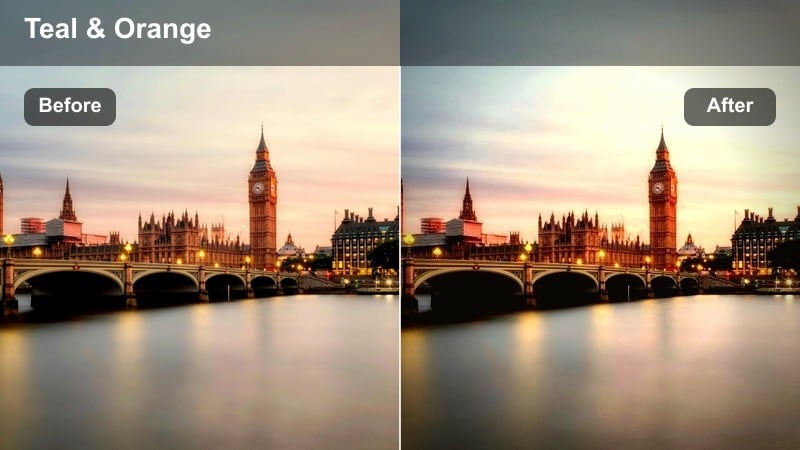
- Effect look: Bold teal shadows with warm orange highlights for a classic blockbuster city grade.
- Best for: Rush-hour overpasses, car light trails, and elevated train shots during blue hour.
- Editing tip: Lower saturation on skin tones with HSL to keep people natural while the city glows.
Metro Drift Teal Orange gives your TikTok city timelapse the familiar blockbuster contrast between cool streets and warm lights. In Filmora, it quickly turns ordinary rush-hour shots into high-impact visuals that read clearly even on smaller vertical screens.
Drop this filter on clips of overpasses, highways, or elevated trains and then fine-tune skin tones with HSL so commuters stay natural while the city around them shifts into cinematic teal and orange. Save the look as a preset so every rush-hour upload in your TikTok series shares the same signature grade.
Speed up your city grades with AI-driven color
Filmoras AI Color tools help you match these TikTok city timelapse LUTs cinematic filters across clips shot on different days, cameras, or phones. Consistent exposure and tone give your teal-orange grades, neon looks, and golden-hour filters a seamless flow in one TikTok sequence.
Instead of dialing in every setting from scratch, let AI suggest a balanced base grade, then apply your chosen filter to lock in the final cinematic look. This keeps your workflow fast while still feeling handcrafted.
 secure download

See your urban timelapse transform in seconds
Use Filmoras split-screen or side-by-side preview to compare multiple city filters on the same timelapse before exporting. You will instantly see whether teal-orange, moody blue hour, or neon-heavy styles best fit your TikTok hook.
Test different looks on the same skyline or overpass clip, then lock in the grade that feels boldest on a vertical phone display. This helps you pick a consistent aesthetic for your entire urban series.
secure downloadBlend filters and LUTs for signature TikTok looks
In Filmora, you can stack 1000 plus video filters and 3D LUTs to create custom color recipes for your TikTok city timelapses. Combine a contrast-focused filter with a stylized LUT to build a look that becomes instantly recognizable in your followers feeds.
Once you find a combo that works for blue hour, neon nights, or rainy reflections, save it as a preset so every new upload only takes a few clicks to match your established style.
secure downloadCommuter Blues Soft Fade
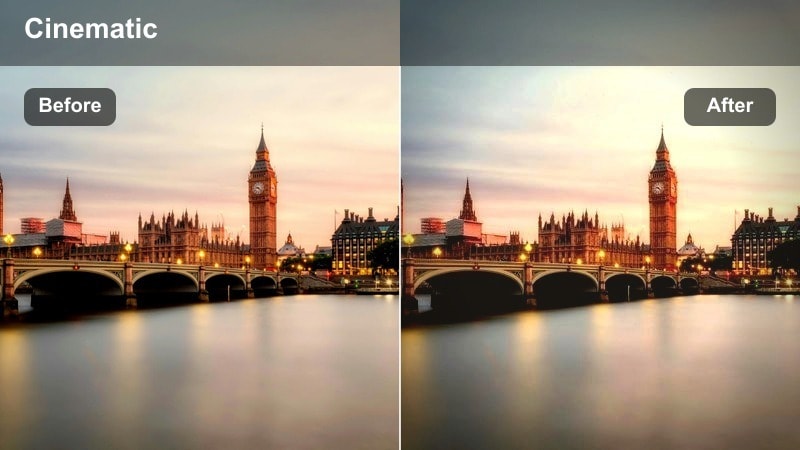
- Effect look: Soft, cool-toned fade with gentle contrast for moody, reflective city transitions.
- Best for: Train platforms, subway entrances, and walking POV timelapses at dusk.
- Editing tip: Add a subtle vignette to pull focus into the center of frame when the crowd speeds by.
Commuter Blues Soft Fade wraps dusk scenes in a cool, atmospheric wash that is perfect for reflective or story-driven TikToks. It softens harsh lights and tones down contrast so platform crowds and hallway POV shots feel more cinematic than chaotic.
In Filmora, pair this filter with a gentle vignette and motion blur to emphasize the flow of commuters through the frame. Use it between louder neon or stormy clips to create emotional breathing space in longer city edits or series recaps.
Overpass Neon Streak
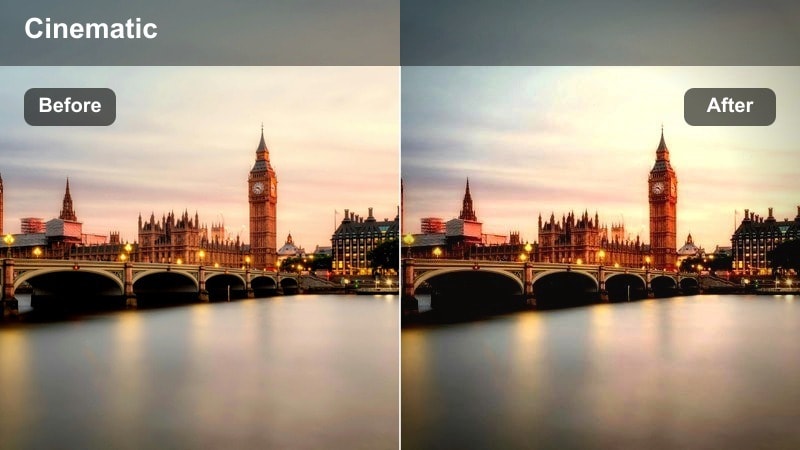
- Effect look: Punchy contrast with saturated reds and purples that make light trails pop.
- Best for: High-angle overpass shots, busy intersections, and flyover drone timelapses.
- Editing tip: Increase shutter speed slightly when shooting so the filter can enhance clean, defined streaks.
Overpass Neon Streak is built for high-energy city shots where traffic and light trails are the main characters. The filter deepens blacks, amplifies reds and purples, and makes each streak stand out clearly against the city grid.
Once your footage is in Filmora, apply this filter to top-down intersections or drone passes, then sync the brightest moments to beat drops for a powerful TikTok hook. Speed ramp into and out of your busiest frames to maximize the sense of motion without losing clarity.
Downtown Neon Nights and Skyscraper Trails
Skyline Cinema Chrome
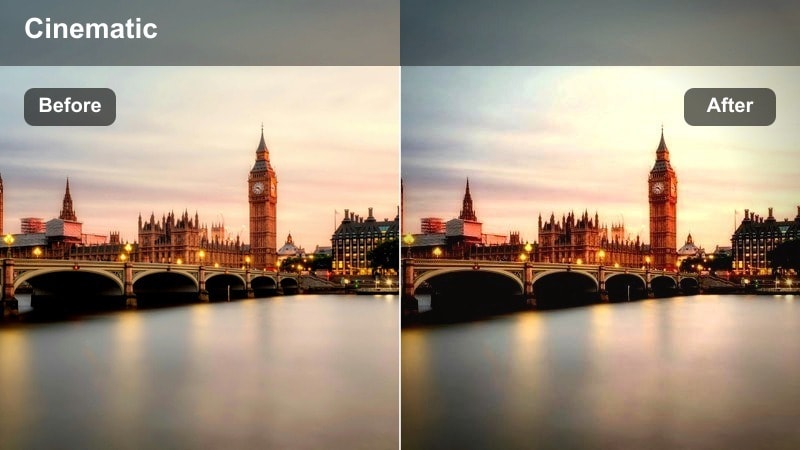
- Effect look: Clean, high-contrast chrome look with crisp whites and deep blues for glassy skylines.
- Best for: Static tripod skyline shots, crane moves, and drone hyperlapses around skyscrapers.
- Editing tip: Stabilize your timelapse in Filmora first so the sharp chrome finish feels intentional, not shaky.
Skyline Cinema Chrome gives downtown skylines a sleek, metallic polish that feels like a modern feature film. Whites stay bright, blues run deep, and glass buildings take on a crisp, almost reflective quality that holds up well on TikTok.
In Filmora, stabilize your tripod or drone timelapses before adding this filter so the sharpness reads as cinematic instead of jittery. Then cut to the rhythm of your track, aligning flashes of light or passing cars with key percussive hits for extra impact.
Neon Lane Hyperpulse
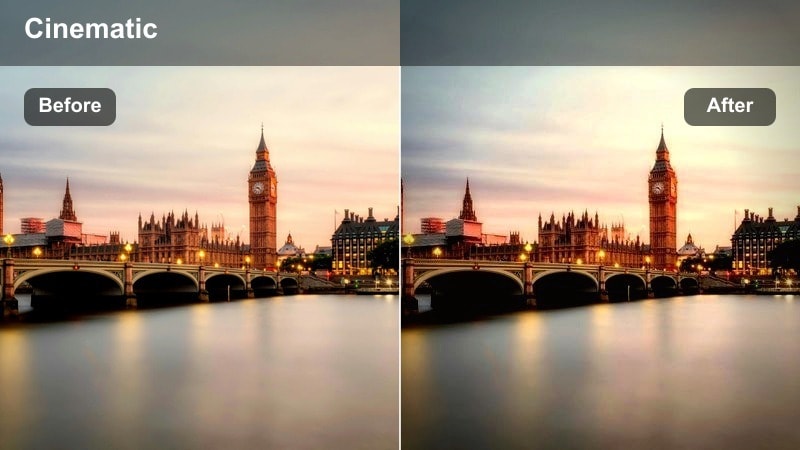
- Effect look: Intense neon saturation with boosted magentas and cyans plus extra clarity on edges.
- Best for: Street-level timelapses by LED billboards, storefronts, and crosswalks at night.
- Editing tip: Dial shadows slightly down to keep neon signs from clipping while sidewalks stay visible.
Neon Lane Hyperpulse turns downtown streets into color-saturated tunnels of magenta and cyan. Pedestrians blur into motion while lit signs, billboards, and storefronts become strong anchors that grab attention on the For You page.
Use this filter in Filmora on night timelapses where neon is already dominant, and gently darken shadows to protect highlight detail. Cut quickly between different storefronts or corners of the same intersection so the neon energy feels relentless but still visually controlled.
Glass Tower Midnight
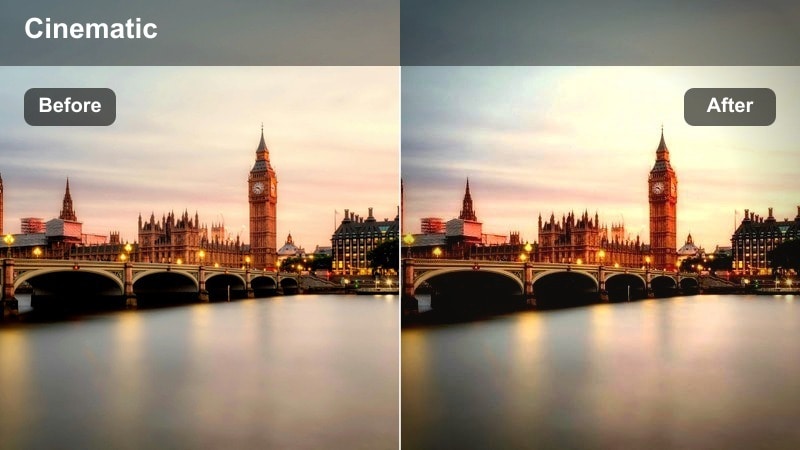
- Effect look: Deep midnight blues with subtle film grain and soft highlight roll-off for a cinema-night feel.
- Best for: Slow pans across office towers, rooftop views, and long-lens building details at night.
- Editing tip: Add a very light film grain layer in Filmora to make the digital night footage feel more analog.
Glass Tower Midnight leans into rich, dark blues and gentle highlights to give office towers and skyline details a luxurious night-time mood. It is ideal for slower, more contemplative TikToks where the city feels calm rather than chaotic.
In Filmora, layer this filter with a touch of film grain and slower timelapse intervals to emphasize subtle movements like window lights flicking on and off. Use these shots as transitions or outros to bring your high-energy edits to an elegant, cinematic close.
Golden Hour Rush and Sunset Streets
Sunset Lane Warm Roll
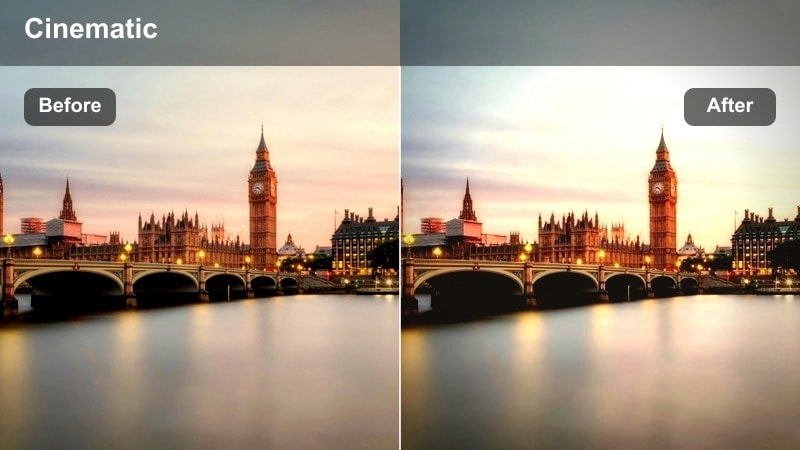
- Effect look: Soft golden warmth with lifted shadows and gentle bloom around highlights.
- Best for: Golden-hour crosswalks, bike lanes, and low-sun reflections on buildings.
- Editing tip: Expose slightly darker in-camera so the warm roll does not blow out the sky in your timelapse.
Sunset Lane Warm Roll wraps your city in cozy gold, smoothing harsh edges and adding a subtle glow around highlights. Long shadows from pedestrians, bikes, and cars become graphic shapes that feel inviting instead of harsh.
Bring your clips into Filmora, apply this filter, and then fine-tune exposure so the sky retains texture while streets and windows stay warm. Use it for intro shots or chapter breaks in a vlog-style TikTok to instantly signal the end-of-day mood.
Amber Transit Flow
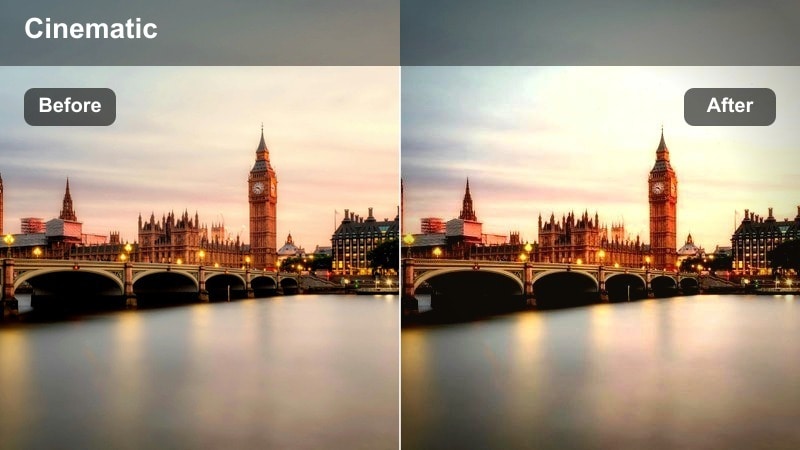
- Effect look: Rich amber tones in highlights with neutral midtones and slightly cooled shadows.
- Best for: Streetcar routes, buses pulling in and out, and cycling traffic at late afternoon.
- Editing tip: Increase clarity just a touch to keep vehicle edges crisp as they streak through the frame.
Amber Transit Flow adds a cinematic warmth to sunlit transit scenes while keeping midtones and shadows controlled. Trams, buses, and bikes cut through the frame with clean edges, and reflected light on windows takes on a rich amber feel.
In Filmora, combine this filter with a small clarity boost so vehicles remain defined as they move quickly through your timelapse. Anchor your composition with a static object, then cut several routes together to build a cohesive golden-hour commute montage for TikTok.
Rooftop Glow Cinematic
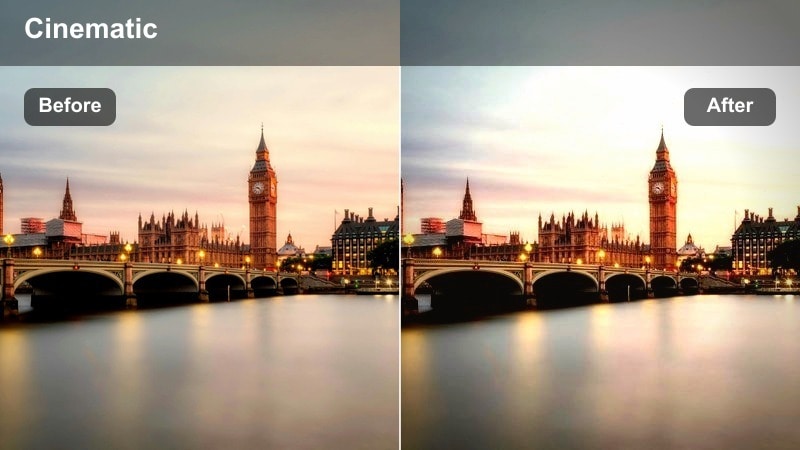
- Effect look: Warm highlights with slightly desaturated colors and a gentle contrast curve for a filmic finish.
- Best for: Rooftop timelapses of the city transitioning from day to night.
- Editing tip: Speed ramp from real-time to timelapse when the city lights start turning on to emphasize the change.
Rooftop Glow Cinematic is tailored for day-to-night transitions, softening colors slightly while preserving a warm, filmic glow. As skylines light up, the grade keeps things smooth and cohesive instead of harsh or overly digital.
Use this filter in Filmora on rooftop clips that track the shifting sky, then add a speed ramp at the precise moment city lights flicker on. Sync that beat to your music or voiceover to turn a simple view into a full narrative moment inside one TikTok.
Rainy City Reflections and Metro Energy
Wet Asphalt Reflect
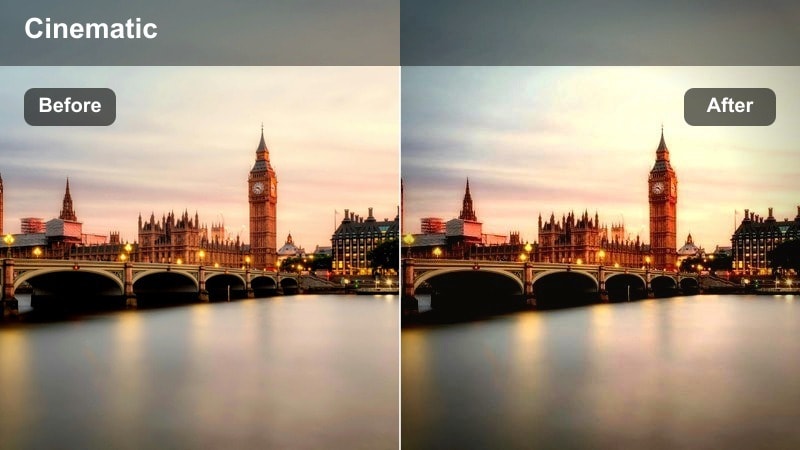
- Effect look: Inky blacks with glossy reflections and boosted saturation in puddles and wet streets.
- Best for: Rainy crosswalks, taxi lines, and overhead views of wet intersections at night.
- Editing tip: Aim your camera slightly downward so the filter can emphasize reflections instead of the blank sky.
Wet Asphalt Reflect turns rain-darkened streets into luminous mirrors that bounce neon, headlights, and street signals. Blacks drop deep while saturated reflections become the star of your frame, amplifying the drama of night city timelapses.
After importing into Filmora, apply this filter to clips shot just after a storm and adjust your framing to favor pavement over sky. Combine it with slower timelapse intervals for smoother streaks and use it as a recurring look whenever your TikToks feature rainy city nights.
Subway Flux Urban
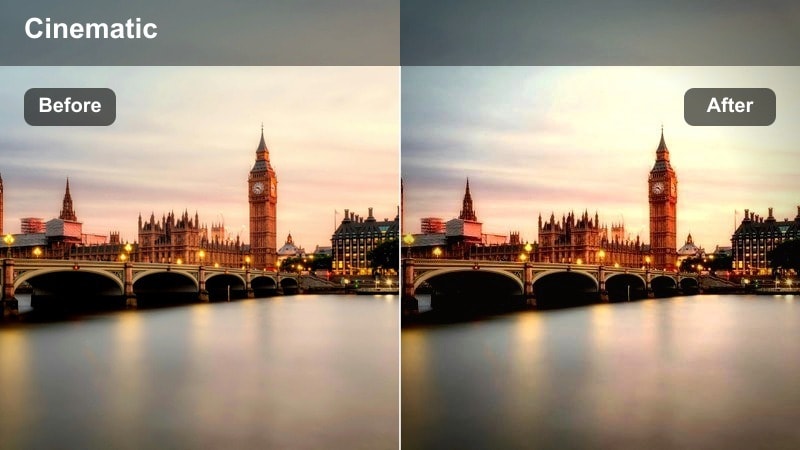
- Effect look: Gritty contrast with muted colors and a subtle green tint for underground metro scenes.
- Best for: Escalator timelapses, arrival boards, and platform crowd flows in subways.
- Editing tip: Stabilize vertical lines like pillars and escalator rails for a clean, graphic metro aesthetic.
Subway Flux Urban gives underground scenes a cinematic, thriller-style grit with controlled colors and a hint of green. Escalators, platforms, and trains gain a graphic, almost poster-like quality that works perfectly as a transition between city chapters.
In Filmora, stabilize your clips so pillars, rails, and tiles stay straight, then let the filter handle mood and contrast. Cut between multiple metro angles and use these shots as transitions between outdoor timelapses to show how your city moves below the surface.
Storm Front Hypercity
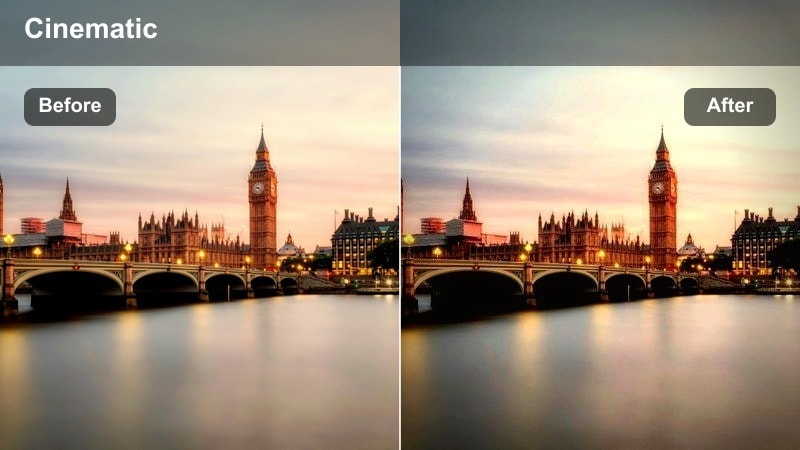
- Effect look: High drama with darkened clouds, cool highlights, and crisp micro-contrast on buildings.
- Best for: Storm fronts rolling over skylines, fast-moving clouds, and moody pre-rain scenes.
- Editing tip: Use time remapping to slow down the most dramatic cloud motion while keeping the rest of the timelapse fast.
Storm Front Hypercity is made for weather-driven drama, pushing clouds darker and sharpening skyline details for a trailer-like intensity. Cool highlights and strong micro-contrast make shifting skies feel massive and cinematic on vertical TikTok screens.
Apply this filter in Filmora to time-lapses of approaching storms, then use time remapping to briefly slow down the most intense cloud formations. Use these moments as act breaks or transitions between different moods in a city series, jumping from stormy tension to clear-sky calm in your next clip.
Tips for Using Tiktok City Timelapse Luts Cinematic Filters in Filmora
- Shoot city timelapses with manual exposure locked so your filters do not have to fight flickering brightness changes.
- Frame for vertical from the start, leaving space at the top and bottom of skyscrapers so TikToks interface does not crop key details.
- Use speed ramps around big movement moments like light changes or passing trains to give filters more impact on beat drops.
- Balance your grid by pairing loud neon filters with calmer, softer grades so your profile feels intentional, not chaotic.
- Export test clips in lower resolution first to see how your chosen filters read on an actual phone screen before posting.
- Mix close, medium, and wide urban shots so your audience feels the full scale of the city in one TikTok sequence.
With these TikTok city timelapse LUTs cinematic style filters in Filmora, your everyday commutes, rooftops, and rainy intersections can look like shots pulled straight from a film.
Pick a few filters that match your personal city vibe, save them as a go-to toolkit, and build a consistent visual identity across every TikTok you post.
secure download