

 100% Security Verified | No Subscription Required | No Malware


 ChatGPT
 Perplexity
 Gemini
 Claude
 Grok
Grok
These TikTok POV video LUTs with immersive tone filters are built for creators who want every frame to feel like a memory you can step into, not just scroll past.
Below you will find scene-based Filmora filter ideas that wrap your POV content in mood, depth, and story, from neon city nights to intimate close up confessionals.
In this article
Urban Night Immersion POV Scenes
Neon Street Gaze
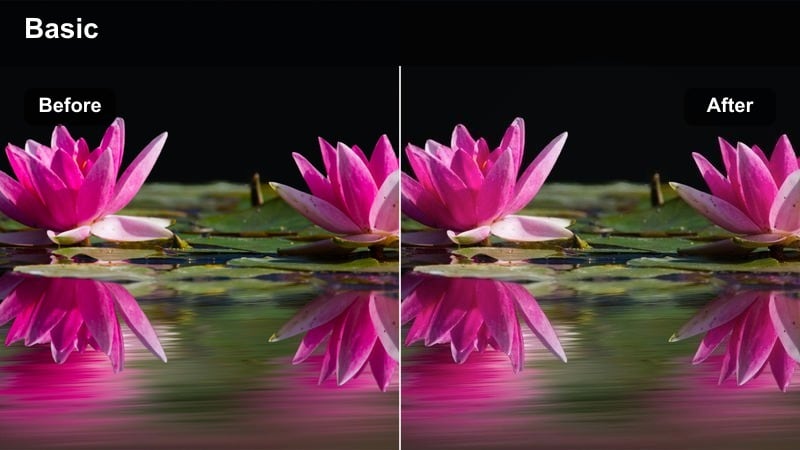
- Effect look: Soft contrast with deep blacks, boosted neon hues, and a subtle bloom around bright signs to make city lights feel cinematic and immersive.
- Best for: Nighttime TikTok POV walks, city date POVs, and handheld footage under colorful LED or neon lighting.
- Editing tip: Lower the exposure slightly and add a small vignette so the brightest signs pull the viewer's eye to your main movement in frame.
In Filmora, Neon Street Gaze works best on clips that already have strong color sources like billboards, storefronts, or RGB strips. Apply the filter, then fine tune contrast and shadows so blacks stay deep without crushing detail in your outfit or surrounding architecture.
To push immersion, combine this look with a gentle vignette in Filmora and minor exposure tweaks on a per clip basis. Let neon signs act as visual anchors while you move through the scene, and keep your camera at eye or chest level so the viewer feels like they are walking those streets with you.
AI-Powered Immersive Tones for TikTok POV
Filmora's AI tools help you quickly match your POV clips to immersive tones, automatically balancing exposure and color so your story feels cohesive across different scenes. You can skip complex manual grading and still land on a polished TikTok ready aesthetic.
Use AI assisted looks as a starting point, then refine saturation, contrast, and color temperature inside Filmora until the tone fits your neon walks, golden hour moments, or late night confessionals.
 secure download

Preview POV Filters in Real Time
With Filmora, you can scrub through your timeline while cycling between filters to see how each immersive tone reacts to movement, transitions, and text overlays. Judging looks in motion helps you pick the filter that truly supports your TikTok POV pacing.
Play your clips with music, cuts, and captions active so you can quickly decide which grade sells the story best before committing it across a whole sequence.
secure download1000+ Video Filters and 3D LUTs
Filmora includes a large library of filters and 3D LUTs you can stack to craft a distinctive POV mood. Use LUTs for broad color direction, then layer stylistic filters for glow, grain, vignettes, or subtle tints that reinforce your narrative.
Once you find a combination that fits your TikTok POV series, save it as a custom preset so you can apply the same immersive tone across future uploads with a single click.
secure downloadRainy Crosswalk Memory
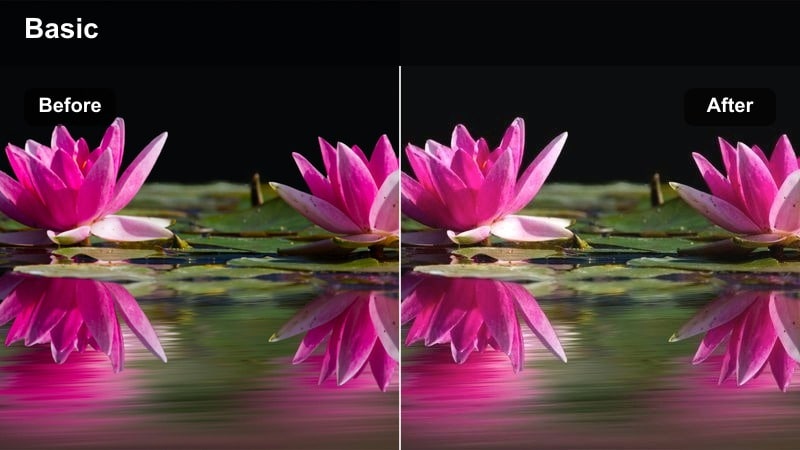
- Effect look: Cool, moody blues with soft highlights and enhanced reflections that make wet streets feel nostalgic and dreamy.
- Best for: POV clips crossing streets in the rain, umbrella shots, and reflective sidewalk moments with passing cars.
- Editing tip: Slow clips down slightly and add subtle motion blur to footsteps and passing cars to stretch the feeling of time.
Apply Rainy Crosswalk Memory in Filmora to footage with visible puddles, wet asphalt, or glossy sidewalks so the filter can amplify reflections and cool tones. Adjust saturation on blues and cyans in the Color panel to balance between melancholy and vibrant, depending on your storyline.
To enhance the immersive effect, slow your clip speed a bit and add a light motion blur effect around footsteps and passing headlights. Layer gentle ambient rain sounds under your TikTok audio to make every step across the crosswalk feel like a vivid, replayable memory.
Metro Tunnel Drift
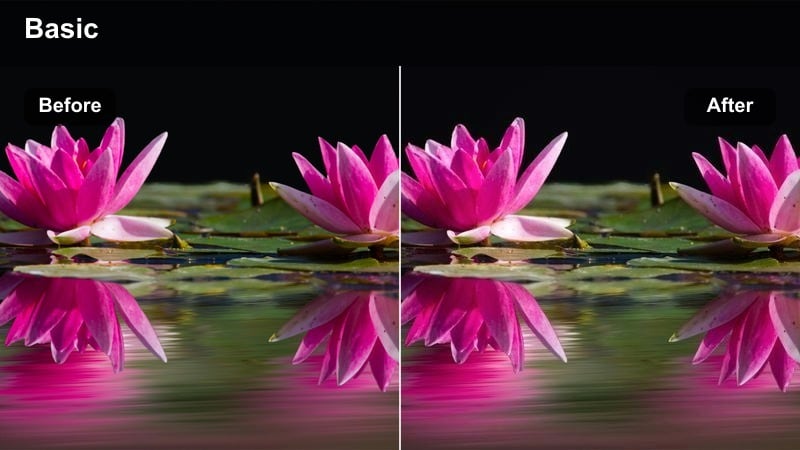
- Effect look: Muted midtones with teal highlights and warm skin tones for a calm, immersive underground transit feel.
- Best for: Subway POV rides, escalator clips, crowded metro platforms, and window-side train shots.
- Editing tip: Stabilize jittery clips just enough to avoid nausea but leave a hint of shake so it still feels handheld and real.
In Filmora, Metro Tunnel Drift is ideal when your footage includes repeating tunnel lights, poles, or escalator steps. Once the filter is applied, lightly reduce saturation on background elements while preserving warmth in skin tones to keep the focus on you or your subject inside the transit environment.
Use Filmora's stabilization tool with a low setting so micro shakes remain and the POV feels authentic. Sync gentle zooms or cuts to your soundtrack's beat drops, letting the teal accented tunnel lights drift past to pull viewers deeper into the rhythm of your commute.
Golden Hour Romantic POV Moments
Soft Hand-In-Hand
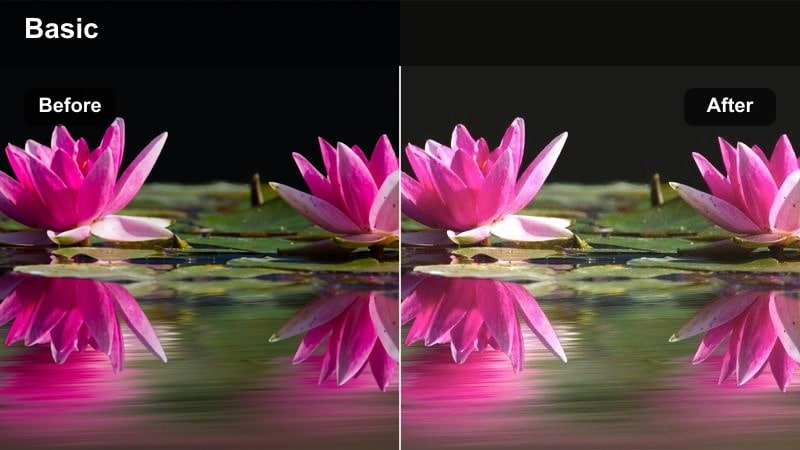
- Effect look: Warm, pastel highlights with reduced contrast and gentle skin smoothing to give handheld POVs a tender, dreamy glow.
- Best for: Couple hand-holding POVs, walking through streets at sunset, and soft-focus relationship storytimes.
- Editing tip: Use slower shutter-look motion and avoid hard cuts; favor crossfades to keep the feeling soft and continuous.
Soft Hand In Hand in Filmora is built to enhance subtle gestures like intertwined fingers, arms swinging together, or slow walks toward the sun. After applying the filter, slightly lift shadows and reduce clarity so hard edges melt into a more painterly golden hour aesthetic.
Replace harsh jump cuts with crossfades or dissolve transitions so the warm tone flows smoothly between moments. Add a soft vignette and gentle skin smoothing in Filmora to place attention on hands and faces, turning everyday couple POVs into heartfelt, cinematic confessionals.
Sunset Balcony Thoughts
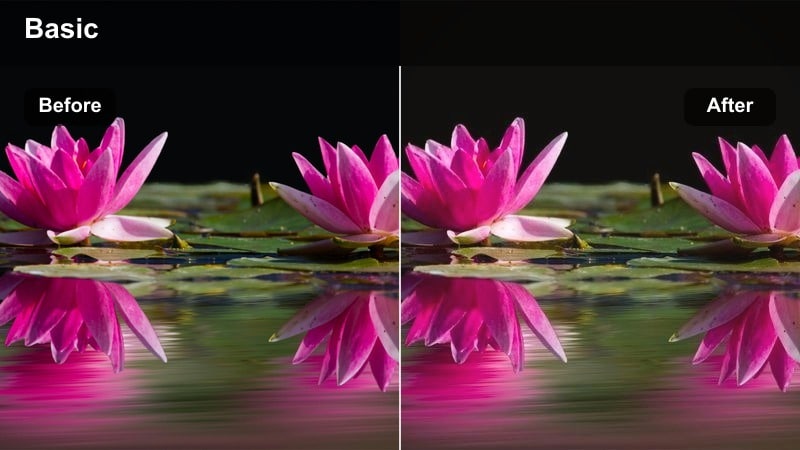
- Effect look: Rich golden highlights, slightly lifted shadows, and mild fade to recreate filmic balcony reflections during sunset.
- Best for: POV leaning on balconies, city overviews, and reflective monologues about personal growth or relationships.
- Editing tip: Slow pan across the skyline and let your voiceover breathe with natural pauses so the warmth of the grade carries emotion.
Apply Sunset Balcony Thoughts in Filmora when your clip features horizons, rooftops, or skylines kissed by late day sun. Boost warmth in the midtones while keeping saturation controlled so your scene feels cinematic rather than overly orange.
Record or import a reflective voiceover and time it to slow pans or still frames over the city. Use Filmora's audio ducking to let ambient city noise sit quietly beneath your narration, allowing the golden fade and gentle shadows to hold the emotional weight of the POV.
Backlit Silhouette Secret
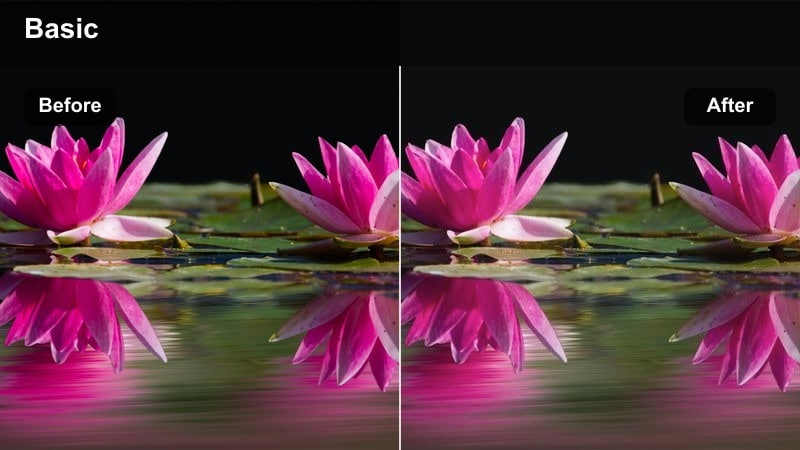
- Effect look: Strong backlight bloom with darker foreground silhouettes and soft color roll-off for intimate mystery.
- Best for: POV clips walking behind someone, sharing a secret by a bright window, or reveal shots entering a new place.
- Editing tip: Expose for the background while keeping your subject slightly underexposed to maximize silhouette depth.
In Filmora, Backlit Silhouette Secret thrives on high contrast scenes where a doorway, window, or sunset sits behind your subject. After adding the filter, pull highlights back slightly and reduce shadow detail to deepen the silhouette while letting the light source bloom softly around edges.
Use slow, deliberate camera moves toward or away from the light and pair them with gentle whoosh sound effects or music swells. Align key beats or lyrics with the moment your subject crosses into or out of the bright area to turn a simple walk or reveal into an immersive, secret sharing POV.
Cozy Indoor Story POV Vibes
Desk Lamp Confessional
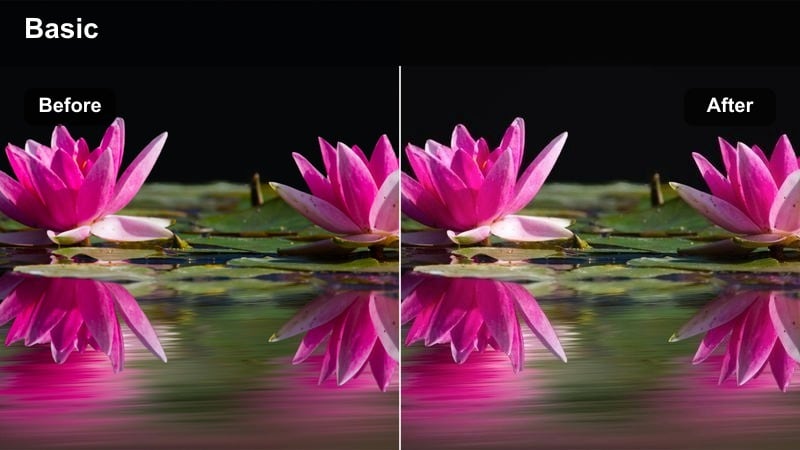
- Effect look: Warm center light with gentle falloff and slightly desaturated background for intimate late-night talk energy.
- Best for: POV rants, personal storytime videos, and emotional close-up clips filmed at a desk or bedside table.
- Editing tip: Get close to the camera, lower ambient room lights, and let one lamp be the main source so the filter can sculpt your face.
Desk Lamp Confessional in Filmora is designed for dim rooms where a single lamp or small light source shapes your POV. Once applied, adjust color temperature to lean warm and slightly desaturate the background so your hands, notebook, or face become the brightest, most inviting elements in frame.
Record your audio close to the mic and keep background noise minimal, then fine tune volume with keyframes so quiet pauses still feel intentional. Cropping slightly tighter in Filmora can amplify intimacy, making viewers feel like they are in on a private, late night call with you.
Window Seat Daydream
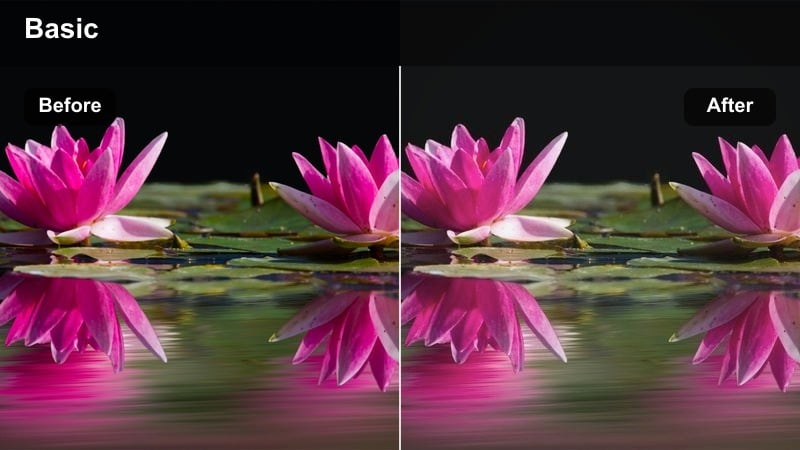
- Effect look: Soft natural light with slightly lifted blacks and gentle haze for calm daytime introspection.
- Best for: POV clips from a window seat, journaling shots, and relaxed morning check-ins with ambient daylight.
- Editing tip: Face the window but shoot at a slight angle so side light adds depth to hands, notebook, or coffee cup.
Apply Window Seat Daydream in Filmora when recording by a bright window, bus seat, or cafe corner with natural light. The filter lifts blacks and adds a touch of haze, so you can gently decrease contrast and boost exposure just enough to preserve detail in pages, pens, or coffee steam.
Use slower cuts and let each shot linger, allowing the soft color grade to hold space for your thoughts or captions. Layer light ambient sounds like paper rustles or distant traffic, and keep music low so the calm, introspective tone of the filter shapes the viewer's mood.
Screen Glow Escape
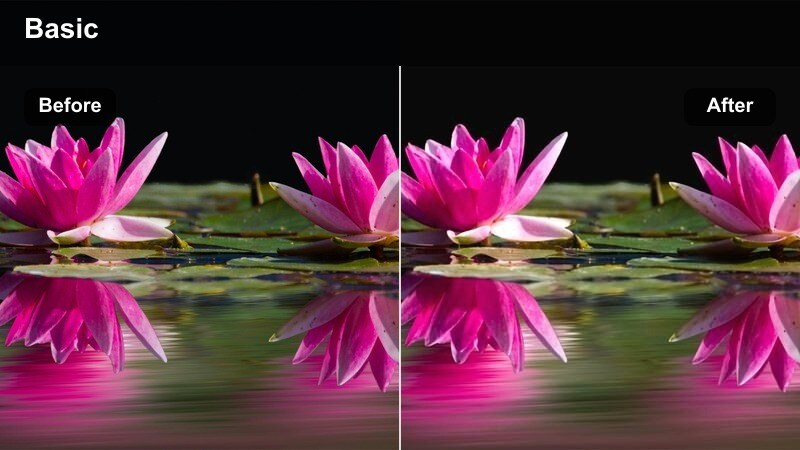
- Effect look: Cool screen highlights with warmer skin tones and subtle contrast for a moody, tech-lit room atmosphere.
- Best for: Gaming POVs, late-night scrolling clips, and reaction-style videos lit by monitors or phone screens.
- Editing tip: Dim room lights and push your screen brightness a bit higher so the filter can separate your face from the shadows.
In Filmora, Screen Glow Escape excels when your monitor or phone is the main light source, creating strong color casts on your hands and face. After adding the filter, fine tune white balance so screen highlights stay cool while skin tones remain natural and inviting.
Consider adding a slight crop or letterbox effect to mimic a cinematic gaming or streaming experience. Sync quick cuts or zooms to in game audio spikes, notification pings, or beat drops, letting the cool glow of the screen and the immersive grade make viewers feel like they are sharing your late night digital escape.
Travel Walkthrough POV Journeys
Airport Arrival First Step
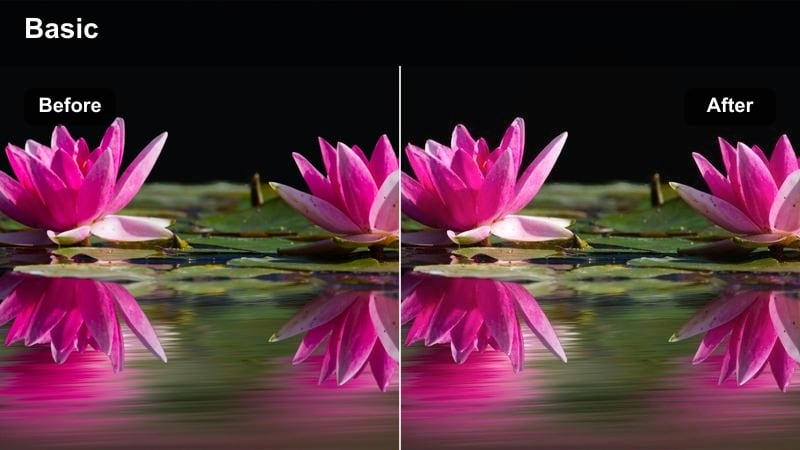
- Effect look: Clean, slightly cooled highlights with gentle clarity and soft saturation for fresh arrival energy.
- Best for: POV airport walks, first steps out of the terminal, and rolling suitcase clips starting a trip vlog.
- Editing tip: Start your clip with a quick downward shot of your feet or suitcase, then tilt up to reveal the new space for an immersive reveal.
Airport Arrival First Step in Filmora gives bright terminals and glassy corridors a crisp, welcoming tone that feels like a new chapter. After applying the filter, nudge sharpness and clarity just enough to keep signage and architecture readable without making the image harsh.
Cut from pre trip clips into your first airport POV to signal the beginning of the journey, and consider adding text overlays like Day 1 or New city unlocked. Use Filmora's audio tools to mix in rolling suitcase sounds and ambient announcements beneath your chosen track for fully immersive travel vibes.
Old Street Discovery
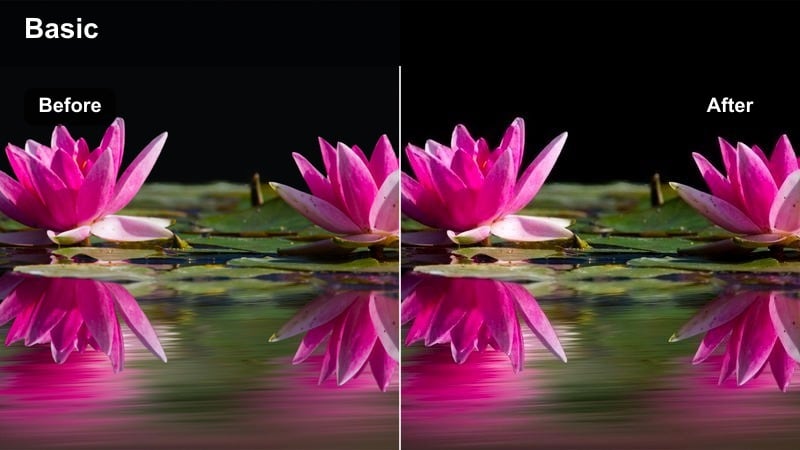
- Effect look: Softer contrast with warm midtones and subtle texture to make older buildings and streets feel rich and lived-in.
- Best for: POV walks through narrow streets, alley explorations, and first-person discoveries of hidden corners in a city.
- Editing tip: Walk slightly slower than usual and keep the camera at eye level to mimic natural exploring from the viewer's perspective.
Old Street Discovery in Filmora is perfect for cobblestones, worn walls, and vintage shop fronts. Once the filter is on, lightly increase warmth and introduce a bit of film style grain so the environment feels storied and tactile without drowning out details.
Plan your edits as a sequence of mini discoveries: a doorway here, a balcony there, each cut advancing your walk forward. Use Filmora's speed controls to match your walking pace to your audio, maintaining an unhurried, curious rhythm that lets viewers absorb the rich, immersive tone of each alleyway.
Night Drive Passenger Side
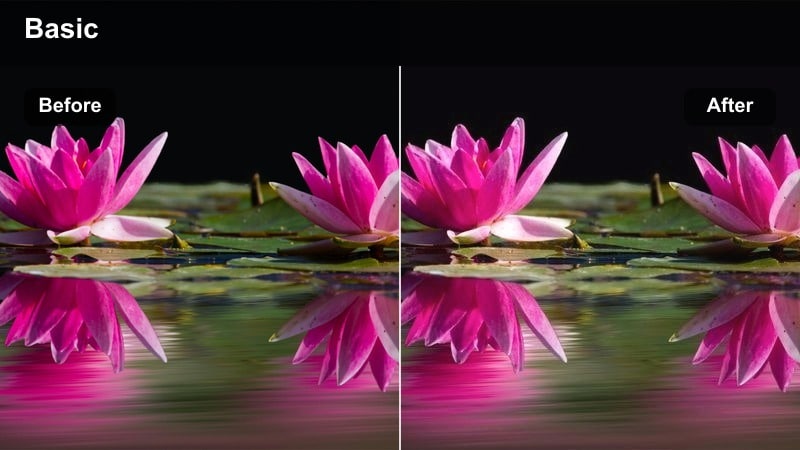
- Effect look: Deepened shadows with warm streetlights and slightly streaked highlights to simulate dreamy motion during car rides.
- Best for: Passenger-seat POV clips, window gazing, and reflective monologues during late-night drives.
- Editing tip: Hold the camera steady against the window frame and let the outside motion create the immersive feeling for you.
Night Drive Passenger Side in Filmora brings out the glow of streetlights, storefronts, and passing cars while keeping the interior of the car cozy and dark. After you apply the filter, deepen blacks and push warmth in highlights so light trails feel dreamy but not blown out.
Record your monologue separately, then sync it to the most evocative parts of the drive: tunnels, bridges, or rain streaked glass. Use Filmora to add subtle zooms toward reflections in the window and dip music slightly when you pause speaking, letting the immersive night grade and road noise carry the moment.
Tips for Using Tiktok Pov Video Luts Immersive Tone Filters in Filmora
- Keep your camera at natural eye or chest level so TikTok POV filters feel like a real first person experience.
- Match your filter choice to the dominant light source in each scene instead of forcing one preset across every clip.
- Use subtle handheld motion and avoid over stabilization to preserve the immersive, in the moment feeling.
- Balance music volume so ambient city, room, or travel sounds still bleed through and support your chosen tone.
- Batch edit similar scenes with the same preset in Filmora to keep multi clip TikTok POV stories visually consistent.
- Test different LUT and filter stacks on a short timeline section before committing them to an entire video.
- Leverage Filmora's AI color tools to quickly match tones when you shoot across different locations or times of day.
- Save your favorite immersive tone combinations as custom presets to build a recognizable TikTok POV style.
Immersive TikTok POV videos rely on more than just trending sounds; the right filters help your audience feel every step, glance, and breath as if they are there with you.
Test a few of these Filmora filter styles across your favorite POV scenarios, then refine your go to presets into a signature look that followers instantly recognize in their For You feed.
secure download