

 100% Security Verified | No Subscription Required | No Malware


 ChatGPT
 Perplexity
 Gemini
 Claude
 Grok
Grok
Strong visuals keep viewers watching, and the right YouTube video filters can instantly upgrade your footage from flat to cinematic. Instead of building complex looks from scratch, Filmoras presets and LUT-style filters give YouTube creators, video editors, and content producers fast, consistent styles for any channel.
Below are 12 curated YouTube video filters organized by style and use case so you can quickly match your aesthetic, color grade YouTube videos more confidently, and find the best filter for YouTube videos across tutorials, vlogs, gaming, and shorts.
In this article
Cinematic YouTube Video Filters
Soft Film Matte
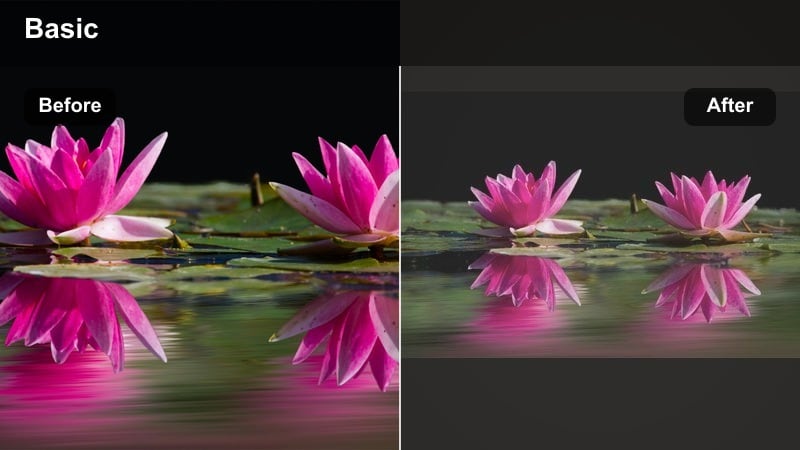
- Effect look: Soft contrast with gentle bloom in highlights and a subtle matte fade in the blacks for a modern filmic finish.
- Best for: Story-driven YouTube videos, lifestyle vlogs, talking-head content, and cinematic B-roll sequences.
- Editing tip: Lower the filter intensity to 60-75 percent and slightly lift exposure so the matte blacks do not crush detail in darker scenes.
The Soft Film Matte filter gives your YouTube videos a refined, cinematic finish by gently lowering contrast, blooming highlights, and lifting the deepest shadows. Instead of harsh blacks and oversharpened edges, you get a smooth, film-inspired look that feels premium but still natural on skin tones and everyday footage.
In Filmora, apply Soft Film Matte to your A-roll and B-roll, then fine-tune intensity on the Effects panel so your footage keeps enough detail in hair, clothing, and background textures. For talking-head videos, combine this filter with subtle sharpening on the subject and a light vignette so the viewer stays focused on your face while the overall image takes on a polished, cinematic character.
Speed up color grading with Filmoras AI tools
Filmora includes AI-powered color correction and style-matching features that help you get professional YouTube video filters without deep grading knowledge. Let the AI analyze your footage, apply an automatic base correction, and then layer creative filters or LUT-style presets like Soft Film Matte for a consistent signature style.
You can also save your favorite AI-adjusted grades and filter combinations as custom presets. That way, once you dial in a look that fits your channel, you can reapply it to new uploads in seconds instead of rebuilding your color grade from scratch each time.
 secure download

Preview filters on real YouTube scenarios
Before you commit to a look, use Filmoras timeline to preview multiple YouTube video filters on the same scene. By seeing Soft Film Matte beside more vivid or contrast-heavy options, you can judge how each one treats skin tones, backgrounds, and on-screen elements like titles or UI.
Duplicate a short test sequence on multiple tracks, apply a different filter to each, and toggle visibility to compare them quickly. This workflow helps you lock in a style that supports your story and fits your channels overall mood instead of guessing from thumbnails alone.
secure downloadCombine filters with LUTs for advanced looks
If you already rely on a YouTube LUT or a log-to-Rec.709 conversion, use that as your technical base grade in Filmora, then stack creative filters on top. A LUT keeps exposure and color in a realistic range, while filters like Soft Film Matte or Teal and Orange Blockbuster add mood and style.
This layered approach lets you experiment quickly: apply your LUT, toggle through Filters in Filmora, and save your favorite pairings as reusable presets. Over time, you can build a small library of cinematic, vlog, and gaming looks that are fast to apply and easy to keep consistent across uploads.
secure downloadTeal & Orange Blockbuster
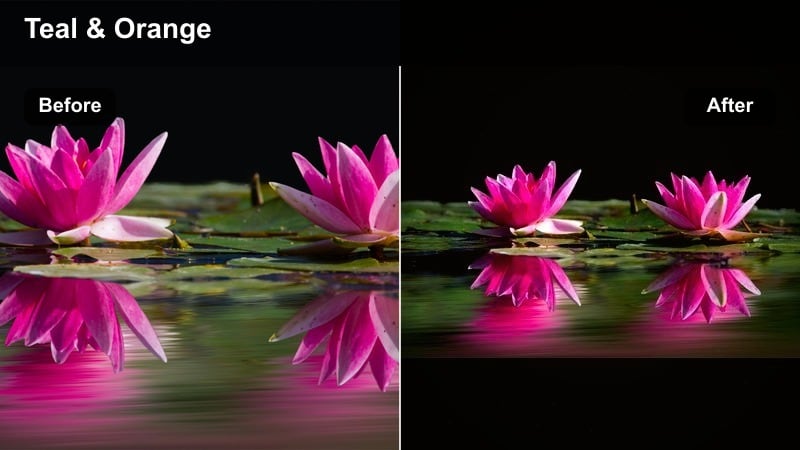
- Effect look: Bold teal shadows and warm orange highlights for a high-energy, blockbuster movie style.
- Best for: Travel montages, b-roll-heavy edits, action content, and cinematic intros or trailers for YouTube channels.
- Editing tip: Use this filter on clips with clear separation between subject and background, and slightly desaturate overall color if the teal becomes too intense.
The Teal and Orange Blockbuster filter pushes cool tones into shadows while warming up highlights and skin, mimicking the dramatic look seen in many big-budget films. This strong color separation helps your subject stand out from the background and instantly adds a cinematic punch to wide landscapes or fast-paced sequences.
Inside Filmora, drop this filter onto travel, action, or b-roll tracks and dial back saturation or intensity if teal tones overpower your scene. For consistency across edits, copy and paste the effects settings from a hero clip to other shots, then adjust white balance per clip to keep whites neutral and skin tones believable while maintaining that trailer-ready vibe.
Cinematic Neutral Grade
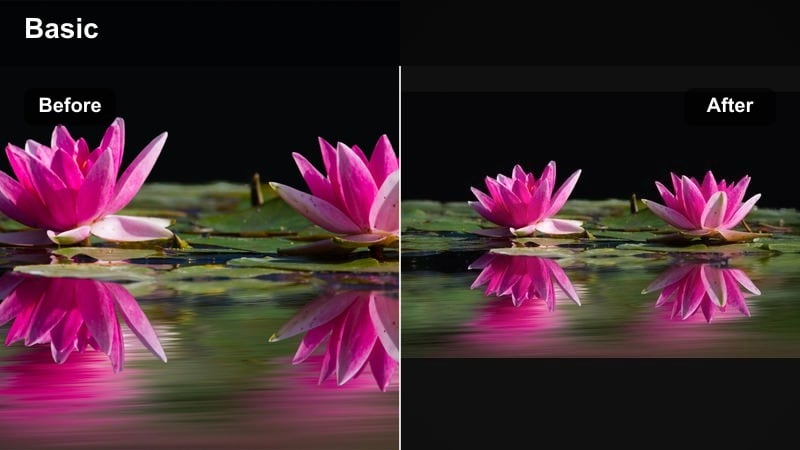
- Effect look: Clean, neutral contrast with gentle richness in midtones and a light S-curve for a professional broadcast feel.
- Best for: Educational YouTube channels, productivity videos, software tutorials, and any content where clarity matters more than stylization.
- Editing tip: Pair this filter with a subtle vignette and slight sharpening to keep your subject readable in busy YouTube layouts.
The Cinematic Neutral Grade filter refines your footage without drawing attention to itself, adding soft contrast, rich midtones, and a professional polish suitable for tutorials and explainers. Colors stay close to reality, which keeps UI elements, screen captures, and product colors accurate for viewers following along.
In Filmora, use this filter as a base look for your channel by saving it as a custom preset and applying it early in your workflow. Adjust saturation and color temperature per video theme, going a bit cooler for tech-focused content and slightly warmer for lifestyle topics, then layer graphics, callouts, or text overlays on top for a clean, broadcast-style presentation.
Vlog and Lifestyle YouTube Filters
Warm Cozy Vlog
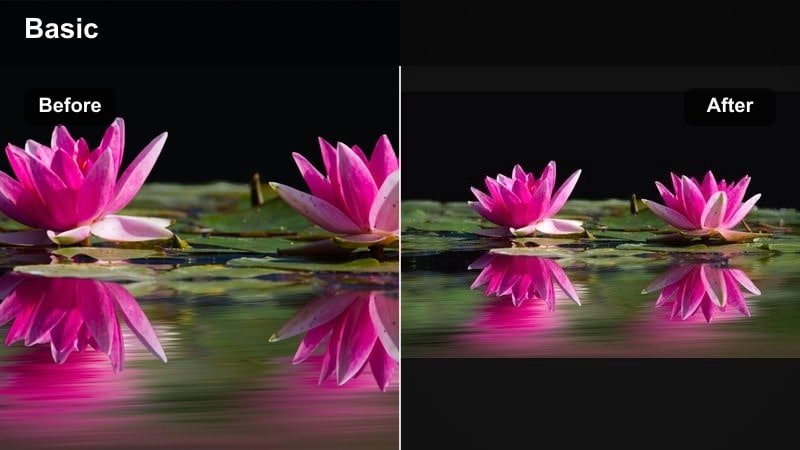
- Effect look: Warm color shift with soft highlights and gentle contrast that makes interiors feel inviting and comfortable.
- Best for: Daily vlogs, home office setups, morning routines, and lifestyle storytelling on YouTube.
- Editing tip: Slightly lower contrast and add a subtle film grain overlay to lean into the relaxed, cozy mood of your vlog.
The Warm Cozy Vlog filter wraps your footage in gentle warmth, softening highlights and easing contrast so indoor scenes feel inviting and intimate. It helps window light look golden rather than harsh, and turns ordinary home environments into spaces viewers want to return to episode after episode.
Apply this filter in Filmora to your A-roll and interior b-roll, then tweak intensity to keep skin tones from going overly orange. For deeper storytelling moments, increase the filter strength and add a touch of film grain to emphasize the relaxed atmosphere, while dialing it back during more informational segments so on-screen text, planners, or products stay crisp and readable.
Pastel Daylight
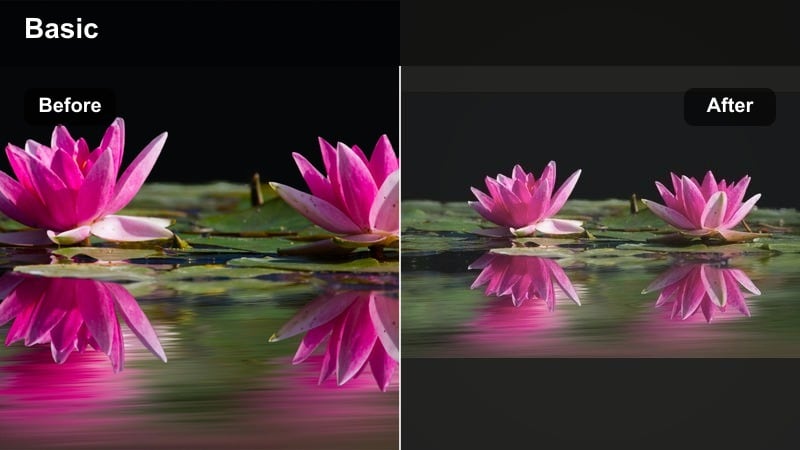
- Effect look: Bright, pastel tones with softened contrast and airy whites for a light, optimistic aesthetic.
- Best for: Lifestyle channels, stationery or planner videos, beauty content, and aesthetic desk setups filmed in natural light.
- Editing tip: Keep exposure just under clipping and reduce highlight intensity if backgrounds start to lose texture in bright scenes.
The Pastel Daylight filter brightens your footage with soft, pastel colors and airy whites, perfect for aesthetic desk tours, stationery showcases, and light-filled lifestyle content. It reduces harsh contrast so scenes feel gentle and optimistic, while still keeping enough detail for viewers to see fine lines on paper or product textures.
In Filmora, use this filter on clips shot in natural daylight, watching your scopes or preview to ensure highlights do not blow out. If white surfaces begin losing texture, lower overall exposure slightly and pull highlights down, then adjust filter intensity until colors feel pastel and clean without losing accurate product tones or brand colors.
Urban Street Vlog
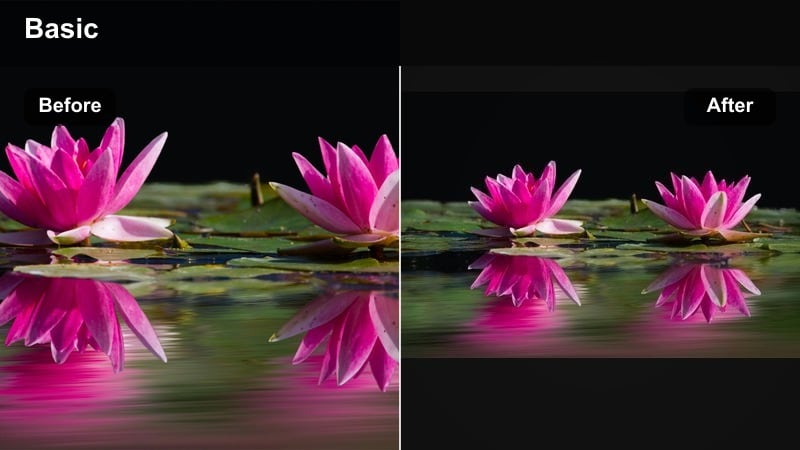
- Effect look: Punchy contrast with richer shadows and subtly desaturated midtones for a gritty yet modern city aesthetic.
- Best for: Street photography vlogs, travel-in-the-city episodes, fashion lookbooks, and skate or urban culture channels.
- Editing tip: Add a mild vignette and stabilize handheld shots to complement the energetic yet controlled visual style.
The Urban Street Vlog filter deepens shadows and adds punchy contrast while gently desaturating midtones, giving city scenes a gritty but contemporary look. It works especially well with concrete, metal, and neon signage, helping your subject stand out against complex urban backgrounds.
Drop this filter onto your walking shots and street b-roll in Filmora, then raise shadows slightly if night scenes start to look too crushed. A subtle vignette and mild stabilization complement the filter, keeping attention on the subject while preserving enough motion and texture to capture the energy of city life.
Gaming and Tech YouTube Filters
Vibrant Gaming Pop
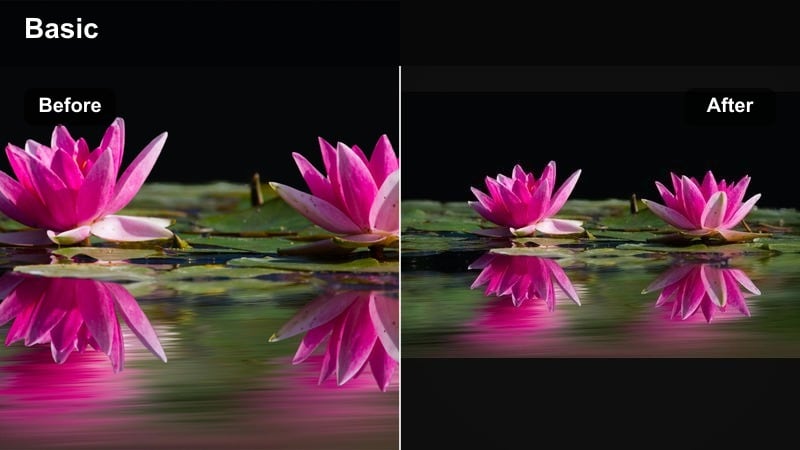
- Effect look: High saturation with deep blacks, crisp edges, and boosted color contrast to make HUDs and game worlds stand out.
- Best for: Gaming highlights, livestream VODs, esports montages, and reaction-style YouTube videos with face cam overlays.
- Editing tip: Apply the filter to gameplay and face cam clips separately, then match them so skin tones stay natural while game colors remain intense.
The Vibrant Gaming Pop filter amplifies color and contrast so game worlds, HUDs, and particle effects look bold and exciting on any screen. It deepens blacks and sharpens edges, improving readability of UI elements and making highlight reels and montages feel more impactful.
In Filmora, place this filter directly on your gameplay track and adjust intensity to avoid oversaturated maps or washed-out text. For face cam overlays, duplicate the filter at a lower strength or use a separate instance so your skin tones look natural while still matching the vivid, high-energy aesthetic of the gameplay footage behind you.
Cool Tech Review
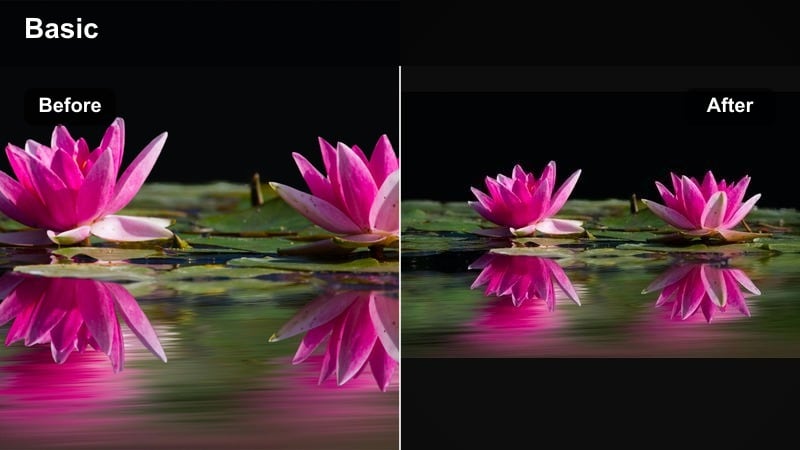
- Effect look: Cooler temperature with clean neutrals, clear edges, and subtle contrast for an analytical, tech-centric look.
- Best for: Tech reviews, unboxings, desk setups, programming tutorials, and keyboard or PC build videos.
- Editing tip: Use this filter on both A-roll and B-roll, then reduce its strength on white product shots to prevent overcooling brand colors.
The Cool Tech Review filter shifts your image slightly cooler and emphasizes crisp, neutral tones, ideal for gadget showcases, unboxings, and software demos. It supports an analytical, trustworthy feel by keeping whites clean and edges defined, so specs, ports, and on-screen code stay easy to see.
Apply this filter in Filmora across both talking-head segments and close-up product b-roll, then fine-tune intensity for shots with a lot of white or brand colors to keep them accurate. If blues and cyans become too strong, use HSL or color controls to reduce their saturation selectively while leaving the rest of the image sharp and professional.
Neon Gamer Room
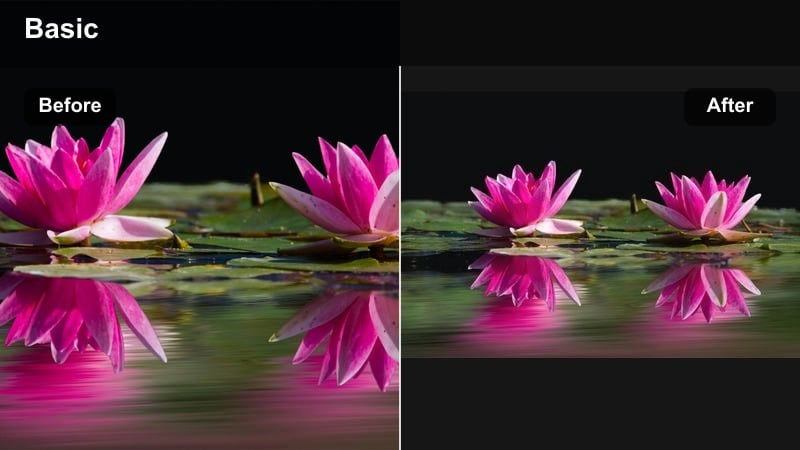
- Effect look: Enhanced magentas, blues, and cyans with gentle glow in colored lights, emphasizing RGB setups and LED backdrops.
- Best for: Streamer highlight reels, gaming commentary, music reaction videos, and any content filmed in an RGB-lit room.
- Editing tip: Keep exposure slightly lower to preserve neon detail, and add a minimal sharpen pass so your face remains clear against colorful backgrounds.
The Neon Gamer Room filter boosts magenta, blue, and cyan tones while softening the glow from RGB lights, giving your streaming setup a vibrant, futuristic feel. It highlights LED strips, PC cases, and ambient lighting, making your background an integral part of your on-screen brand.
In Filmora, apply this filter to your face cam footage and adjust exposure downward a little so neon highlights do not clip or lose gradient detail. Add a touch of sharpening to your face to keep features distinct against the colorful glow, and, if needed, slightly lower saturation on neon channels until gradients look smooth and comfortable for long viewing sessions.
Shorts and Cross-Platform Filters
Punchy Vertical Short
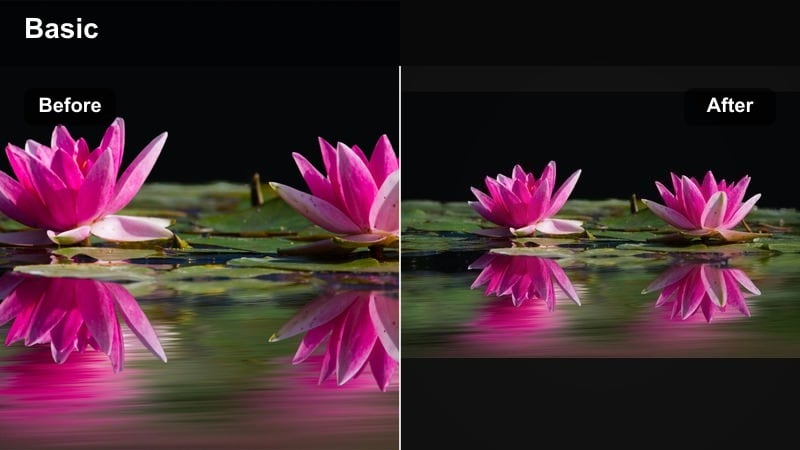
- Effect look: High-impact contrast and saturation tuned for small screens, ensuring subjects pop in vertical YouTube Shorts and mobile feeds.
- Best for: YouTube Shorts, quick tips, memes, and repurposed clips for TikTok and Instagram Reels.
- Editing tip: Preview your edit in a vertical 9:16 frame and slightly reduce brightness so the filter still looks balanced on bright phone displays.
The Punchy Vertical Short filter is optimized for small screens, increasing contrast and saturation so subjects remain visible and engaging even on bright mobile displays. It helps text overlays, reactions, and quick cuts feel energetic and readable in fast-scrolling Shorts and Reels feeds.
In Filmora, switch your project or preview to a 9:16 aspect ratio, then apply this filter to your vertical clips and adjust brightness a bit lower than you would for desktop viewing. This ensures that high-contrast edges and bold colors still look balanced when viewers watch on phones with aggressive auto-brightness and compression.
Soft Beauty Glow
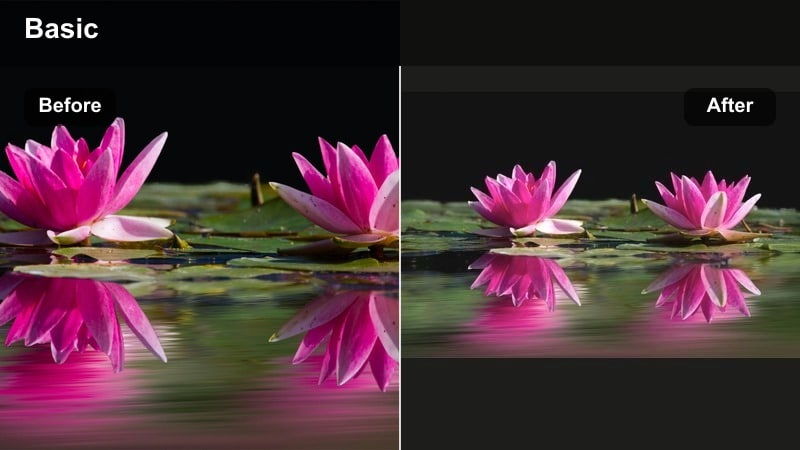
- Effect look: Gentle skin smoothing with lifted highlights and a subtle glow, keeping facial features natural while flattering complexion.
- Best for: Beauty tutorials, GRWM videos, talking-head Shorts, and creator intros used across YouTube, TikTok, and Reels.
- Editing tip: Use moderate strength and combine with good lighting; rely on the filter to enhance, not replace, a well-lit setup.
The Soft Beauty Glow filter applies mild skin smoothing and a delicate highlight lift, flattering complexions without erasing natural detail. It is ideal for close-up beauty shots, GRWM segments, and short-form intros where your face fills most of the frame.
Apply this filter in Filmora after you have a solid lighting setup, then zoom into your footage to check eyes, hair, and fine textures. If detail disappears, lower the filter intensity until faces still look like real skin with a soft glow, and consider halving the effect for male presenters or creators who want barely noticeable retouching.
Retro Social Vibe
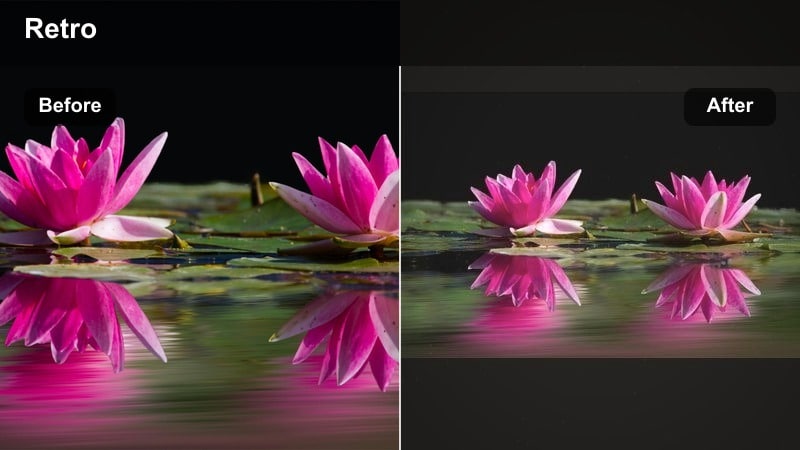
- Effect look: Muted colors with lifted blacks, subtle film grain, and a warm tint for a nostalgic, analog-inspired feel.
- Best for: Storytime Shorts, lo-fi edits, meme compilations, and cross-posted clips aimed at TikTok and nostalgic audiences.
- Editing tip: Combine with jump cuts and text overlays to embrace the retro mood while keeping the pacing fast and modern.
The Retro Social Vibe filter reduces saturation, raises blacks, and adds a touch of grain and warmth to evoke analog nostalgia. It works well with storytime clips, lo-fi edits, and meme compilations where mood and personality matter more than color accuracy.
In Filmora, use this filter on vertical and horizontal clips alike, keeping grain strength moderate so your video still looks sharp in 1080p or 4K after platform compression. Pair it with bold text overlays and quick jump cuts to contrast the retro aesthetic with modern pacing, then export a high-bitrate master so TikTok, Shorts, or Reels compression does not muddy the grain texture.
Tips for Using Youtube Video Filter General Filters in Filmora
- Choose one or two core filters as your default YouTube look to keep your channel visually consistent across episodes and series.
- Always adjust filter intensity in Filmora; most looks feel best between 50 and 80 percent strength depending on how your footage was shot.
- Check how your filtered video appears on both phone and desktop screens before publishing to avoid surprises in brightness or saturation.
- Use scopes or at least a neutral reference image to confirm that skin tones stay natural after adding strong color shifts or stylized filters.
- Save your favorite combination of filter, exposure, and color tweaks as a custom preset to speed up color grading for future uploads.
- Avoid stacking too many filters at once; instead, rely on one primary filter and refine the image with Filmoras basic color and exposure controls.
- Create separate presets for daylight, indoor tungsten, and RGB-lit scenes so you can quickly match different shooting environments.
- When repurposing clips for TikTok or Shorts, slightly boost contrast and saturation so the style survives vertical compression and mobile playback.
The right YouTube video filters can help you color grade YouTube content faster, stay on-brand across uploads, and give viewers an immediate sense of your channels style. By leaning on Filmoras presets and LUT-style looks, you can spend less time matching colors and more time refining your story, pacing, and on-screen delivery.
Start by picking a few filters from the categories above, fine-tune them for your footage in Filmora, and then save those settings as presets so every future YouTube video, Short, or cross-posted TikTok clip feels like part of the same polished visual identity. Over time, this consistent look will make your channel more recognizable and professional to new and returning viewers.
secure download