

 100% Security Verified | No Subscription Required | No Malware


 ChatGPT
 Perplexity
 Gemini
 Claude
 Grok
Grok
If your channel lives on clean, futuristic, or street-style visuals, cool YouTube video filters are essential. In Filmora, you can quickly give your footage a modern, blue-toned look that feels crisp, stylish, and instantly on-brand.
Below are curated Filmora filter styles designed for tech YouTubers, fashion channels, and urban creators who want modern YouTube content, clean aesthetic videos, and urban lifestyle filters without complicated color grading.
In this article
Minimal Cool Filters for Tech and Desk Setups
Glacier Clean Tech
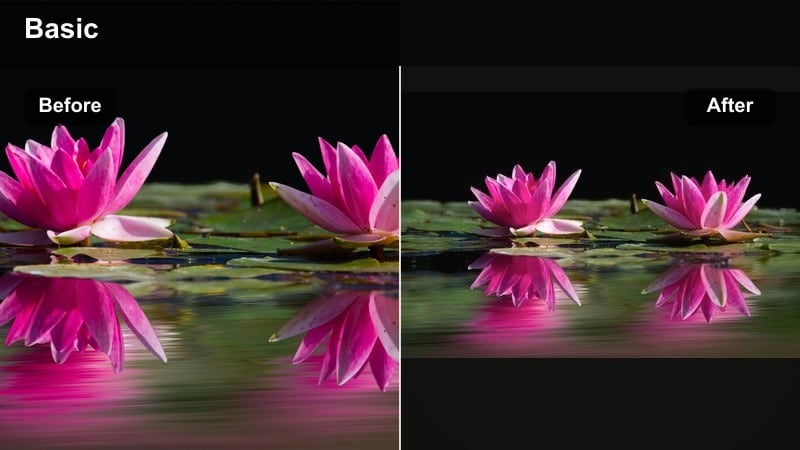
- Effect look: Soft blue shadows, neutral midtones, and slightly desaturated colors for a polished, futuristic tech feel.
- Best for: Desk setups, gadget reviews, app walkthroughs, and minimal productivity-style shots.
- Editing tip: Combine with a subtle vignette and lower saturation by 5-10 percent to keep screen reflections and RGB lights from overpowering your frame.
Glacier Clean Tech is designed to make laptops, keyboards, and monitors look sharp and premium without introducing harsh contrast. The cool shadows instantly clean up mixed room lighting, while the neutral midtones keep UI elements and text crisp and easy to read on any device.
In Filmora, drop this filter onto your A-roll and B-roll tech shots, then slightly reduce overall saturation to reinforce that modern, minimal look. Add a light vignette around the frame so viewers focus on the device screens and key products, especially in overhead desk shots or side-angle talking head setups.
Let AI Help You Find the Right Cool Tone
Instead of guessing which cool filter fits your footage, use Filmora s AI-powered tools to quickly test different tones and choose the look that fits your brand. AI can automatically analyze your clips and suggest cool palettes that keep skin tones natural while pushing shadows and backgrounds into modern blue ranges.
Once you find a cool vibe that works for tech reviews, fashion hauls, or urban vlogs, save the AI-assisted result as a preset so you can apply it across future projects in a single click.
 secure download

Preview Cool Filters on Your Footage in Seconds
Filmora s real-time preview lets you compare multiple cool filters on the same clip so you can instantly see how each option treats skin, screens, and RGB lighting. Stack variations, toggle them on and off, and quickly narrow down the one that gives you the clean, modern look you want.
After choosing a favorite, simply adjust the filter intensity slider to balance between subtle cool polish and a stronger stylized grade for intros or B-roll.
secure downloadTurn Filters into a Modern LUT Workflow
Once you lock in a cool YouTube video filter that matches your style, combine it with Filmora s LUT support to create a fast, repeatable color workflow. Use creative filters as your base, then add a modern LUT on top to fine-tune contrast and saturation while keeping your blue-toned aesthetic consistent.
This approach is perfect for channels with recurring series, where every episode needs to share the same clean, modern tone no matter when or where it was shot.
secure downloadFrosted UI Focus
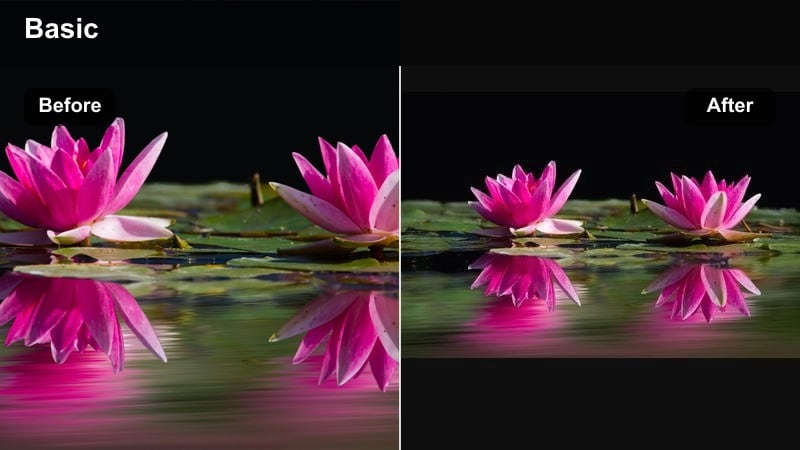
- Effect look: Light teal tint with lifted blacks and soft contrast to mimic a frosted glass, UI-inspired aesthetic.
- Best for: UI demos, SaaS tools, tutorials with screen overlays, and modern productivity channels.
- Editing tip: Drop clarity or sharpness slightly to avoid harsh edges on text overlays and keep the frosted feel subtle and readable.
Frosted UI Focus gives screen-heavy content a polished, app-store-ready feel by softening edges and cooling down the overall frame. The teal tint pairs naturally with dashboards, timelines, and interface elements, helping them feel cohesive even if your original screen recordings came from different devices.
In Filmora, apply this filter to both your screen captures and webcam overlays, then slightly reduce sharpness or clarity so the visuals feel like part of one frosted layer. If your brand color leans teal or aqua, use selective color controls to boost only that hue after the filter, keeping everything on-brand without oversaturating the whole frame.
Neon Cyber Desk
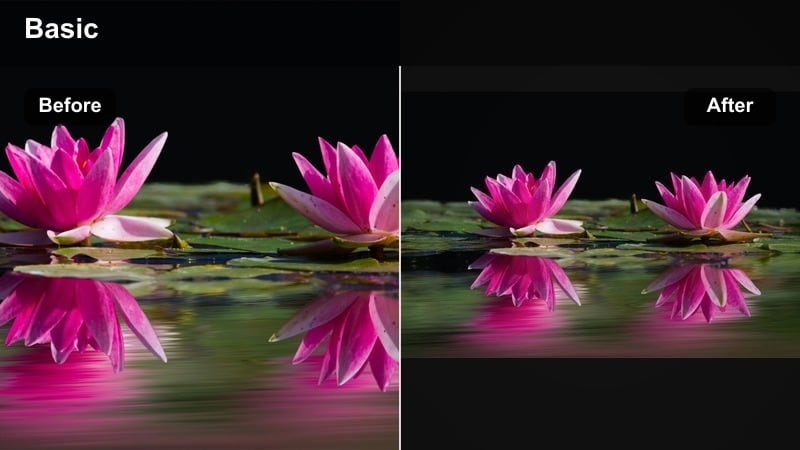
- Effect look: Cool magenta and blue highlights with deeper shadows that give a subtle cyberpunk edge to desk shots.
- Best for: RGB-heavy setups, streaming intros, keyboard showcases, and B-roll transitions.
- Editing tip: Use this filter on cutaway B-roll rather than full talking segments to keep the look cinematic without overwhelming your main narrative.
Neon Cyber Desk is built for creators who love RGB strips, gaming keyboards, and glowing monitors. The dark filters deepen shadows while enhancing magenta and blue highlights, turning an ordinary corner desk into a moody cyberpunk workstation that works great for intros, transitions, and product glamour shots.
Inside Filmora, drop this filter on select B-roll clips to punctuate your main A-roll with high-energy neon moments. If darker corners get noisy, add a touch of noise reduction before applying any additional exposure adjustments, and intercut these stylized clips with more neutral shots to keep viewers eyes from tiring.
Urban Cool Filters for Street and Lifestyle Vlogs
City Breeze Blue
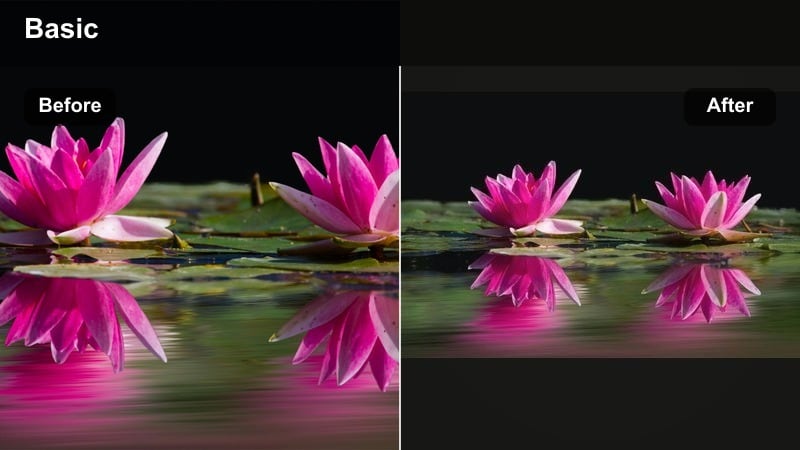
- Effect look: Cool blue shift in shadows, slightly faded highlights, and a gentle film softness for street footage.
- Best for: Urban walking vlogs, city B-roll, rooftop shots, and subway lifestyle clips.
- Editing tip: Dial down contrast and add a tiny bit of grain to get that subtle cinematic vlog vibe without heavy color grading.
City Breeze Blue cools off sidewalks, buildings, and sky reflections while keeping the city feeling airy and relaxed. The slightly softened highlights take the edge off harsh midday sun or reflective glass, making it great for vloggers who film while walking through busy streets.
In Filmora, combine this filter with a small contrast reduction and a fine layer of film grain to push your footage toward a cinematic documentary look. If faces lean too blue, use HSL or skin tone tools to nudge oranges and reds warmer so you keep natural skin alongside the cool urban backdrop.
Concrete Cool Matte
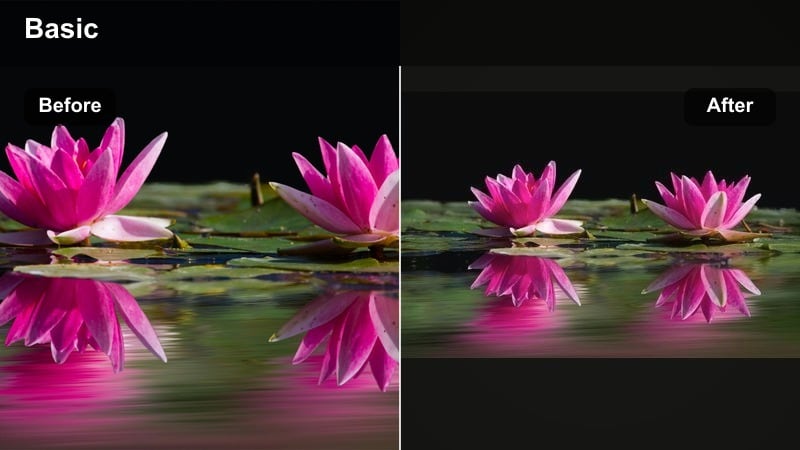
- Effect look: Muted colors with matte shadows and a cold gray-blue cast that flatters concrete and metal surfaces.
- Best for: Parking lot shots, underpasses, skate clips, and fashion lookbooks in industrial spaces.
- Editing tip: Use a slower shutter and smoother stabilization to pair with this matte filter, keeping movements fluid and cinematic.
Concrete Cool Matte transforms industrial spaces into editorial-style backdrops by flattening contrast and cooling down tones. Concrete, steel, and asphalt take on a stylized gray-blue look that makes outfits and silhouettes pop without needing bold color.
Apply this filter in Filmora to clips shot in garages, rooftops, or alleyways, then smooth motion with built-in stabilization for creamy pans and tracking shots. Keep on-screen text minimal and clean so the matte textures and strong shapes remain the focus of the frame.
Midnight Transit Glow
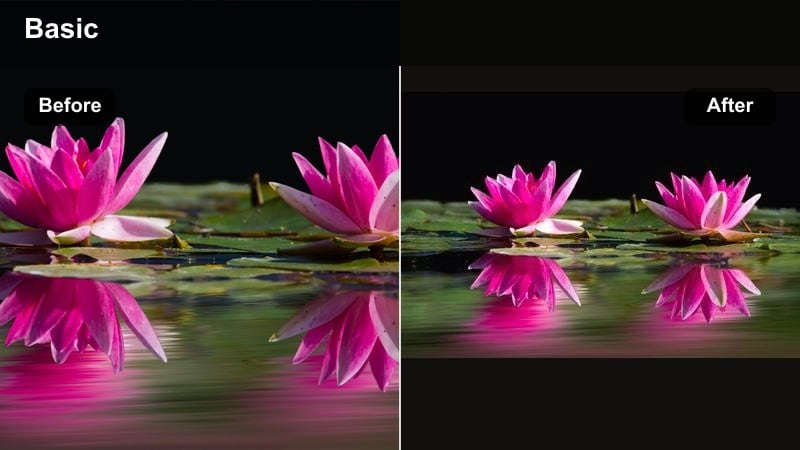
- Effect look: Deep cool shadows with preserved warm highlights from streetlights and signage for a night-city look.
- Best for: Night vlogs, subway rides, late street food runs, and neon storefront B-roll.
- Editing tip: Underexpose slightly in camera, then lift shadows carefully after applying the filter to avoid destroying the night mood.
Midnight Transit Glow is tuned for night city footage, where you want rich, cool shadows but do not want to lose the warmth of streetlights and shop signs. It creates a cinematic contrast between blue-toned dark areas and glowing oranges and yellows from practical lights.
When editing in Filmora, apply this filter first, then only gently raise shadows so you do not wash out the night atmosphere. Watch for banding in darker gradients, and if it appears, add a light film grain layer on top; it not only hides artifacts but also enhances the moody, documentary feel.
Clean Cool Filters for Fashion and Aesthetic Channels
Runway Ice Clean
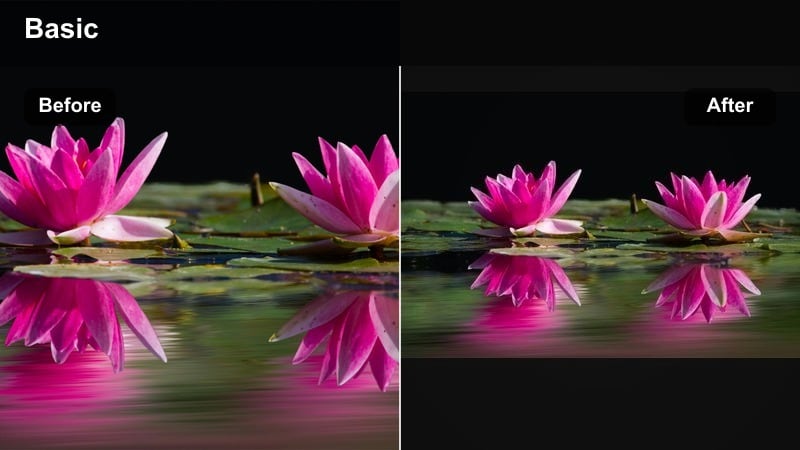
- Effect look: Bright, white-balanced cool tone with crisp contrast and reduced warmth, ideal for clean outfit videos.
- Best for: Outfit-of-the-day shots, haul videos, and studio lookbooks with white or pastel backdrops.
- Editing tip: Lock in exposure using scopes, then apply the filter so whites stay pure and do not drift into gray or blue.
Runway Ice Clean keeps whites bright and fabrics sharply defined, giving your fashion content a look similar to online store photography and editorial campaigns. The subtle cool shift pulls orange casts out of indoor lighting while maintaining rich detail in clothing textures.
In Filmora, first correct exposure and white balance using scopes, then drop this filter on your clips to create a consistent wardrobe showcase style. If you feature brand products, double-check key colors after the filter and use selective adjustments to pull logos and signature shades back to accurate tones.
Pastel Cool Soft
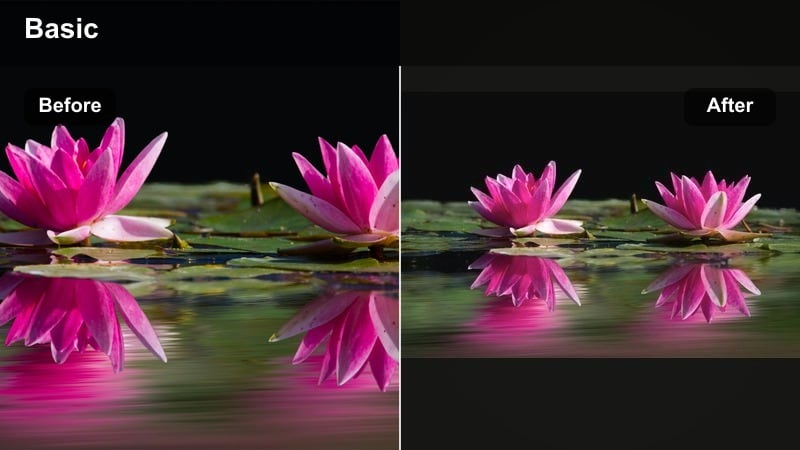
- Effect look: Soft cool tint with lifted blacks and gentle saturation that flatters pastel outfits and decor.
- Best for: Room tours, aesthetic desk setups, lifestyle fashion intros, and brand collabs in bright spaces.
- Editing tip: Avoid over-sharpening; let the gentle softness of the filter carry the aesthetic and keep overlays minimal.
Pastel Cool Soft is ideal for creators who lean into light, airy aesthetics with soft colors and clean backgrounds. The lifted blacks and gentle cool tint keep your frames dreamy while still letting pastel tones read clearly on mobile screens.
Use this filter across room tours, aesthetic desk setups, and lifestyle shots in Filmora, then keep sharpening low so the natural softness remains. Save a reference frame from a favorite video and use it as a visual target when color-matching future uploads to maintain a perfectly coordinated channel grid.
Studio Chrome Style
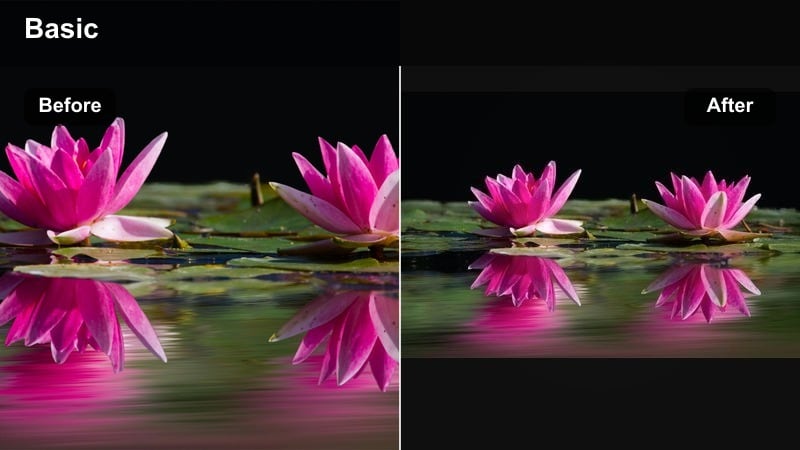
- Effect look: High-contrast cool look that adds chrome-like sheen to jewelry, accessories, and hair highlights.
- Best for: Beauty close-ups, accessories showcases, and editorial-style fashion shorts.
- Editing tip: Use precise masking to keep the subject sharp and slightly blur the background, enhancing the chrome pop from the filter.
Studio Chrome Style makes metallics and glossy surfaces catch the light with a striking, editorial finish. The cool grade and added contrast give rings, necklaces, and high-shine makeup a chrome-like pop that feels at home in beauty campaigns, portrait filters, and short-form reels.
Inside Filmora, combine this filter with masks and background blur to isolate faces or products, drawing even more attention to reflective details. Keep an eye on highlight clipping via scopes; if jewelry or skin shines too bright, lower exposure slightly before applying the filter so you keep detail in every sparkle.
Cinematic Cool Filters for Story-Driven Videos
Nordic Film Cool
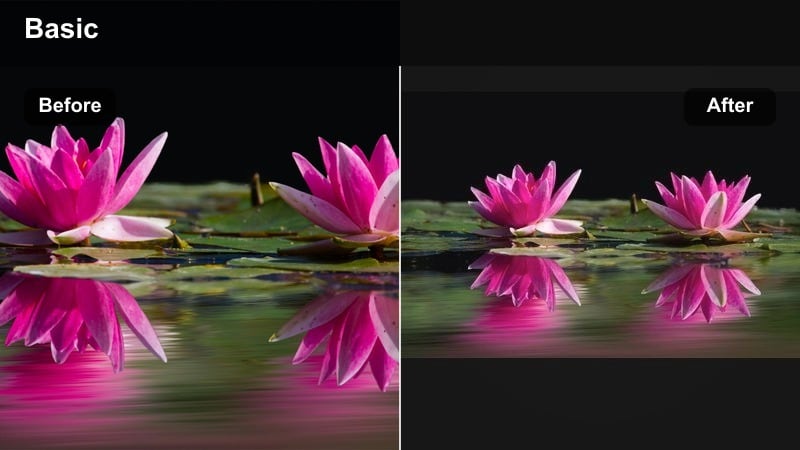
- Effect look: Desaturated colors, cool midtones, and a slight film fade that feels inspired by Nordic dramas.
- Best for: Narrative shorts, cinematic B-roll sequences, and moody storytelling intros.
- Editing tip: Use slower, more deliberate cuts and longer takes with this filter so the cinematic mood has time to land.
Nordic Film Cool lends your footage a muted, atmospheric style that is perfect for reflective vlogs and narrative scenes. With desaturated colors and cool midtones, everyday environments turn into moody backdrops that keep attention on your story and composition.
In Filmora, apply this filter across entire sequences for consistency, then keep cuts slower and transitions subtle so the calm visual tone is not disrupted. Pair it with understated titles and a soft soundtrack to complete the cinematic, drama-inspired experience.
Blue Hour Storyline
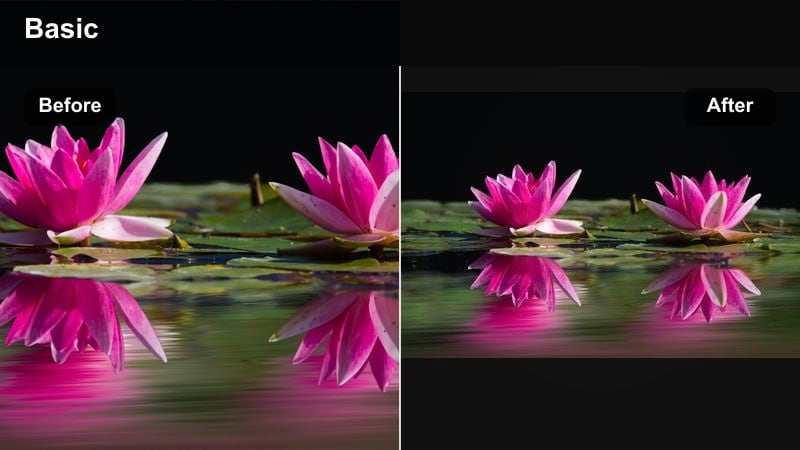
- Effect look: Emphasized blues in skies and shadows, with gentle highlights that recreate golden to blue hour transitions.
- Best for: Travel montages, emotional vlogs, and outdoor scenes shot around sunset or sunrise.
- Editing tip: Time your cuts to music beats and keep camera motion slow to fully show off the subtle sky gradients this filter enhances.
Blue Hour Storyline is tuned to bring out the natural drama of pre-sunrise and post-sunset light. It deepens sky blues and cools shadows while keeping highlights smooth, making landscapes, rooftops, and waterfronts feel rich and cinematic.
When editing in Filmora, apply this filter to your blue hour clips, then build slower, music-synced montages that let the evolving sky gradients shine. Avoid mixing in clips with wildly different color temperatures; instead, group similar time-of-day shots together so your cool tone feels intentional and cohesive.
Digital Cool Docu
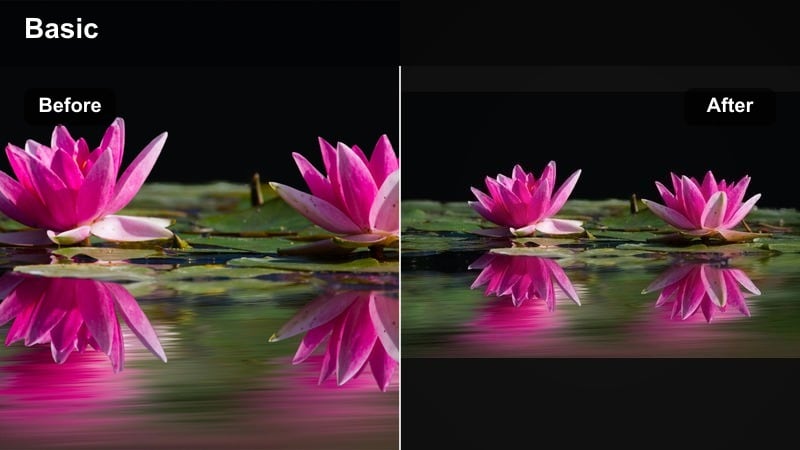
- Effect look: Documentary-style cool tone with neutral saturation and clean whites designed for talking heads.
- Best for: Explainer videos, tech documentaries, commentary channels, and educational content.
- Editing tip: Apply this filter uniformly across A-roll and B-roll, then fine-tune only exposure per clip for consistency.
Digital Cool Docu gives your channel a professional, slightly cool broadcast look that works for commentary and educational formats. It keeps whites clean, saturation balanced, and overall tone calm, which helps complex topics feel clear and trustworthy.
In Filmora, save this filter as part of a preset that includes minor sharpening and noise reduction, then use it as your standard grade for every upload. Apply it across both talking-head clips and B-roll, adjusting only exposure and white balance as needed so your entire video keeps the same polished, documentary-style finish.
Tips for Using Youtube Video Cool Filters in Filmora
- Shoot slightly warmer in camera if you plan to apply strong cool filters later to protect natural skin tones.
- Keep at least one neutral or lightly graded clip in each video so heavy cool tones do not fatigue your audience.
- Use scopes in Filmora to check that your cool grading is not crushing shadows or clipping highlights.
- Test filters on your most common locations and lighting setups, then save your favorites as reusable presets.
- Match your thumbnail grading to the same cool filter family so your channel page looks cohesive at a glance.
Cool YouTube video filters can instantly push your content toward a modern, tech-forward, or urban aesthetic without deep color grading skills. With the right presets, your channel gains a recognizable visual identity that viewers remember as they scroll.
Experiment with a few Filmora presets, refine them to fit your brand, and save your go-to cool tones as presets so every upload feels polished and consistent.
secure download