

 100% Security Verified | No Subscription Required | No Malware


 ChatGPT
 Perplexity
 Gemini
 Claude
 Grok
Grok
Sora 2 is blowing up right now because people can make insanely realistic AI videos in minutes. And one of the biggest reasons for the hype is the Sora 2 cameo feature, where you can drop yourself into any scene you want.
Still, many people struggle with how to use Sora 2 cameo properly, especially when it comes to clean captures, good likeness, and realistic results. That's why we're here to break down everything about Sora cameos, from what it is to how you can make your videos look even better with some simple tricks.

In this article
Part 1. What Is Sora 2 Cameo? Meet the New "AI Self-Insert" Feature
The easiest way to explain Sora cameos is that it creates a mini-AI version of you. You record a short clip, and Sora turns that into a digital version of yourself that it can use again and again. Once your cameo is set, Sora can drop you into any scene you imagine because it already understands your face and how you move.

This cameo feature has become a big upgrade for a bunch of good reasons:
- It builds a reusable avatar from a short video of your face.
- It picks up on your expressions, little movements, and the way you speak.
- It keeps the lip-sync and body motion looking natural, so nothing feels out of place.
- You get to decide who can use your cameo, so it stays in your control.
- It works for all kinds of videos, whether you're making something casual, dramatic, or just playing around.
With these capabilities, Sora 2 cameo is like a really easy way to show up in your own AI creations, and you only need to record yourself once!
Celebrities You Can Add in Sora 2
Another thing people love about Sora 2 is definitely the Sora celebrity cameos. It basically lets you use approved celebrity avatars inside your videos, so you can make scenes with actors, musicians, athletes, and even a few well-known fictional characters.
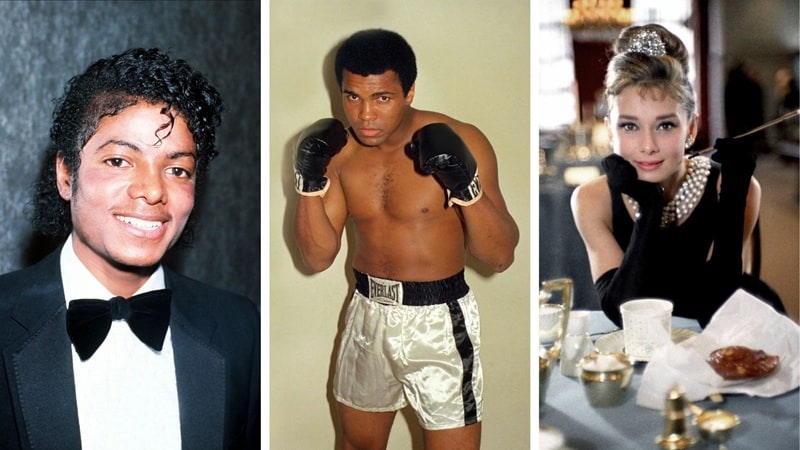
Some Sora 2 celebrity cameos available right now are:
| Category | Celebrity Cameos |
| Actors | Audrey Hepburn, James Dean, Marilyn Monroe, Robin Williams, Paul Walker, Heath Ledger, Patrick Swayze. |
| Musicians | Michael Jackson, Whitney Houston, Elvis Presley, Prince, Tupac Shakur, Freddie Mercury, David Bowie, Kurt Cobain, Aretha Franklin, Bob Marley. |
| Athletes | Kobe Bryant, Muhammad Ali, Diego Maradona, Reggie White, Walter Payton, Hank Aaron, Ty Cobb. |
| Religious Figures | Jesus, Buddha, Mother Teresa, Gandhi, Billy Graham, Confucius, Martin Luther, Rumi, St. Augustine, Joan of Arc, Moses. |
| Fictional Characters | Peter Pan, Dracula, Frankenstein, Sherlock Holmes, Robin Hood, Hercules, Medusa, Cinderella, Snow White, Pinocchio, The Little Mermaid, Santa Claus. |
These are just a few Sora celebrity cameos you can use right now. If you want the full list, you can check it out here
Disclaimer: Important Things to Know Before Creating a Cameo

Since Sora works with real faces, the app has some clear rules to protect people's identities and keep the feature from being misused. So, here are a few things you should know when making Sora cameo so everything stays safe and trouble-free.
- Only make a cameo of yourself or someone who clearly said yes.
- No deepfakes or anything meant to trick or harm someone.
- Sora won't generate adult content, violent scenes, hateful themes, or anything extreme.
- Celebrity faces can't be used unless they're officially approved, which is why Sora 2 celebrity cameos only work when the likeness is legally cleared.
Creative Cameo Ideas That Are Actually Fun to Try
By the time you start playing around with your Sora cameo, you'll probably want something a little more exciting than just standing in a random room. If you need a few ideas to spark your imagination, you can try these out:
Me in Different Era Fashion
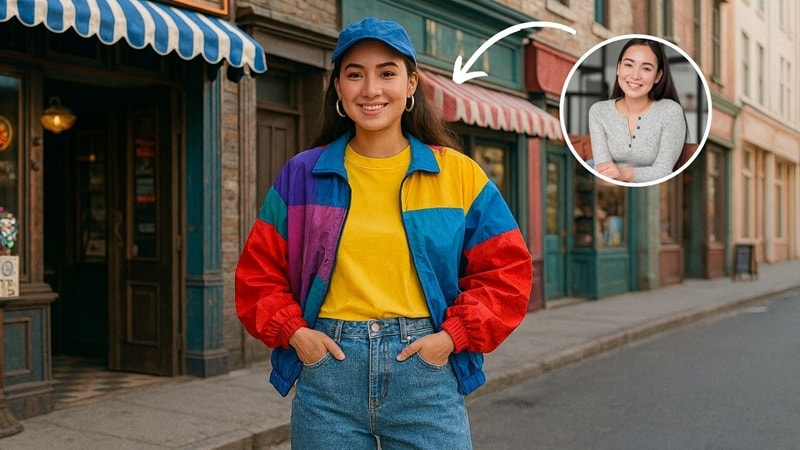
See yourself in outfits from the 90s, the 70s, or even full medieval royalty. It's like time-traveling without leaving your chair.
Myself in a Cyberpunk World
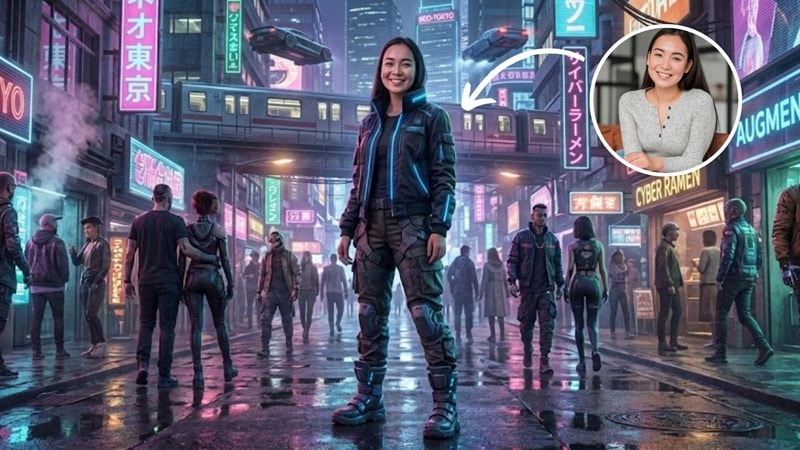
Neon lights, glowing signs, futuristic streets, and a cool outfit to match. This one always looks good with Sora's style.
AI Cameo in a Zombie Apocalypse
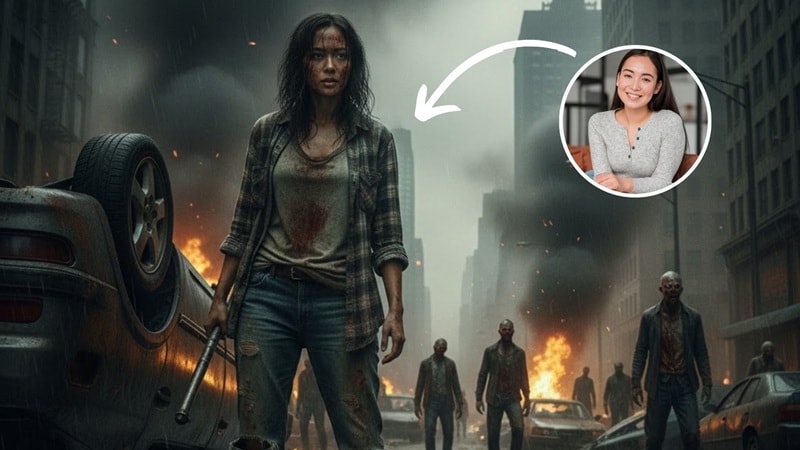
Dark streets, smoky backgrounds, and dramatic action shots that look straight out of a movie.
AI Myself Meet up with a Fictional Character
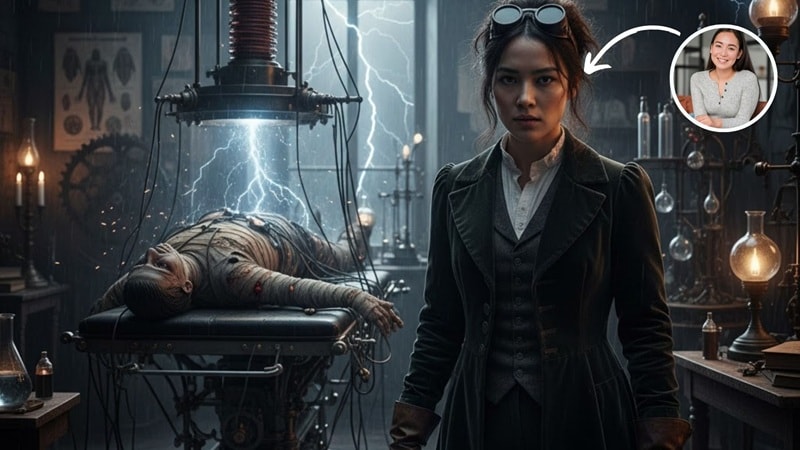
Pair your cameo with one of the available fictional characters in Sora Cameo and create a fun "collab" moment.
Part 2. How to Use Sora 2 Cameo and Drop Yourself Into Any Scene You Want
As previously explained, Sora needs a short video of your face so it can learn your expressions, movements, and the way you talk. This quick recording might seem simple, but it plays a big role in how clean and realistic your Sora 2 cameo turns out.

Tips for Capturing a Good Cameo Video:
A few simple tricks can make your cameo capture look way cleaner:
- Record in a bright space with even lighting.
- Avoid heavy shadows on your face.
- Look at the camera from different angles.
- Speak clearly and naturally.
- Keep your hair away from your face.
- Avoid wearing hats, masks, or big accessories.
- Hold your phone steady, preferably at eye level.
- Keep your background simple.
Step-by-Step: How to Create Your Own Cameo in Sora 2
Before you can start making videos with your Sora 2 cameo, you'll need to set it up properly. It's a quick process, and once you do it, Sora can use your cameo in any scene you create. Follow this simple walkthrough guided by the BlueFX tutorial on YouTube:
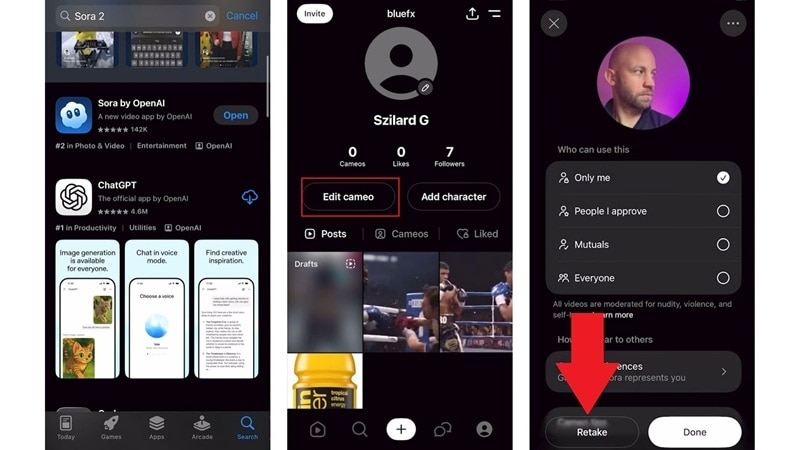
Step 1. Access the Cameo Feature
- Open the Sora app on your iPhone.
- Head to your profile and tap "Edit Cameo".
- Choose "Retake" or hit the record button to film your cameo video.
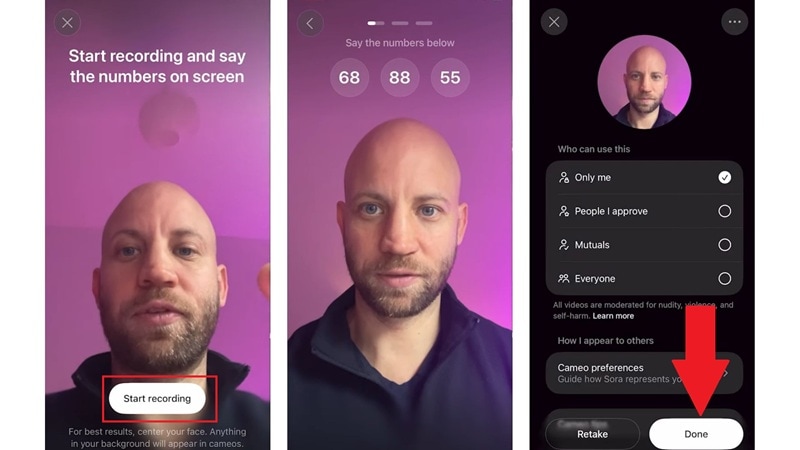
Step 2. Start Recording and Follow the Instructions
- Tap "Start Recording" and follow the instructions on the screen.
- Set your cameo permissions.
- Tap "Done," and your cameo will be ready to use.
Step-by-Step: How to Use Your Cameo Inside a Sora Video
Now that your Sora 2 cameo is all set, you can finally start using it to make actual videos. For this demonstration, let's switch to the web version. It gives you more screen space and feels easier to work with, but the steps are basically the same as the mobile app.
Step 1. Select Your Cameo
- Open the Sora web version and sign in.
- Go to your profile and click the cameo avatar you created earlier.
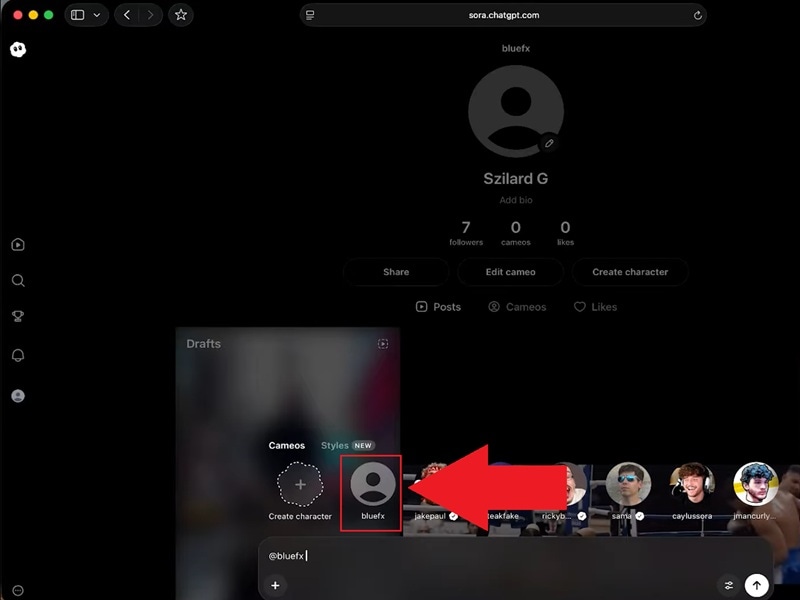
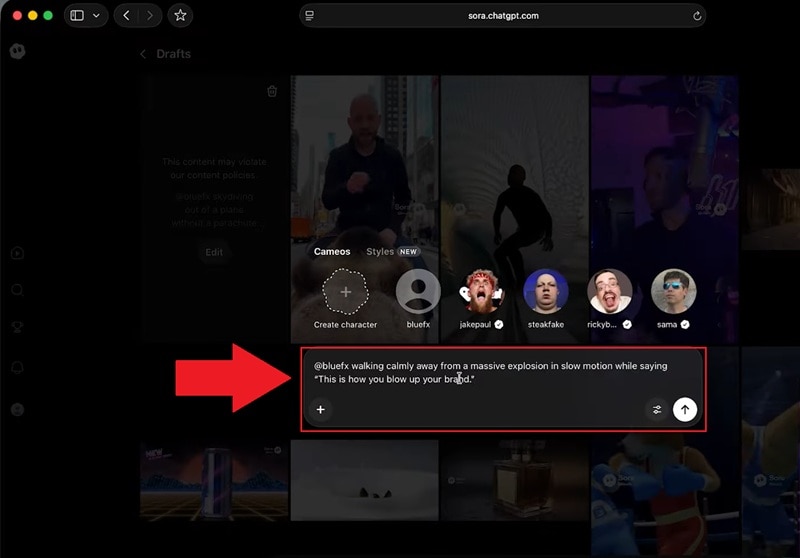
Step 2. Write Your Prompt and Generate
- Type the prompt or the action you want your video to show.
- Press Enter to generate your video.
Step 3. Preview the Video
Head to the "Drafts" section to find the video you just generated.
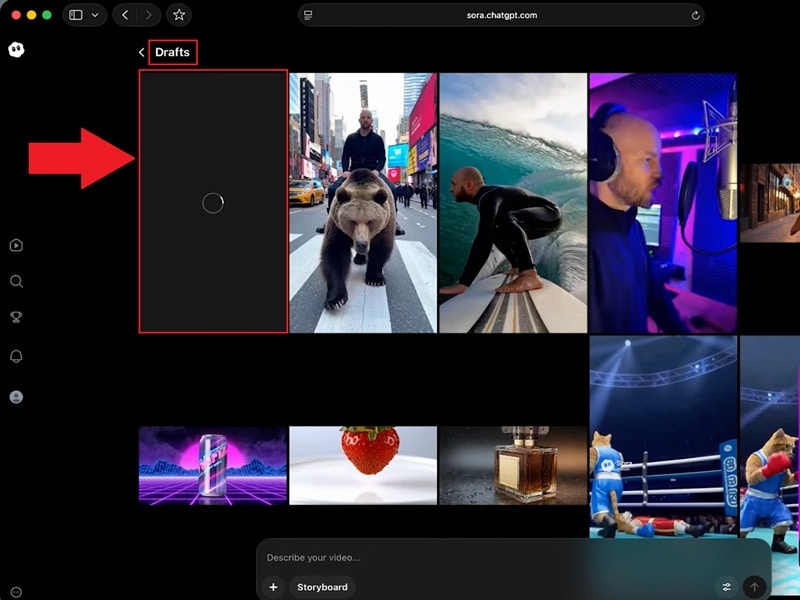
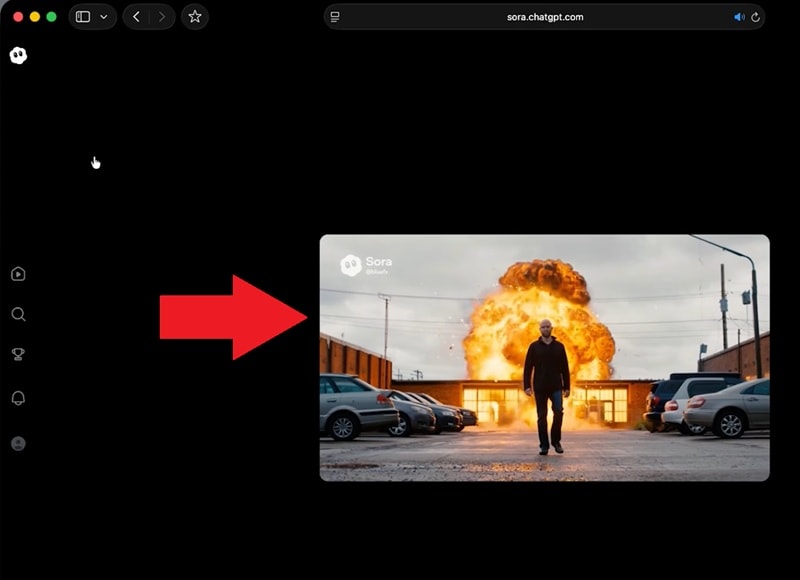
Once it finishes processing, click on it and hit play to watch the result.
Part 3. Make Your Sora Cameo Videos Look Polished and Professional
After you generate a few clips with your Sora 2 cameo, you'll probably start noticing the limits of the app, like:
- It was initially available only on iOS.
- It doesn't support in-depth editing like advanced audio tweaks, subtitles, overlays, smooth transitions, color matching, or multi-clip refinement.
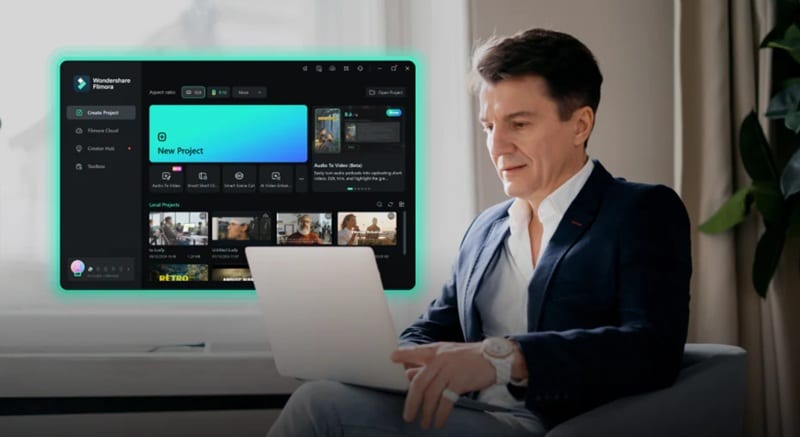
This is why a lot of creators bring their Sora cameo videos into Wondershare Filmora, an all-in-one video editor for you. This AI video editor works smoothly with AI models like Sora 2, Veo 3.1, and Keling 2.5, and it gives you all the tools you'd normally expect from a full editor. The whole point is to take your cameo video and make it clearer, cleaner, and more put-together before sharing it anywhere.
 secure download

With Filmora, you can:
- Insert yourself into short videos using AI Image-to-Video.
- Edit your cameo clip the same way you would any other video with transitions, overlays, stickers, and match cuts.
How to Insert Yourself Into Another Video Using Filmora
One of the coolest things about Filmora's Image to Video feature is that it includes the Video Element Editing feature, where you can drop in a photo, a short clip, and let Filmora bring you into the universe of the clip. It gives you that "step into another world" feeling that's pretty close to what a Sora cameo does, just in a different way.
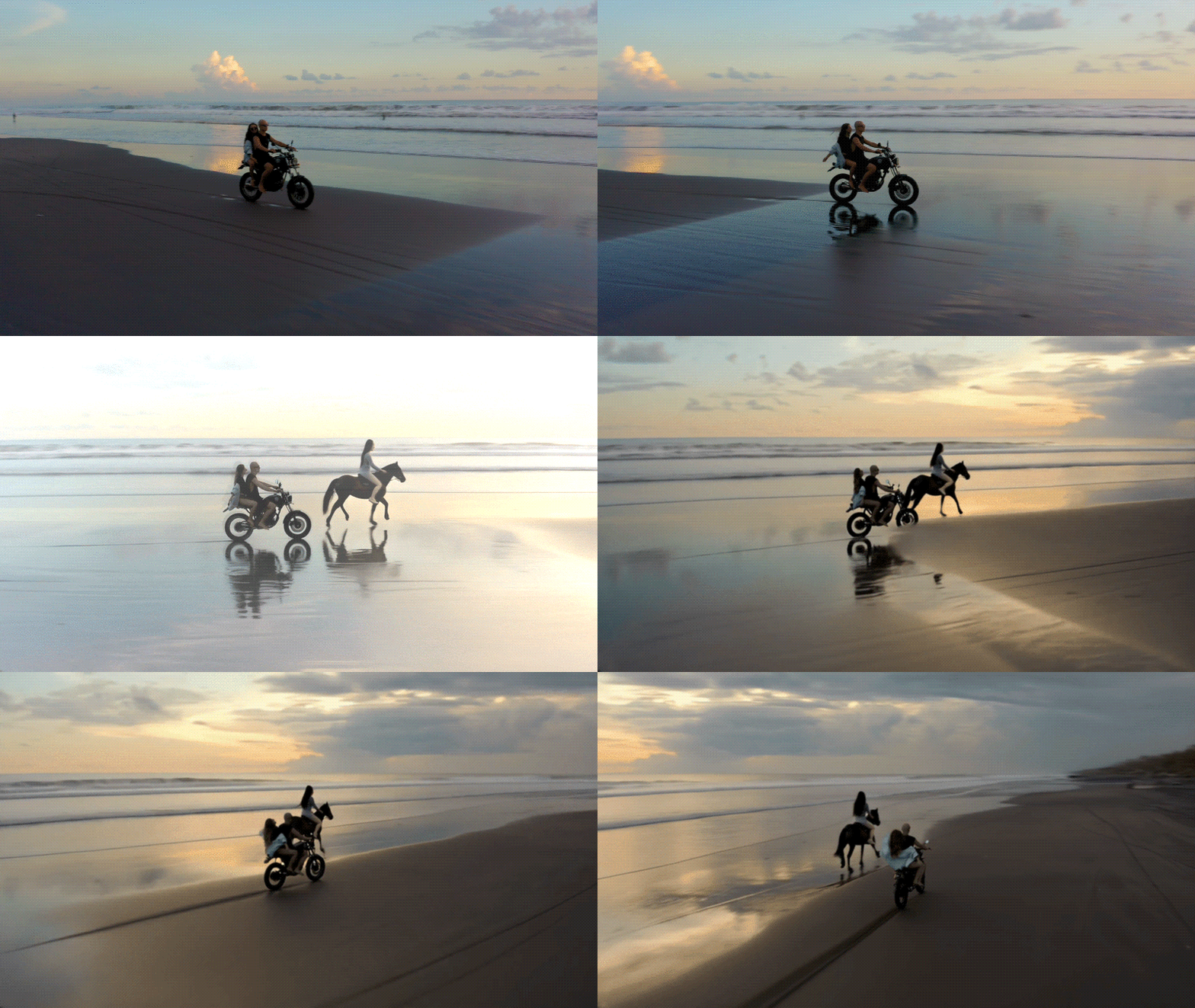
Make sure you have the latest version of Filmora installed on your device. Then, try out this simple walkthrough:
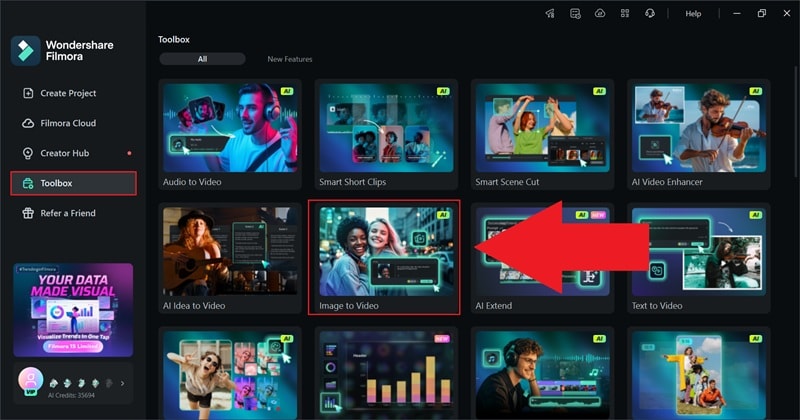
Step 1. Access the AI Image to Video Feature
- Open Filmora and go to the "Toolbox" section.
- Look through the available tools and click on "Image to Video".
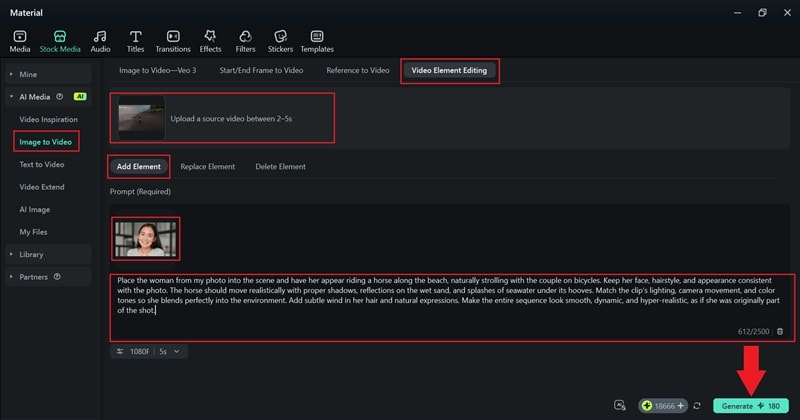
Step 2. Upload Your Clips and Generate Your Video
- Open the "Video Element Editing" section and click "Add Element".
- Upload the short clip you want to appear in, along with your photo.
- Type your prompt in the description box and click "Generate."
Step 3. Preview and Edit Your Video
- Check the "My Files" section to find your new video.
- Click to preview the result, then drag it onto the editing timeline.
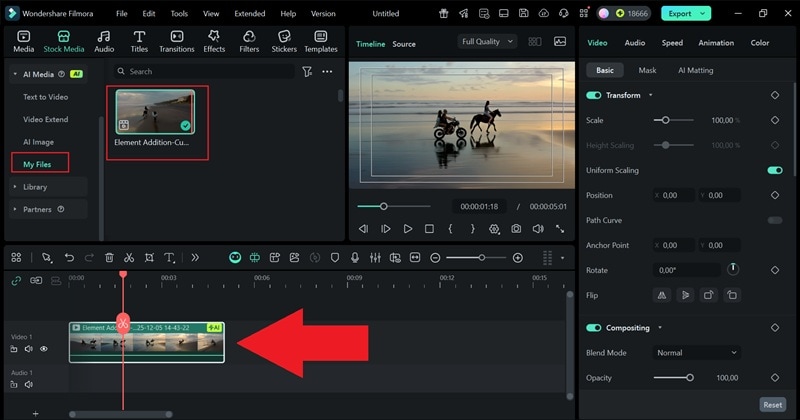
And that's all you need to do! You can add music, filters, stickers, or anything else to polish the final look. Then, export the video once you're satisfied. See how it turned out below!

Edit Your Sora Cameo Videos Inside Filmora
Another workflow you can try is combining your Sora 2 cameos with Filmora to get the most out of both tools. The cameo quality in Sora is usually stronger, so you can generate your scene there first, then bring the clip into Filmora to clean it up, add effects, and make it look more complete.
If you want to use this approach, explore some features that would be useful to enhance your clip:
1. Create Smooth Intros and Outros
- Pain Point: Sora 2 clips are often too short, making openings and endings feel rushed or abrupt.
- Solution: Filmora's AI Video Extender gives your clips space to breathe so intros and outros flow naturally and feel complete.

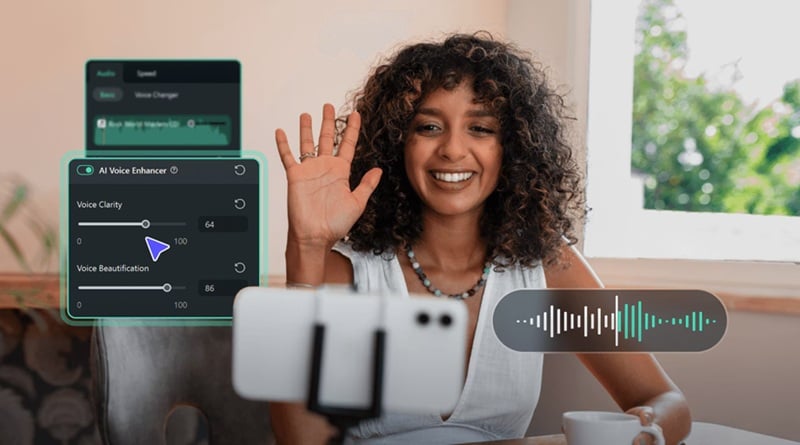
2. Clean Up Your Sora Audio
- Pain Point: The audio from Sora 2 cameo clips can be inconsistent or noisy, making dialogue hard to understand.
- Solution: Filmora provides the essential tools to fix your sound. Use loudness normalization, noise removal, and EQ for clarity. The AI Voice Enhancer refines voice quality instantly, and you can add royalty-free music from Filmora's library to create a polished audio experience.
3. Blend Your Sora 2 Cameo With Real Footage
- Pain Point: Sora 2 cameos can feel "pasted on" when combined with real footage, as colors, lighting, or contrast may not match.
- Solution: Filmora's AI Color Palette helps your cameo blend naturally by matching colors, adjusting lighting, and fine-tuning contrast so it fits seamlessly with the rest of your footage.
4. Improve Its Visuals With AI Features
- Pain Point: Raw Sora 2 clips can look flat, unpolished, or lack visual flair.
- Solution: Filmora offers effects, filters, stickers, and visual elements to enhance your cameo. AI Video Beauty Filters smooth skin, balance lighting, and sharpen your cameo, making it visually engaging and professional.

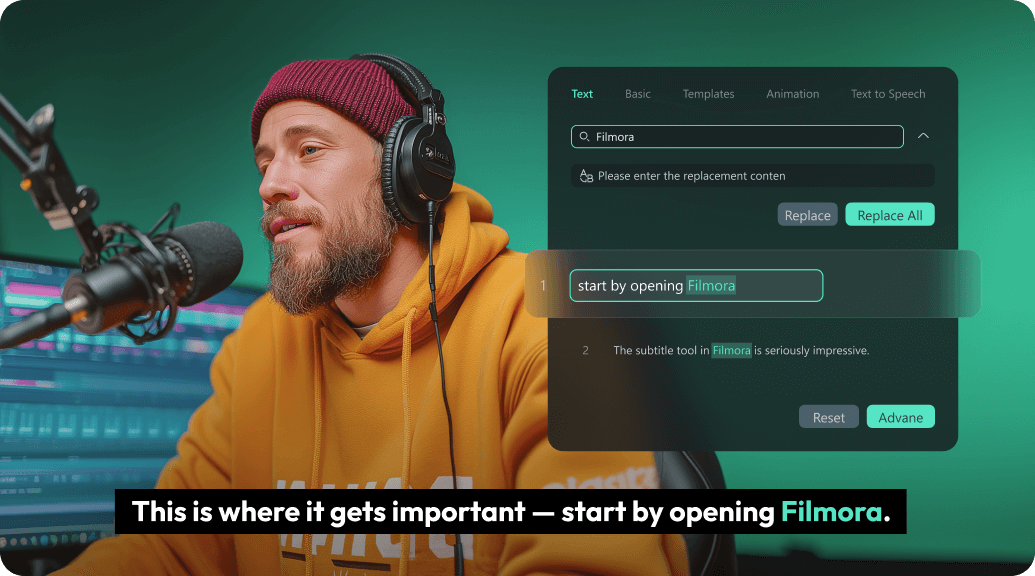
5. Take Care of Captions
- Pain Point: Manually adding subtitles is time-consuming, and missing captions can reduce viewer engagement.
- Solution: Filmora's AI Captions automatically transcribes your voice into clean, readable subtitles that perfectly match your cameo clips, making your videos accessible and ready for social sharing without extra effort.
Conclusion
Sora's cameo has quickly become one of the features everyone can't stop talking about, and it's easy to see why. So, we guide you to learn how to use Sora 2 cameo, from setting up your avatar to dropping yourself into scenes that look surprisingly real.
The results from Sora alone are already impressive, but you can push them even further by using Wondershare Filmora. This AI video editor works together with Sora 2 and even lets you create similar cameo-style moments through its video element editing inside the AI Image to Video tool. You can also combine your Sora and Filmora workflow by importing your Sora 2 cameo clips and enhancing them with Filmora's AI tools for audio, color, and pacing.
 secure download