
Think Bigger From Filmora User Guide
-
Introduction of Filmora for Mobile
-
Get Started for Mobile
-
AI Features for Mobile
- AI Denoise
- Speech-To-Text
- Text-To-Speech | Filmora App Guide
- AI Captions
- AI Highlight
- Filmora VideoGen Feature Guide
- AI Enhancer | Filmora App Guide
- AI Remover | Filmora App Guide
- AI Auto Cut for Filmora Mobile
- AI Music
- AI Text to Video | Filmora App Guide
- Speaker Detection
- AI Emoji
- AI Beats - Filmora App
- AI Camera
- Edit Speech
- Image to Video for Android and iPhone
- Instant Mode
- AI Audio | Filmora App Guide
- AI Voice Cloning - Filmora App
- AI Voice Changer - Filmora App
- Smart Cutout | Filmora App Guide
-
Recording for Mobile
-
Video Editing for Mobile
- Trim Video
- Duplicate Video | Filmora App Guide
- Spilt Video on Android and iPhone
- Delete Video
- Crop Video
- Replace Video
- Rotate Video
- Reverse Video
- Speed Up Video
- Adjust the Sequence of Clips
- Adjust the Volume of Clips on Android and iPhone
- Adjust the Opacity of Clip | Filmora App Guide
- Adjust the Color of Clips on iPhone and Android
- Add Mask on Android and iPhone
- Add Mosaic on Android and iPhone
- Add Freeze for Android and iPhone
- Green Screen | Filmora App Guide
- Thumbnail Editing | Filmora App Guide
- Track Switching for Android and iPhone
- Color Palette - Filmora App
-
Audio Editing for Mobile
-
Text Editing for Mobile
-
Stickers & Effects & Filters for Mobile
-
Advanced Editing for Mobile
-
Exporting & Cloud Backup for Mobile
AI Voice Changer - Filmora App
If you are looking for ways to add engaging voiceovers in different voices for your videos, you can utilize the AI Voice Changer function offered by the Filmora App. The application offers various voice options for users to detect spoken words and apply the voice effect accurately to them.
Moreover, users can change the voice of an already existing video or can also record their own voice and apply effects to it. Let us explore different methods to change the voice using this efficient application from your smartphone:
Filmora for Mobile
Edit Videos on Your Mobile Phone with 1-Click!
- • Powerful Brand New AI Features.
- • User-friendly video editing for beginners.
- • Full-featured video editing for professional.


Method 1. Change Existing Voice in Video
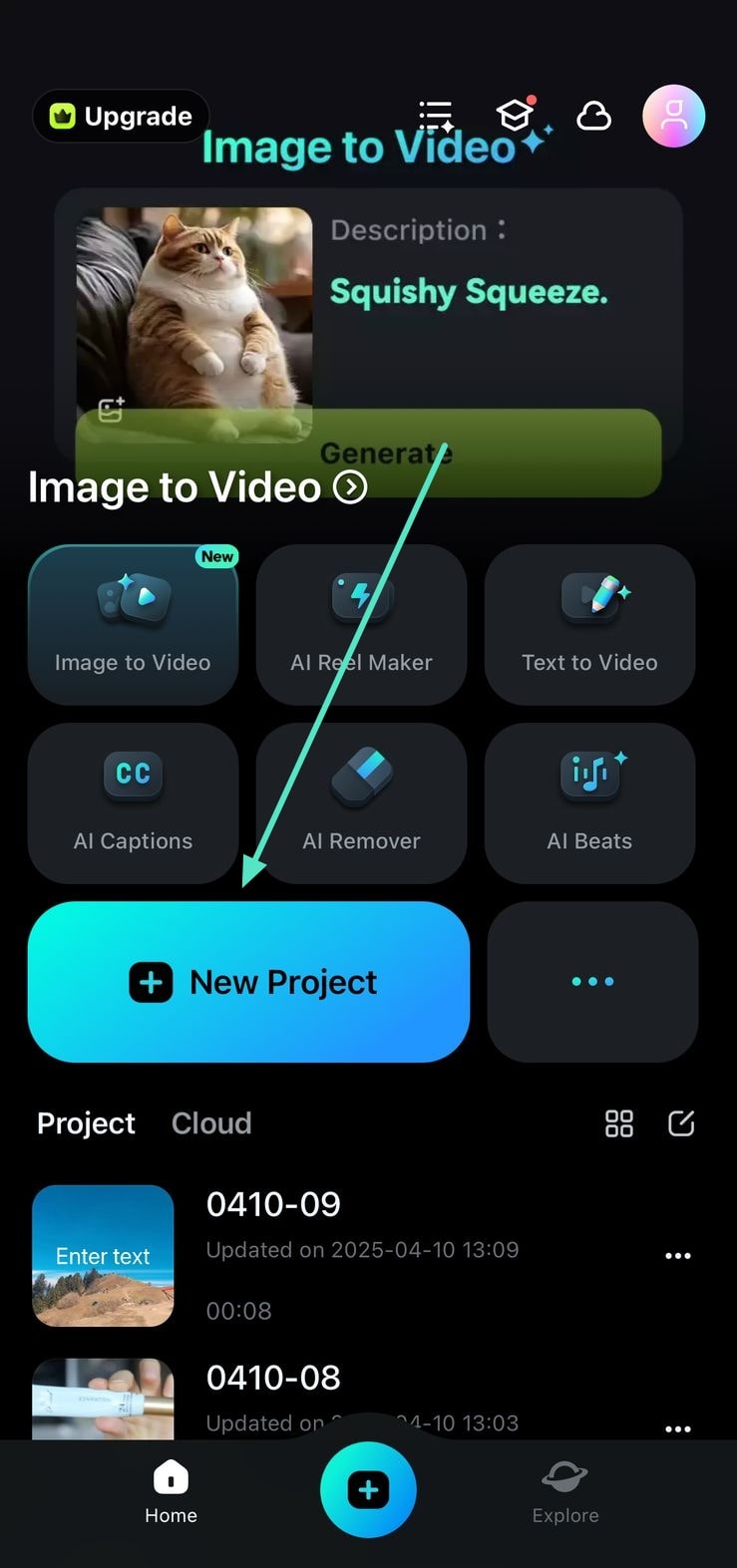
1. Initiate the process by launching the app on your smartphone and pressing the New Project button located on the homepage. Next, import your video to the app’s interface to proceed.
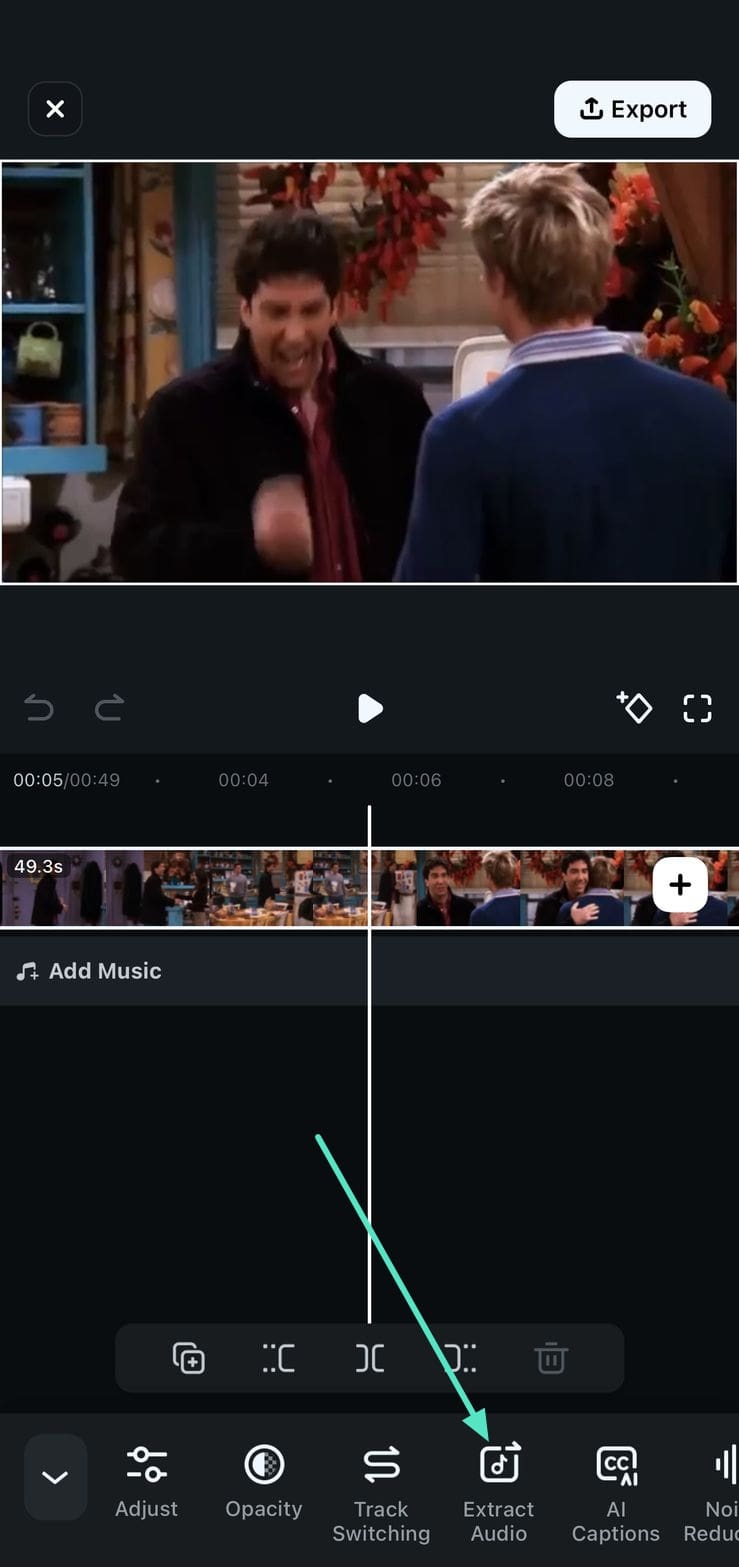
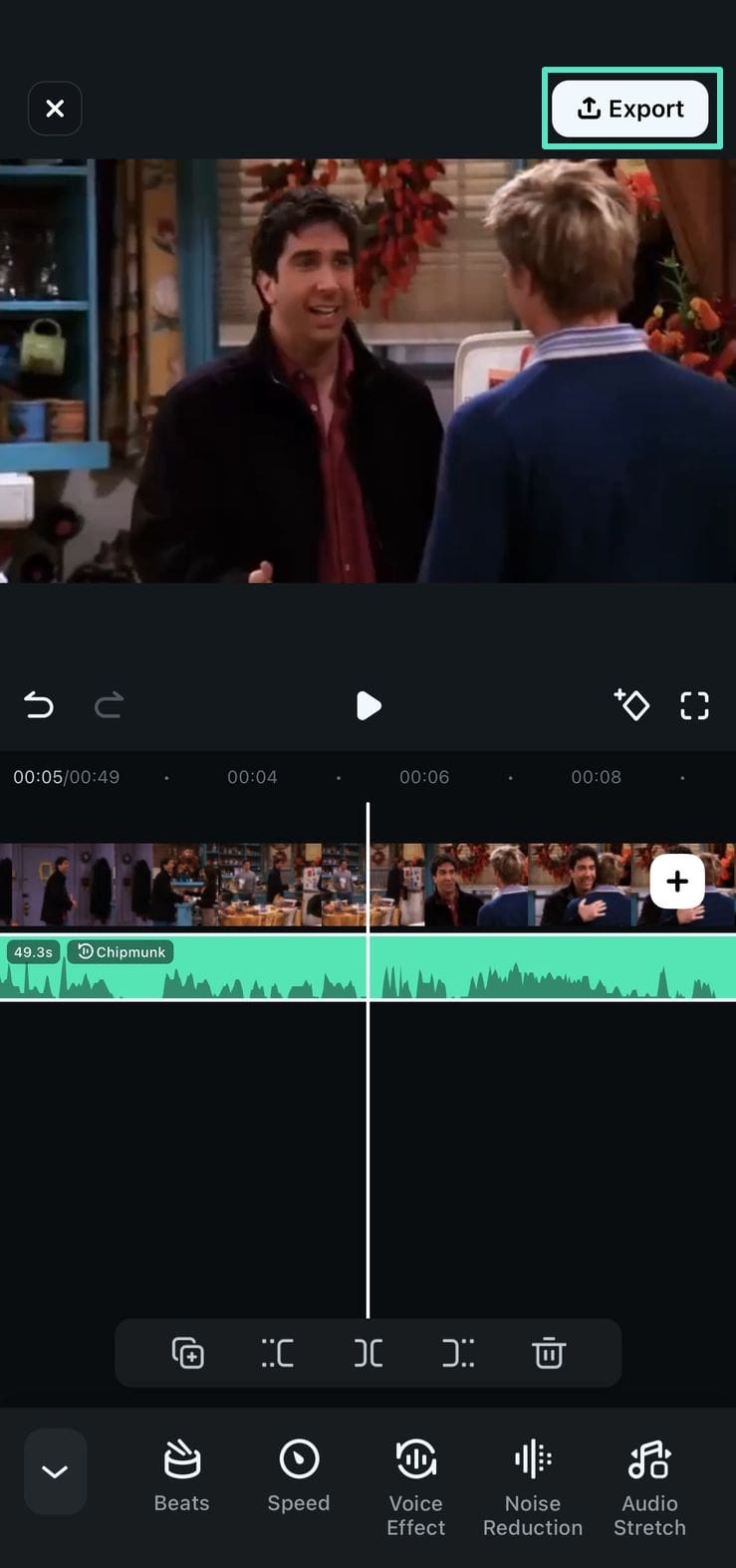
2. Once the video is added, tap on the video timeline and locate the Extract Audio button to detach the audio from the video.
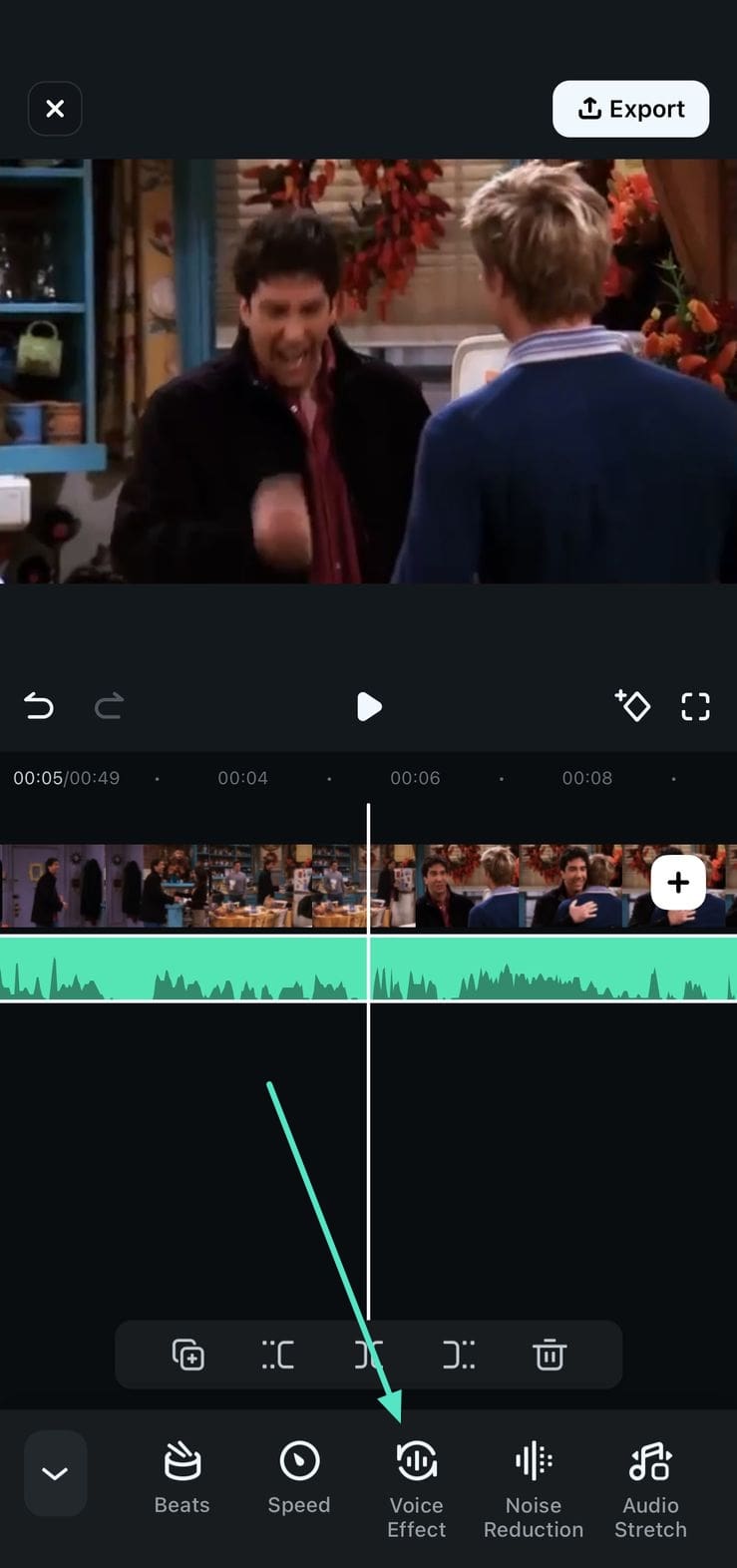
3. When the audio is successfully extracted, tap on the Voice Effect option located at the bottom toolbar.
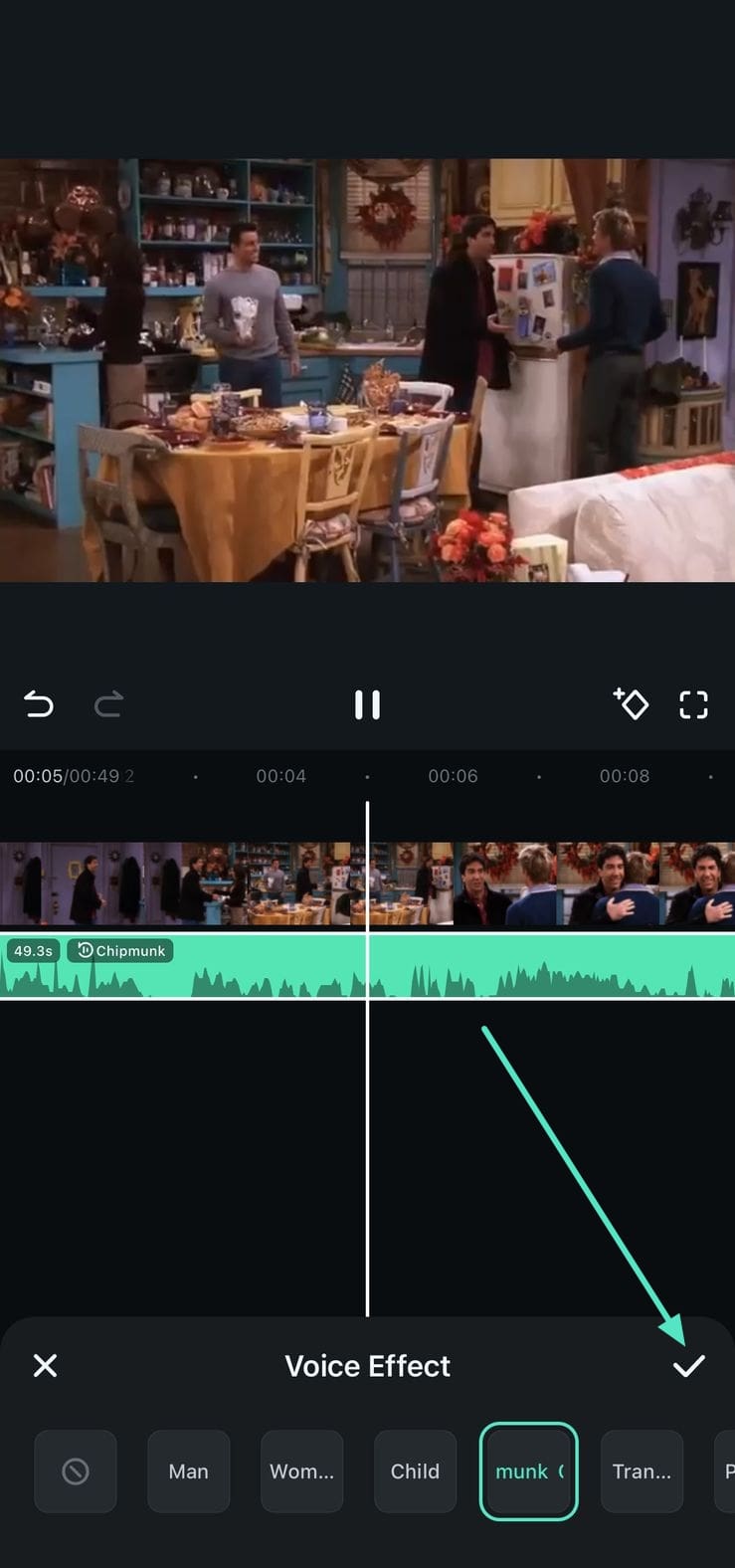
4. Select the voice of your choice from the options provided after listening to them by tapping on it. Once chosen, press the Tick icon located on the right to apply changes.
5. Preview the changed voice by tapping on the Play icon and Export the results once you are satisfied with the changed voice.
Method 2. Record Voice and Add Effect
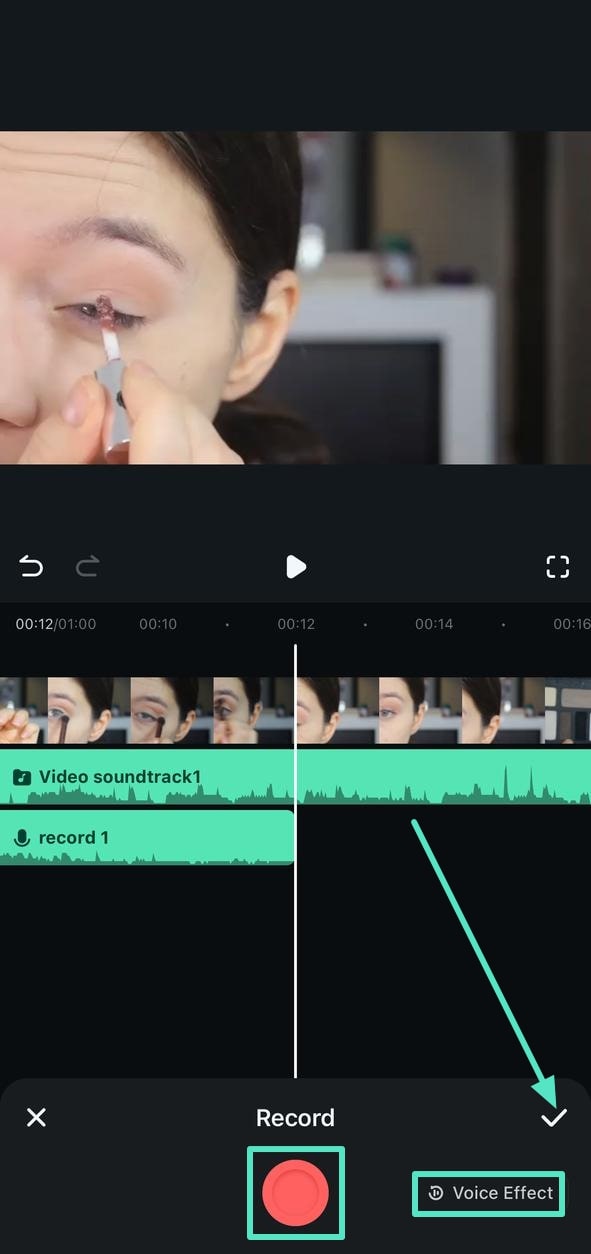
1. Once you have imported the video to the app’s interface, locate the Record button at the bottom toolbar and tap on it.

2. Tap on the Record button and start speaking into your device’s camera to capture the voice. Once done, tap on the Tick on the right to save the recorded voice. Next, locate the Voice Effect option at the bottom and tap on it.
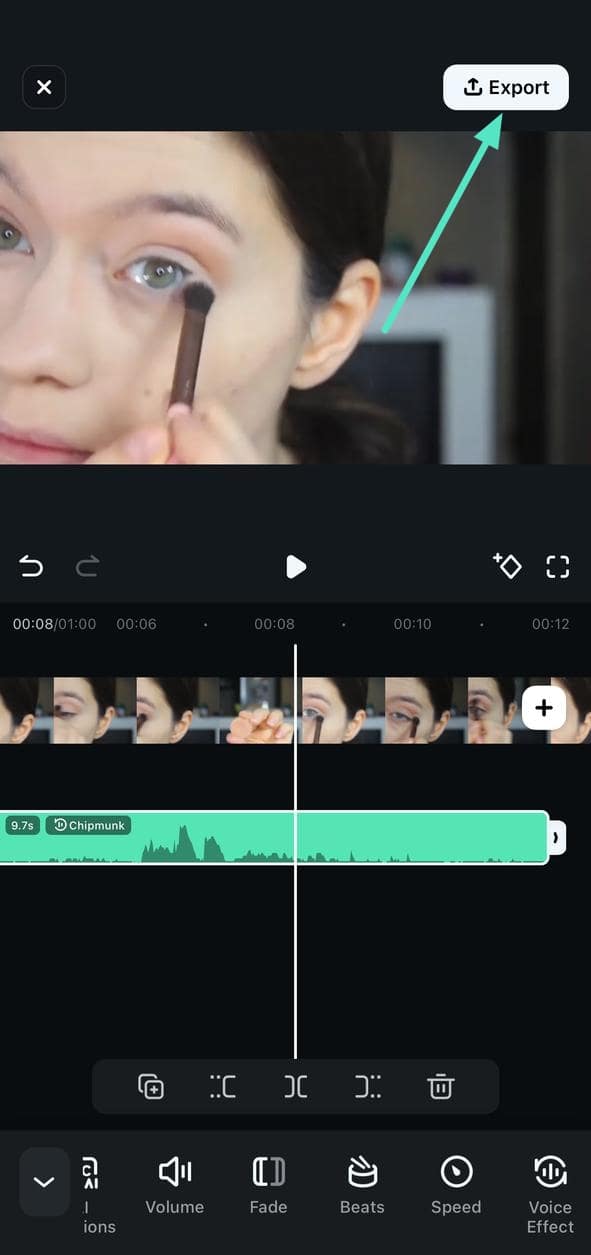
3. Select your desired voice effects from the options provided and apply them to the recorded voice by tapping on the small Tick.

4. 4. In the following interface, play the video to review the applied effect and tap on the Export button to save the video to your smartphone.
Related Posts
Featured Articles
How to Create Winning Chip Ads & Snack Video Campaigns (With Examples)
Turn chip photos and videos into effective potato chips ads using Filmora AI. Follow clear steps, current trends, and practical workflows to create snack video campaigns for TikTok, Instagram, YouTube, and in-store screens.
Top 8 Collage Video Makers in 2026 for Easy Video Collages
Looking for the best collage video maker in 2026? This guide compares the top 8 tools, features, and tips to help you create eye-catching video collages fast.
Top Video Editing Courses for Different Software
Here are the top video editing courses to consider if you want to learn video editing online.
Recommended User Guide
AI Captions
Designed to automatically generate accurate captions for your videos, AI Captions is an advanced AI-powered feature in Filmora for Mobile that enhances accessibility and engagement. Discover its features and how to use it in our detailed guide below.
AI Emoji
Discover Filmora's AI Emoji feature that auto-detects text and generates relevant emojis for your captions effortlessly. Customize emoji placement, size, and duration with full control. Learn how to use it now!
Edit Speech
Filmora's Edit Speech feature lets you correct voice errors by editing subtitles and regenerating speech with the original voice. Change voices using the built-in library or personalized voice clones. Learn how to use it now!
