
Think Bigger From Filmora User Guide
-
Introduction of Filmora for Mobile
-
Get Started for Mobile
-
AI Features for Mobile
- AI Denoise
- Speech-To-Text
- Text-To-Speech | Filmora App Guide
- AI Captions
- AI Highlight
- Filmora VideoGen Feature Guide
- AI Enhancer | Filmora App Guide
- AI Remover | Filmora App Guide
- AI Auto Cut for Filmora Mobile
- AI Music
- AI Text to Video | Filmora App Guide
- Speaker Detection
- AI Emoji
- AI Beats - Filmora App
- AI Camera
- Edit Speech
- Image to Video for Android and iPhone
- Instant Mode
- AI Audio | Filmora App Guide
- AI Voice Cloning - Filmora App
- AI Voice Changer - Filmora App
- Smart Cutout | Filmora App Guide
-
Recording for Mobile
-
Video Editing for Mobile
- Trim Video
- Duplicate Video | Filmora App Guide
- Spilt Video on Android and iPhone
- Delete Video
- Crop Video
- Replace Video
- Rotate Video
- Reverse Video
- Speed Up Video
- Adjust the Sequence of Clips
- Adjust the Volume of Clips on Android and iPhone
- Adjust the Opacity of Clip | Filmora App Guide
- Adjust the Color of Clips on iPhone and Android
- Add Mask on Android and iPhone
- Add Mosaic on Android and iPhone
- Add Freeze for Android and iPhone
- Green Screen | Filmora App Guide
- Thumbnail Editing | Filmora App Guide
- Track Switching for Android and iPhone
- Color Palette - Filmora App
-
Audio Editing for Mobile
-
Text Editing for Mobile
-
Stickers & Effects & Filters for Mobile
-
Advanced Editing for Mobile
-
Exporting & Cloud Backup for Mobile
Color Correction - Filmora App
Filmora's color correction feature helps you quickly balance and refine the look of your videos with intuitive control. You can adjust the overall coloring and shades of the video automatically by simply dragging one slider. The applied correction can be later saved as presets for instant use.
Whether correcting exposure issues or creating a specific mood, Filmora makes color adjustments simple and effective. Follow the guide below to learn how to use this feature on your phone:
Filmora for Mobile
Edit Videos on Your Mobile Phone with 1-Click!
- • Powerful Brand New AI Features.
- • User-friendly video editing for beginners.
- • Full-featured video editing for professional.


Step 1. Open Adjust Panel
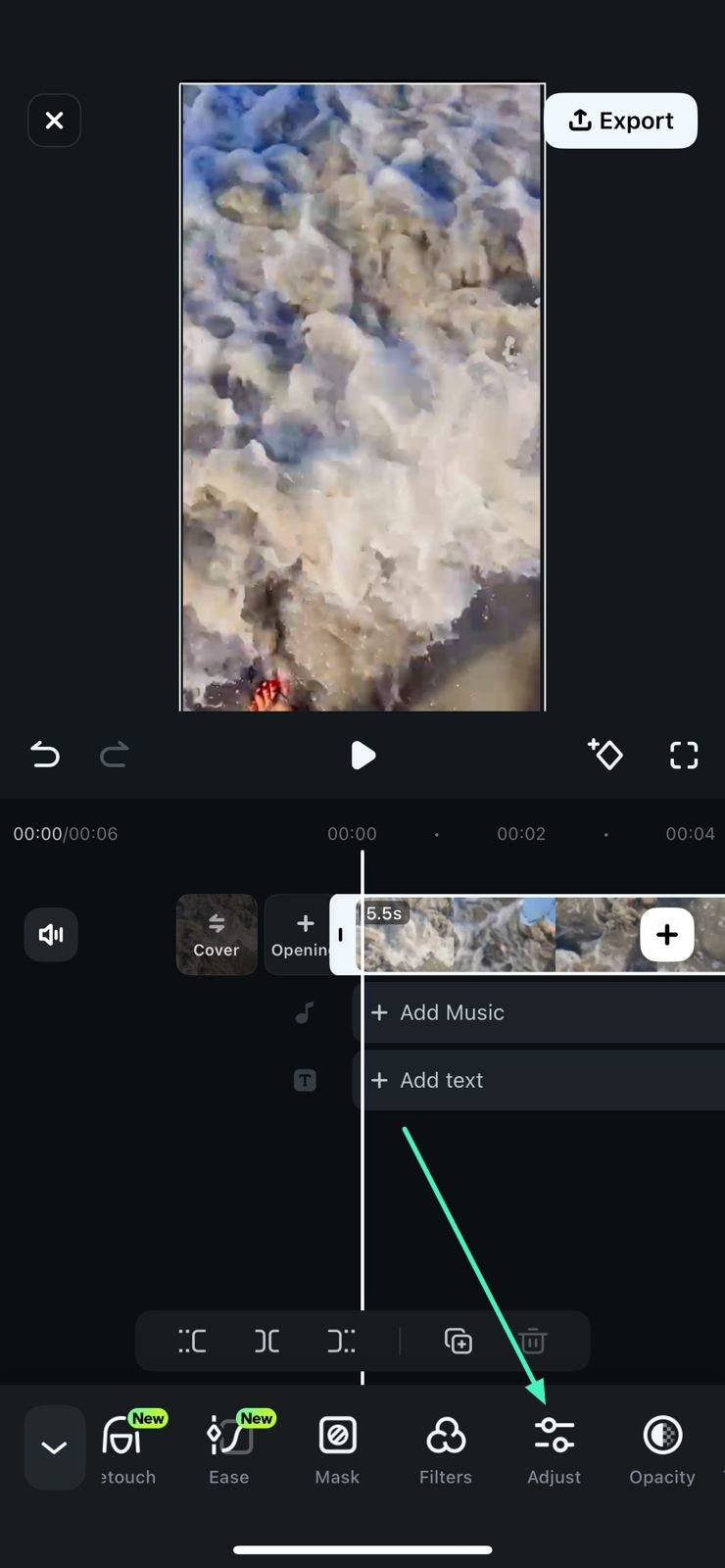
Begin by launching the Filmora App on your smartphone and create a new project. Next, import the video for which you want to make color corrections. Now, tap on the video track and select the Adjust option located at the toolbar at the bottom.
Step 2. Apply Color Correction
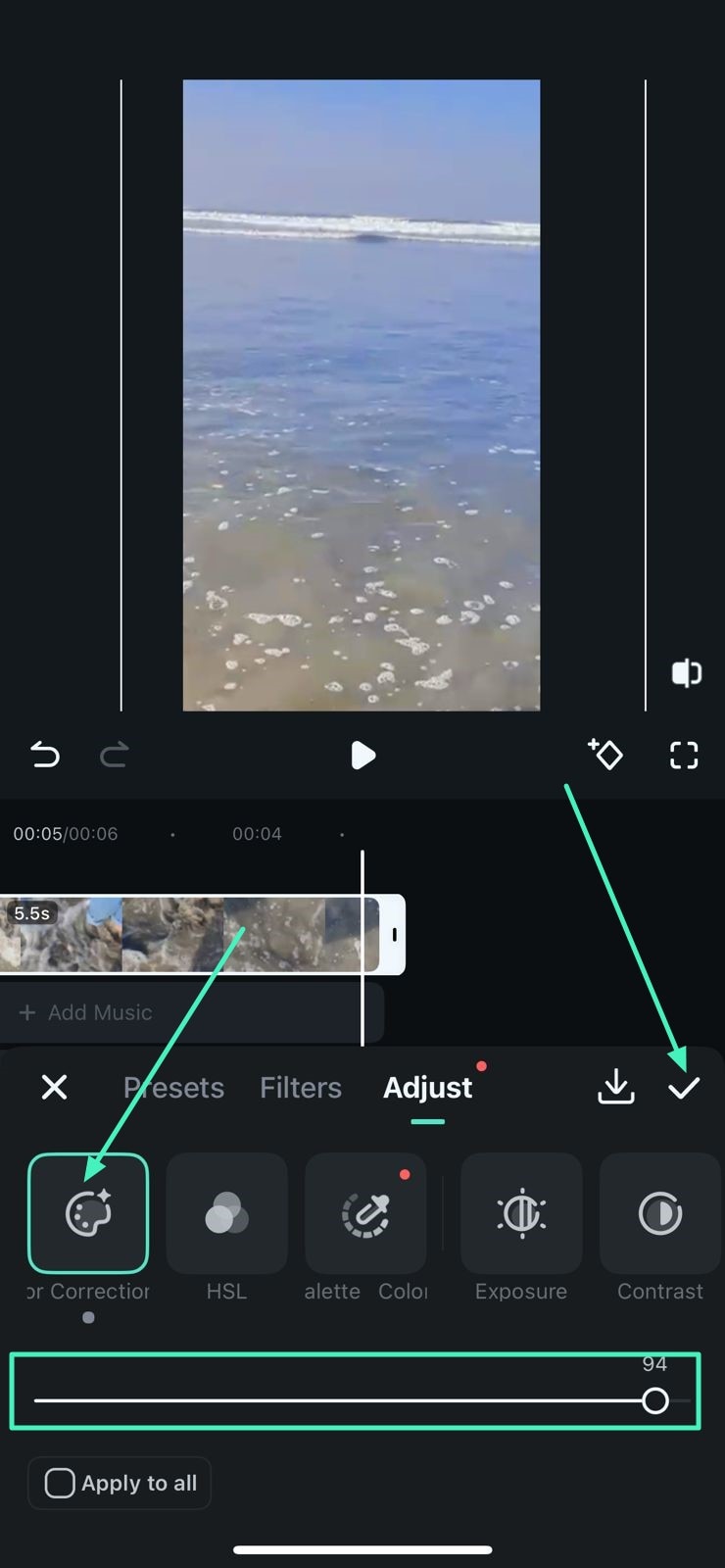
In the following toolbar enabled at the bottom, tap on the Color Correction option. Now drag the slider to adjust the color according to your preferences. Once done, hit the small Tick located on the right to apply the changes. You can also enable the Apply to All checkbox to apply the effect to all clips.
Step 3. Export the Color Corrected Video
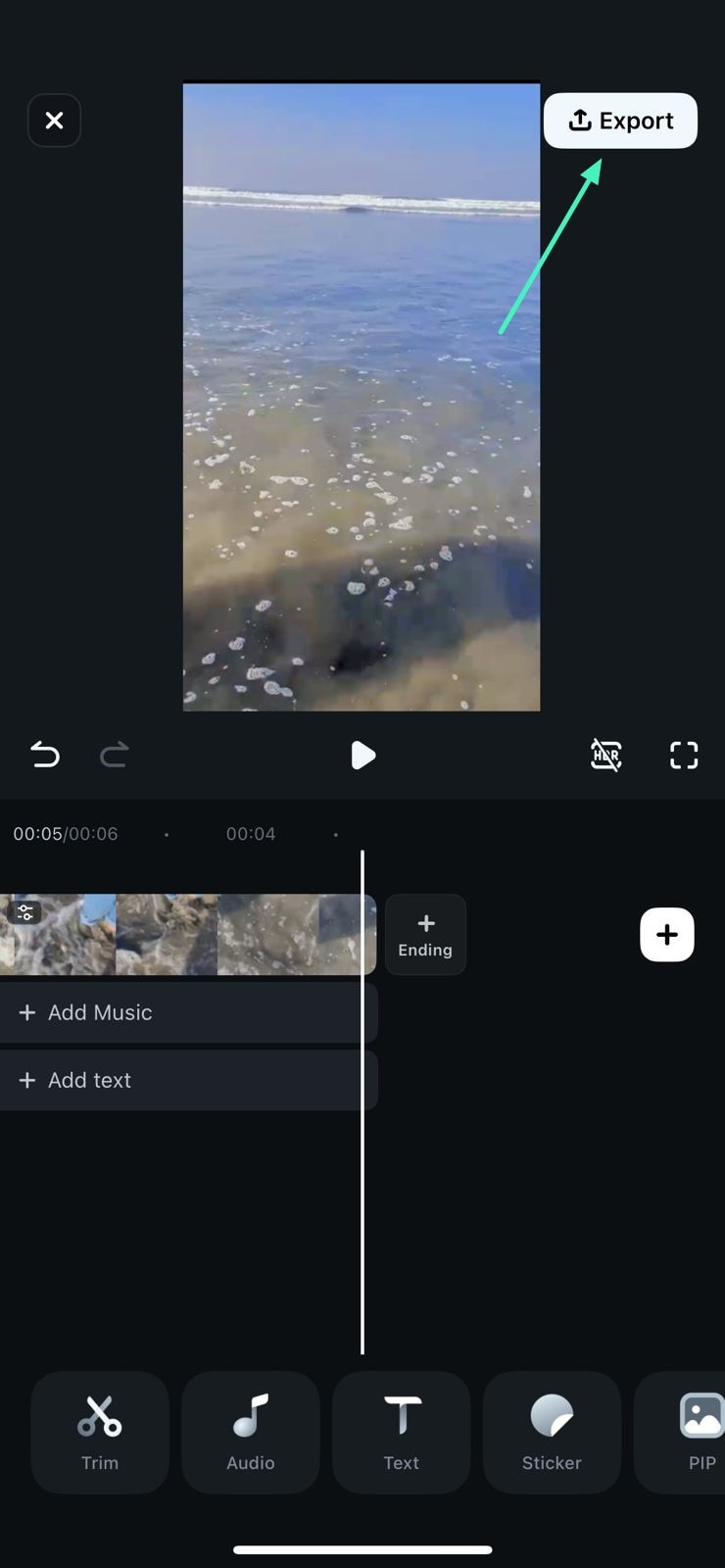
Once you are satisfied with the color correction, head to the top-right corner of the screen and hit the Export option to save the results to your device.
Filmora for Mobile
Edit Videos on Your Mobile Phone with 1-Click!
- • Powerful Brand New AI Features.
- • User-friendly video editing for beginners.
- • Full-featured video editing for professional.
Related Posts
Featured Articles
A Complete Guide on How to Add Texts in DaVinci Resolve
Are you looking for a guide on how to add text to DaVinci Resolve? Or are you looking for an alternative? Or see what suits you the best? We got you!
How to Add Text to Video on iPhone/iPad/Mac to Enhance Video Engagement
Find a complete guide on how to add text to videos on iPhone/iPad/Mac. Use our stepwise guide and tips to enhance your videos with engaging text quickly!
Exploring Color Correction and Color Grading Basics
Do you want to learn the color correction and color grading basics quickly and easily? If so, this article is for you. Find here the guide you're looking for.
Recommended User Guide
Add Effects on Android and iPhone
Adding effects to your videos will impact the viewing experience. If done right, you can increase the quality of your content and become a video editing professional. Luckily, Wondershare Filmora provides numerous effects you can select, depending on your needs and preferences. Check out the guide below to navigate the experience easily.
Add Transitions on Android and iPhone
Adding professional transitions is your ideal solution if you want to switch between videos and make the experience professional. It'll make the viewing journey seamless while turning your content into the best viewing experience. The Wondershare Filmora application provides numerous customizable transitions, and we'll teach you how to add them to your projects in just a few steps.
Add Filters on Android and iPhone
Adding filters to your videos is one of the first editing steps you should take. It'll allow you to transform the look and atmosphere of your recordings, leading to professional results. If you want to enjoy various filters and customize your experience, the Wondershare Filmora app may be your ideal partner. We'll teach you how to access and apply filters in this guide.
