
-
Introduction of Filmora for Mobile
-
Get Started for Mobile
-
AI Features for Mobile
- AI Denoise
- Speech-To-Text
- Text-To-Speech | Filmora App Guide
- AI Captions
- AI Highlight
- Filmora VideoGen Feature Guide
- AI Enhancer | Filmora App Guide
- AI Remover | Filmora App Guide
- AI Auto Cut for Filmora Mobile
- AI Music
- AI Text to Video | Filmora App Guide
- Speaker Detection
- AI Emoji
- AI Beats - Filmora App
- AI Camera
- Edit Speech
- Image to Video for Android and iPhone
- Instant Mode
- AI Audio | Filmora App Guide
- AI Voice Cloning - Filmora App
- AI Voice Changer - Filmora App
- Smart Cutout | Filmora App Guide
-
Recording for Mobile
-
Video Editing for Mobile
- Trim Video
- Duplicate Video | Filmora App Guide
- Spilt Video on Android and iPhone
- Delete Video
- Crop Video
- Replace Video
- Rotate Video
- Reverse Video
- Speed Up Video
- Adjust the Sequence of Clips
- Adjust the Volume of Clips on Android and iPhone
- Adjust the Opacity of Clip | Filmora App Guide
- Adjust the Color of Clips on iPhone and Android
- Add Mask on Android and iPhone
- Add Mosaic on Android and iPhone
- Add Freeze for Android and iPhone
- Green Screen | Filmora App Guide
- Thumbnail Editing | Filmora App Guide
- Track Switching for Android and iPhone
- Color Palette - Filmora App
-
Audio Editing for Mobile
-
Text Editing for Mobile
-
Stickers & Effects & Filters for Mobile
-
Advanced Editing for Mobile
-
Exporting & Cloud Backup for Mobile
Speaker Detection
The Speaker Detection utility in the Filmora App enhances video accessibility by automatically recognizing and distinguishing voices in your videos. Using advanced AI, it identifies users based on their voice, facial positions, and even gender. The feature is enabled in the AI Captions to make the video more inclusive and also supports automatic template matching with respect to the users. Users get the ability to customize the style for each speaker’s captions.
Moreover, you can apply the subtitle templates by sentences or specific speakers to follow a consistency in styling. It comes with varying subtitle binding modes which helps in adjusting the captions’ position singularly, in batches, or by recognizing specific speakers. Read the guide below and learn how to enable the Speaker Detection option on the Filmora App:
Filmora for Mobile
Edit Videos on Your Mobile Phone with 1-Click!
- • Powerful Brand New AI Features.
- • User-friendly video editing for beginners.
- • Full-featured video editing for professional.
 4.5/5 Excellent

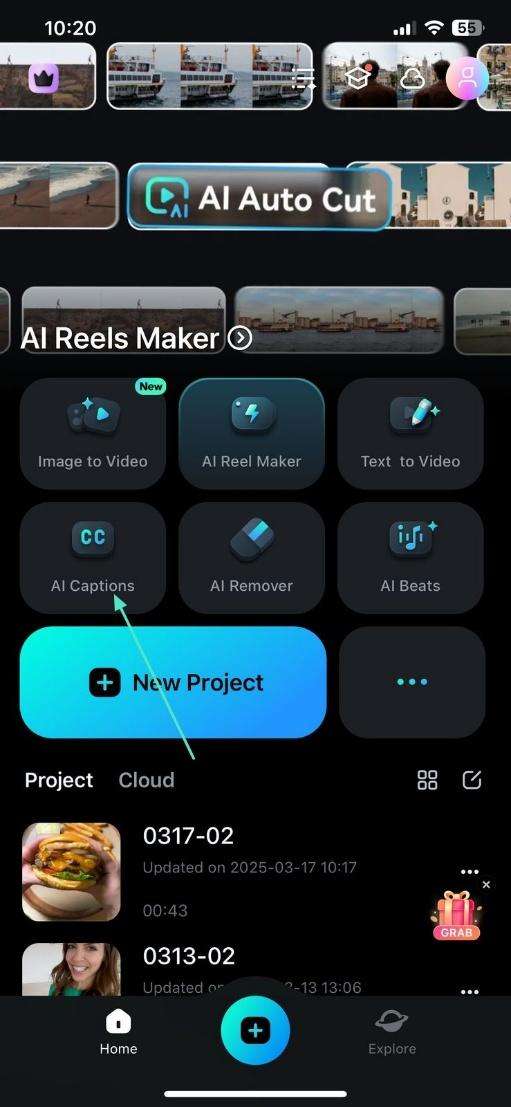
1. To begin the process, tap the AI Captions button from the main interface of the Filmora App to select the desired video from your device.
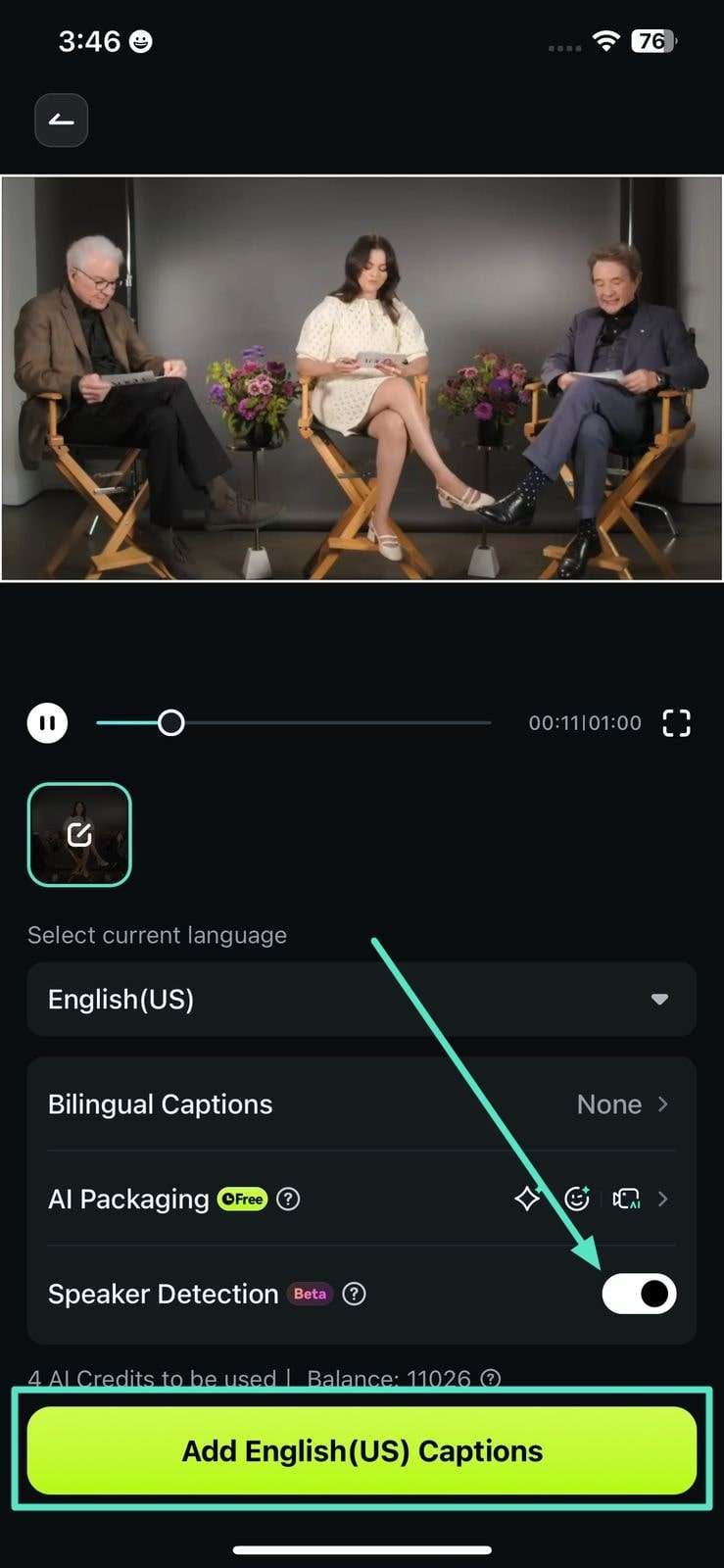
2. Once the video is imported, enable the Speaker Detection button and tap the Add Captions option to begin.
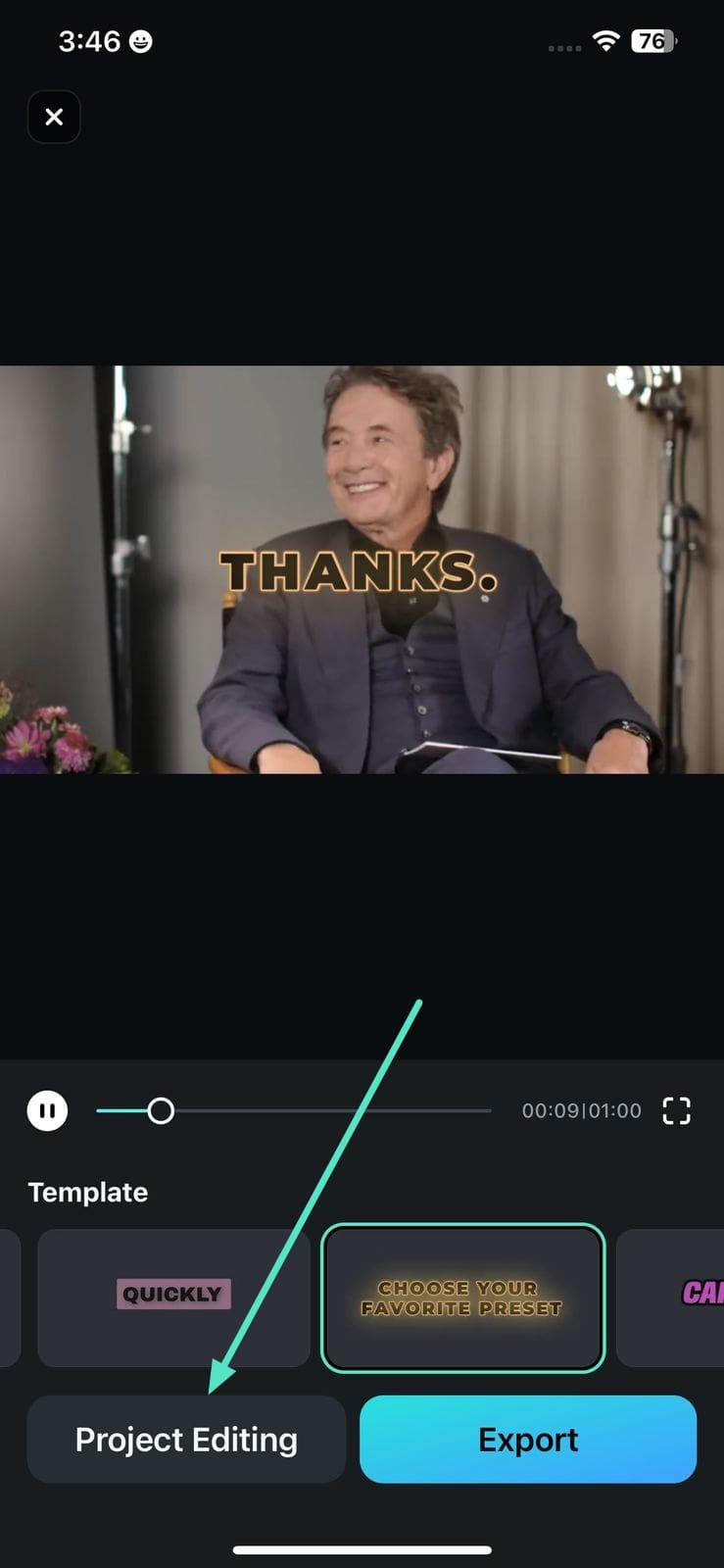
3. Once the captions are generated, select the template and tap Project Editing to enter the video editing interface.
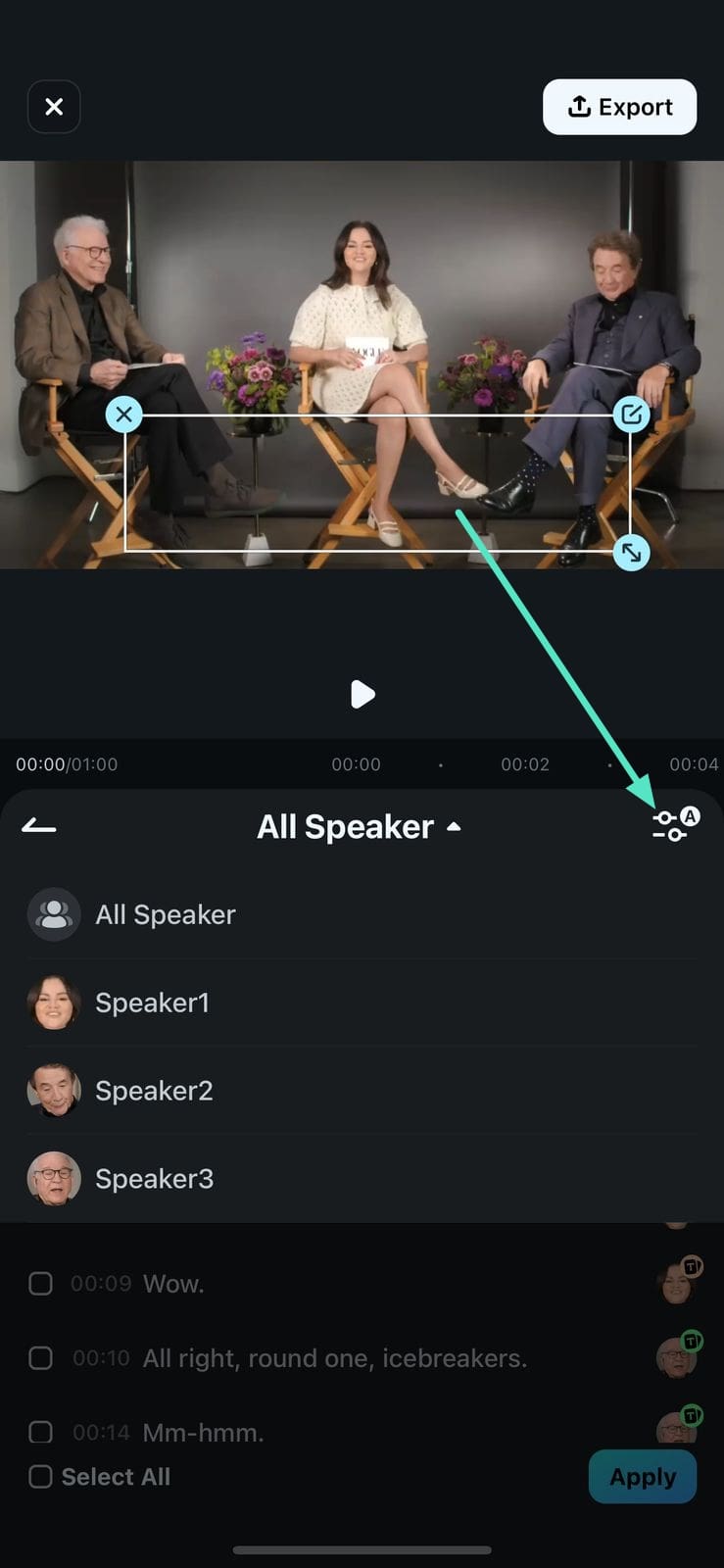
4. In the next interface, double-tap on the caption track and enable the speaker list detected by the application. Next, select a particular speaker from the list and tap on the Settings icon on the right side.
5. After selecting the speaker, choose the layout of the caption from the presets offered by tapping on your desired choice. This will help you in changing the layout of only those captions involving the particular individual.
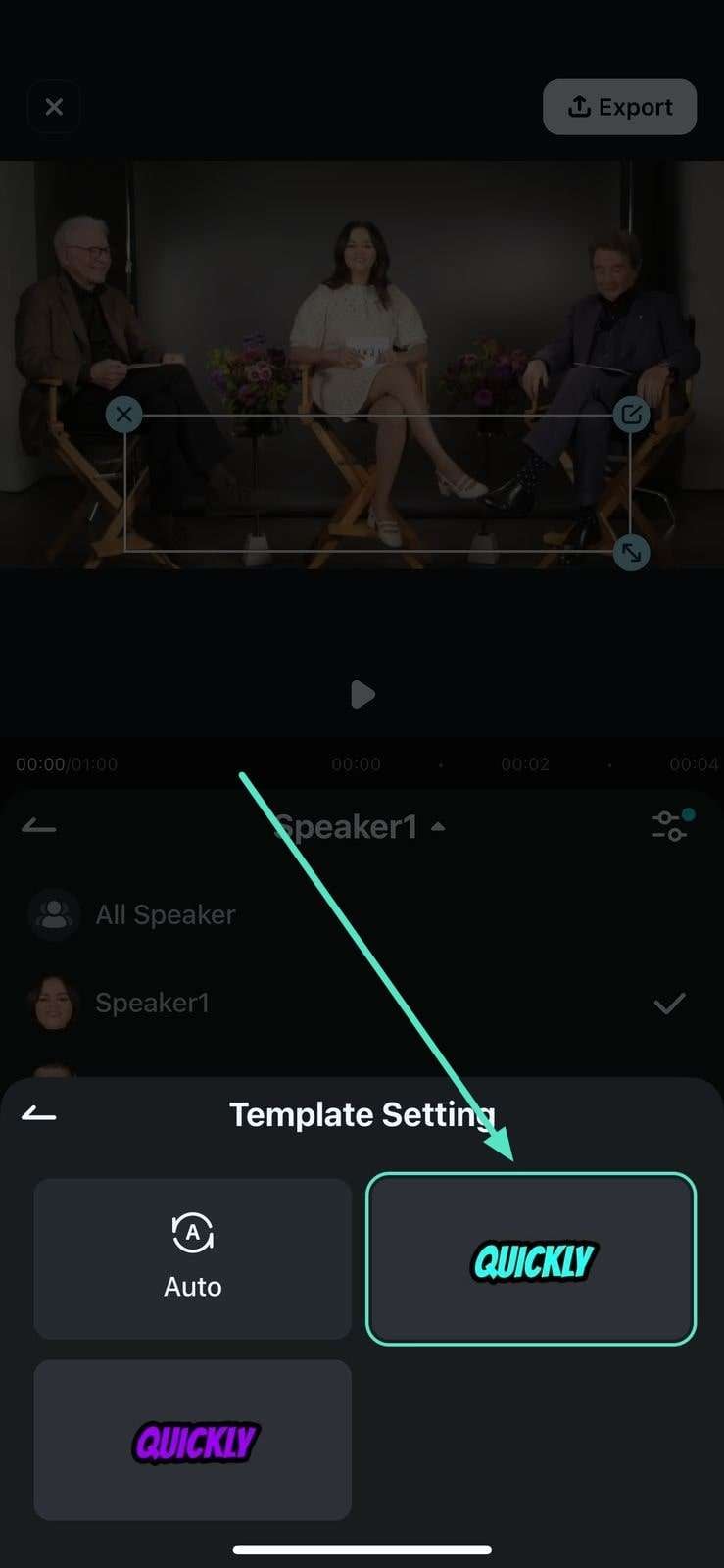
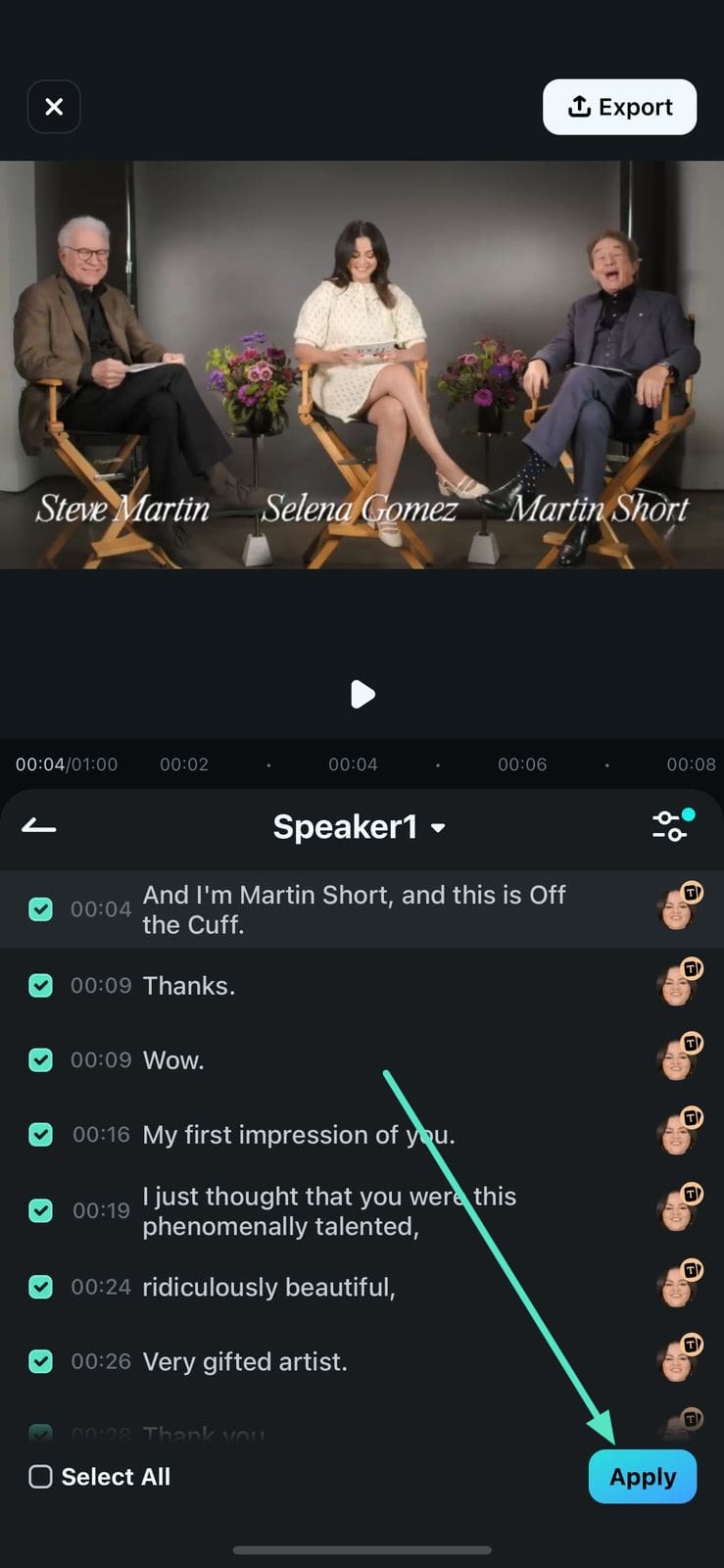
6. Next, choose the specific sentences on which you want to apply the selected template and press the Apply button located at the bottom right corner.
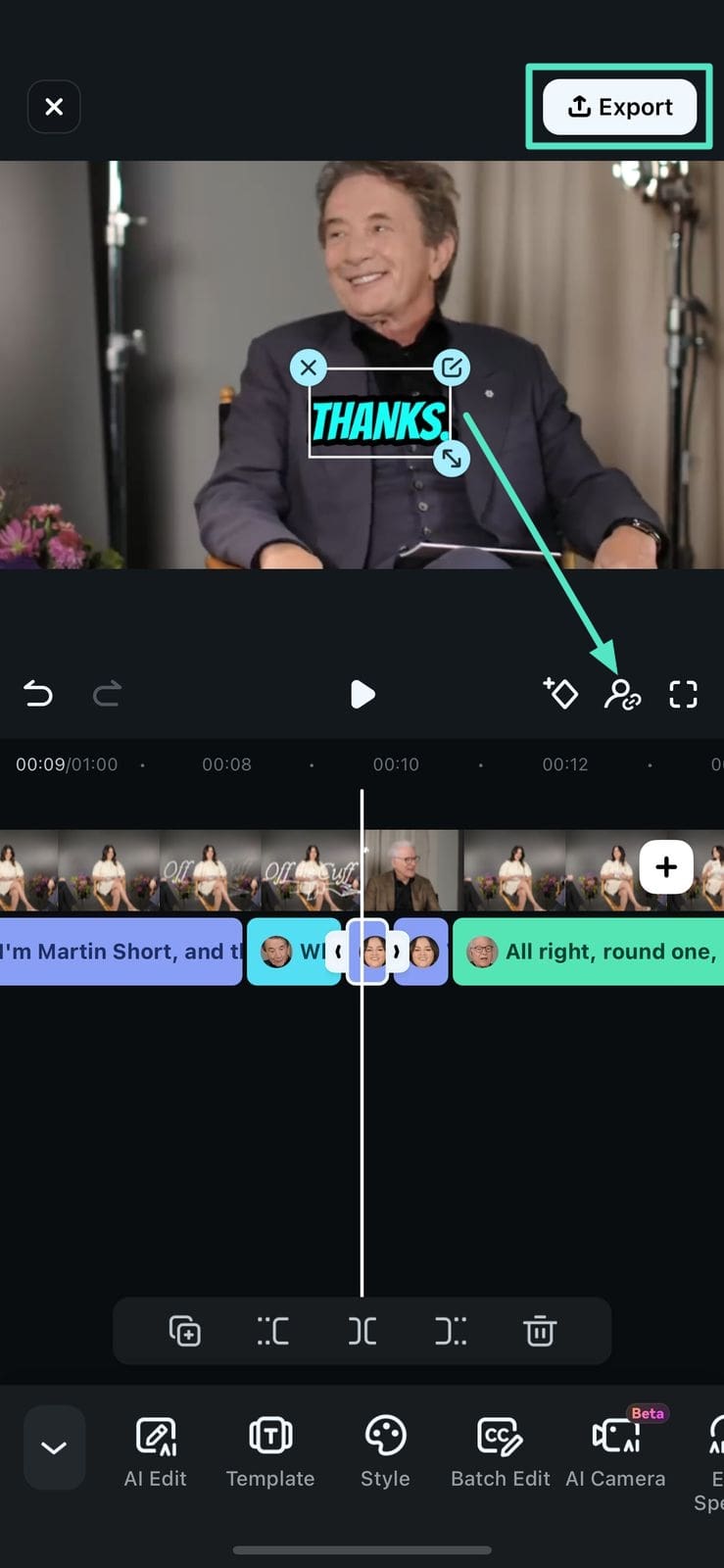
7. Moving forward, reposition all the captions of the selected speaker at once by choosing the required option through the Subtitles Binding icon on the video preview bar. As you reach your desired setting, head to the top-right corner of the interface and press Export to save the video successfully.
Conclusion
Using the Speaker Detection feature, you can generate accurate AI captions. It detects the number of speakers while carefully differentiating among their voices for precision. This speech recognition process is simple and needs no extensive knowledge. So, acquire the Filmora App now and see the wonders that the Speaker Detection feature can do for you.
Related Posts
Featured Articles
Free Pie Chart Video Maker: How to Make an Animated Pie Chart in Videos?
Create animated pie charts for free in your videos. See why they work, what to avoid, and how a new video chart tool makes the process simple.
Screen Recording on HP Laptops – Top Methods to Try
Discover the top methods to record laptop HP screens. Learn all tips, tricks, and tools and unlock the power of your HP laptop today.
Educational Videos for Students: Benefits, Top Picks, and How to Create Effective Content
Discover the benefits of educational videos for students, explore top picks for all grade levels, and learn how to create engaging content for effective learning.
Recommended User Guide
AI Remover | Filmora App Guide
Like its desktop cousin, Filmora for Mobile is packed with AI-powered features, one of which is AI Remover. By harnessing the power of artificial intelligence, Filmora’s AI Remover can remove unwanted objects from anything you throw at it.
AI Camera
Enhance your videos with Filmora's AI Camera, which intelligently adjusts framing based on the speaker’s emotions and key moments. Enjoy smooth speaker detection, dynamic zoom, and customizable animation modes. Learn how to use it now!
AI Voice Changer - Filmora App
Here is the guide on how to master AI Voice Changer on Filmora Mobile.
