
For the Best Results, Use the Latest Version.
-
Preparations
-
Account
-
Get Started & Basic Settings
-
Compatibility & Tech Specs
-
Performance Settings
-
-
Creating Projects
-
Creating New Projects
-
-
Importing & Recording
-
Video Editing for Windows
-
Basic Video Editing
- Enable/Disable Clip in Windows
- Magnetic Timeline for Windows
- Dual Monitor Setup for Video Editing on Windows
- Select All Clips on Timeline for Windows
- Timeline and Track Management
- Auto Ripple for Windows
- Split & Trim Video
- Crop & Pan & Zoom Video in Filmora for Windows
- Compositing
- Change Video Speed on Windows
- Reverse Video for Windows
- Mark In and Mark Out for Windows
- Markers for Windows
- Group editing
- Customizable Backgrounds for Videos and Images in Windows
- Video Snapshot
- Using Freeze Frame in Filmora for Windows
- Logo Reveal For Windows
- Auto Enhance in Filmora for Windows
- Applying drop shadow
- Adjustment layer for Windows
- Apply Transforming for Windows
- Video Editing Ruler – Windows
-
Advanced Video Editing
- Keyframe Motion Blur for Windows
- Drawing Tools for Windows | Filmora Guide
- Camera Tracking for Windows
- Create Multi-Camera Clip in Filmora for Windows
- Compound Clip for Windows
- Multi-Clip Editing for Windows
- Filmora Motion Blur | Windows
- 360° Video Reframing for Windows
- Track Matte for Windows
- Video Chapters in Filmora on Windows
- Filmora Flicker Removal Guide | Windows
- Create Multi-Screen Videos in Filmora on Windows
- Masking in Filmora on Windows
- Creating a PIP Effect for Windows
- Keyframe Graph Editor for Windows
- Animation Keyframing for Windows
- Keyframe Path Curve
-
AI-Powered Video Editing
- Smart Scene Cut for Windows
- Smart Short Clips for Windows
- AI Face Mosaic for Windows
- Filmora AI Eye Contact- Windows
- AI Video Enhancer for Windows
- AI Text-to-Video for Windows
- Planar Tracking for Windows
- AI Idea to Video for Windows
- AI Media Analysis for Windows
- Filmora Image to Video for Windows
- Filmora Image to Prompt for Windows
- Instant Cutter Tool for Windows
- AI Extend
- Filmora AI Relight - Windows
- Filmora AI Image Enhancer Guide - Windows
- AI Script to Video Guide for Windows
- AI Text-Based Editing for Windows
- AI Mate Editing for Windows
- Instant Mode for Windows
- ChatGPT Plugin - AI Copywriting
- AI Smart Cutout for Windows
- Lens correction on Windows
- Auto Reframe Video for Windows
- AI Portrait Cutout
- Scene Detection for Windows
- AI Smart Masking for Windows
- Motion Tracking on Windows
- Video Stabilization for Windows
- AI Video/Photo Object Remover for Windows
- AI Smart Search for Windows
- AI Skin Tone Protection for Windows
- AI Image for Windows
- Chroma Key (Green Screen) for Windows
- Super Slow Motion with Optical Flow for Windows
- Video Denoise for Windows
-
-
Audio Editing for Windows
-
Basic Audio Editing
-
Advanced Audio Editing
-
AI-Powered Audio Editing
- Auto synchronization
- AI Sound Effects in Filmora for Windows
- Smart BGM Generation on Windows
- AI Voice Enhancer in Filmora
- AI Voice Cloning in Wondershare Filmora
- AI Music Generator for Windows
- Audio To Video
- AI Vocal Remover for Windows
- AI Auto Beat Sync for Windows
- AI Audio Stretch for Windows
- AI Audio Denoise for Windows
- Silence Detection on Windows
-
-
Text Editing for Windows
-
Basic Text Editing
-
Advanced Text Editing
-
AI-Powered Text Editing
-
-
Video Customizations
-
Video Effects
- Filmora VST3 Plugins for Windows
- Filmora OpenFX Plugins for Windows
- Retouch Guide for Windows
- Filmora Pen Tool Tutorial: Motion Paths & Animation Guide
- Animated Charts
- Mocha Filmora - For Windows
- Different Types of Video Effects
- NewBlue FX effects
- Boris FX effects | Filmora Windows Guide
- Body Effects for Windows
- Filmora -Filmstock Asset
-
Audio Effects
-
Transitions
-
Stickers
-
Filters
-
Color Editing
-
Animations
-
Templates
-
Asset Center
-
-
Exporting & Share & Cloud Backup
Add and Modify Audio on Windows
This feature allows users to import audio files and customize them for better sound quality. You can adjust volume, trim clips, apply effects, and sync audio with video easily. It helps create balanced, professional audio output for videos, making content more engaging and polished.
Steps to Add and Modify Audio in Filmora
As discussed, Filmora allows you to insert and modify audio files without any effort. Here is how you can add and modify audio:
Index
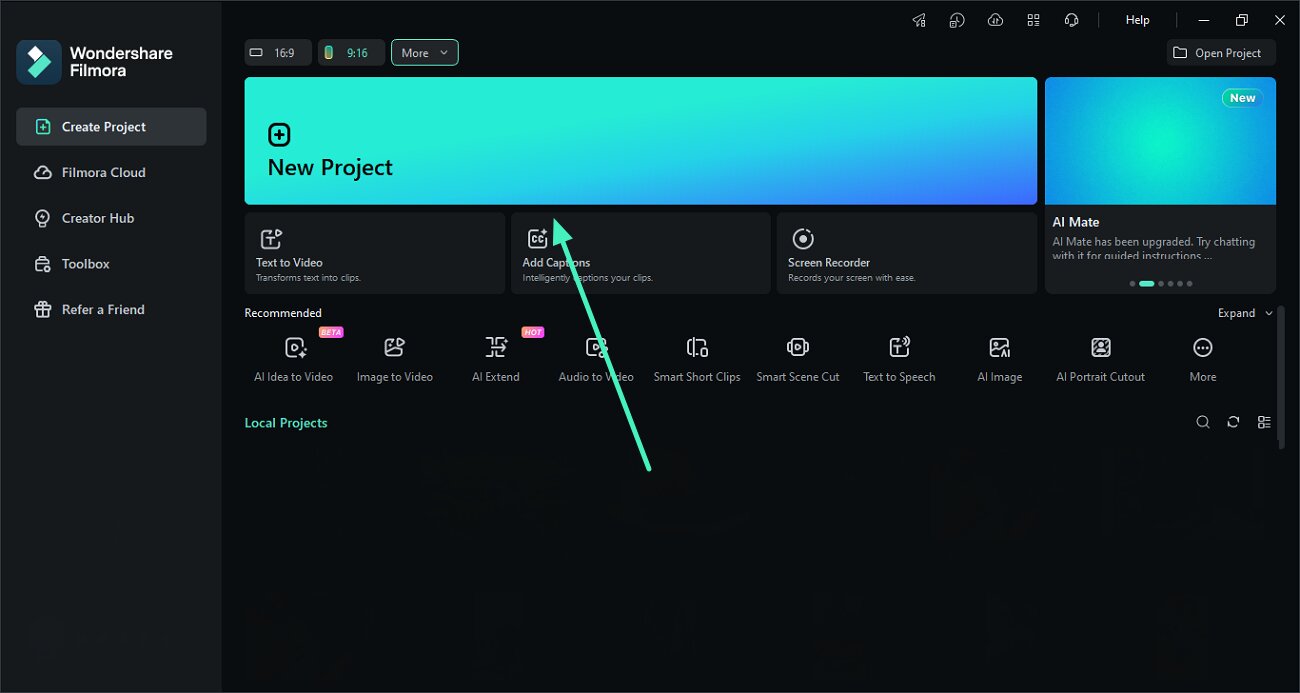
Step 1. Create a Project on Filmora
Start by launching Filmora and clicking New Project to enter the workspace.
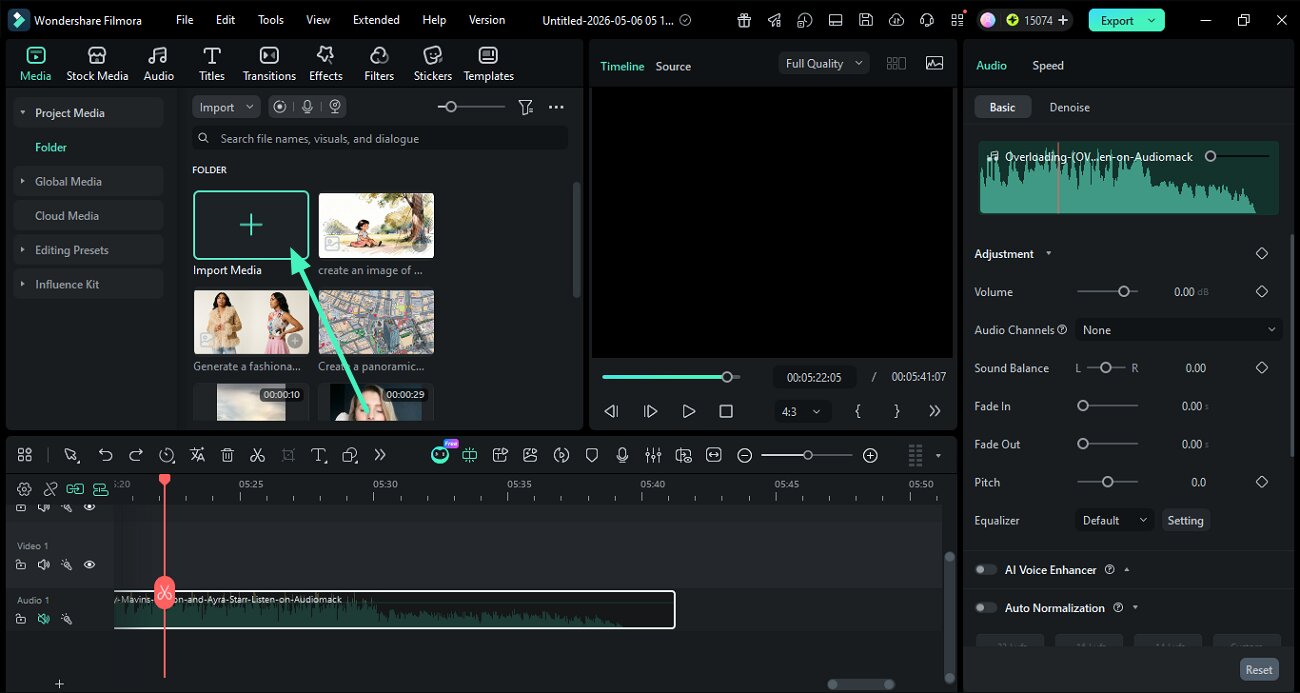
Step 2. Add Audio to Timeline
Click Import Media to browse audio files from your computer or simply drag and drop them into the media library. Once imported, drag the audio file from the media library and drop it onto the timeline to begin editing.
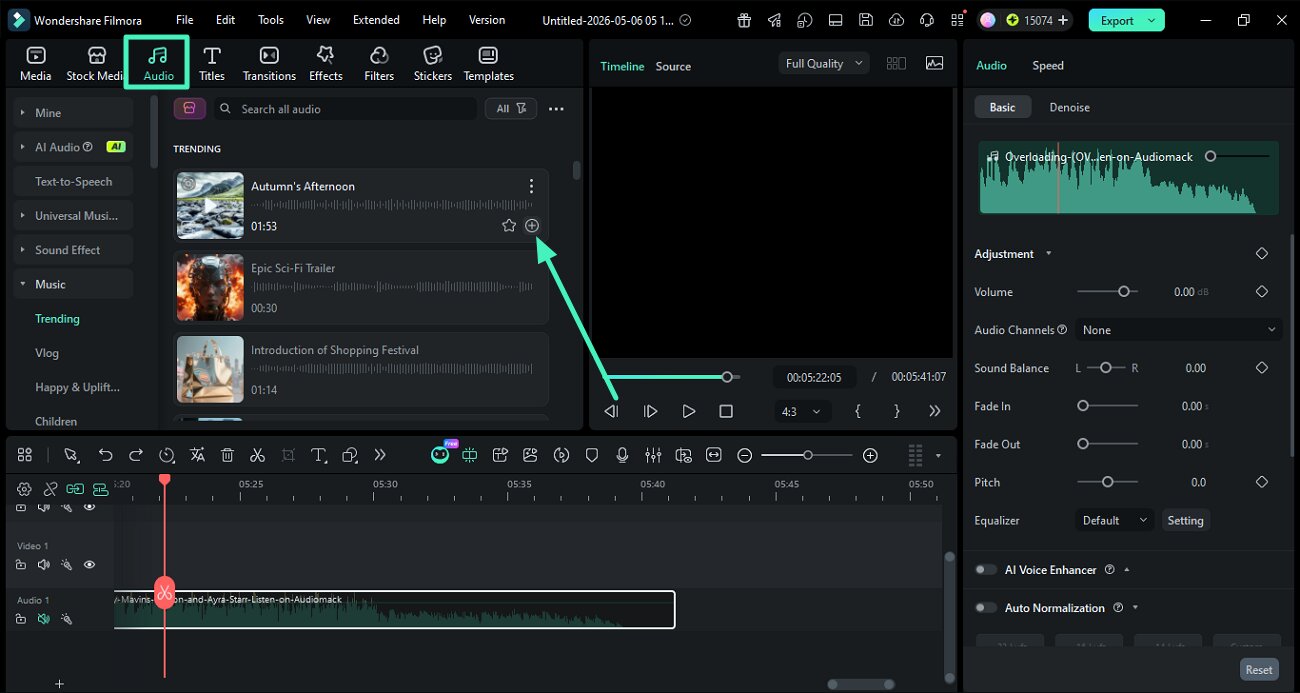
Add Audio from Filmora Library
Go to the Audio section from the menubar and explore categories like music tracks and sound effects available within Filmora. Select a track, and either press the + icon to apply it or drag and drop it directly onto the timeline.
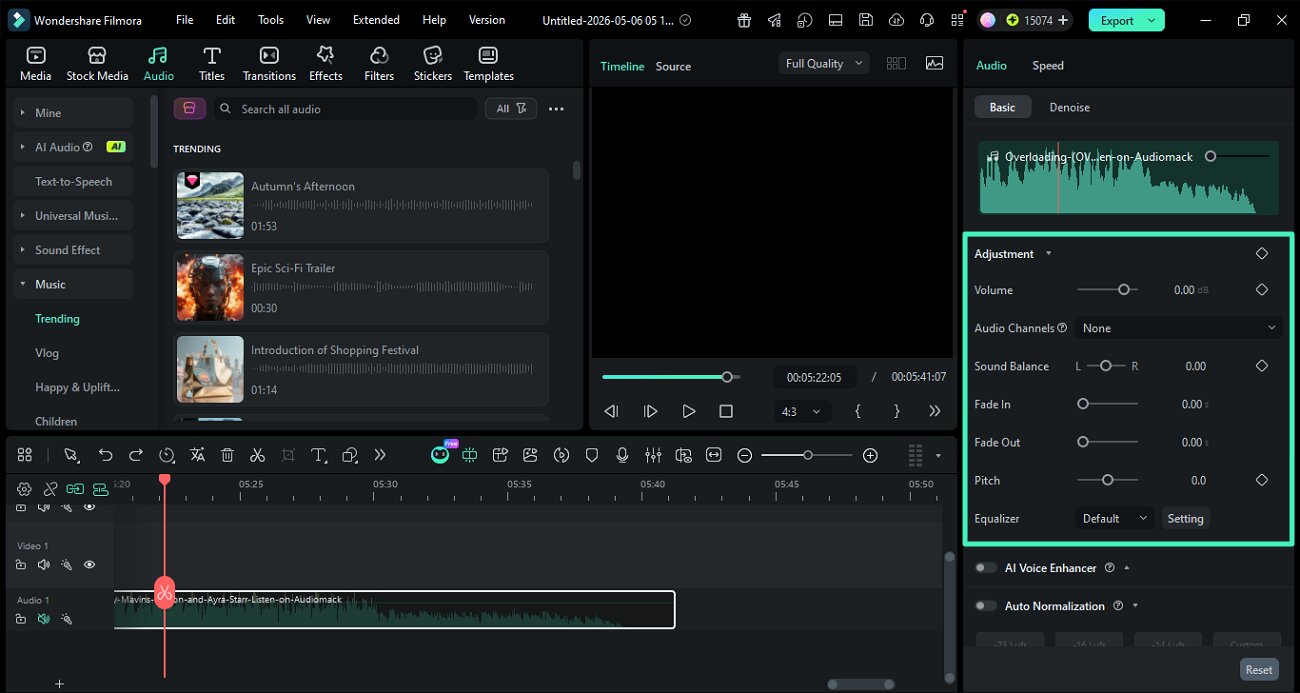
Adjust Audio Settings
Double-click the audio clip in the timeline to access the editing panel on the right, where you can modify sound properties. Adjust settings like volume, pitch, balance, and apply fade-in or fade-out effects. You can achieve high definition volume by changing the Equalizer settings.
Remove Audio
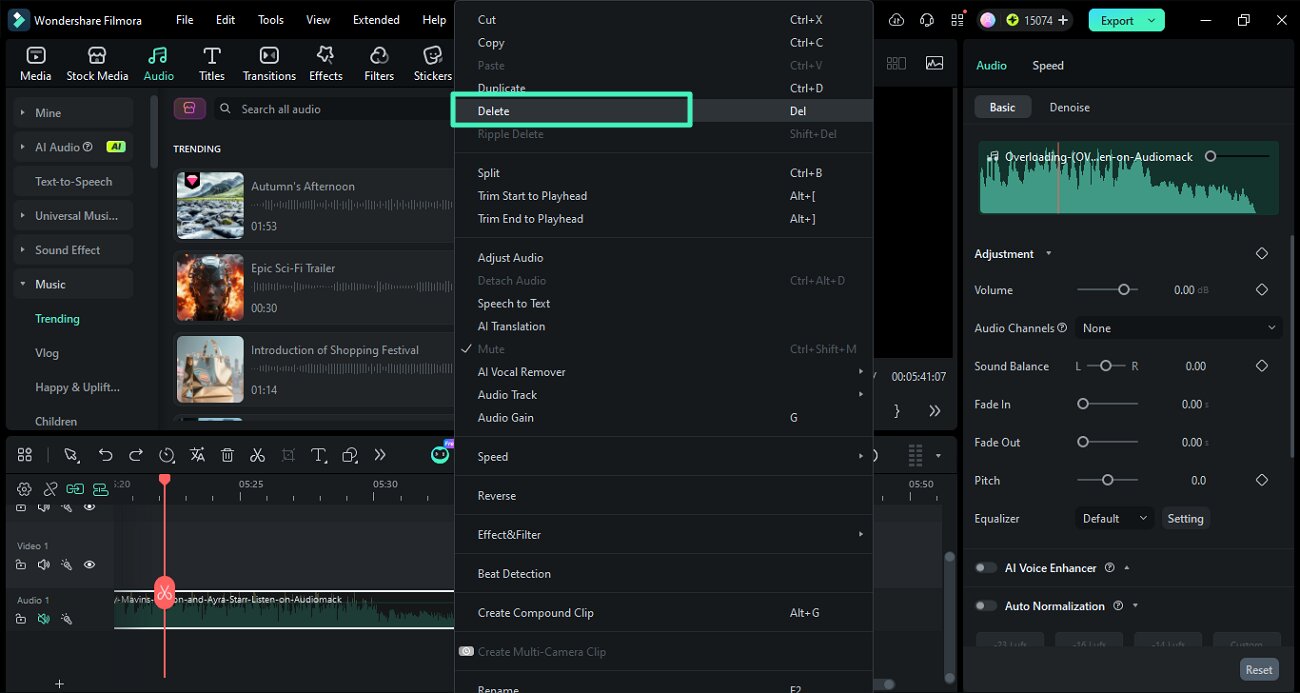
Select the audio track in the timeline and press the Delete key or right-click and choose Delete to remove it.
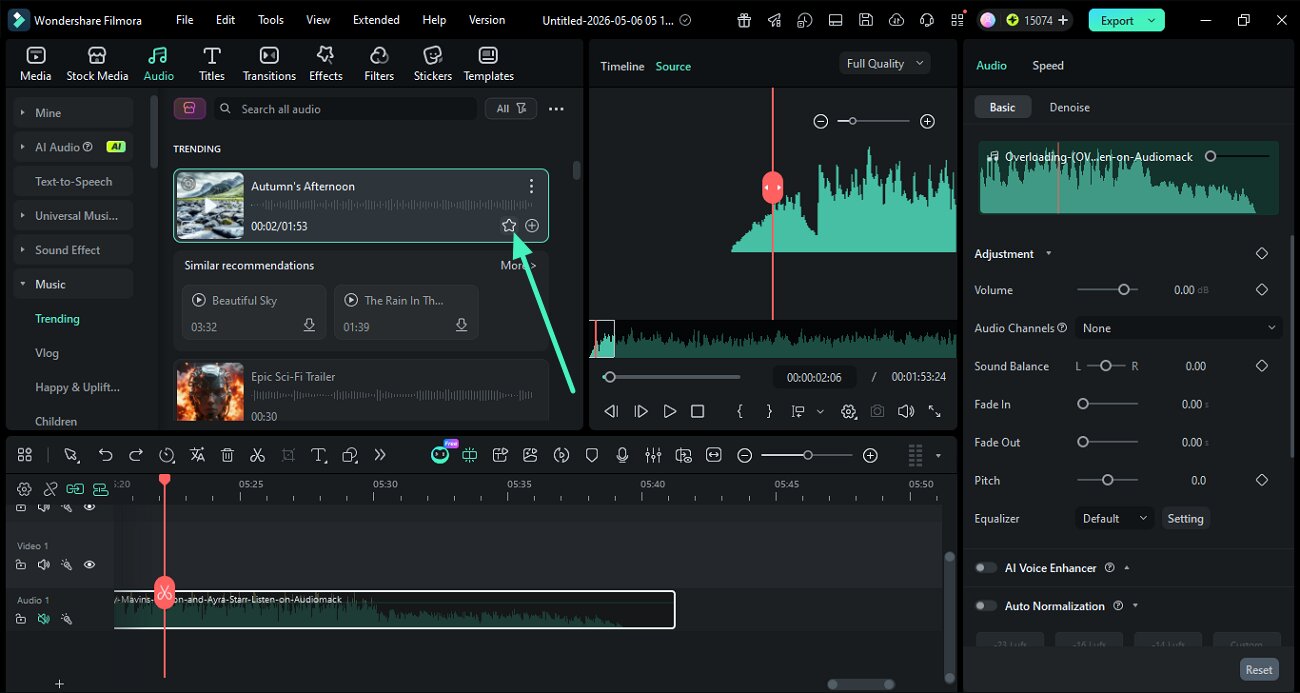
Add to Favorites
Right-click on any audio in the library and select the Star icon to save it for quick access.
Related Posts
Featured Articles
How to Apply the Nose Piercing Filter to Photos?
Learn how to try on nose ring filters using a Reference to Video feature, and explore nose piercing filters on Snapchat and Instagram.
How to Remove Audio From iPhone Videos – A Detailed Guide
Discover the best editing tools, free apps, and online services for removing audio from iPhone videos. Read our guide to learn six effortless ways to do it.
How to Add Music to Animated GIFs - Most Effective Ways
Want to add music to your GIFs and make them even more engaging? This guide provides easy-to-follow tutorials on how to add music to GIFs using desktop software and online tools.
Recommended User Guide
Add Audio Guide for Windows
This is a guide on adjusting audio in Filmora.
Detach Audio for Windows
This is a guide teaching you to detach audio in Filmora.
Trim/Split/Cut Audio on Windows
Learn how to trim audio in Filmora.
