
For the Best Results, Use the Latest Version.
-
Preparations
-
Account
-
Get Started & Basic Settings
-
Compatibility & Tech Specs
-
Performance Settings
-
-
Creating Projects
-
Creating New Projects
-
-
Importing & Recording
-
Video Editing for Windows
-
Basic Video Editing
- Enable/Disable Clip in Windows
- Magnetic Timeline for Windows
- Dual Monitor Setup for Video Editing on Windows
- Select All Clips on Timeline for Windows
- Timeline and Track Management
- Auto Ripple for Windows
- Split & Trim Video
- Crop & Pan & Zoom Video in Filmora for Windows
- Compositing
- Change Video Speed on Windows
- Reverse Video for Windows
- Mark In and Mark Out for Windows
- Markers for Windows
- Group editing
- Customizable Backgrounds for Videos and Images in Windows
- Video Snapshot
- Using Freeze Frame in Filmora for Windows
- Logo Reveal For Windows
- Auto Enhance in Filmora for Windows
- Applying drop shadow
- Adjustment layer for Windows
- Apply Transforming for Windows
- Video Editing Ruler – Windows
-
Advanced Video Editing
- Keyframe Motion Blur for Windows
- Drawing Tools for Windows | Filmora Guide
- Camera Tracking for Windows
- Create Multi-Camera Clip in Filmora for Windows
- Compound Clip for Windows
- Multi-Clip Editing for Windows
- Filmora Motion Blur | Windows
- 360° Video Reframing for Windows
- Track Matte for Windows
- Video Chapters in Filmora on Windows
- Filmora Flicker Removal Guide | Windows
- Create Multi-Screen Videos in Filmora on Windows
- Masking in Filmora on Windows
- Creating a PIP Effect for Windows
- Keyframe Graph Editor for Windows
- Animation Keyframing for Windows
- Keyframe Path Curve
-
AI-Powered Video Editing
- Smart Scene Cut for Windows
- Smart Short Clips for Windows
- AI Face Mosaic for Windows
- Filmora AI Eye Contact- Windows
- AI Video Enhancer for Windows
- AI Text-to-Video for Windows
- Planar Tracking for Windows
- AI Idea to Video for Windows
- AI Media Analysis for Windows
- Filmora Image to Video for Windows
- Filmora Image to Prompt for Windows
- Instant Cutter Tool for Windows
- AI Extend
- Filmora AI Relight - Windows
- Filmora AI Image Enhancer Guide - Windows
- AI Script to Video Guide for Windows
- AI Text-Based Editing for Windows
- AI Mate Editing for Windows
- Instant Mode for Windows
- ChatGPT Plugin - AI Copywriting
- AI Smart Cutout for Windows
- Lens correction on Windows
- Auto Reframe Video for Windows
- AI Portrait Cutout
- Scene Detection for Windows
- AI Smart Masking for Windows
- Motion Tracking on Windows
- Video Stabilization for Windows
- AI Video/Photo Object Remover for Windows
- AI Smart Search for Windows
- AI Skin Tone Protection for Windows
- AI Image for Windows
- Chroma Key (Green Screen) for Windows
- Super Slow Motion with Optical Flow for Windows
- Video Denoise for Windows
-
-
Audio Editing for Windows
-
Basic Audio Editing
-
Advanced Audio Editing
-
AI-Powered Audio Editing
- Auto synchronization
- AI Sound Effects in Filmora for Windows
- Smart BGM Generation on Windows
- AI Voice Enhancer in Filmora
- AI Voice Cloning in Wondershare Filmora
- AI Music Generator for Windows
- Audio To Video
- AI Vocal Remover for Windows
- AI Auto Beat Sync for Windows
- AI Audio Stretch for Windows
- AI Audio Denoise for Windows
- Silence Detection on Windows
-
-
Text Editing for Windows
-
Basic Text Editing
-
Advanced Text Editing
-
AI-Powered Text Editing
-
-
Video Customizations
-
Video Effects
- Filmora VST3 Plugins for Windows
- Filmora OpenFX Plugins for Windows
- Retouch Guide for Windows
- Filmora Pen Tool Tutorial: Motion Paths & Animation Guide
- Animated Charts
- Mocha Filmora - For Windows
- Different Types of Video Effects
- NewBlue FX effects
- Boris FX effects | Filmora Windows Guide
- Body Effects for Windows
- Filmora -Filmstock Asset
-
Audio Effects
-
Transitions
-
Stickers
-
Filters
-
Color Editing
-
Animations
-
Templates
-
Asset Center
-
-
Exporting & Share & Cloud Backup
Color Mask in Filmora (Windows)
Color Mask in Filmora lets you apply color adjustments to specific parts of a video instead of changing the whole frame. It works with grading layers and mask shapes, giving you more control over where edits such as tonal, color, and curve adjustments appear in the footage.
Apply a Color Mask in Filmora
Start with the clip you want to edit, then isolate the required color and refine the selection using the available controls:
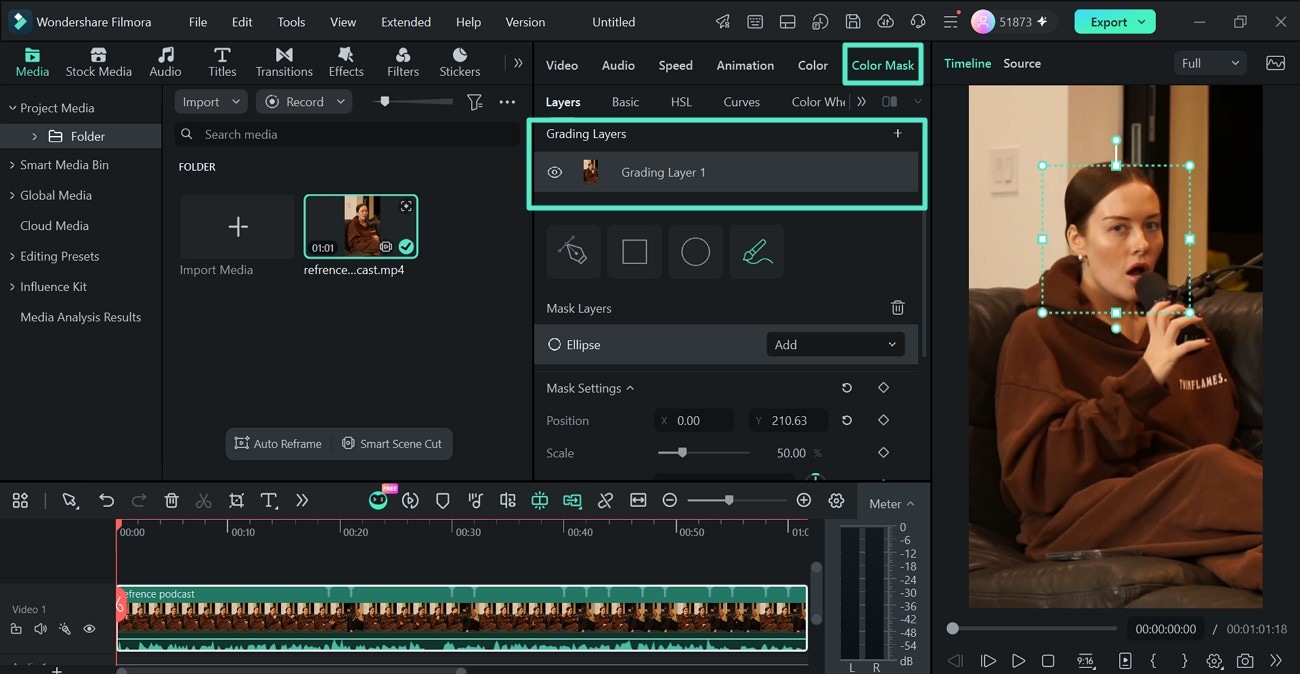
Step 1. Add a Grading Layer
Select the video clip on the Timeline and open the Color Mask tab. Under Layers, click Add Grading Layer to create a separate layer for the color adjustments you want to apply.
Step 2. Adjust the Color Settings
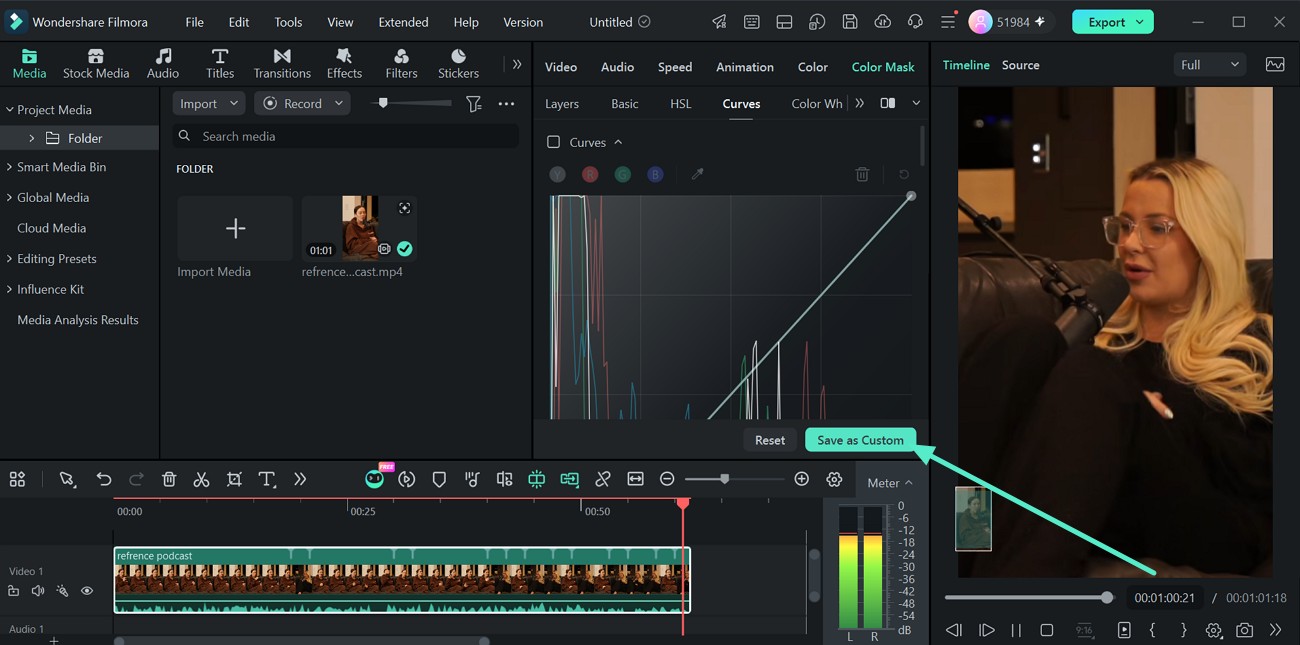
Open the Curves section under Color Mask and adjust the curve to change the tonal or color values of the grading layer. You can work with the available color channels as needed. Once the adjustment is ready, click Save as Custom if you want to reuse the same curve settings later.
Step 3. Add and Refine a Mask
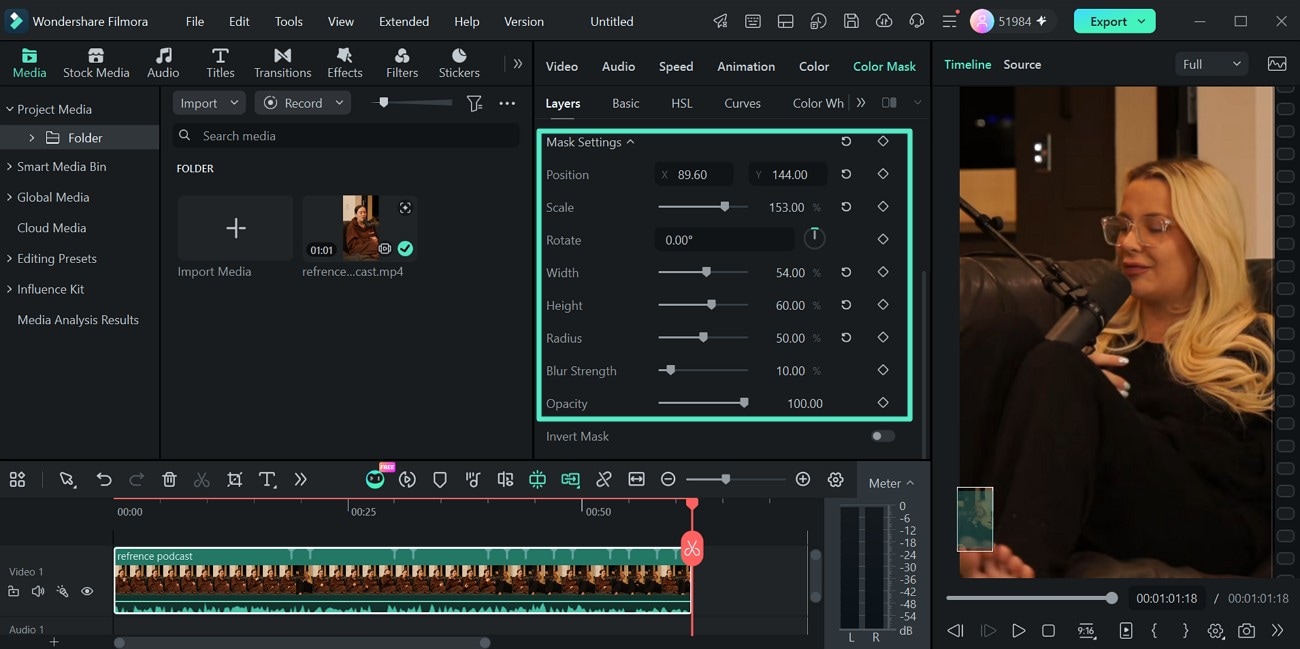
Return to Layers and choose a mask type, such as Rectangle, Circle, or the available custom drawing option. Under Mask Settings, adjust Position, Scale, Rotate, Width, Height, Radius, Blur Strength, and Opacity to control where the grading effect appears. Use Invert Mask if you want the adjustment applied outside the selected area.
Step 4. Preview and Export the Result
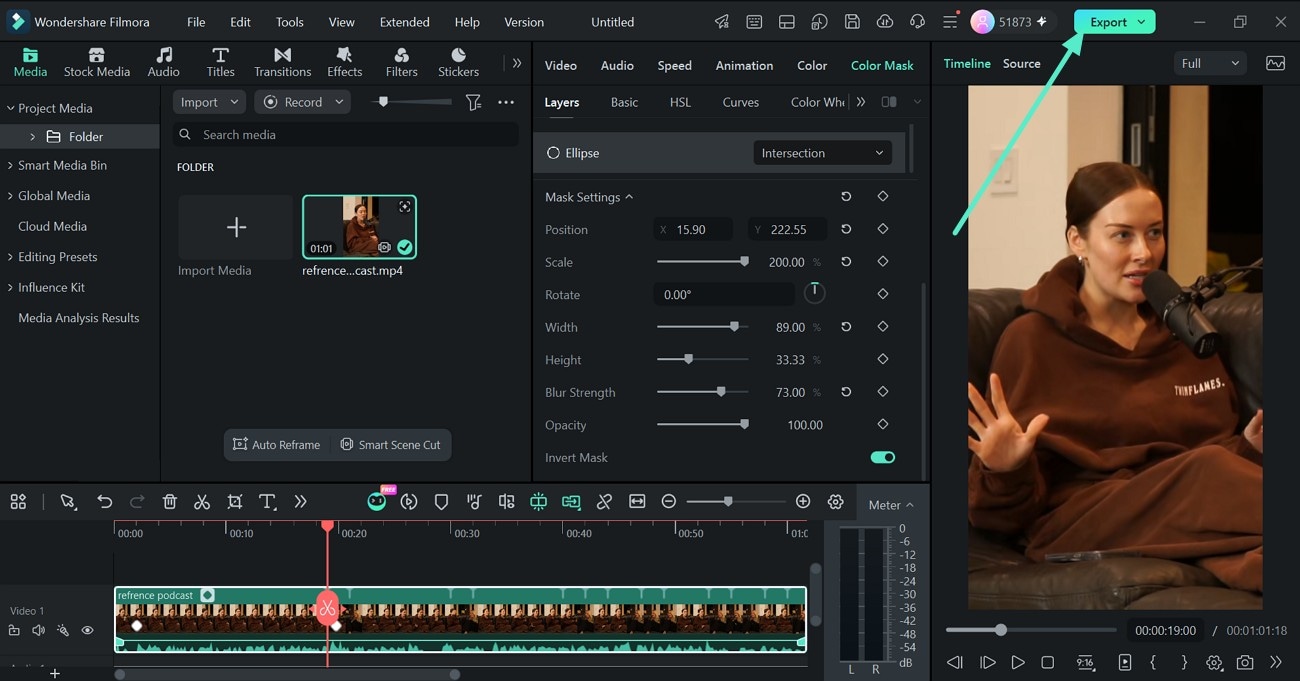
Play the video to check how the masked color adjustment looks throughout the clip. Refine the grading or mask settings if necessary. When the result is ready, click Export to save the edited video.
Related Posts
Featured Articles
Top 6 Facebook Reel Makers | Fast with AI
Explore the best Facebook reel creators to enhance your content. Filmora's Facebook Reel Creator helps you create engaging and professional-looking Facebook Reels for free.
Create a Pinterest Slideshow Now - Everything You Need
Find out the expert tips about Pinterest slideshows. We'll show you how to create Carousel Pinterest with images and a Pinterest slideshow of videos.
VideoPad Video Editor Review: Features, Pricing, and Top Alternative
Explore VideoPad editing software's features, pros, and cons, and discover a better choice for video editing enthusiasts.
Recommended User Guide
Pro Video Scopes
Video Scopes is like a track of color elements during color correction and enhancement, and Filmora's new upgrades include pro video scopes for a professional editing experience.
Color Comparison View
While maintaining your content's integrity, Filmora offers dedicated color comparison functionality for clip editing.
Advanced Color Adjustment | Windows
Amongst Filmora's many features for color correcting and adjustment.
